 Avg. 5 min read
 Audience example: Using Audience with Mailchimp
Audience turns customer activity into actionable segments you can target. This guide shows how to export permissioned emails from a Hello Retail Audience, import them into Mailchimp, and send a campaign tailored to that Audience.
Download the list of emails
Let's assume you have already created an Audience — if not, see the guide here. Within the Audience, you have defined Segments that produce a list of customers matching your criteria. The list includes email addresses for customers who have given you permission to receive promotional material. Read more about permissions here.
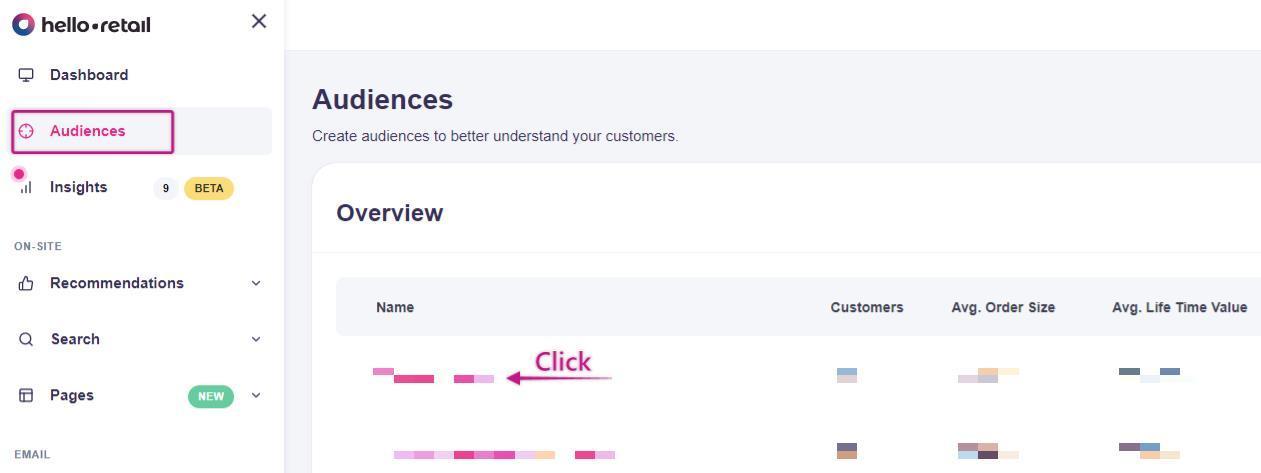
To download the list of emails, locate the Audience you want to reach. Log into your Hello Retail account -> click Audience -> click the Name of the Audience.
You are now presented with the insights for this Audience. At the top of the page, you can see the total number of customers and how many you are allowed to contact. For details on improving permission rates, see this guide.

At the bottom, you find Customers. This table lists customers in the Audience with key details, including email. Customers listed as Anonymous have not granted permission; their emails are masked. Click Download emails to download a CSV file containing only emails with permission. Permission status is sourced from Hello Retail data, so keep your permission data synchronized with Hello Retail to ensure accuracy. Read more about synchronizing permissions with Mailchimp here and for other platforms here.
Upload customer emails to Mailchimp
You might already know how to upload lists in Mailchimp, but here is the exact flow for this use case.
Log into your Mailchimp account and go to Audience -> All contacts -> Add contacts -> Import contacts.

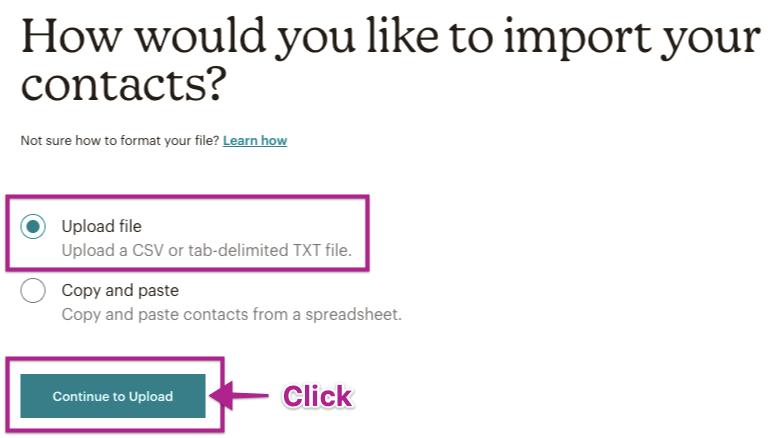
Choose Upload file, and select the CSV you downloaded from Hello Retail. Click Continue to Upload.
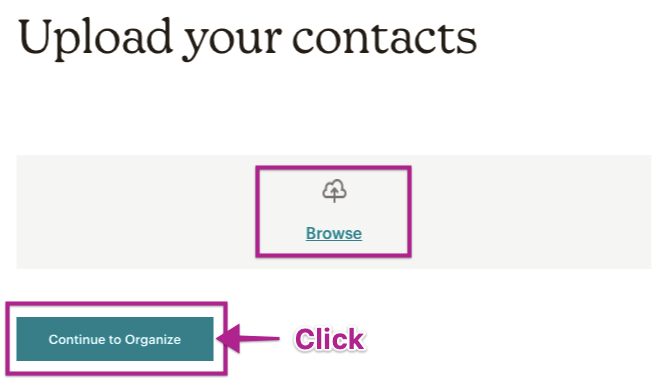
On the next page, click Browse and locate the CSV file you downloaded from Hello Retail. Click Continue to Organize.
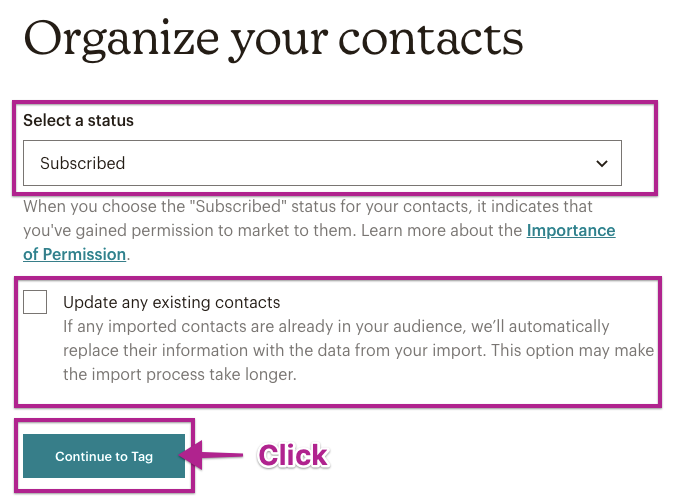
Under Organize, set the status of the imported customers. Because this list only contains permissioned contacts, select Subscribed. Leave Update any existing contacts unchecked since you are not updating profile data, only adding a targeted subset of existing emails. Click Continue to Tag.
On the next page, assign a tag to the imported list. Use a name related to the Audience in Hello Retail so you can find the group easily later.
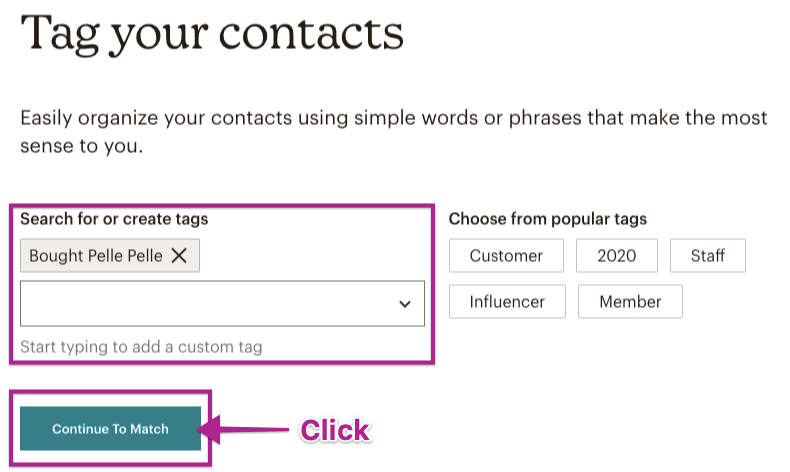
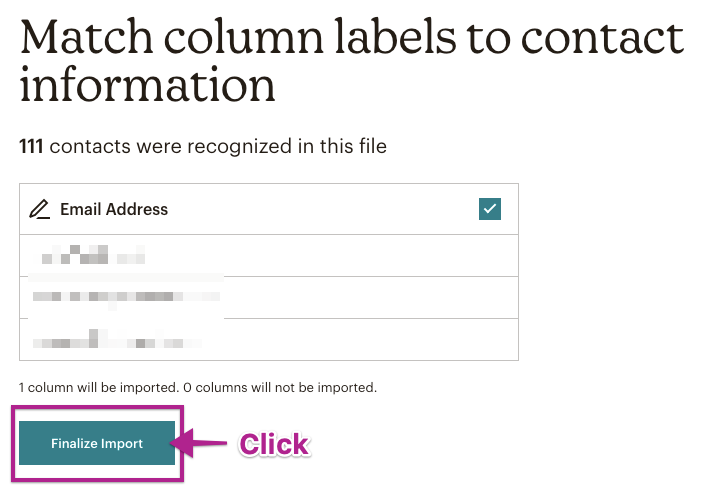
Mailchimp shows a preview of what will be uploaded and the field mapping. Mailchimp automatically recognizes the data as email addresses. Click Finalize Import.
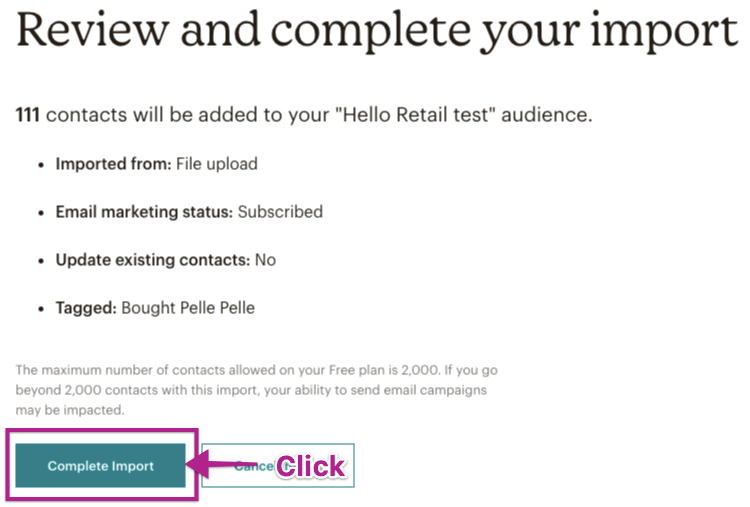
Review the import and click Complete Import.
Create a campaign directed at the Audience
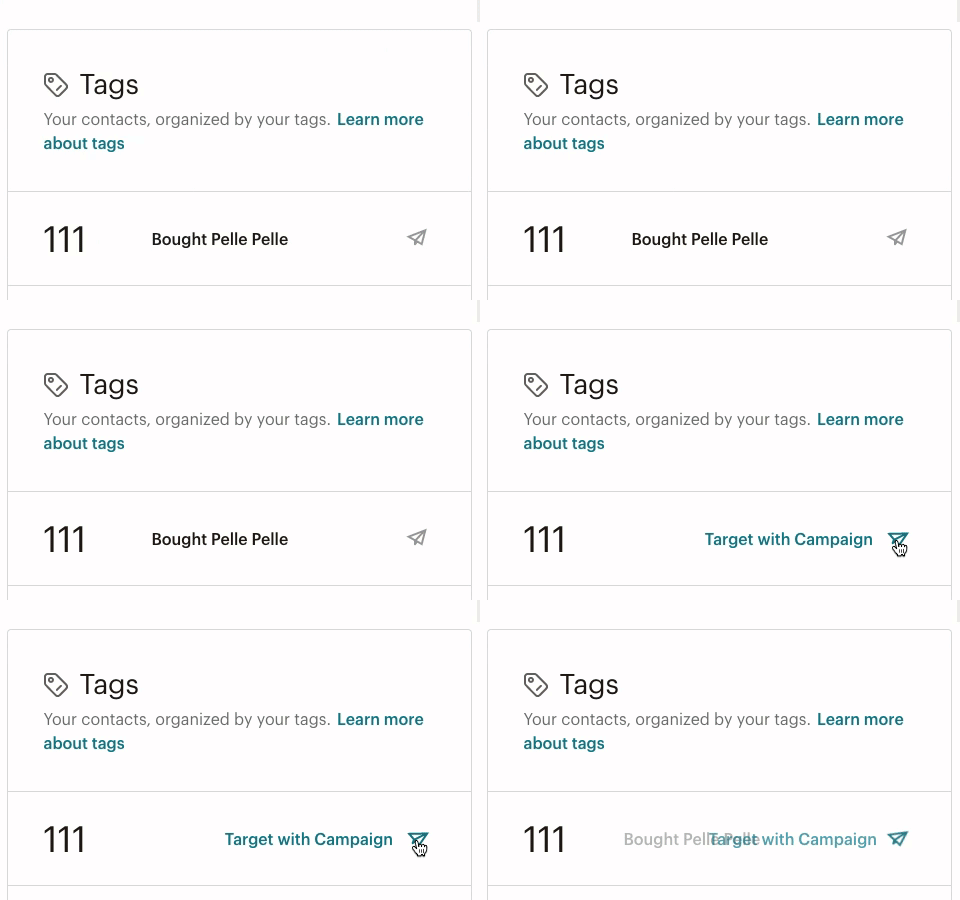
Your Mailchimp account now contains a tagged group of customers that match the Audience criteria. Find the customers in Mailchimp under Audience and Tags. Click the paper plane icon to create a campaign for the tagged group.
From here, create the campaign content relevant to the Audience. You can also use the "Top Brands" section under Audience Insights in your Hello Retail account to identify additional brands this group is interested in.
Include Newsletter Content campaign
Hello Retail provides tools for inserting products into newsletters, namely Newsletter Content. Use it to include specific products you want to promote, as well as retargeted products based on each recipient’s interests.
A fitting Newsletter Content campaign type is the Manual campaign. It lets you build a one-time campaign with content aligned to the Audience’s interests.