 Avg. 4 min read
 Facebook Integration for Audience
In this guide, you can read and learn about how to set up integration with Facebook for Audience.
In this guide, we assume that you have already created at least one Audience and have familiarised yourself with Audience Insight.
Furthermore, we also assume that you know how to use the synchronized Audience on the Facebook platform. This guide only covers how to connect Hello Retail to Facebook.
Combining Facebook with Hello Retail's Audience
Facebook is a great tool for targeted ads, but combining it with Hello Retail's Audience feature will further enhance your marketing options.
With Audience, you can single out specific customer groups from historical customer data on Hello Retail's servers. With the Facebook integration, you can reach these or similar customers directly in their Facebook feeds.
The purpose of this guide is to enable you to synchronize Audience with Facebook so that the customers are available for your Facebook marketing.
The Facebook advertising and business tools are powerful but can be complex for new users. Facebook provides extensive documentation on how to use their tools, so consider reviewing their resources as well.
To fully set up the integration with Hello Retail, you need access to these Facebook tools:
- Facebook Business Manager
- An ad account that is part of that business
- Ads management permission for your business ad account
Steps for the Facebook Business Manager
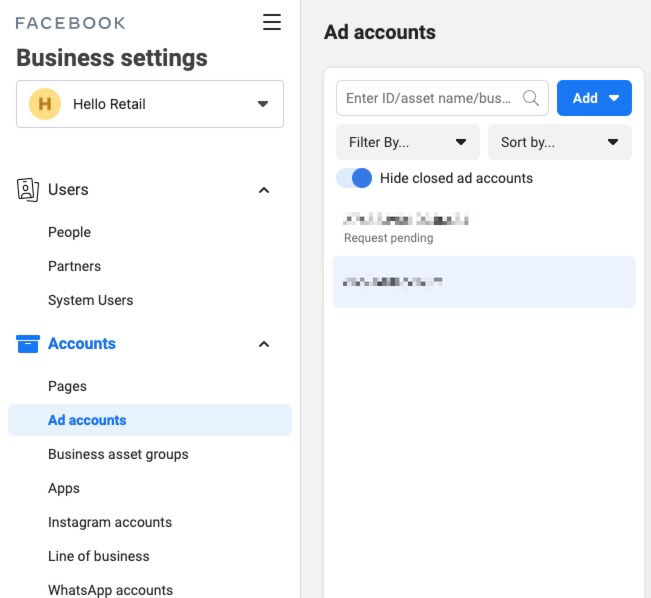
- Verify that the ad account is part of the business.
In Facebook Business Manager, you can see which ad accounts you have access to. Make sure that the ad account you wish to sync with is in this list.
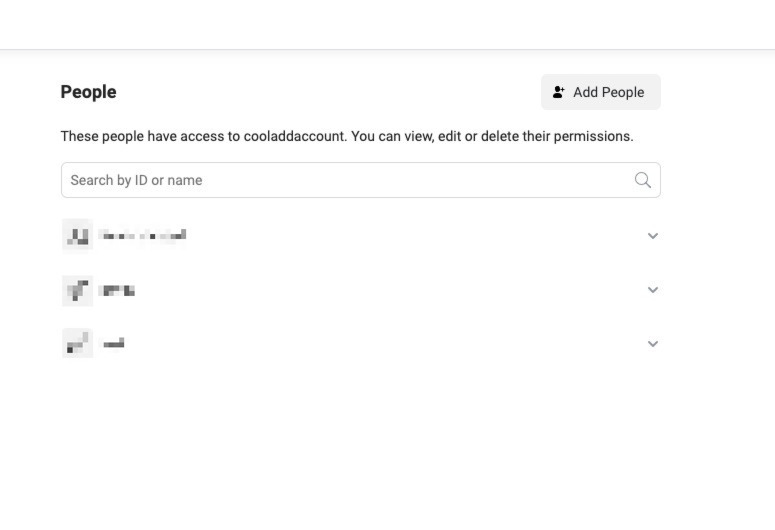
- You should be able to see if you have access under the People list.
Add the Facebook Audience Integration
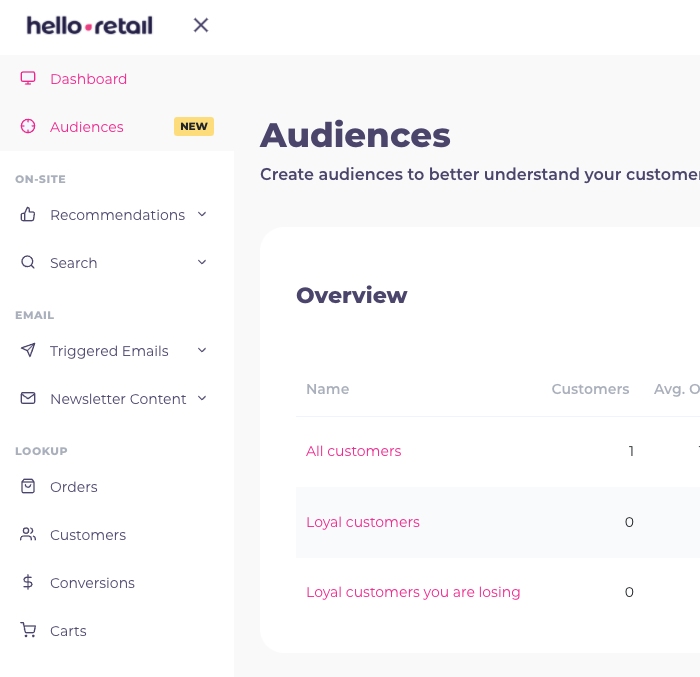
- Start by logging into your Hello Retail account. On the dashboard view, navigate to the left-hand menu.
- Click on Audiences.
- Click into any Audience that you would like to sync with Facebook. The available audiences will be listed under the overview.
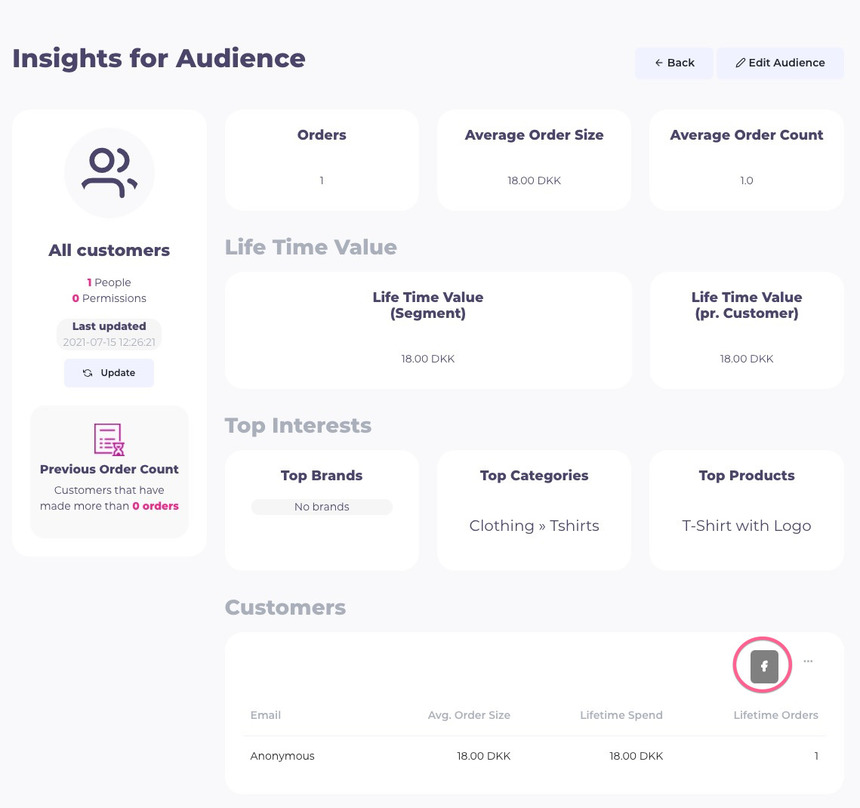
 4. After opening the audience, you will see insights for that audience. Scroll down and click the Facebook button to start the integration setup.
 5. You will be prompted to log in to Facebook and grant Hello Retail permission to create Facebook audiences on your behalf. 6. You will be presented with a list of ad accounts you have access to. Select the ad account you verified or added in Facebook Business Manager in the steps at the beginning.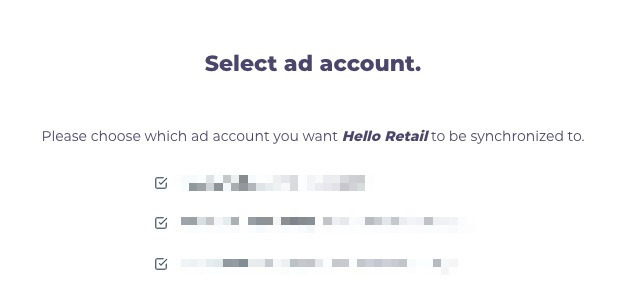
Your Facebook audiences will now sync with Facebook every time your Hello Retail audience is updated.
Adding additional audiences to the sync.
To add additional audiences to the sync, click the Facebook button for each audience that you would also like to sync to Facebook.
Removing the integration.
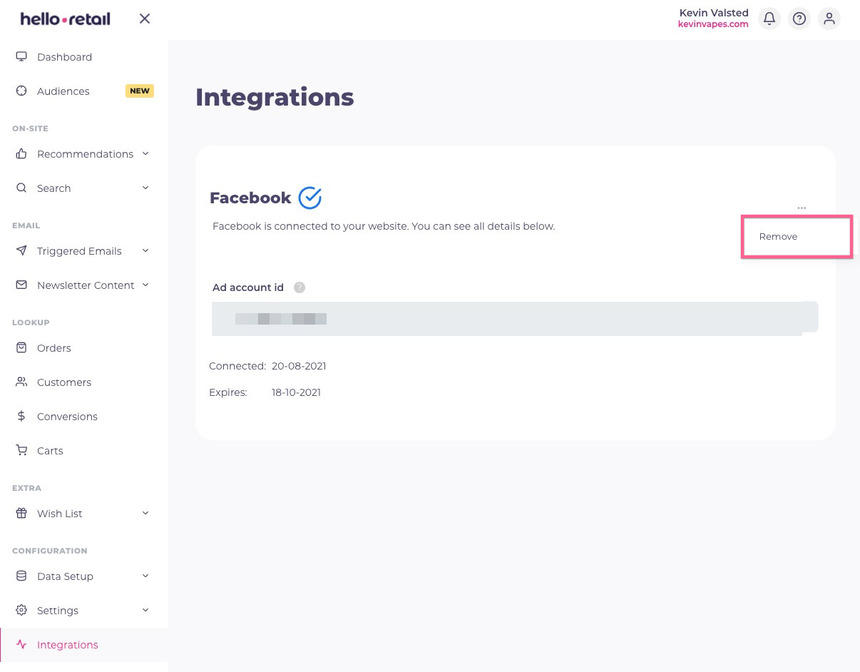
To remove the integration, navigate to the integration list in the sidebar. You can remove the integration as shown in the following picture.
Note: Facebook Authorization Validity Time Frame
Note
Facebook authorization expires every two months. Logging in to the Hello Retail dashboard and visiting the Audience section renews the authorization automatically. If the authorization is not renewed within two months, the Facebook sync stops and you must re-add the integration. Seven days before expiry, an email reminder is sent. You can see the exact expiration date on the Integrations page in the dashboard.
If you have any questions about this guide, then please contact Support or your designated account manager.