 Avg. 4 min read
 How to Use Audience
Audience helps you turn customer behavior into actionable segments. Hello Retail saves browse data (views) and order data (purchases) from your shop. Audience lets you filter this data and build precise customer groups for marketing and analysis.
The Available Data
When customers browse your site, we track behavior via cookies and store view events in our database. This data represents what customers view.
When customers place an order, Hello Retail stores order date, order size, order amount, and the specific products purchased. If you have historical order data from before joining Hello Retail, it will be included once you upload it.
Combined, the View and Purchase data can answer most questions about your customers—provided you apply the right filters. In Audience, these filters are called Segments.
Segments
Segments are the building blocks of Audience. A Segment is a filter that searches the database and returns customers who match the Segment criteria. Segments are grouped into two categories: View and Purchase, representing browsing and purchase behavior.
You can stack Segments to apply multiple filters. A selection of Segments is called an Audience.
Create an Audience
Let's look at an example to get a feel for what is possible. To access Audience log into your account and click Audience.
Here you will see an overview of existing Audiences if you have created some. To create a new Audience, click Create new Audience.
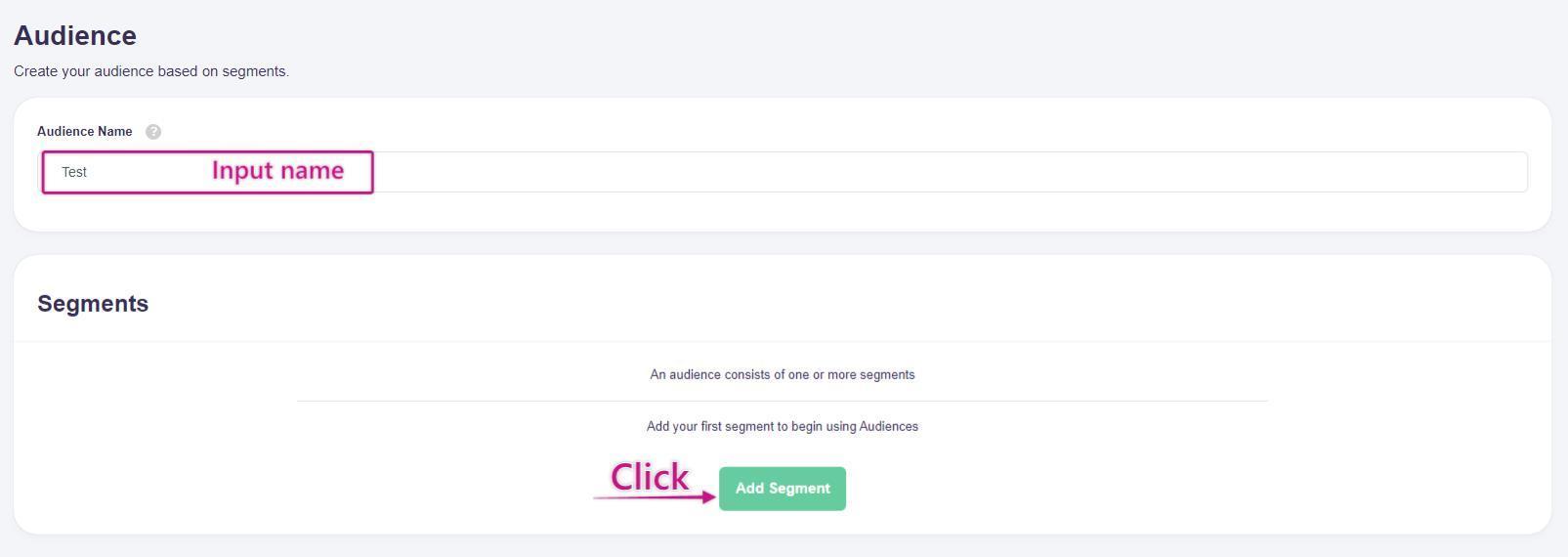
Input a name for the Audience and add the first segment by clicking Add Segment.
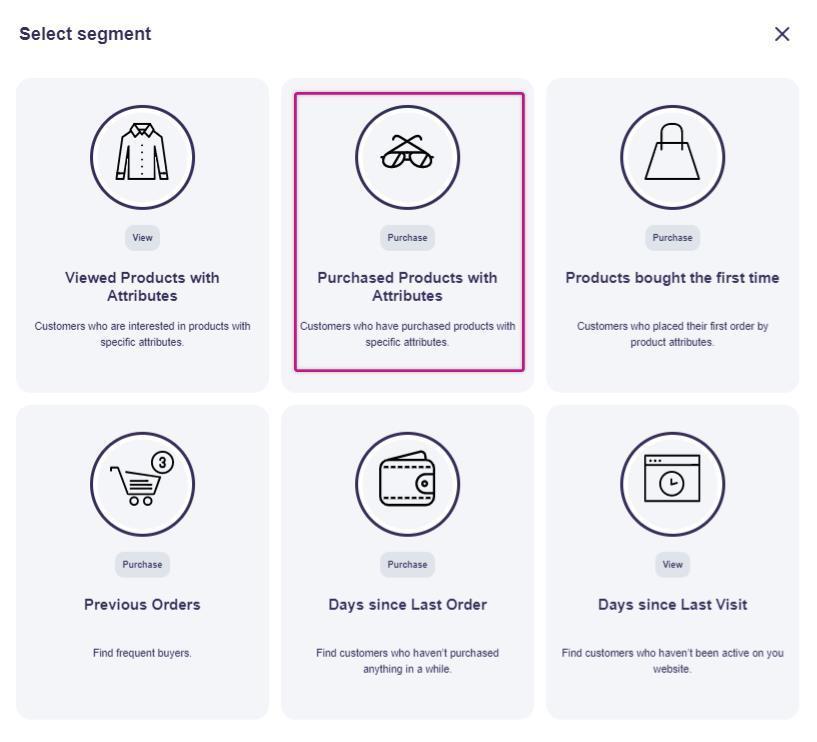
Here you will see a list of Segments that you can add. There are five available Segments. Click the second one: Purchased Products with Attributes.
This Segment finds customers who purchased products with attributes you define. Available attributes depend on the data in your product feed. A common attribute is brand. Select brand in the first dropdown. In the second dropdown, select one or more brands from your catalog.
You can also specify a time period, for example, the last month. If no time period is specified, the Segment includes the full available history. Click Add to add the Segment.
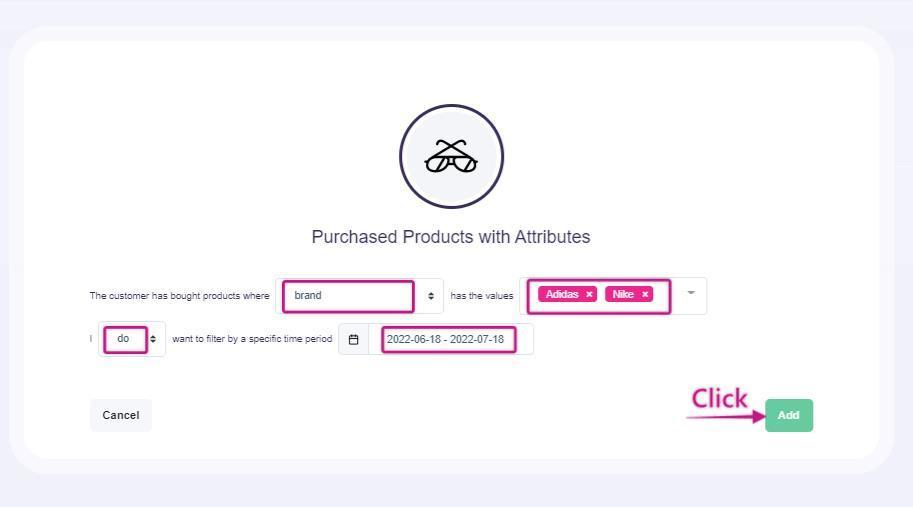
To recap: this Segment will return customers who purchased Nike and Adidas within the last month.
When the Segment has been added, you will see it under Segments.
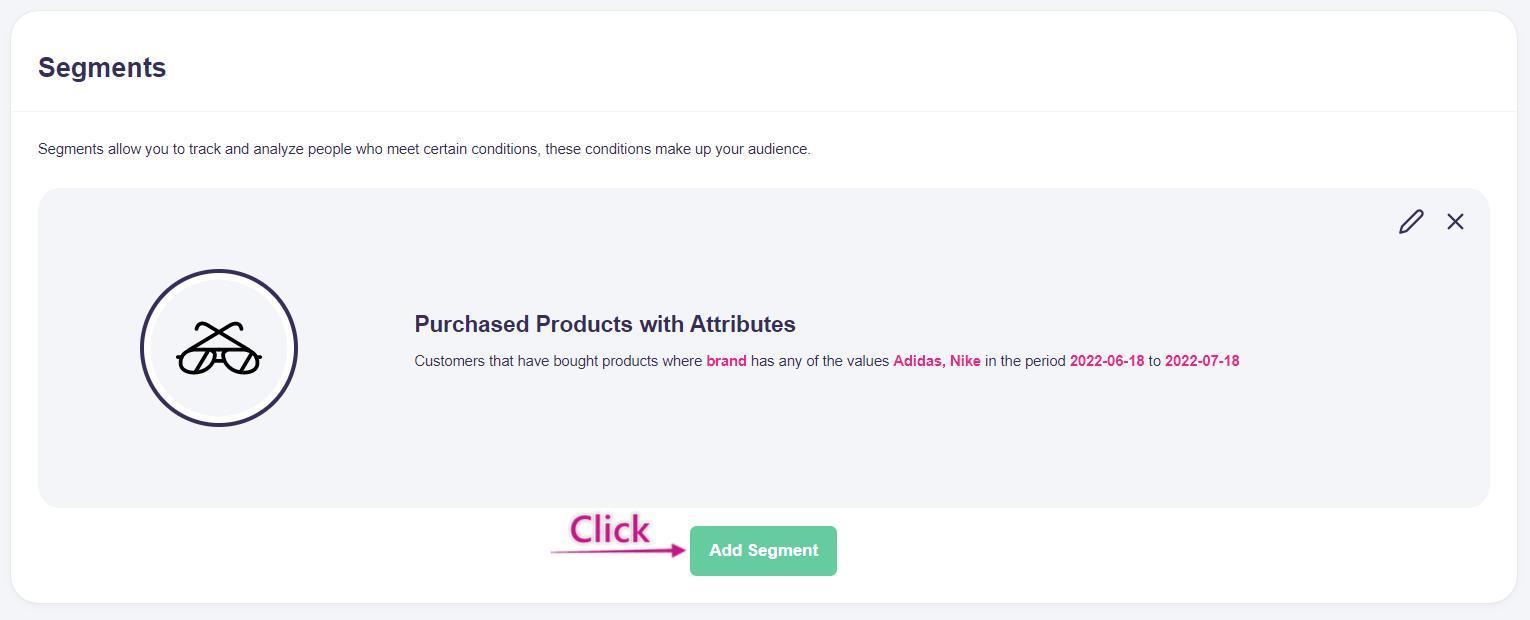
You can edit or delete the Segment. Click Add Segment to add another Segment.
Now let's add the Previous Orders segment:
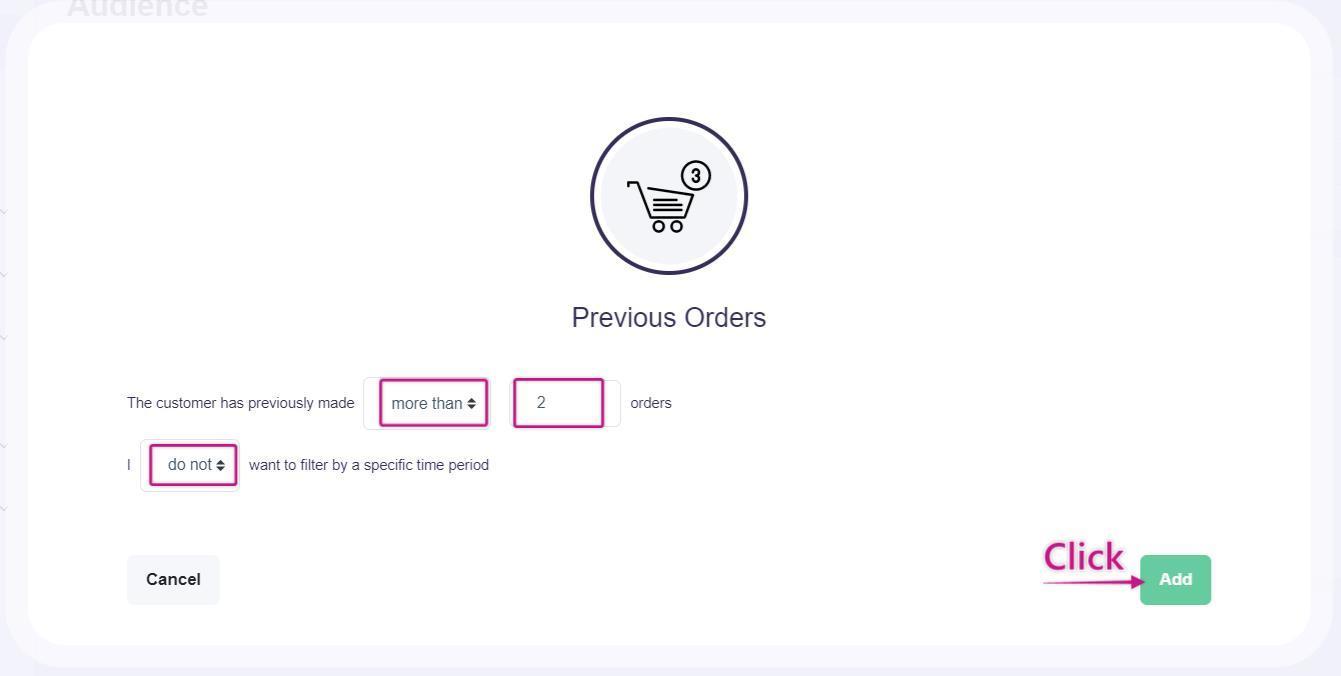
This Segment lets you find customers who made a number of purchases you specify. Here we choose customers who have made more than two purchases, without specifying a timeframe, so it includes all historical data. Click Add to keep the Segment.
Now we have added two Segments and you can choose if customers must match All or Any of the Segments. If you choose All, the Segments are combined with AND, so customers must match both Segment 1 and Segment 2. If you choose Any, the Segments are combined with OR, so customers can match either Segment 1 or Segment 2.
When you have configured the Audience as you want it, click Create Audience. Hello Retail will then process all customer data to find customers who match your Audience. This can take some time. You will receive an email when processing is complete.
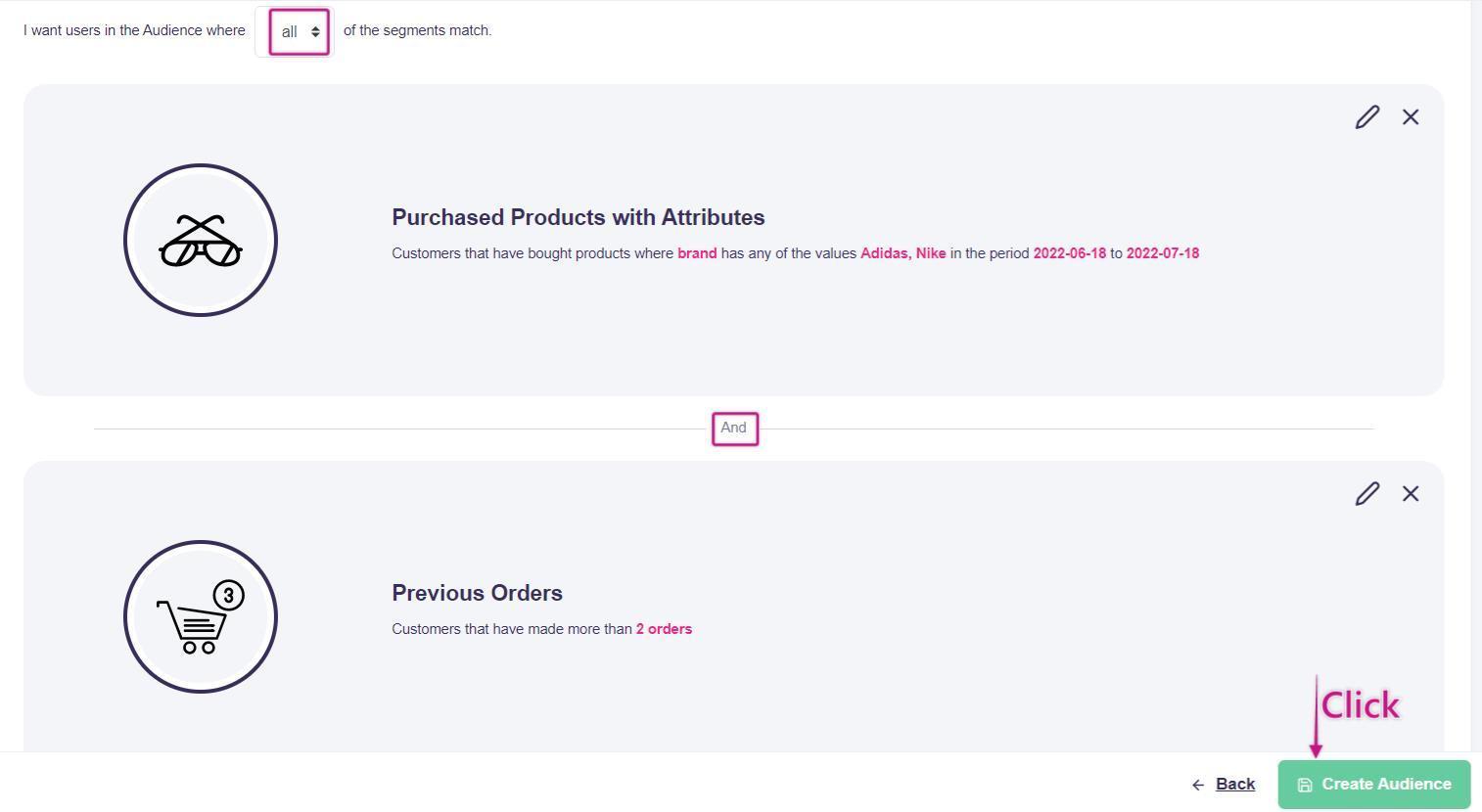
Here we created an Audience of customers who purchased Nike or Adidas in the last month and who have previously placed more than two orders in your shop. Use this Audience for campaigns promoting new Nike or Adidas products.