Avg. 5 min read
 Insights for Audience: How to Interpret the Data
When you have created an Audience, you will be presented with a large amount of useful information. Here we will go through what it means.
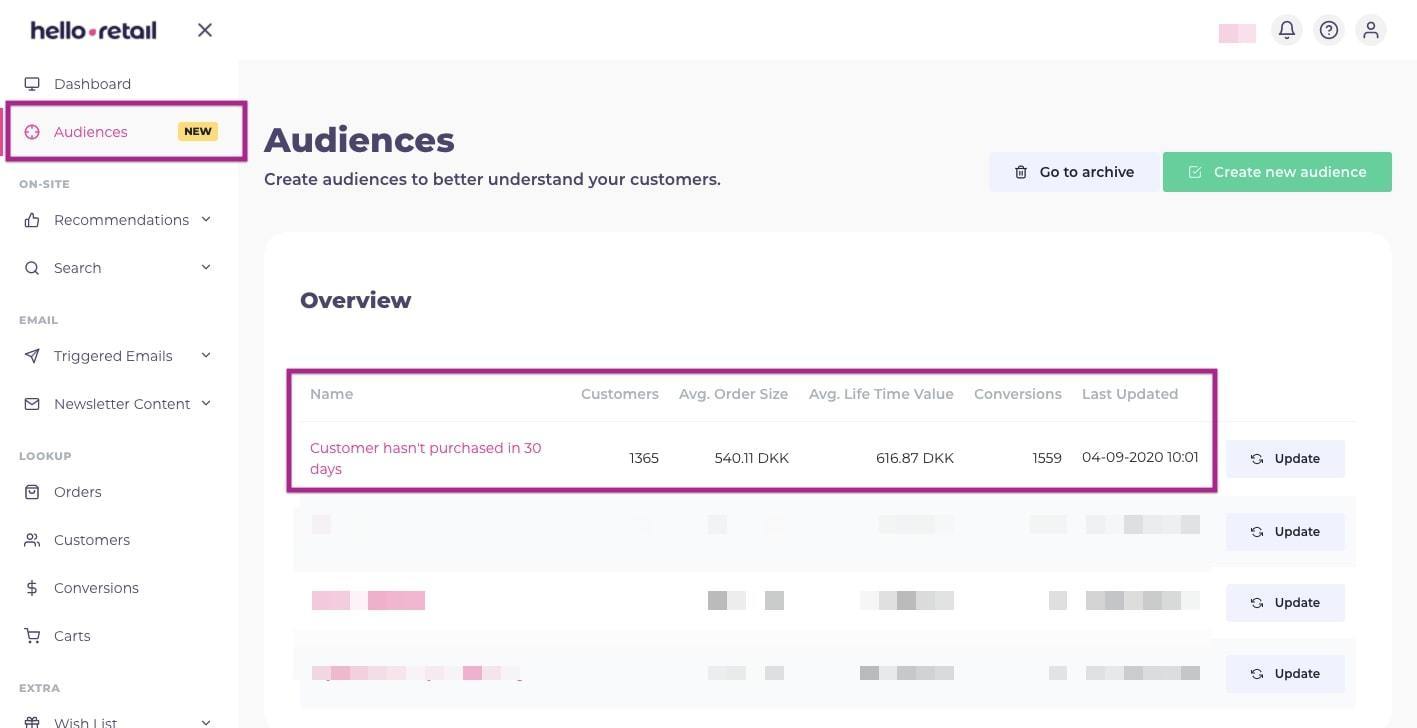
To find the insights, log into your Hello Retail account and click Audience.
Overview
Right away, you will be presented with key data about the Audiences you have created. In the example above, we have created an Audience that shows customers who haven't purchased in 30 days.
In the second column, you see the number of customers in the database that fit the Audience. In the third column, you have the Average Order Size for all customers within the Audience.
The fourth column is the Average Lifetime Value (LTV). Lifetime value is the total amount a customer has spent in your shop. Use this to gauge how much it is reasonable to spend when targeting this Audience.
The fifth column, Conversion, is the total number of orders completed by all customers in the Audience.
The last column shows when the Audience was last updated. Clicking Update recalculates the Audience and refreshes the data. Processing can take time; you will receive an email when the update completes.
In-depth Insights
To reveal a lot more data about the Audience, click the Name.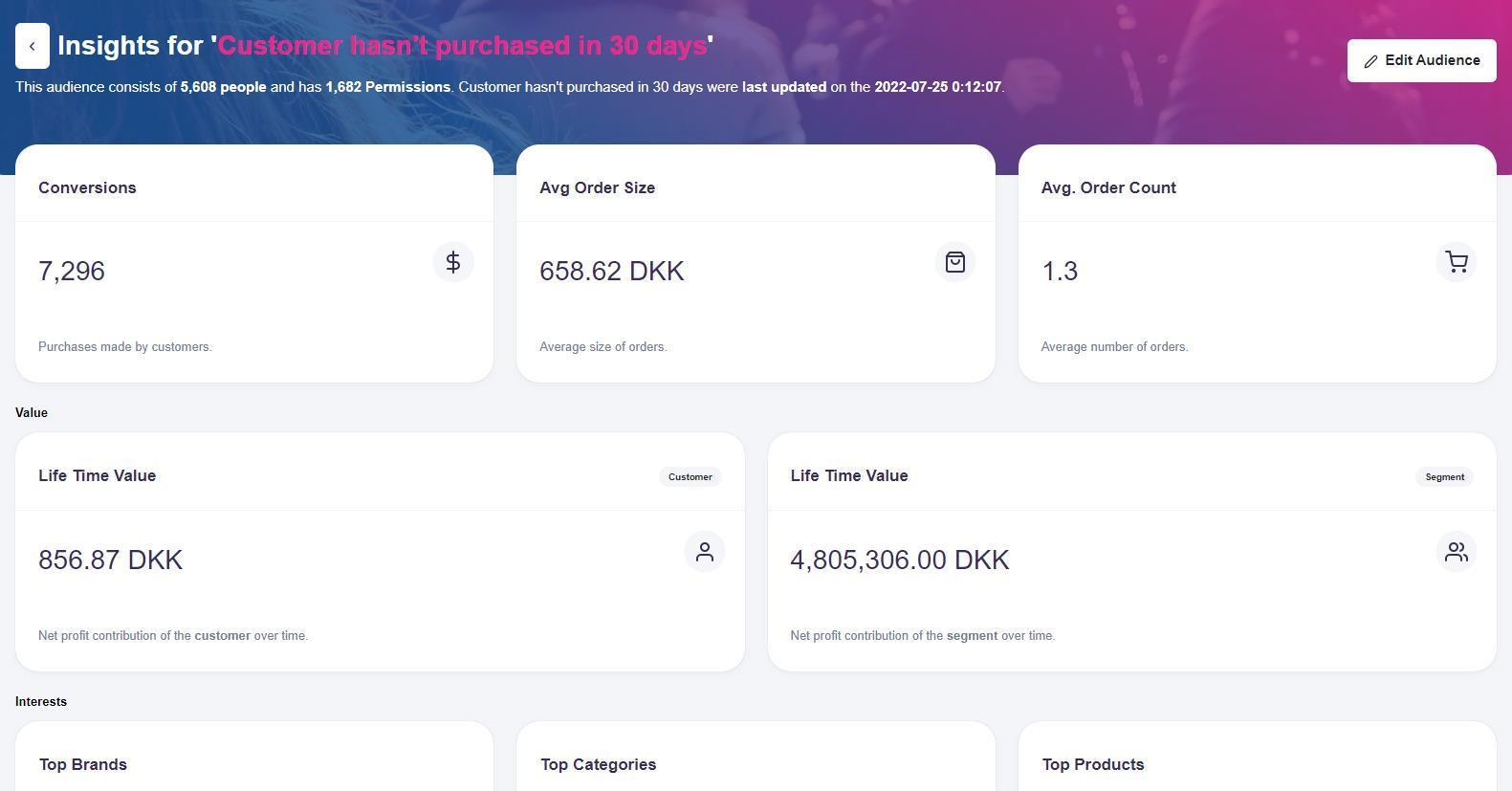
The detail view contains several blocks. The sections below describe each block.
Overview
The first block is an overview of the Audience. It shows the number of customers in the Audience and how many permissions you have from the customers. A permission means you have consent from the customer to send promotional emails. The Audience gives you insight into how you can reach these customers with relevant promotional information, so having permissions is crucial. You can read more about permissions and how to keep them up to date here.
You can see when the Audience was last updated, with the option to update. Updating can take a while; you will receive an email when the data is ready.
At the bottom of the block, you can see the Segments included in the Audience.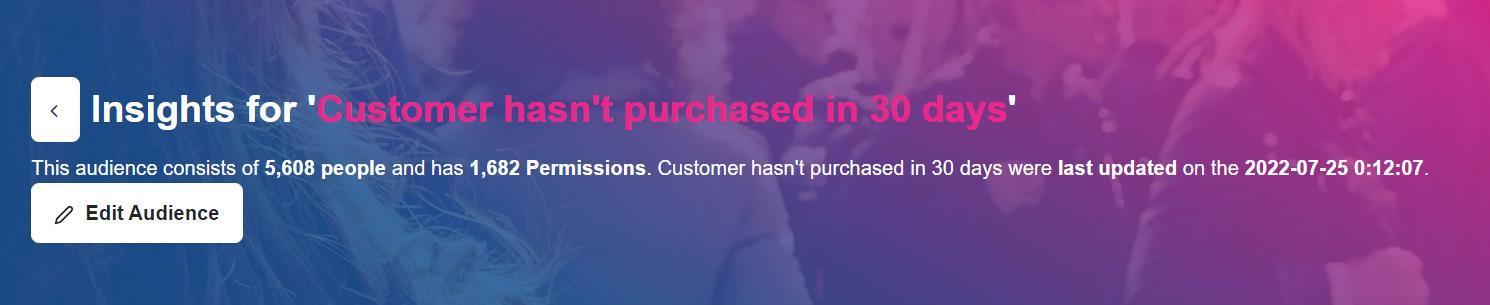
Orders
In the three blocks at the top, you have some of the same data as in the overview on the page before. Conversions shows you the total number of orders placed by the customers in the Audience. Average Order Size is the average order value for customers in the Audience. Average Order Count is the average number of orders per customer in the Audience. With a count of 1, this particular Audience is, on average, not recurring customers, and your efforts could focus on getting them to return more frequently.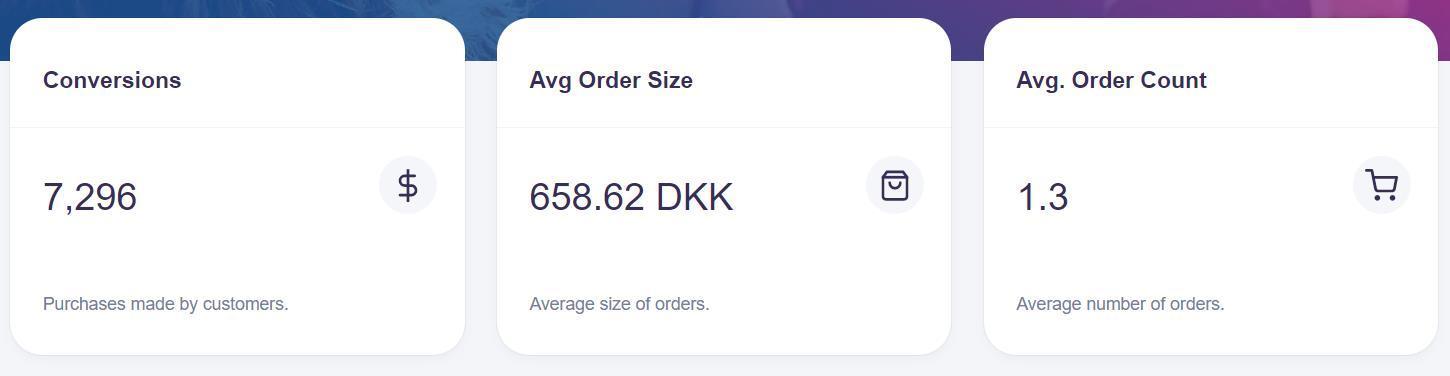
Value
The next part is Value, with two blocks of important information. Lifetime Value (Segment) is the total amount spent by all customers in the Audience in your shop. Lifetime Value (Customer) is the average total amount spent per customer in the Audience. Use these numbers to decide how much time and budget to allocate to this Audience. If the lifetime value is low, you may prioritize other Audiences. If it is high, it can justify more investment in targeting this group.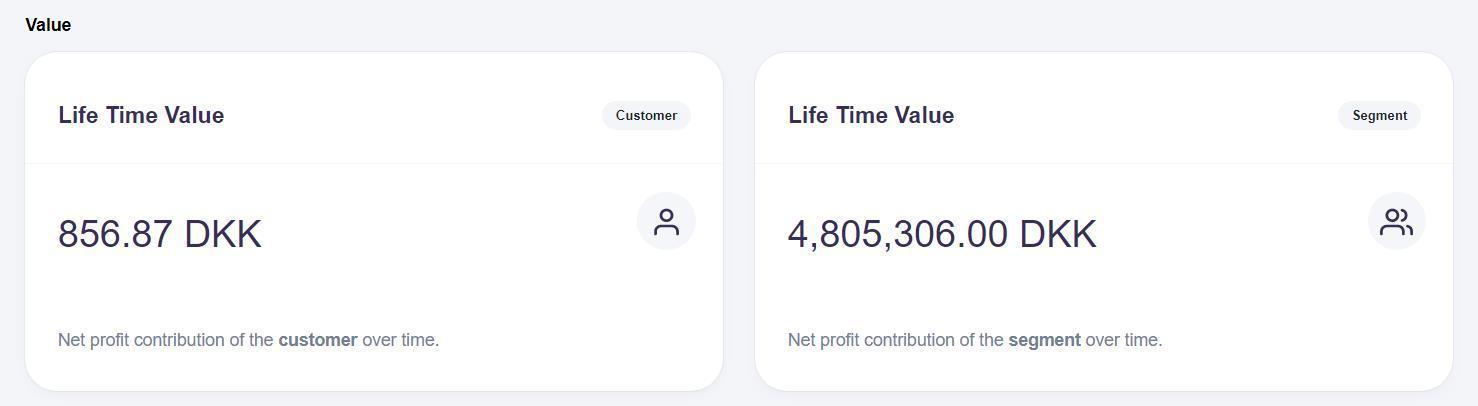
Top Interests
The Interests section gives you insight into what type of products the customers in the Audience are viewing. You can see the brands, categories, and products with the highest interest for the customers, and you can use this information to decide which products to promote to them.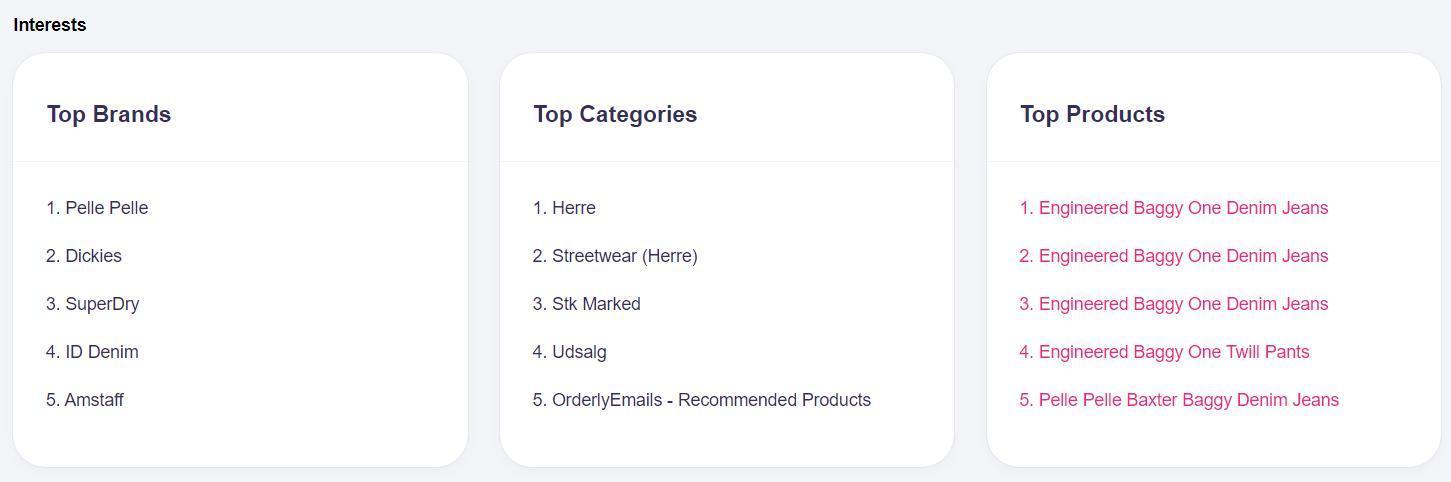
Customers
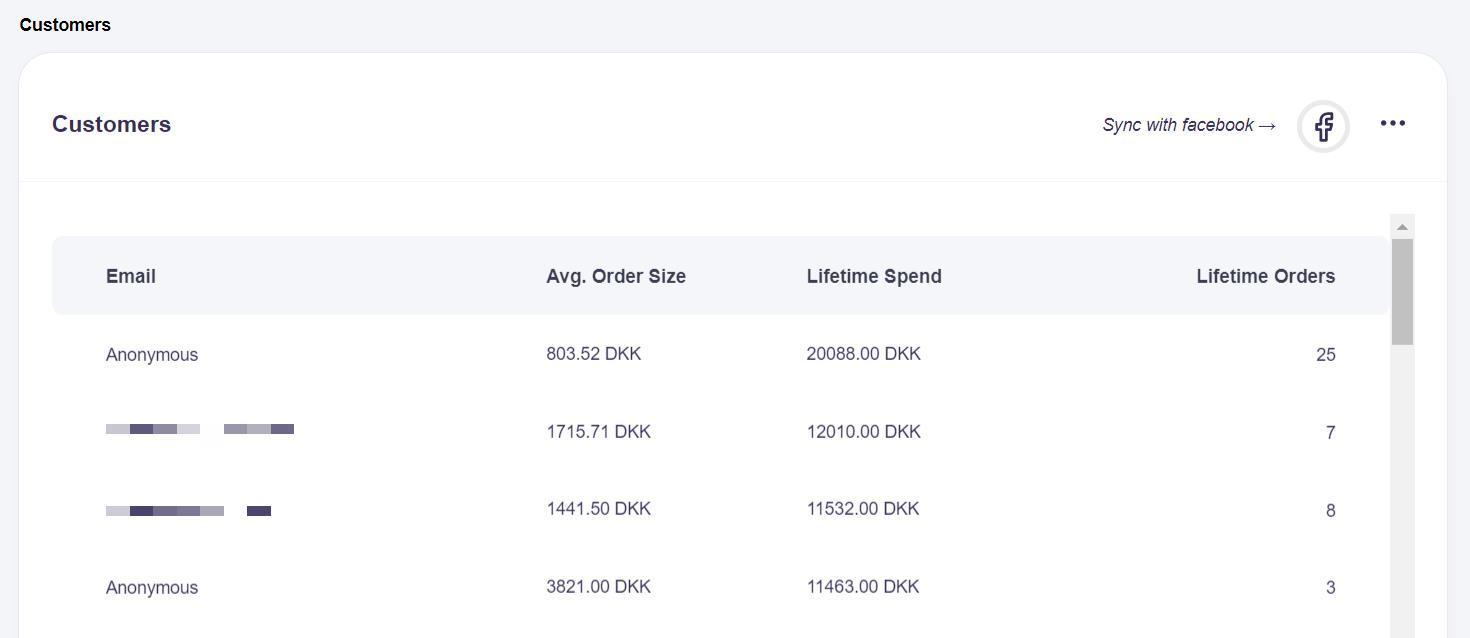
The last section is where you find the actual customers in the Audience. You can see the email addresses, average order size for the customer, how much they have spent in total, and how many orders they have placed.
Under Email, you will see that some are listed as "Anonymous". When a customer is listed as anonymous, Hello Retail has not registered a permission to send promotional emails to this customer. This can be due to two reasons:
- The customer has not given you permission to send promotional emails. Collect permissions to reduce the number of anonymous customers.
- You have the permission, but it has not been uploaded to Hello Retail. Synchronize permissions so Hello Retail always knows who you can contact. We have a guide about email addresses and permission here.
Regardless of the reason for the missing permission, Hello Retail will list these customers as anonymous to ensure you do not accidentally send them promotional emails.
Clicking Download emails will generate a list of emails ready to upload to your newsletter platform. Use this to reach out with promotional material based on the interests of the customers in the Audience.
If you click Download customers, you will get a file containing all the information listed in the block.