 Avg. 2 min read
 Filter IPs — Exclude your Own Network From Tracking Statistics
This guide explains how to exclude internal IP addresses from Hello Retail tracking and statistics.
Accurate browsing data helps you make informed decisions. If employees, partners, or agencies frequently browse your webshop, exclude their traffic so analytics reflects real customer behavior. You can do this by filtering their IP addresses.
Filter IPs
The following steps show how to filter IPs:
- Start by logging into your Hello Retail account. On the dashboard view, navigate to the left-hand menu. Under the Configuration section, click Settings to unfold the drop-down menu.
- Next, from the drop-down menu, click Website settings.
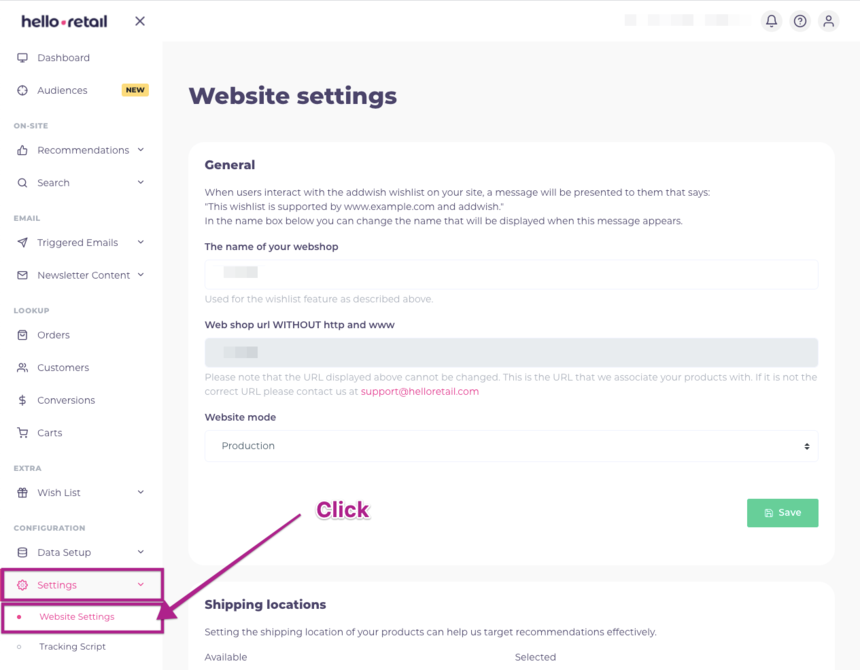
This picture shows steps 1 and 2.
3. Scroll all the way down to find the Filter IPs box.
4. Input the IP address that you want to exclude from tracking and click the "+" button to add it. You can add as many addresses as you want. You can also use wildcards to exclude a range by using an asterisk () in the field, for example 192.168..*.
5. Lastly, click the Save button to save the changes. Hello Retail will no longer track visits from the listed IP addresses.
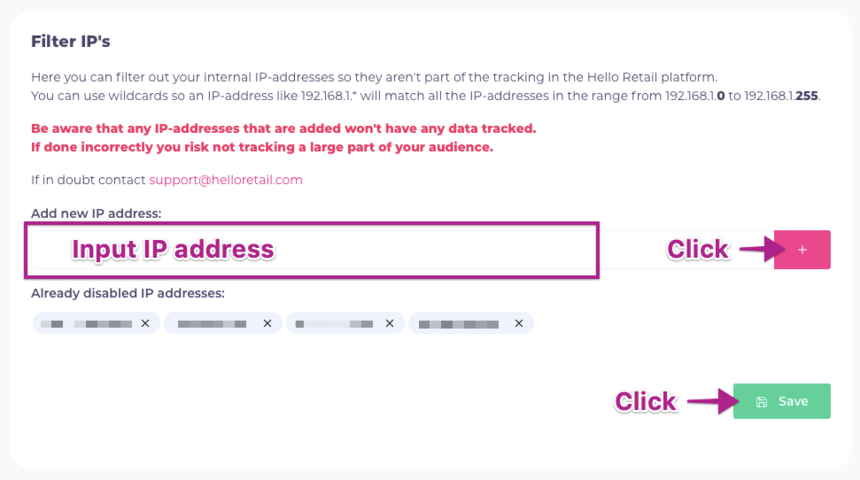 This picture shows step 3, 4 and 5.