 Avg. 2 min read
 How to Re-Synchronize the Content Feed
This guide explains how to manually re-synchronize your content feed in Hello Retail.
You might have content on your webshop that is not a product but should still be searchable, such as guides or landing pages. In that case, you provide a feed that includes searchable text and a URL to the content. If you update that content and want it reflected in Hello Retail immediately, you can manually re-synchronize the content feed from your Hello Retail account.
Follow these steps to manually re-synchronize your content feed:
- Start by logging into your Hello Retail account. On the dashboard, go to the left-hand menu. Under the Configuration section, click Data Setup to open the drop-down menu.
- Next, from the drop-down menu, click Contents. Locate the content feed you want to update.
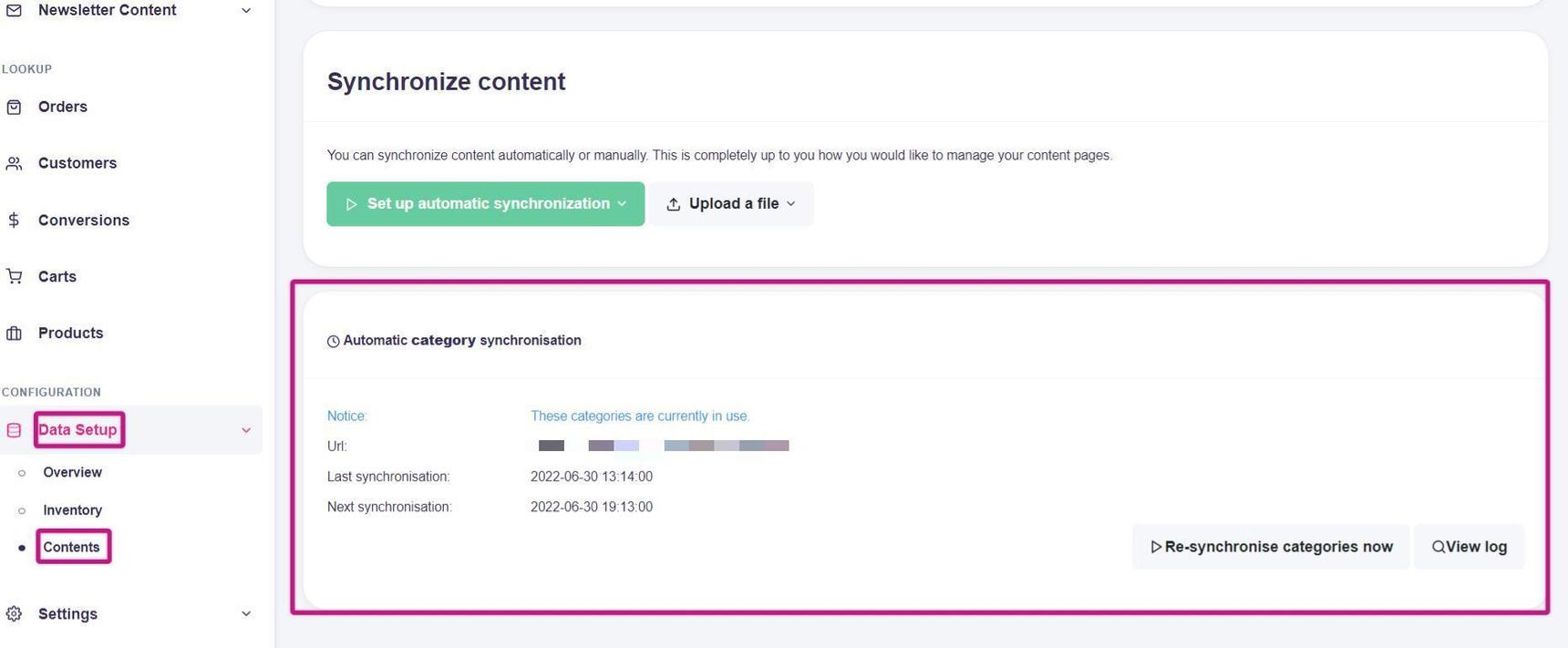
This picture shows steps 1 and 2.
3. In this example, a single category feed is configured. To re-synchronize it, click the **Re-synchronize categories now** button.
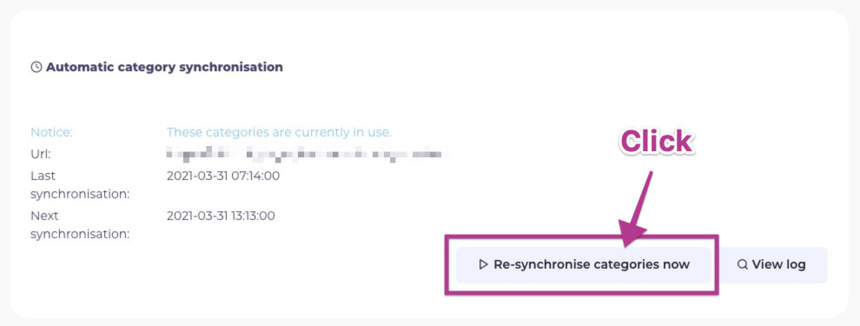
This picture shows step 3.
The feed will update. When re-synchronization completes, the changes will be available across Hello Retail services, including Search.