 Avg. 4 min read
 Manage the Price of Recommended Products
This guide explains how to control the price of products shown in Hello Retail Recommendations.
You might want to constrain prices for specific placements—for example, keep checkout recommendations under a certain amount to increase add‑on conversions, or show only low‑priced t‑shirts in a specific row. Hello Retail makes this easy with price filters. The steps below show how to configure them.
- Start by logging into your Hello Retail account. On the dashboard, go to the left-hand menu. Under the Recommendations section, click Recommendations to expand the drop-down menu.
- Next, click the recommendation configuration you want to edit.
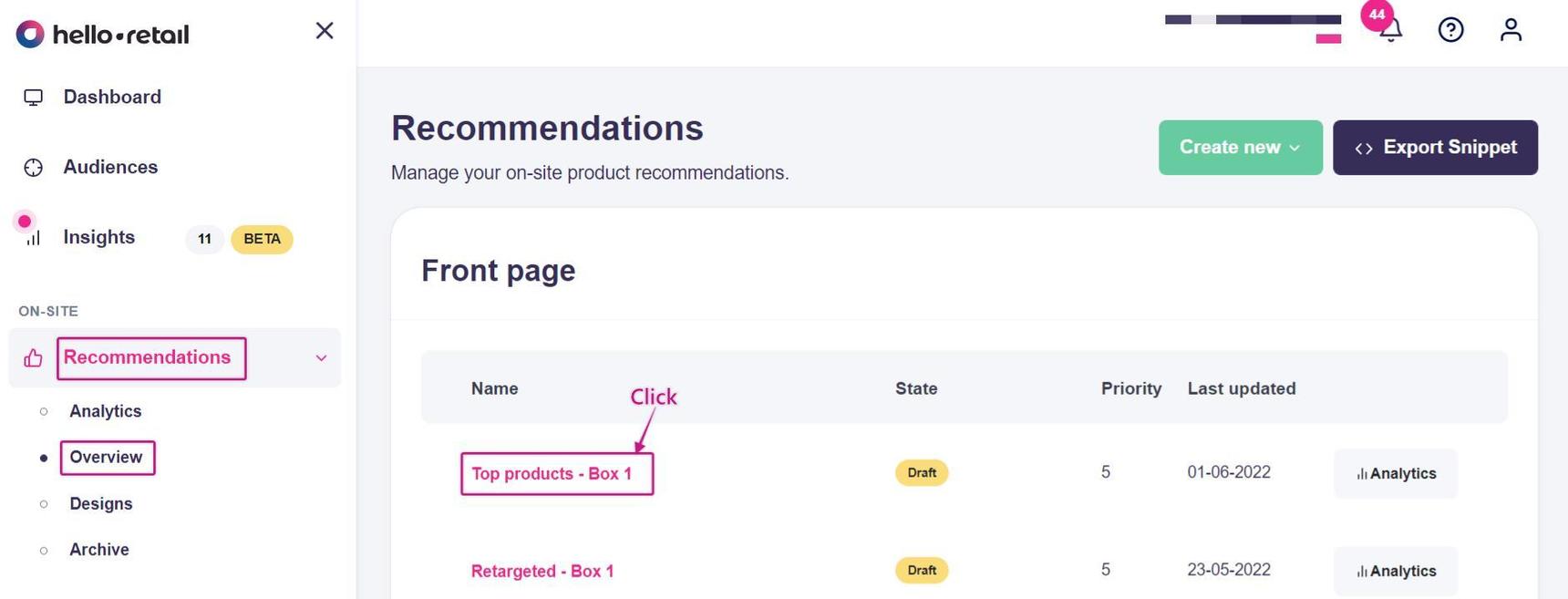
This picture shows step 1 and 2 to edit the recommendation configuration.
3. You will see options for configuring the recommendation. Scroll to the Recommendation strategy box, expand it, and click Add filter.
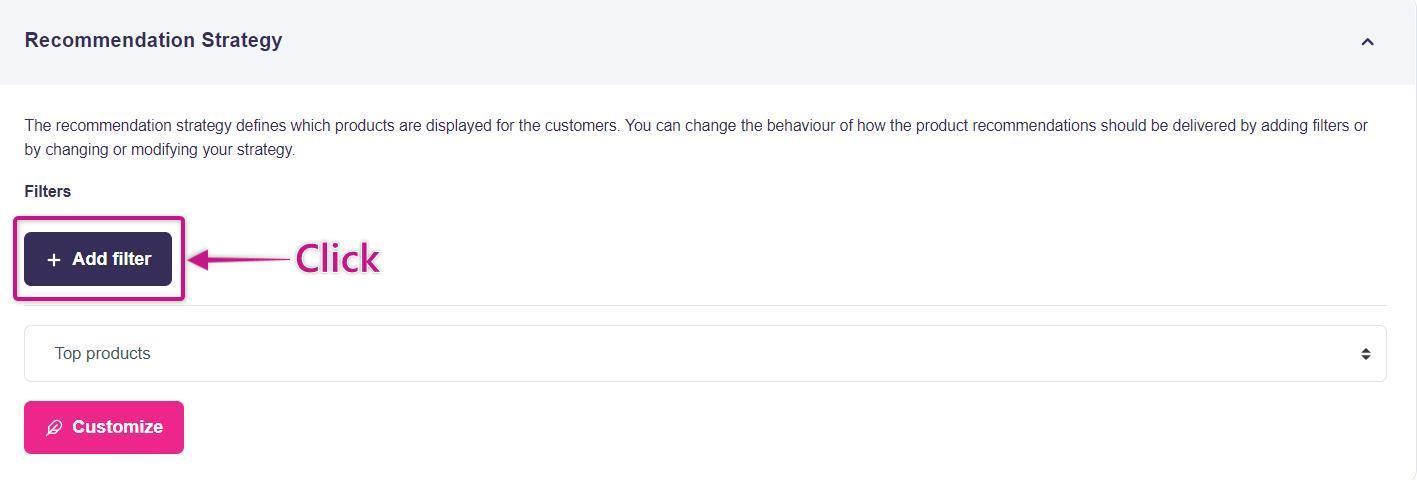
This adds a Global filter. It applies to all recommendations in this specific placement. You can read more about filtering options here, but continue below if you only need to control price.
You will see two drop-down menus that let you choose a filter and how the filter should work. To control price, select price in the first drop-down.
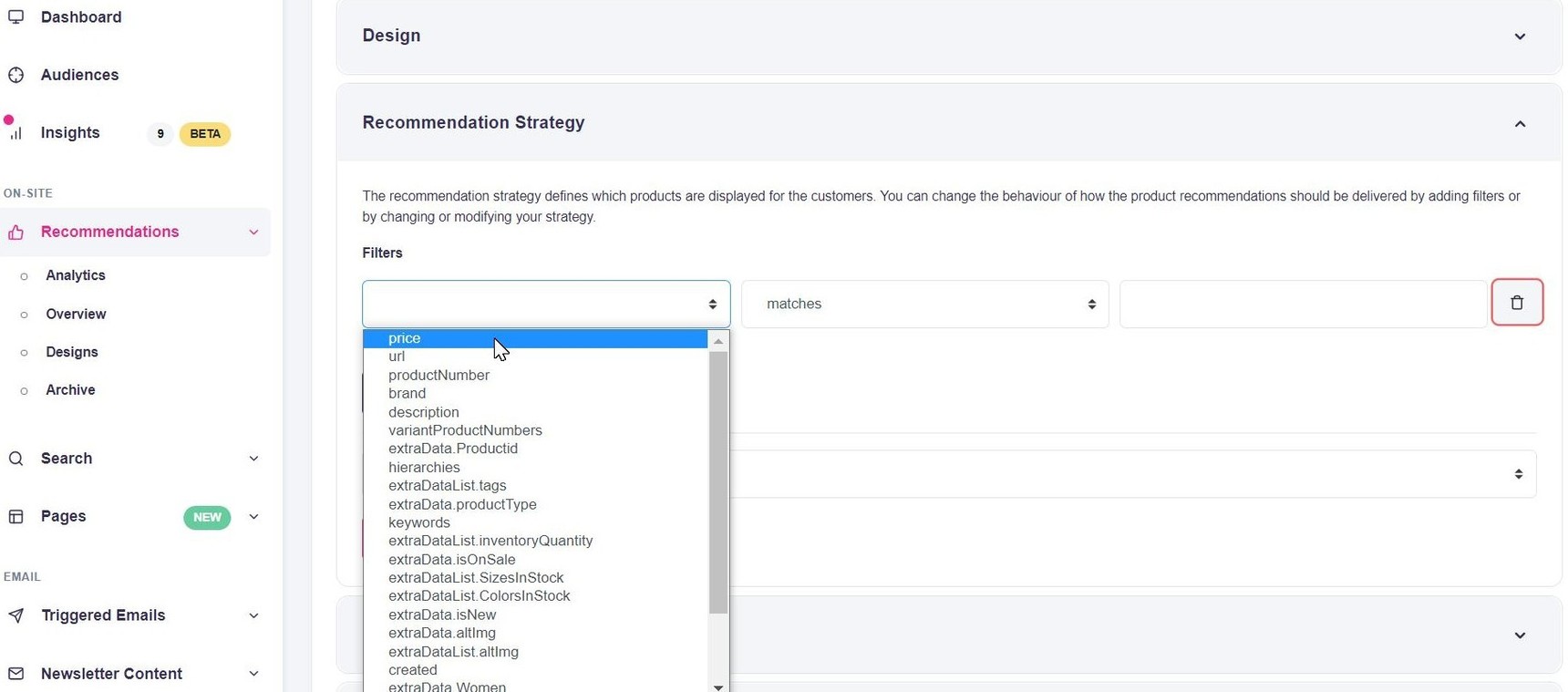 This picture shows the possible choices for the filter drop-down menu.
The next drop-down contains these options:
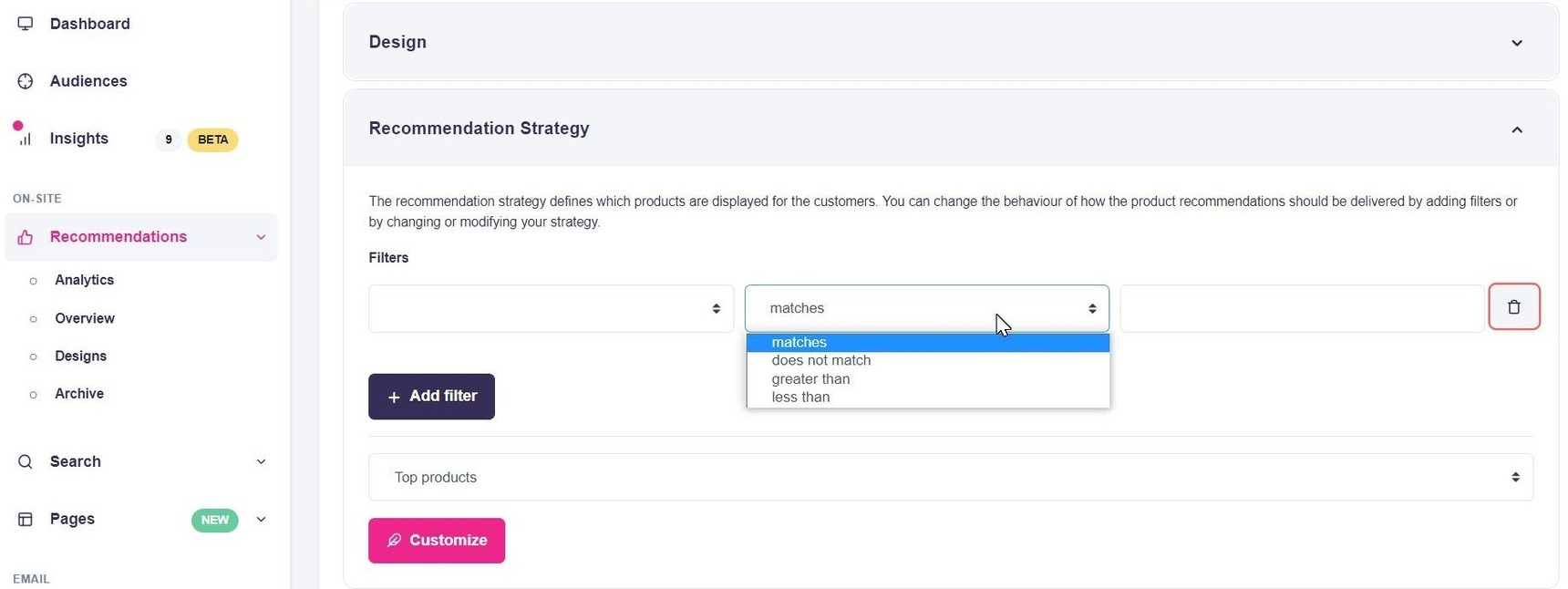 This picture shows the possible choices for how the filter should work for the filter in the drop-down menu.
- matches
- does not match
- greater than
- less than
If you pick less than, the filter will include only products where the price is less than the value you set in the last field.
In the last field, set the price threshold the recommended products must be under. For example, 200 DKK. The filter will look like this:
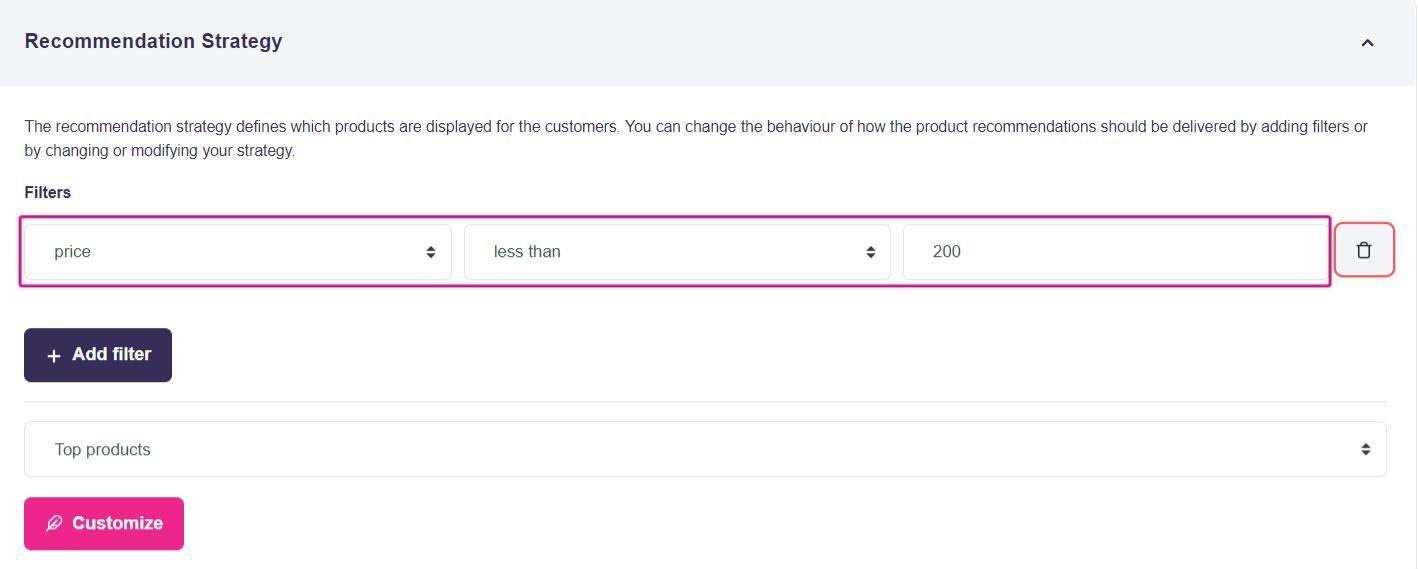
With this filter, Hello Retail will only show products priced under 200 DKK in this recommendation placement. Click Save at the bottom of the page to apply the changes.
Other price filtering options
When you click the last field to edit the price, you will see a few dynamic options instead of entering a specific amount. These are:
- $price
- $user.avgPrice
- Free shipping at 500, max 200 more than required
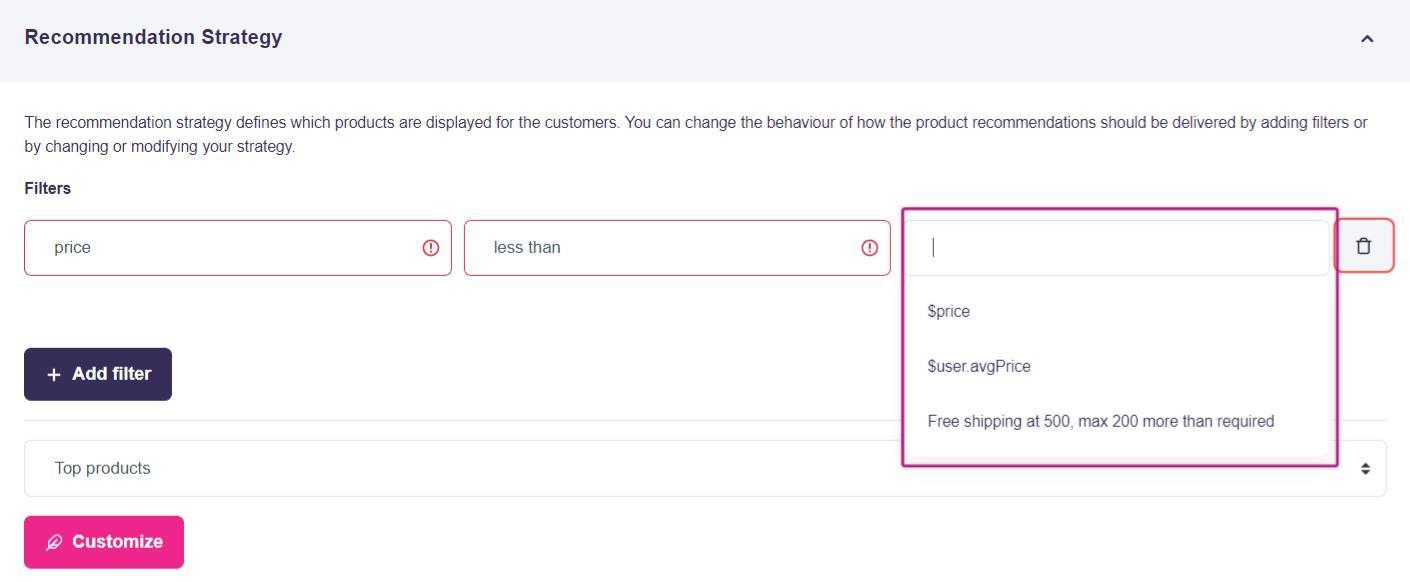
These options are dynamic and work as follows:
$price
Uses the price of the product currently being viewed. For example, on a product page for a 300 DKK item, the filter "Price — less than — $price" shows only products cheaper than 300 DKK.
$user.avgPrice
Uses the viewer’s historical behavior to calculate their average price across viewed and purchased products. You can constrain recommendations to be below the user’s average price.
Free shipping at 500, max 200 more than required
Use this for checkout placements. If your shop offers free shipping above a specific order total, this option recommends products that help the customer reach that threshold, with a configurable buffer above the remaining amount.
When selected, the field becomes:
$price|freeShipping:**500**, **200**
Here, 500 is your free shipping threshold (editable), and 200 is how much the recommended product price can exceed the remaining amount needed to reach free shipping.
Example: A basket totals 300 DKK and free shipping is 500 DKK. With this filter, products up to 400 DKK can be recommended: 500 − 300 + 200. You can edit both 500 and 200 to fit your shop.