 Avg. 3 min read
 Pinned Products
Pinned Products lets you override Hello Retail recommendations by pinning or blacklisting specific products. This helps you keep the most relevant items together and improve relevance. Manage this within Product Lookup.
When to Use This
-
Use Pinned Products when you need precise control over what appears in the Alternatives and Bought Together boxes.
-
Apply it when automatic results are not fully relevant, for example showing shoes as alternatives to jeans instead of other pants.
-
Avoid using it when the algorithms are already accurate. Manual overrides take precedence and reduce dynamic optimization.
Examples
-
Alternatives: Pin different T-shirt designs so they always show together as alternatives.
-
Bought Together: Pin matching hoodies with a T-shirt to promote cross-selling.
-
Blacklisting: Exclude outdated or irrelevant products, such as old models or items from a different brand.
Algorithm Filters
When global or local filters are applied to an algorithm box, such as an InStock filter, they are evaluated after pinned products are inserted. A pinned product may be added first and then removed by filters. Keep this in mind when creating pins to ensure they remain visible. Learn more about filters here.
Functionalities
Accessing Pinned Products
-
Go to Products in the Hello Retail dashboard.
-
Select a product to open its Product Information page.
-
Open the Settings tab.
-
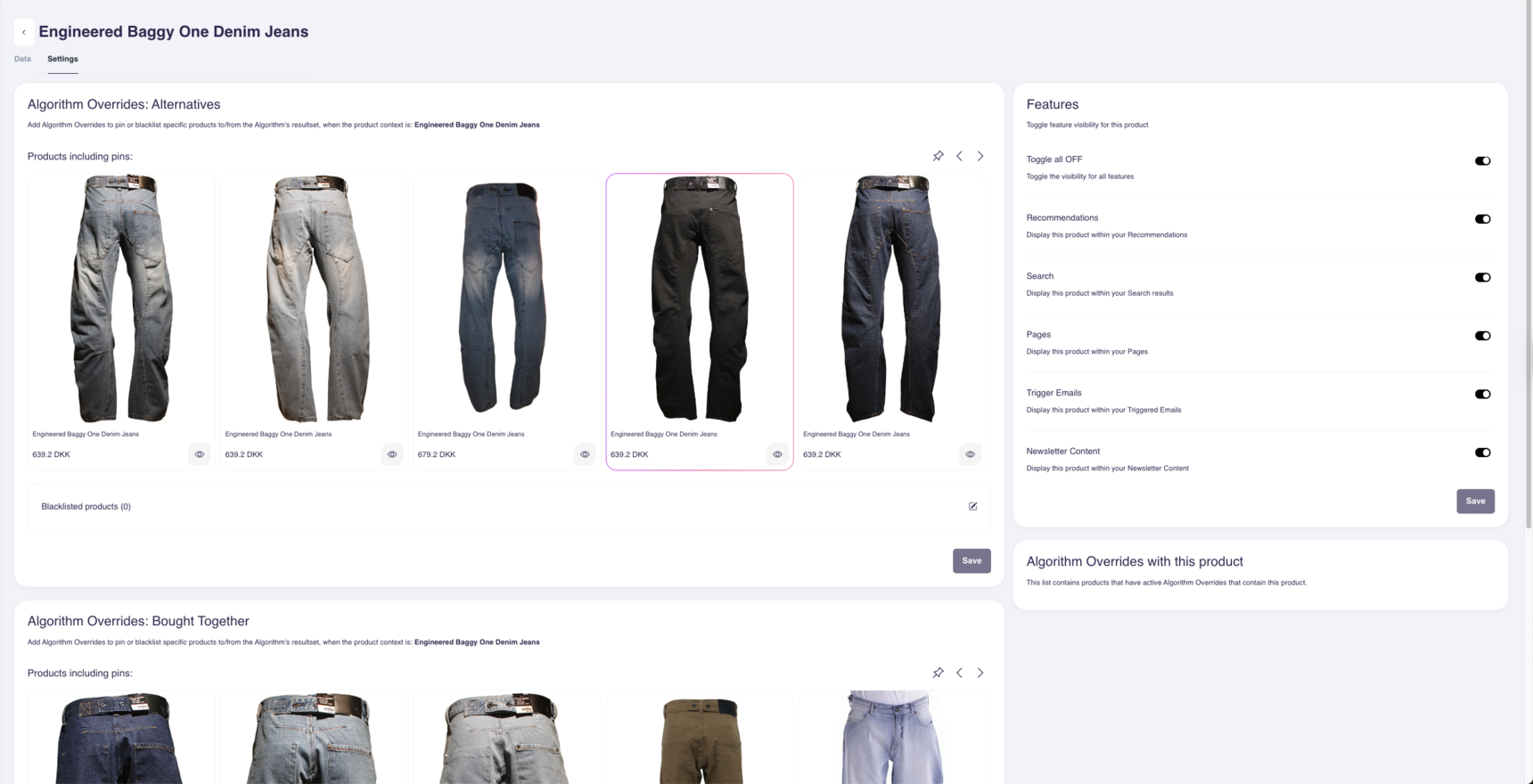
Scroll to Algorithm Overrides: Alternatives and Algorithm Overrides: Bought Together.
-
These sections list products suggested by the two algorithms.
-
Pinning Products
-
In the relevant section (Alternatives or Bought Together), click the Edit (
 ) icon.
 -
Use the search bar to find the products you want to pin.
-
Select the products and click Save.
-
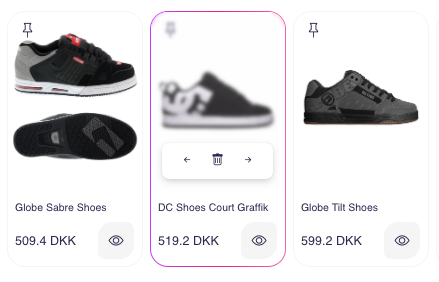
Pinned products appear at the top of the recommendation list.
- Reorder pinned products to control their display order.
Note
Pinned products are placed before algorithm results. Their order matches your configuration.
Blacklisting Products
-
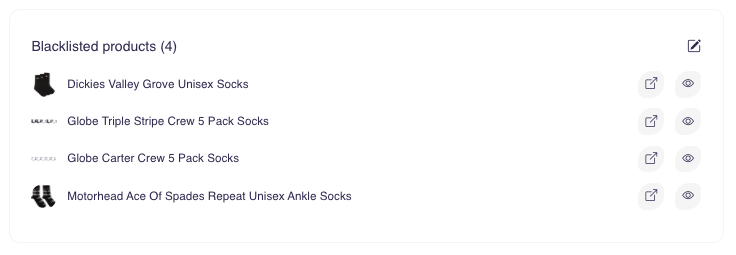
In the same section, locate the Blacklisted products box.
-
Click Add, search for the product you want to exclude, and click Save.
-
After blacklisting, the product will not appear in recommendations for the selected product.
Example: Blacklist older console models (e.g., PlayStation 4) when displaying recommendations for a newer product (e.g., PlayStation 5).
Viewing Relationships
-
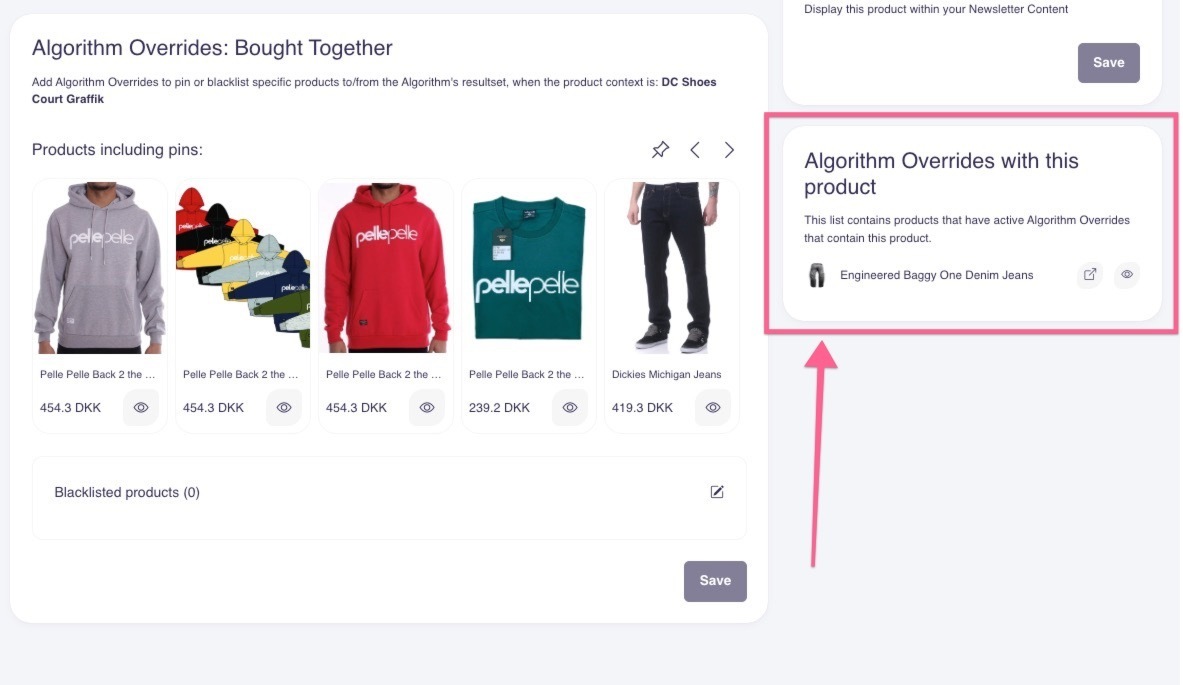
At the bottom of the product’s settings, you will see a list of Algorithm Overrides involving this product.
-
Use this to track where the product is pinned or blacklisted, and how it relates to other products.
Common Issues & Troubleshooting
-
Pinned product not appearing:
-
Confirm the product is active and eligible for recommendations, for example not out of stock or disabled by filters.
-
Ensure it has not been blacklisted for this product elsewhere.
-
Confirm the widget or step uses Alternatives or Bought Together. Pins only affect these algorithm steps.
-
-
Blacklisted product still visible:
-
Refresh or reload the page to clear cached recommendations.
-
Confirm the blacklist entry was saved and applied to the correct section, Alternatives or Bought Together.
-
-
Too many overrides:
- Keep manual pins and blacklists limited so the algorithms can optimize dynamically.