Avg. 4 min read
 Review List Search

List Search
Use this checklist to verify that List Search behaves as expected.
Introduction
Before you start testing your Hello Retail solution, make sure you are logged in to your account: https://helloretail.com/company/signin.html
After you have logged in, go to your website to start the review.
Note
When you enable Search on your website, it is not visible to all customers until you click Make Live. This lets you review the implementation before publishing.
Note
Some browsers block cross-site tracking by default. If the Hello Retail widget panel does not appear, adjust your browser’s tracking prevention settings.
Step 1
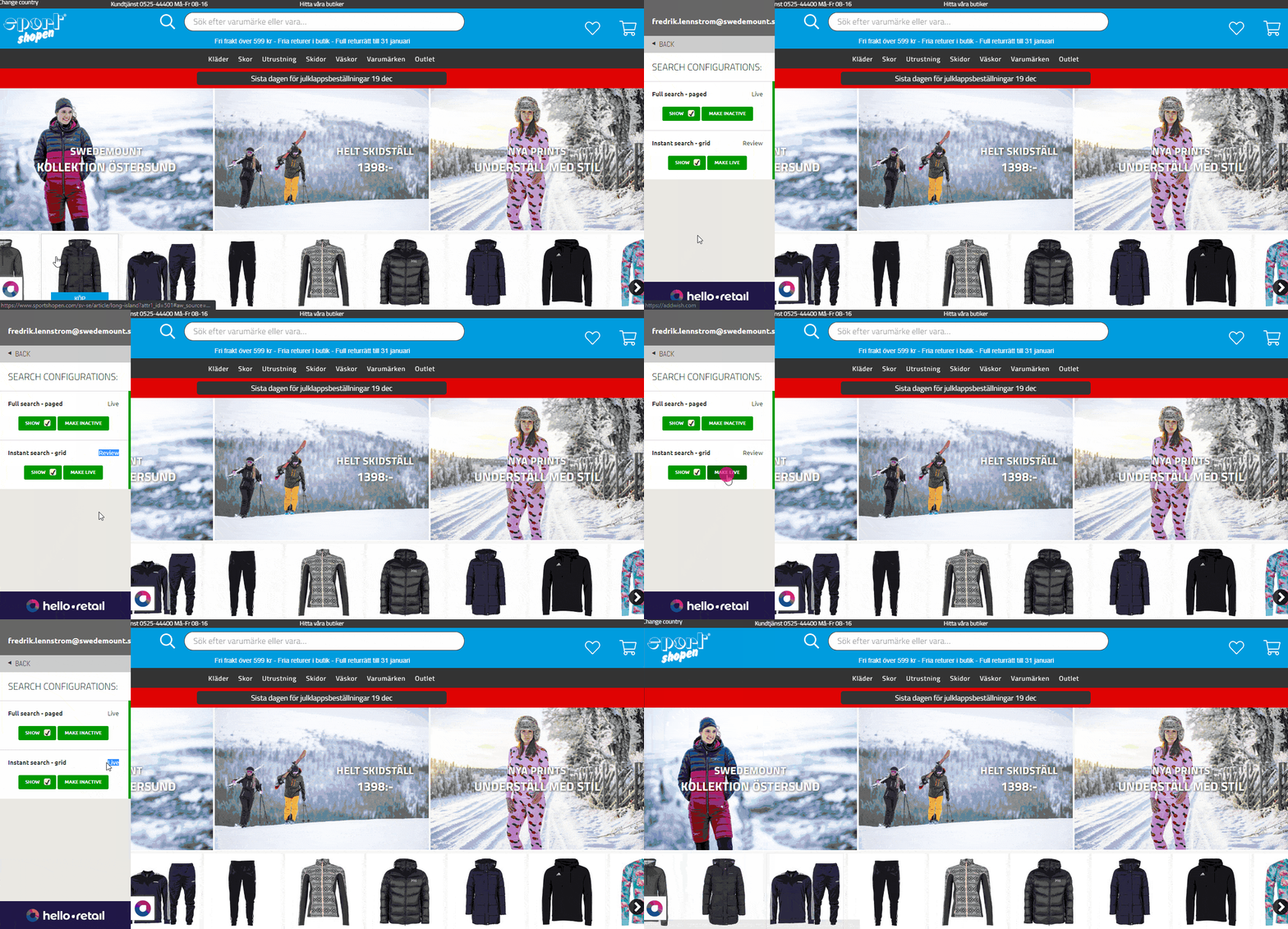
First, enable the List Search from the Hello Retail widget. (See figure 1)
On your website, open the search field and run 1–3 test searches to verify it works.
Type different search terms and confirm the returned products match the queries.
Make sure the search term matches the products that are shown.
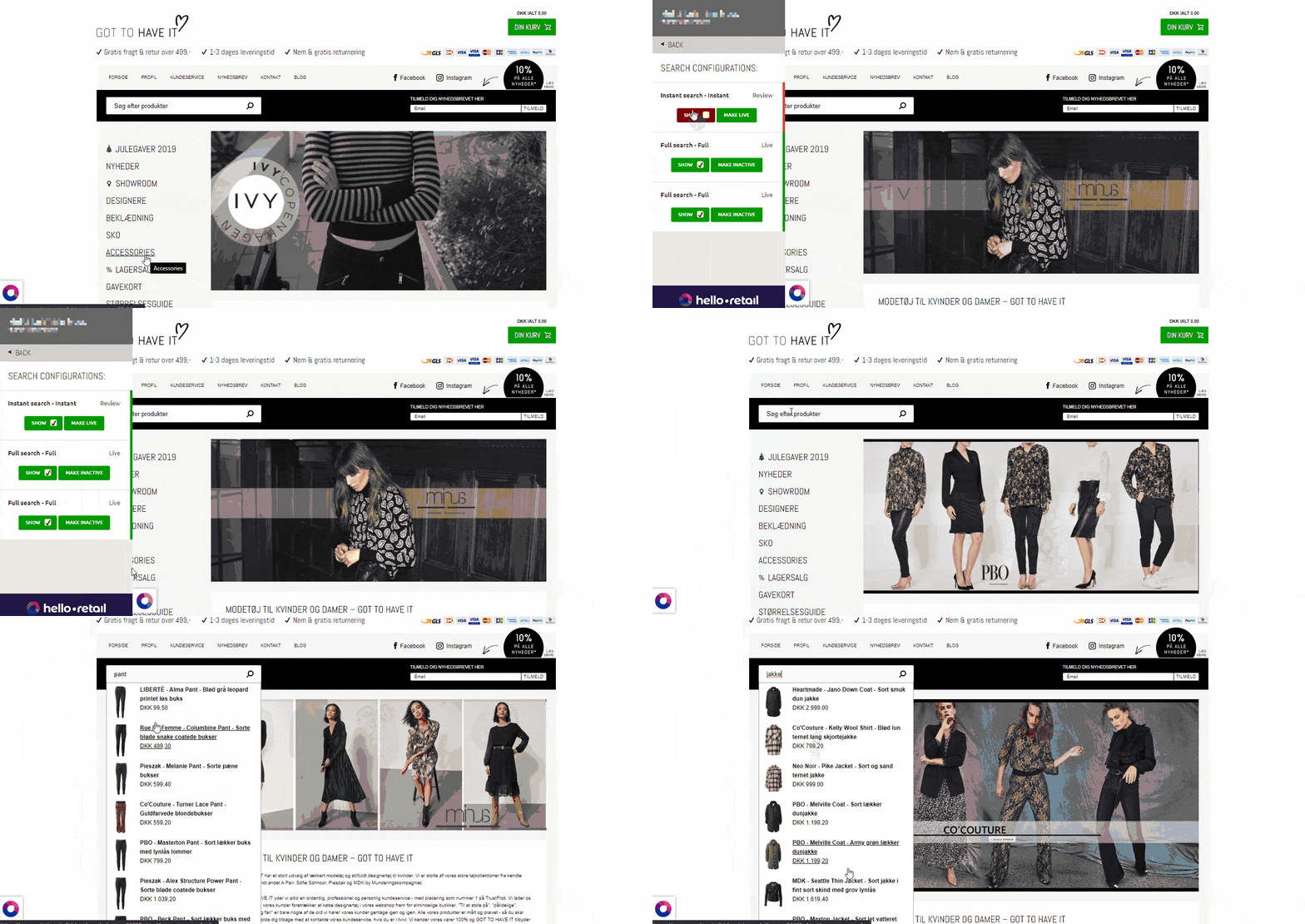
(Figure 1)
Step 2
Check that the List Search design and colors match the rest of the website.
Step 3
Verify that price formatting matches the website (currency, decimals, VAT display).
Step 4
Verify that product badges are shown correctly (for example, New or On Sale).
Step 5
If your search includes Buy buttons on products, verify that the buttons work as intended.
Note
If a product has multiple variants, the Buy button must redirect to the master product.
Step 6 (Business only)
If categories are enabled, verify they work by clicking a category link after entering a search term.
Final Step
When you have confirmed that List Search works as expected, push it live.
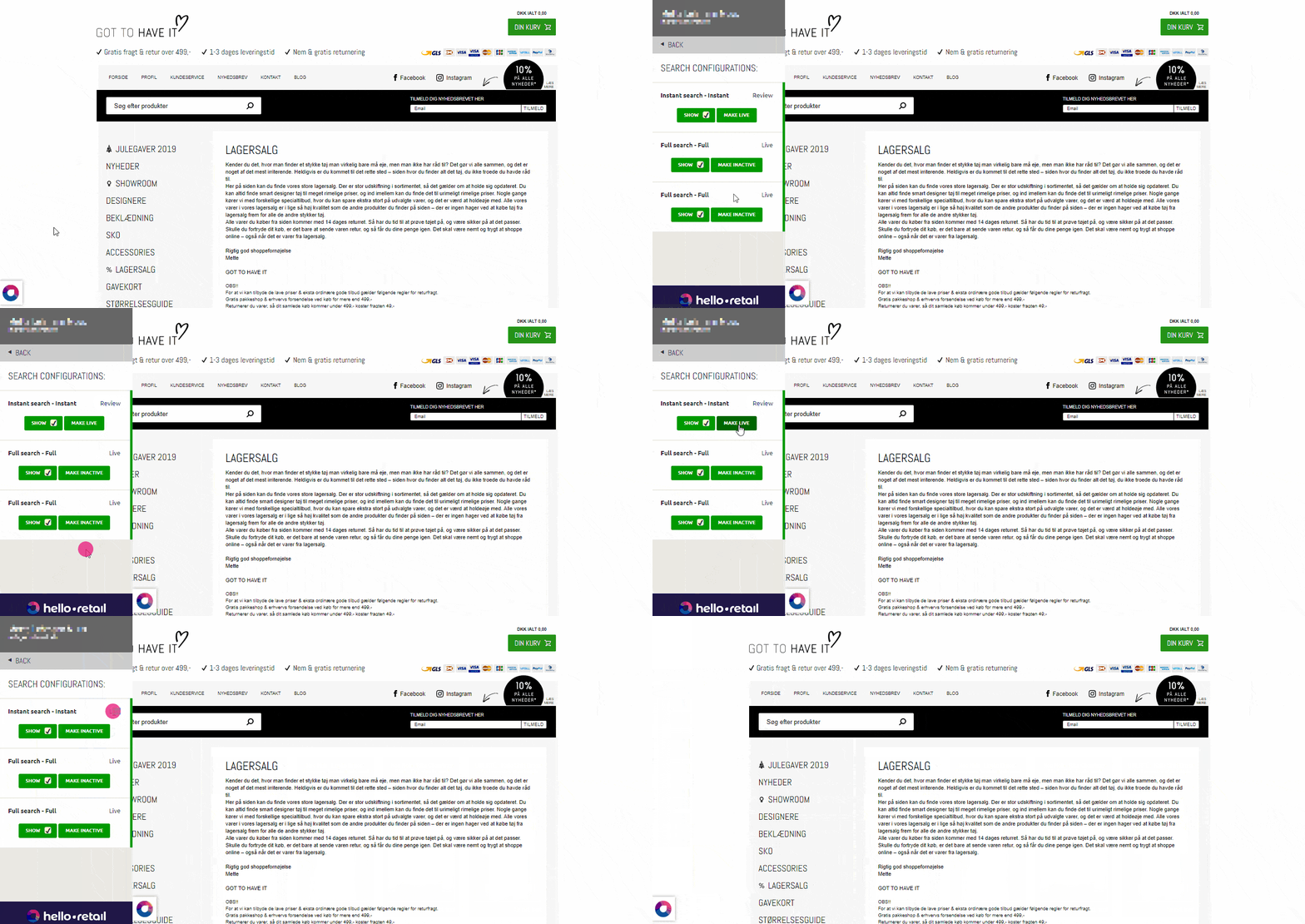
Open the Hello Retail widget panel, go to Search Configurations, select the search configuration, and click the Make Live button.
Fullpage Search
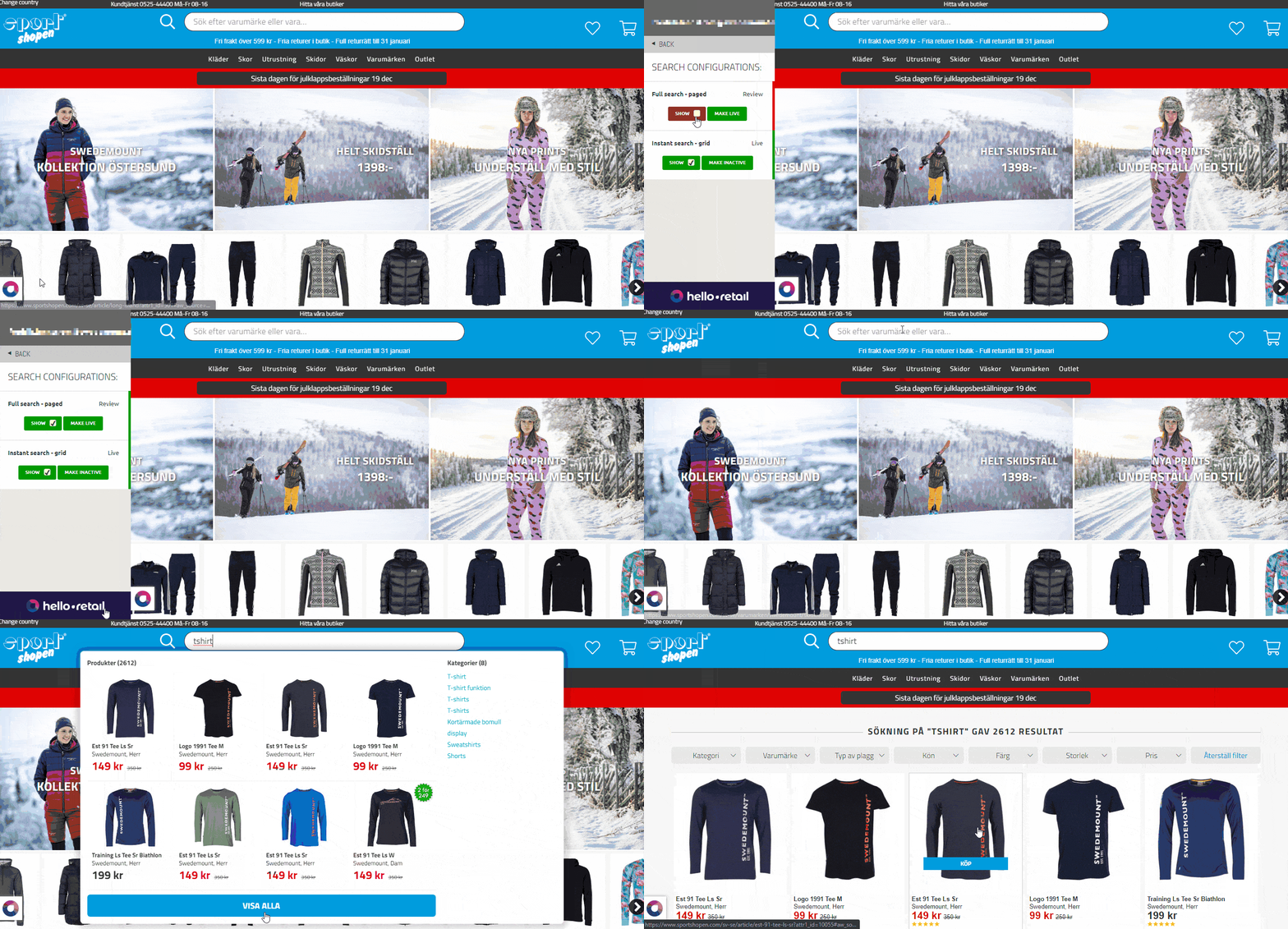
Fullpage Search is the destination when customers do not select a product from List Search. Users reach Fullpage Search by clicking the View All button in List Search or by pressing Enter after typing a query.
Step 1
First, make sure your Fullpage Search works.
- Make sure your Fullpage Search is active in the Hello Retail widget panel.
- On your website, activate the list or grid search by starting to type a search term.
- Click the "View All" button at the bottom of your search to navigate to Fullpage Search. (This also verifies that the link is working properly.)
- Now you are on your Fullpage Search. Stay here for the rest of the guide.
Step 2
Check that the Fullpage Search design and colors match the rest of the website.
Step 3
Verify that price formatting matches the website (currency, decimals, VAT display).
Step 4
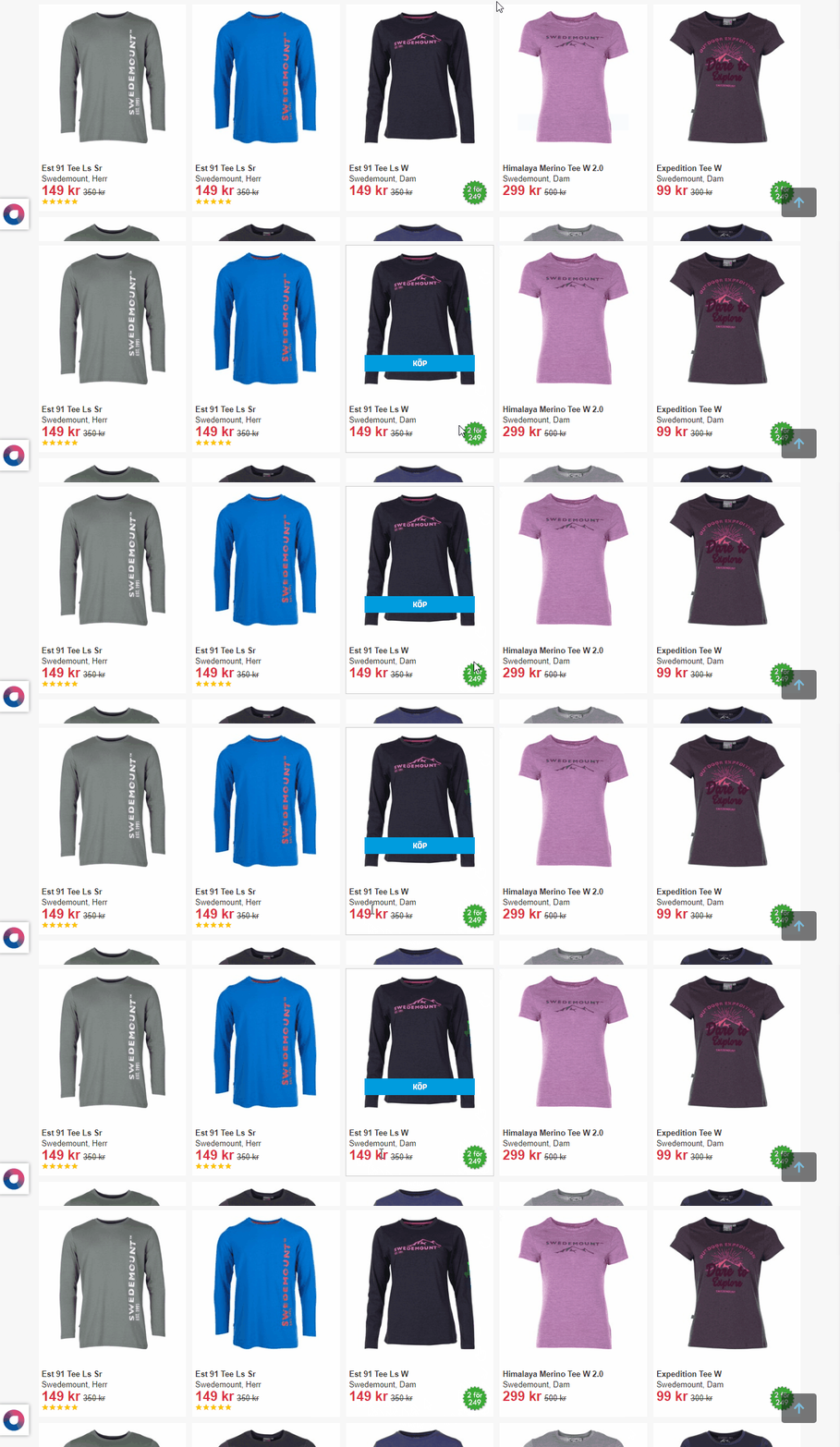
Verify that product badges are shown correctly (for example, New or On Sale).
Step 5
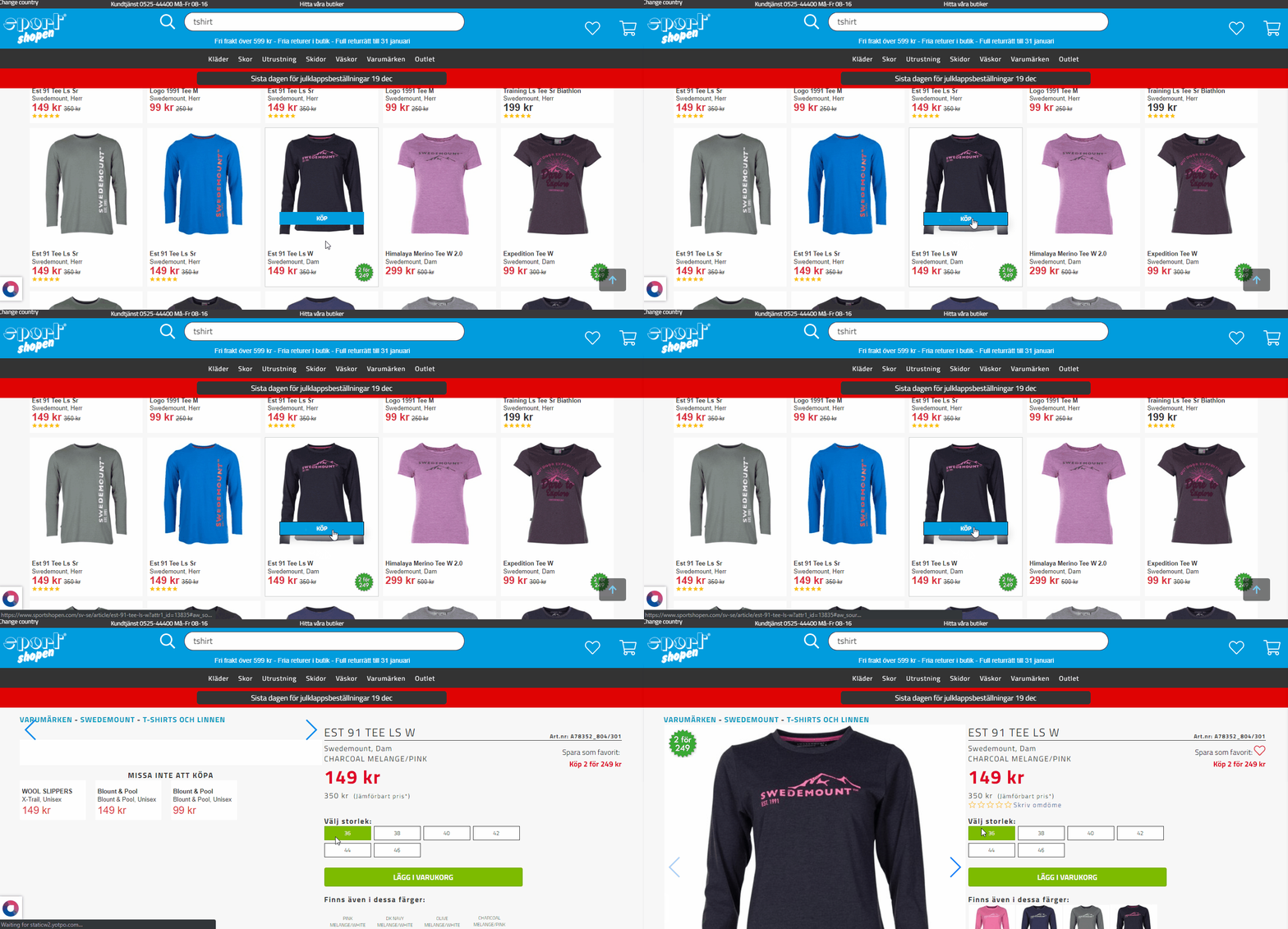
If your search includes Buy buttons on products, verify that the buttons work as intended.
Note
If a product has multiple variants, the Buy button must redirect to the master product.
Step 6 (Business Only)
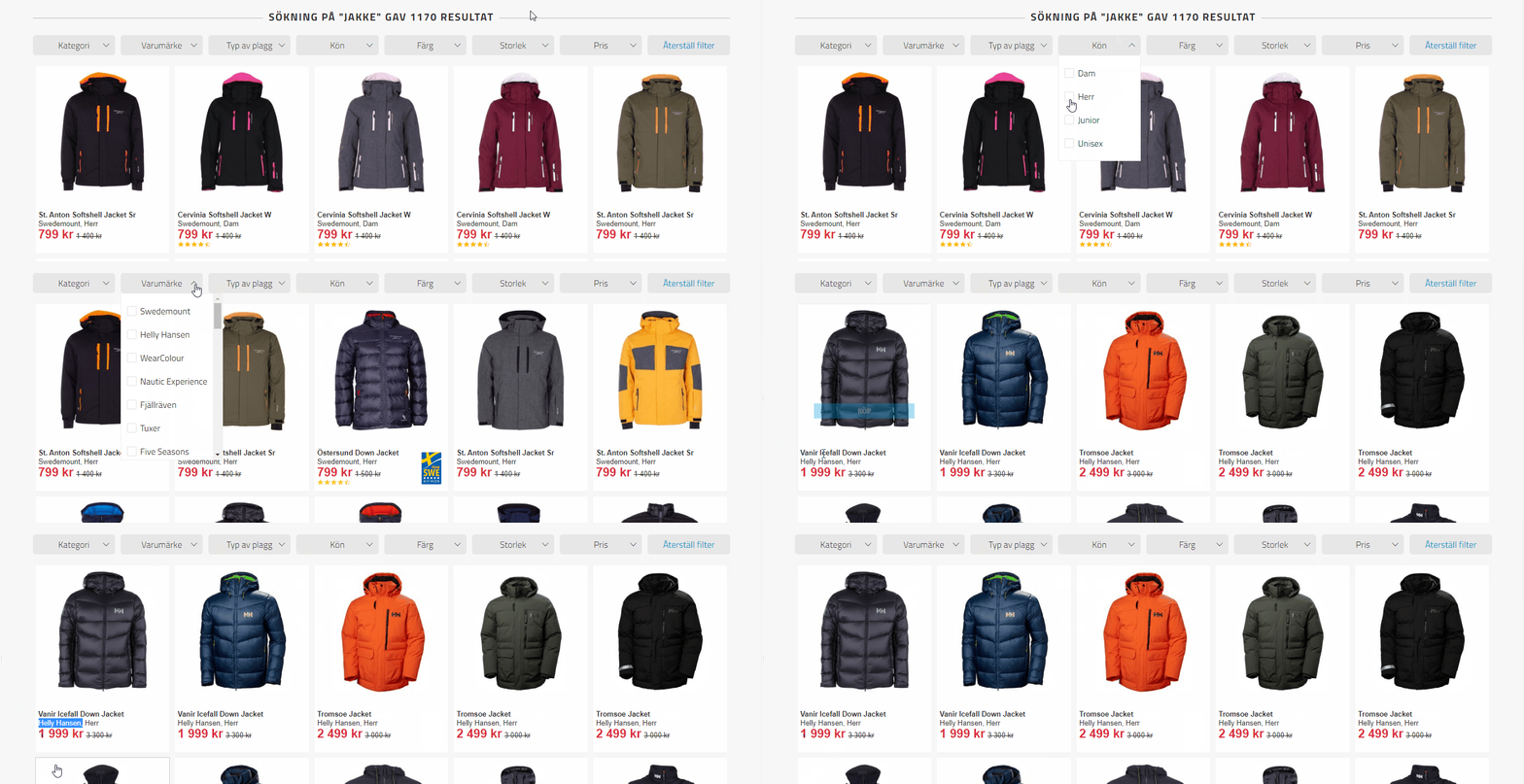
If you have categories on your Fullpage Search, verify that they work properly.
Step 7 (Business Only)
If you have filters, test them to make sure they work as expected.
Final Step
When you have confirmed that Fullpage Search works as expected, push it live.
Open the Hello Retail widget panel, go to Search Configurations, select the search configuration, and click the Make Live button.