Avg. 3 min read
 Review Overlay Search
In this guide, you can read and learn about how to review and test the overlay search that has been set up on your webshop.
Introduction
With any new changes implemented on your webshop, it is recommended to review and test that they work and display as intended. This ensures everything fits your website before visitors see and use it.
Note
Some browsers block cross site tracking by default. If the Hello Retail side panel does not appear, enable cross site tracking or allow third party cookies in your browser during testing.
Notice
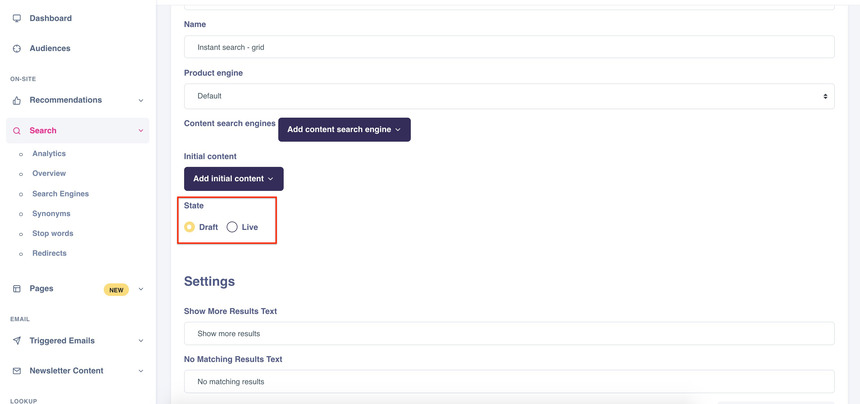
It is possible to review and test through either the dashboard or the side panel widget. Searches can be in either draft or live state.
Process - Testing
- Start by logging into your Hello Retail account.
- Open your webshop in a browser to start the review and testing.
- Navigate to a product page on your website.
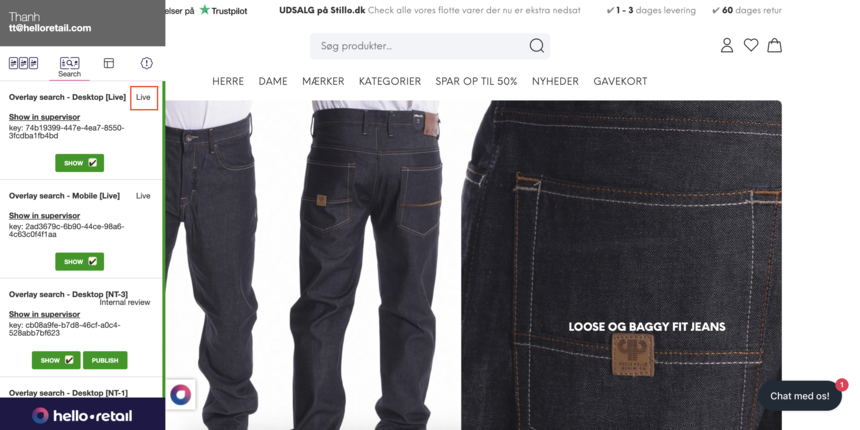
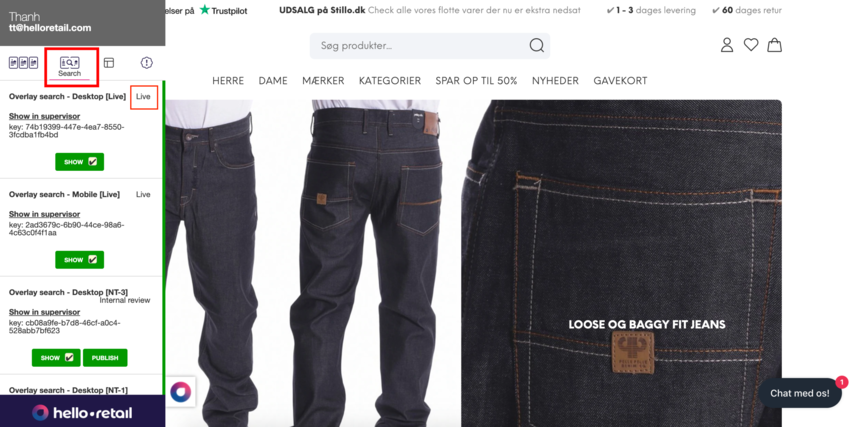
- Click the Hello Retail icon on the bottom left to open the Hello Retail side panel.
- Navigate to the Search column.
- Toggle the Show button for the search box you want to display.
- Click the search bar and run test searches with different terms. Confirm that the results match the intent of the query and link to the correct products.
Process - Verification & Review
-
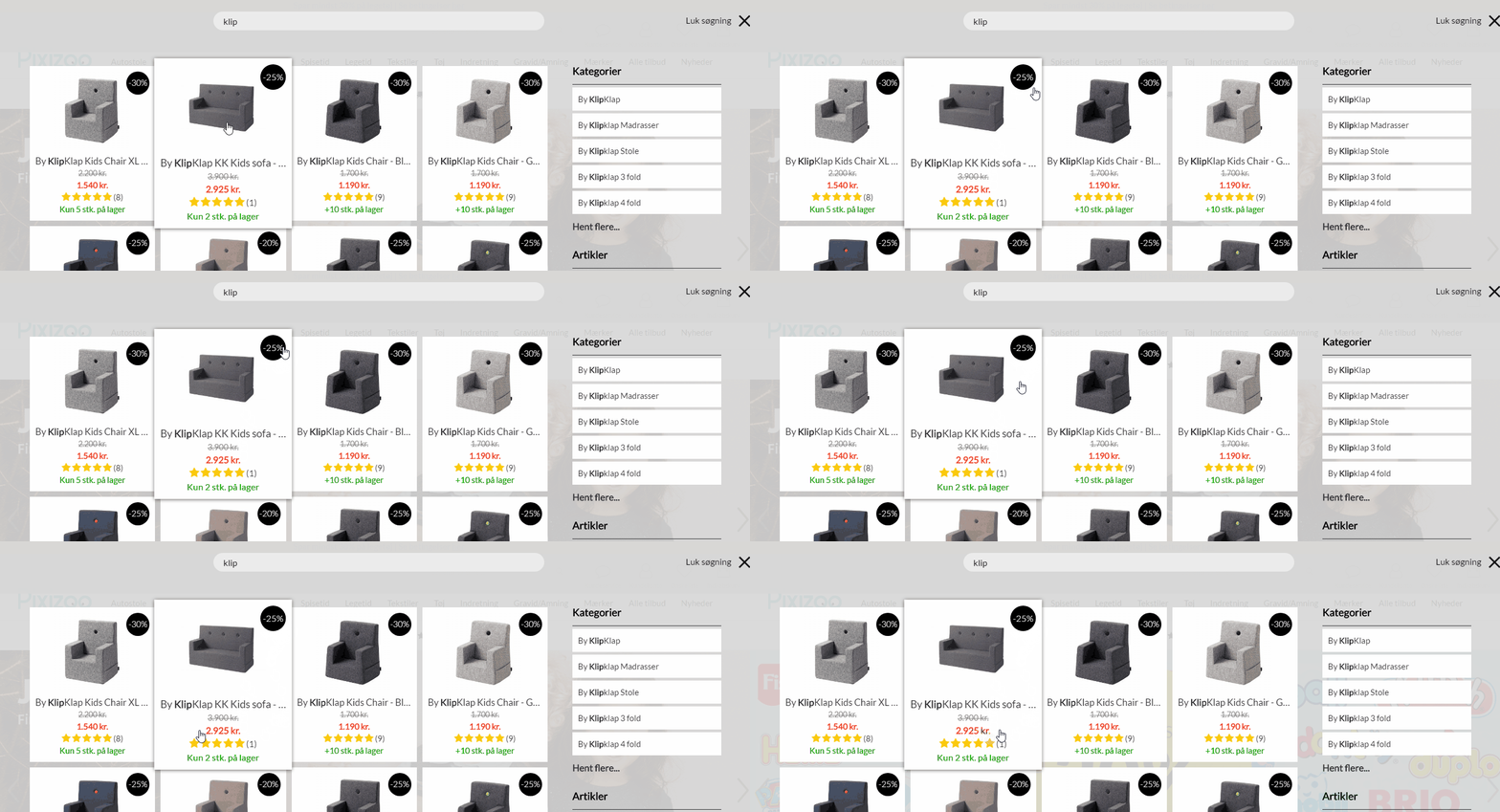
Verify the design and colors of the overlay search match the rest of the website.
-
Verify that prices are displayed consistently across the website.
-
Verify that the placement of any recommendation boxes in the overlay is correct.
-
Verify that badges display correctly, for example new or on sale.
-
If recommendations include a buy button, verify that the buttons work as intended. If there are multiple variants of a product, the buy button should redirect to the master product.
-
Verify that categories work by clicking a category link after entering a search term.
-
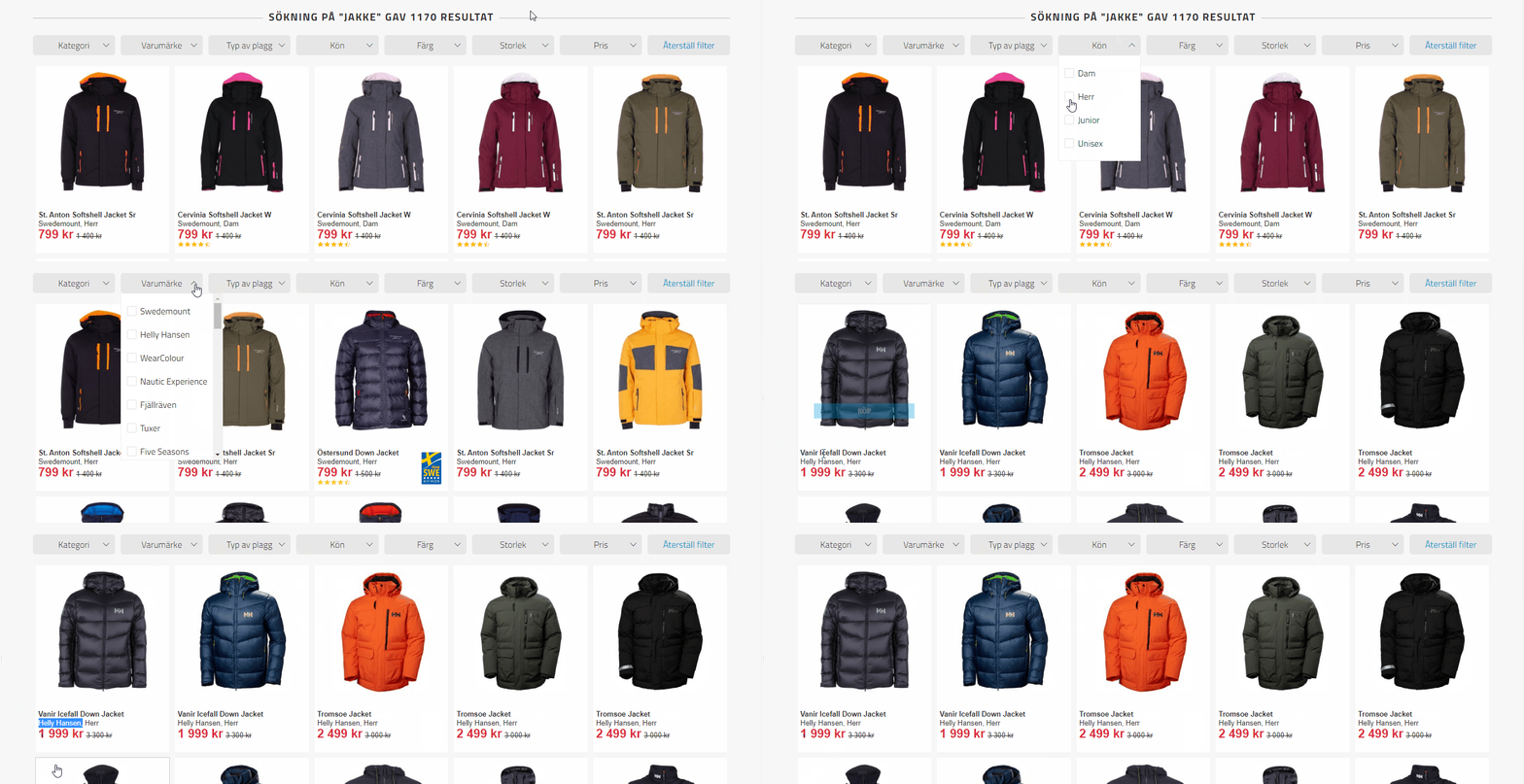
Test the filters and facets to confirm they apply correctly.
Process - Publish & Go Live
When all steps are completed and the overlay search works as expected, you can publish the changes to live.
Side Panel
-
Open the Hello Retail widget side panel.
-
Navigate to the Search column.
-
Find the search box.
-
Click the Show button to make it go live.
-
To unpublish or hide it again, click the Show button to toggle the state.
Dashboard
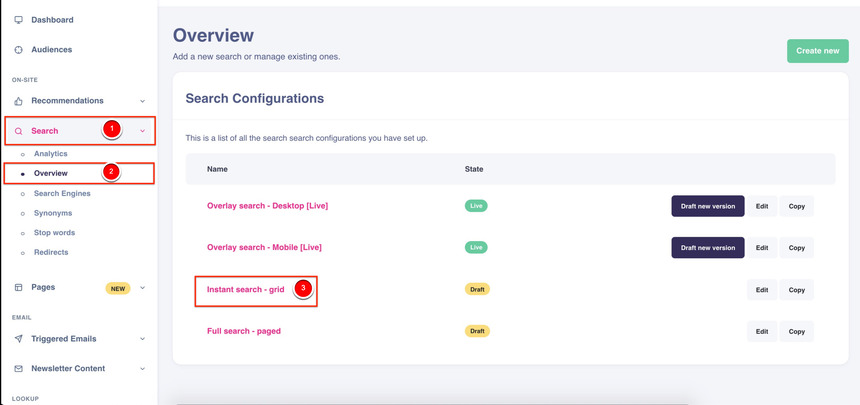
- Start by logging into your Hello Retail account. In the dashboard, go to the left-hand menu. Under the On-Site section, click Search to open the drop-down menu.
- From the drop-down menu, click Overview.
-
Choose the search from the list.
-
In the details view, change the state of the search from draft to live.