Avg. 3 min read
 Website's Indexed product fields
What is Indexed product fields
After your website is set up in Hello Retail and we have ingested product data, the system detects all available product fields for that site. From this list, some fields are standard product fields (for example, price or title) with full support in our system, while others are custom.
Many standard product fields are pre-optimized and indexed, making them efficient for filtering and sorting. Some standard fields are not suitable for indexing due to their data type or behavior.
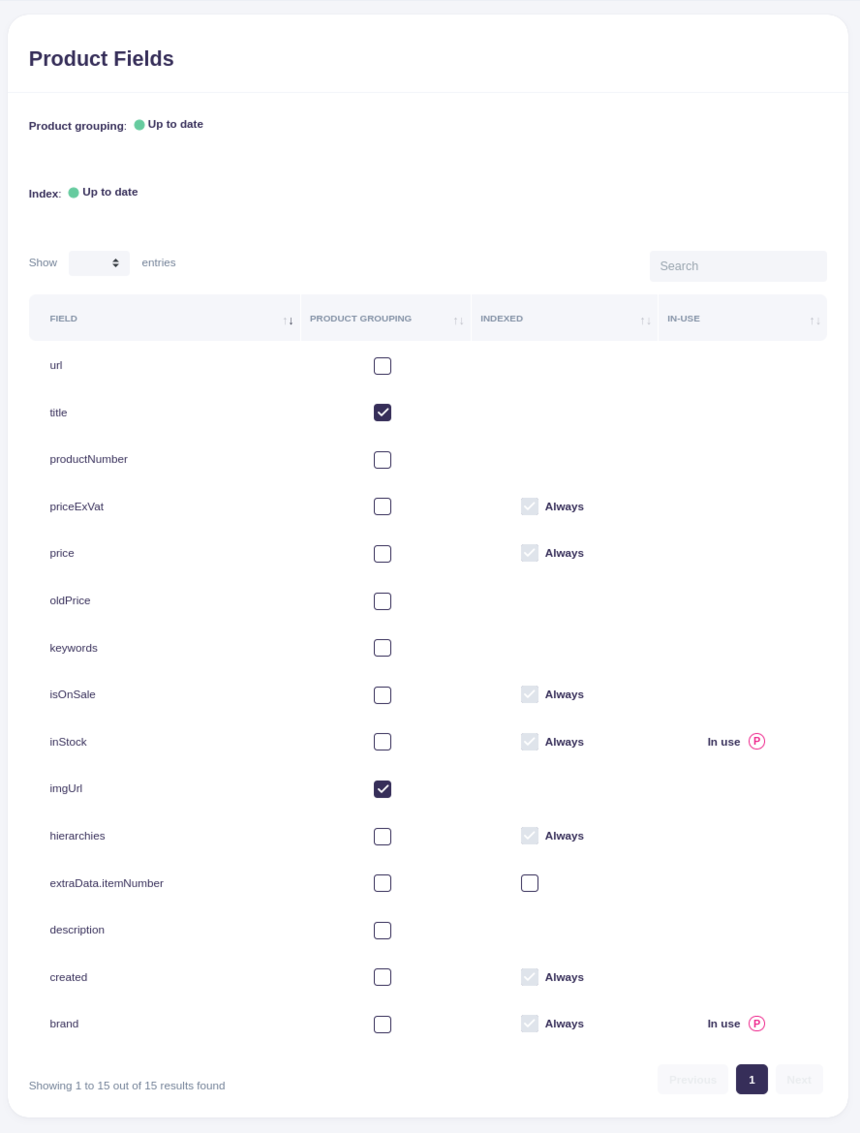
You can see all indexed product fields in the "Product Fields" table under the "Indexed" column.
The "Always" fields
Fields marked with a check mark and the text "Always" are standard product fields that are always indexed. They cannot be unchecked and are always available for sorting and filtering.
The fields without a checkbox
Fields without check boxes are standard product fields that are not indexable and therefore cannot be used for sorting or filtering.
Fields that are in use
The rightmost column, "In use", shows if a field is used for sorting or filtering in a Search (S) or a Page Design (P). Hover the letters to see the name of the Search or Page Design, and click them to go directly to its edit page.
Fields that are in use cannot be removed from the index. First remove the field from sorting or filtering in the relevant Search or Page Design, then update indexing.
Configuring indexed product fields
First navigate to the "Product Fields" edit page:
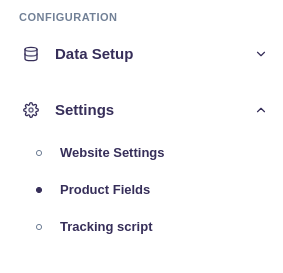
Tick the fields that should be indexed and click Save at the bottom of the screen. If you changed any indexed fields, a confirmation dialog will appear.
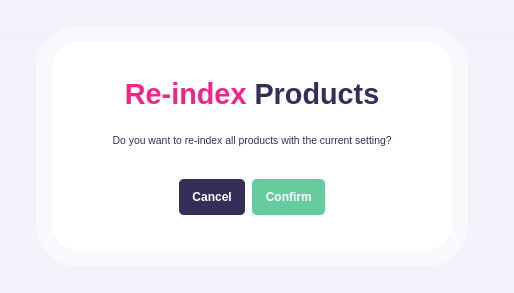
The dialog asks if you want to run a full re-index of all products using the settings you just saved. To make further changes, click Cancel, adjust fields, and Save again.
A full re-index processes all existing product data we have for your shop and applies the updated indexing configuration. It can take time before all products reflect the new indexing.
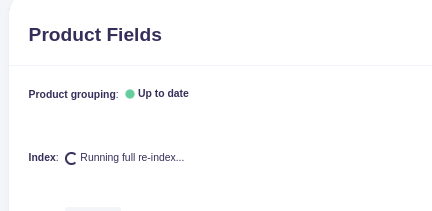
When you are ready, click Confirm. The dialog closes and the index status will show "Running full re-index..." with a spinning indicator.