 Avg. 4 min read
 Create a Manual Campaign
In this guide, you can read and learn about how to create a manual campaign for Newsletter Content containing personalized product recommendations.
You can read more about the different campaign types here.
Prerequisite
Before you can create and set up a campaign, you must have created a design for the Newsletter Content. To learn how to do this, click here. When your design is ready, proceed with this guide.
Create a Manual Campaign
- Start by logging into your Hello Retail account. In the dashboard, open the left-hand menu. Under the Email section, click Newsletter Content to open the drop-down menu.
- From the drop-down menu, click Manual campaigns.
- Click the Create new manual campaign button.
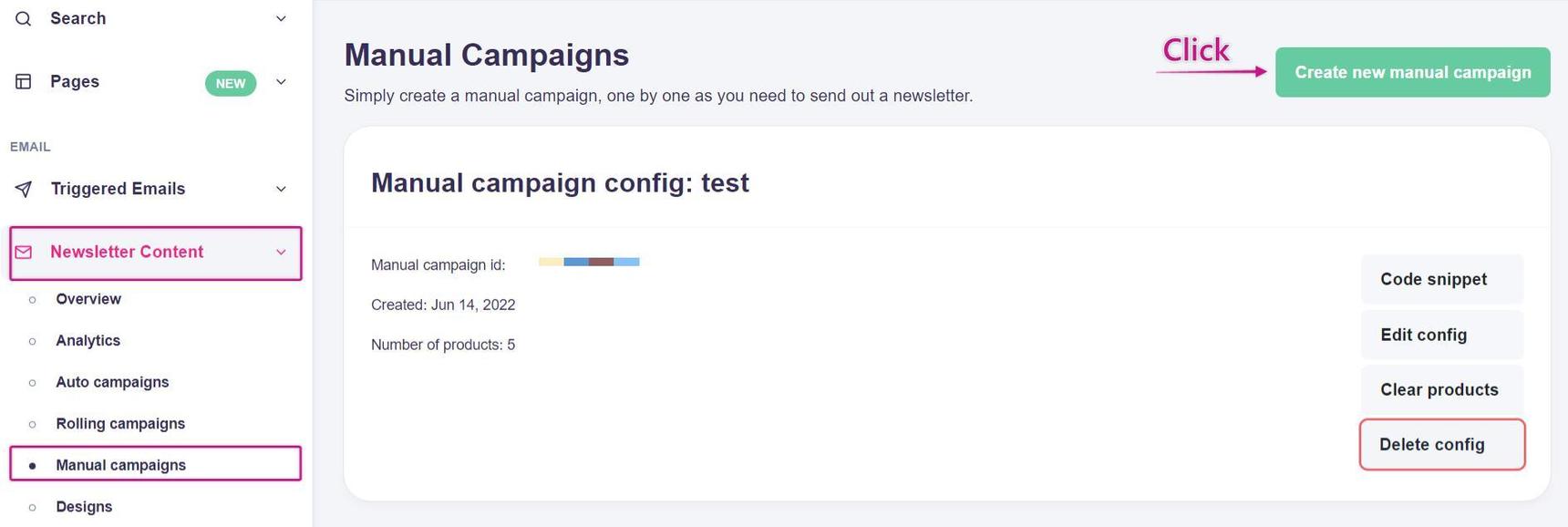
This picture shows step 1, 2 and 3.
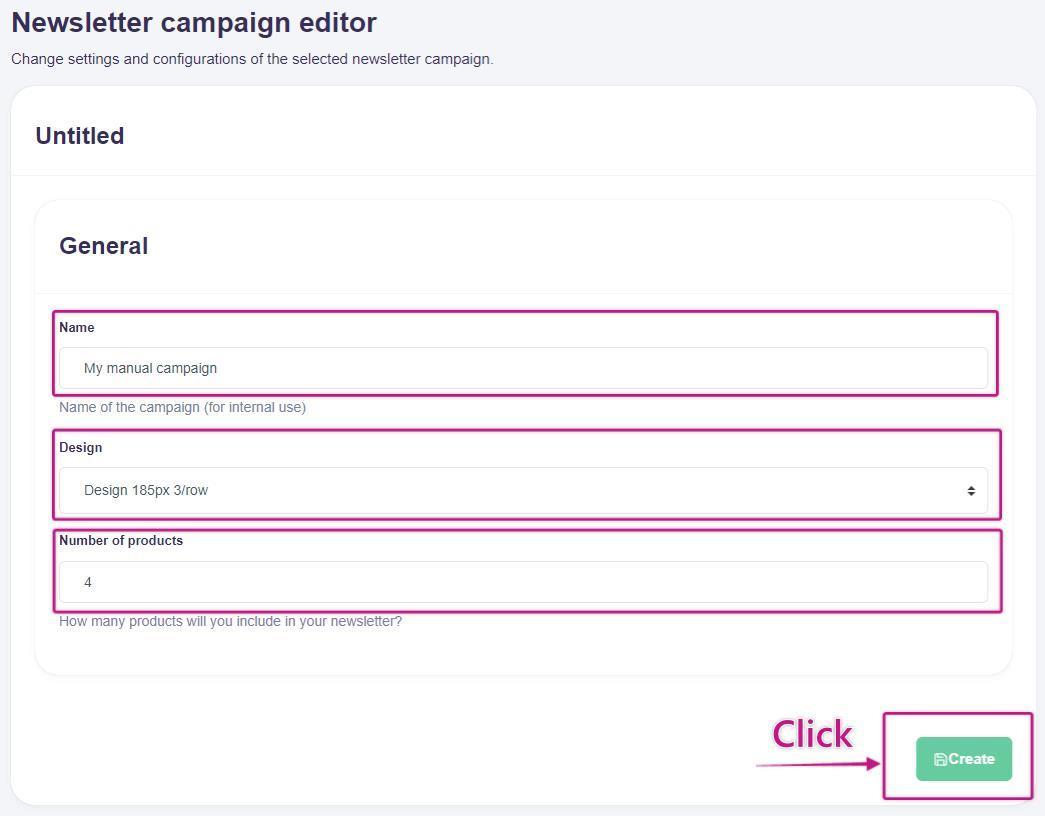
Name, design and products
- Provide a clear campaign name.
- Select your design.
- Choose the number of product recommendations to display in this campaign.
- Click Create to continue.
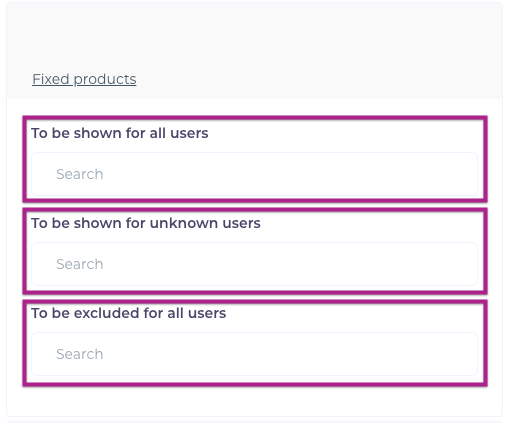
Fixed products
Under Fixed products, you can pin specific products that will be displayed to all users. These products are shown regardless of each user’s browsing or purchase history.
Use this to highlight new arrivals, products with high stock, or items you want to promote. You can also: - Set fixed products for unknown users only. - Exclude specific products for all users.
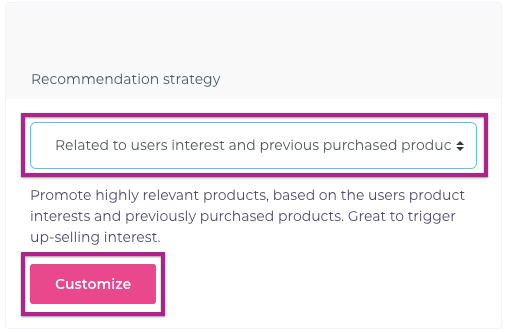
Recommendation strategy
In this step, choose the Recommendation strategy to use in your campaign. Options include:
- Related to users' interests and previous purchases: Promote products based on each user’s interests and purchase history. Useful for up-selling.
- Promote users' previously purchased products: Re-display items a user has bought before. Good for replenishable or repeat-purchase products.
- Promote products on sale: Prioritize relevant products currently on sale.
- Classic retargeting: Prioritize products a user has viewed and related items.
- Customize: Build a custom strategy with prioritized steps. The first step has the highest priority and acts as the primary source, with subsequent steps as fallbacks.
UTM settings
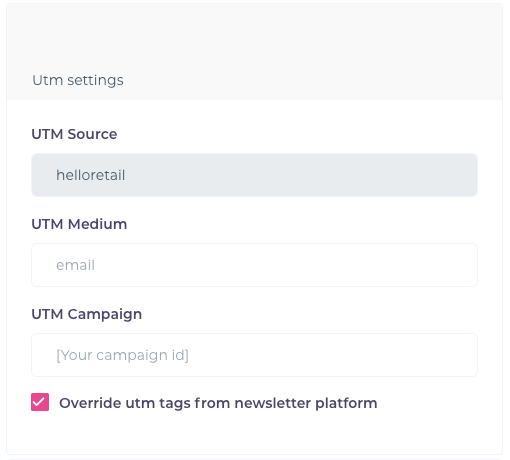
If you use Google Analytics, you can manually configure UTM parameters. You can read more about that here.
Code snippet
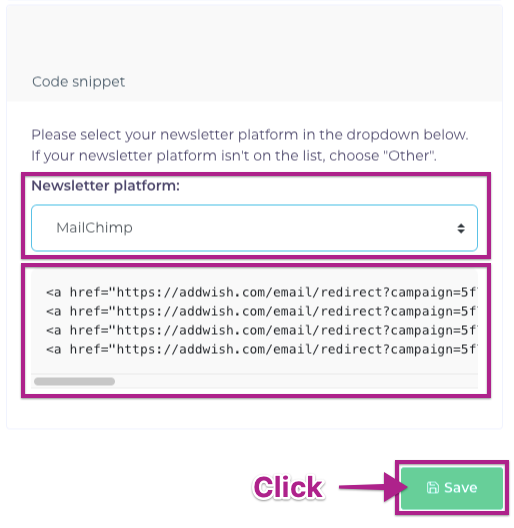
Under Code snippet, select your newsletter platform. A code snippet will be generated that represents the product recommendations for this campaign.
Add the snippet to your newsletter as an HTML block in your email platform. Click Save to save the campaign.
Finalising the setup of your manual campaign
After you complete the steps above and click Save, your manual campaign is active.
Paste the code snippet into your newsletter in your email platform. When you send the newsletter, the snippet will render personalized product recommendations for each recipient.
Note
Manual campaigns are intended for one-time use. If you reuse the same code snippet in a new newsletter, the same products will be displayed.
Clear products
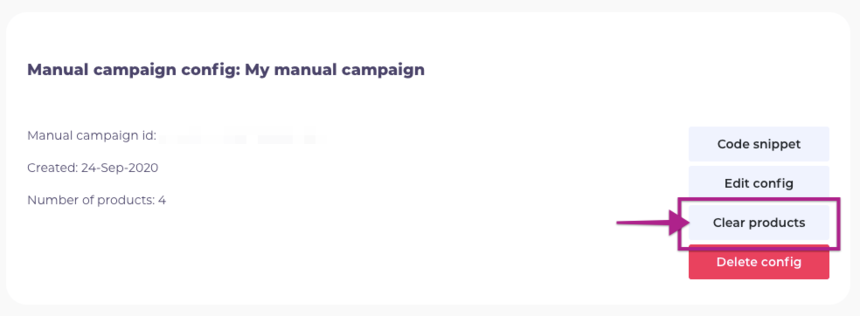
You can Clear products to reuse the same code snippet. Clearing products resets the campaign. The next time a customer opens a newsletter containing the snippet, the products will be selected based on the latest data and your configured strategy.
Note
Clearing products also updates old newsletters that use the same code snippet. If a recipient reopens an older newsletter, it will display the updated products.
We recommend creating a new campaign for each new newsletter. This gives you accurate, per-campaign statistics.
If you have any questions about this guide, then please contact Support or your designated account manager about this.