 Avg. 2 min read
 Create a Newsletter Content design
This guide explains how to create and configure a Newsletter Content design in Hello Retail.
When you design Newsletter Content, you build a single clickable product tile. The tile typically includes:
- title, image, price, and previous price (if available)
You can insert any number of these tiles into your newsletter. Each tile uses the same design but shows different products.
Create a newsletter content design
- Start by logging into your Hello Retail account. On the dashboard, open the left-hand menu. Under the Email section, click Newsletter Content to expand the drop-down menu.
- Next, in the drop-down menu, click on Designs.
- Click the Create a new design button.
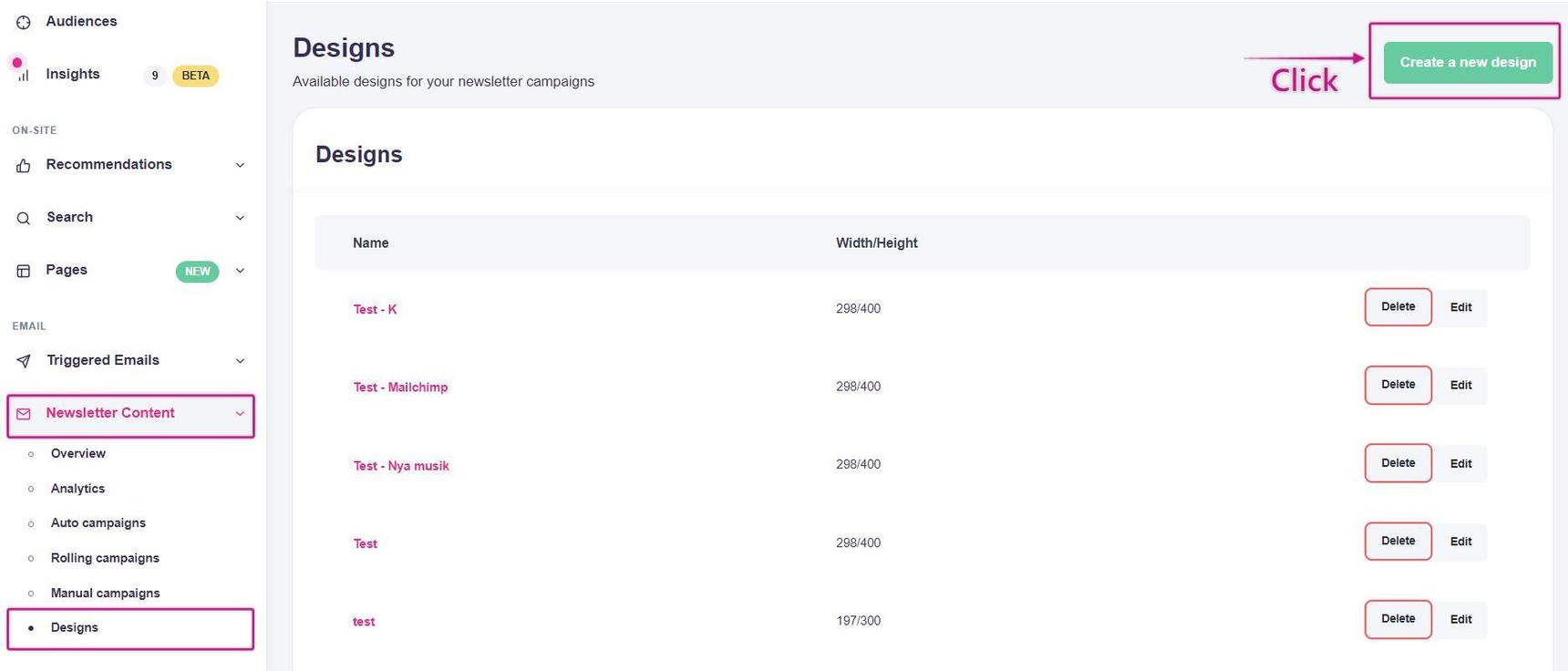
This picture shows step 1, 2 and 3.
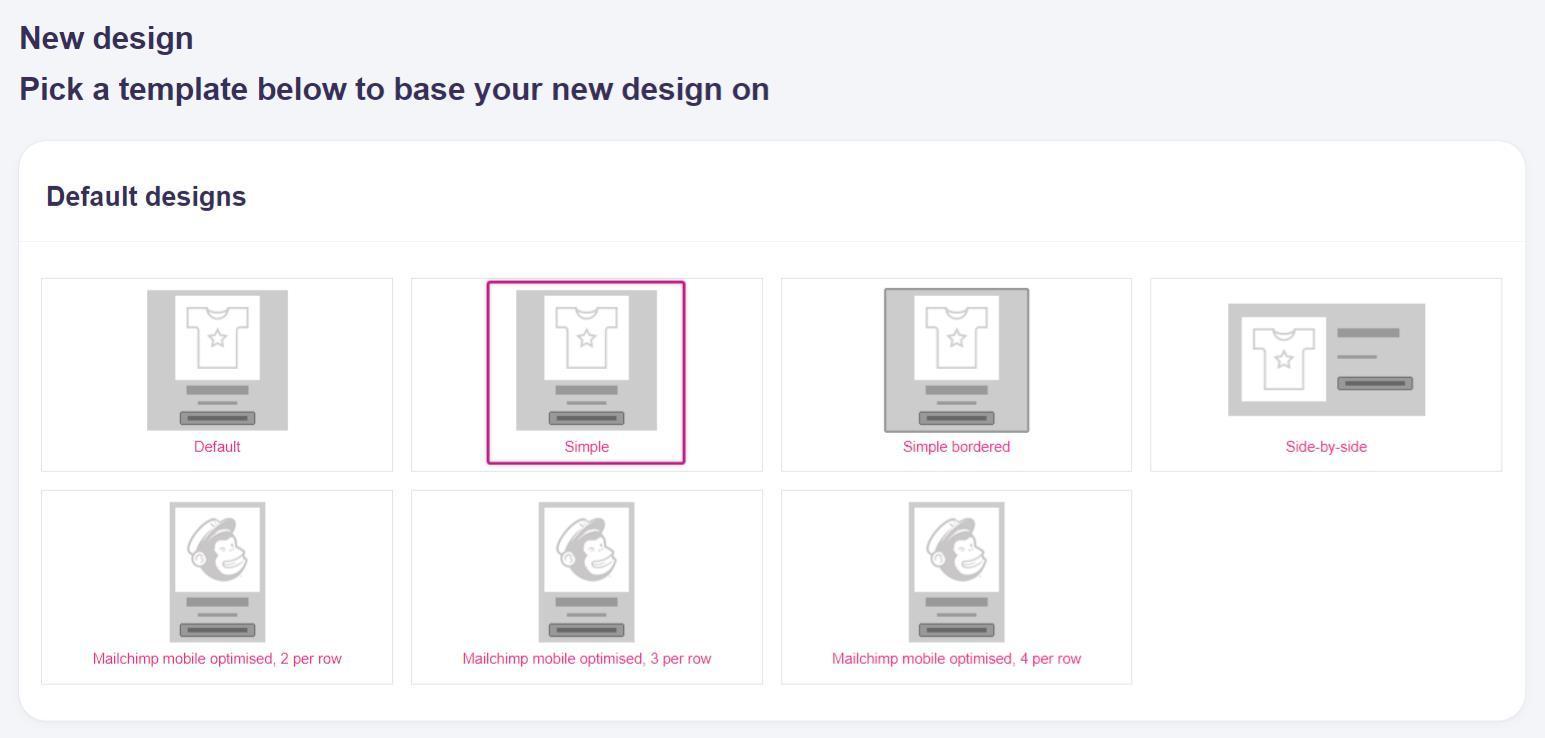
4. In the template selector, you will see the default templates available. For this guide, choose the **Simple** template as your design starting point.
5. You can now modify basic settings for how product recommendations render in your newsletters and emails.
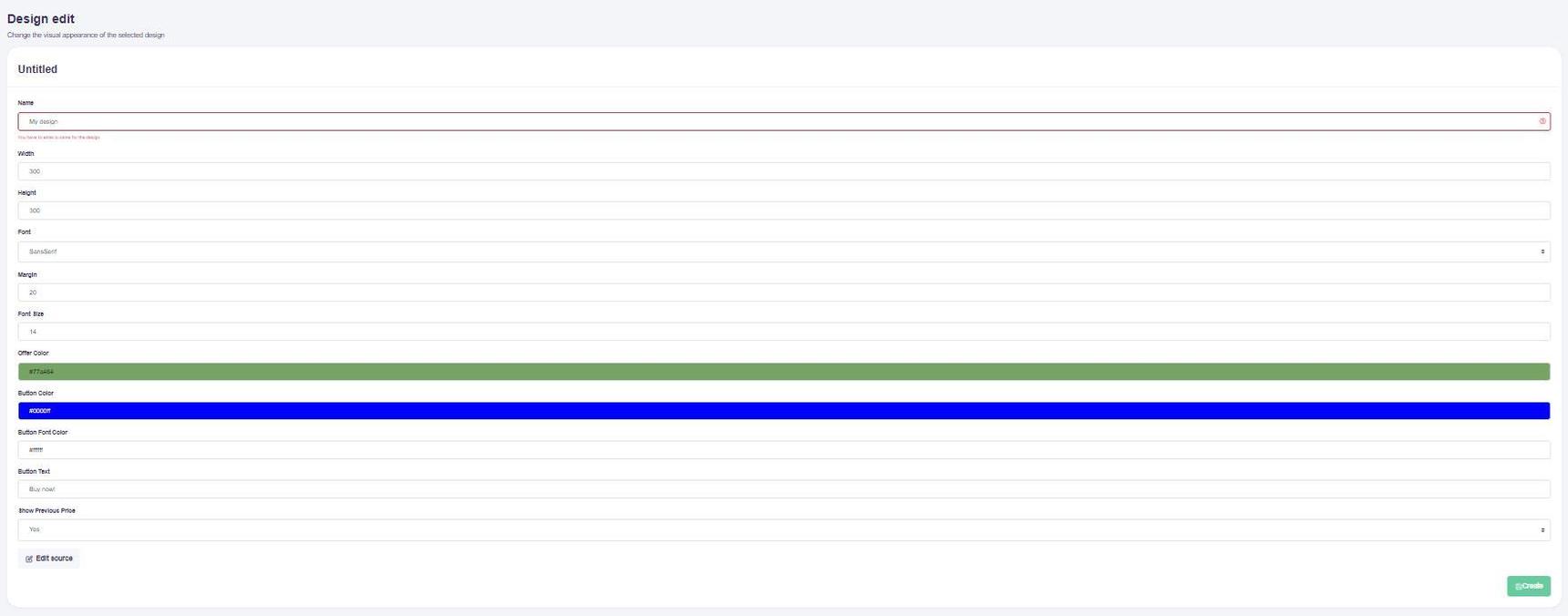 6. Click Create to save your design. You can now use this design in your campaigns.
You can read more about how to use this design in a campaign by going to this category.
Edit source
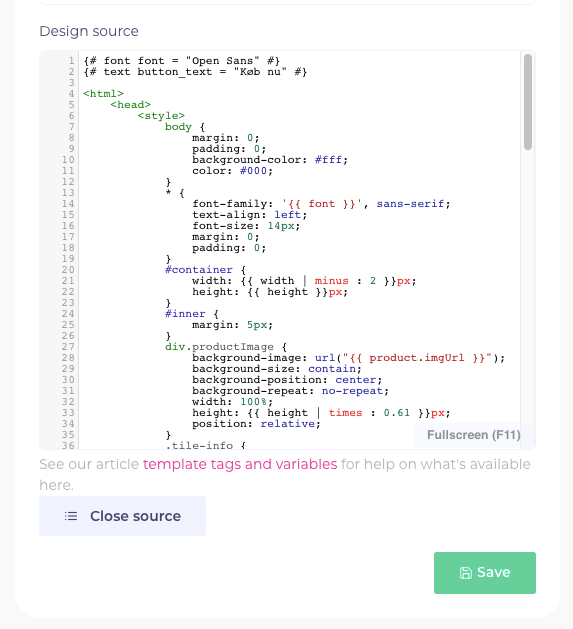
If you are familiar with HTML, you can switch to Edit source mode to adjust the template used to generate product recommendations in newsletters and emails.
Scroll down and click the Edit source button.
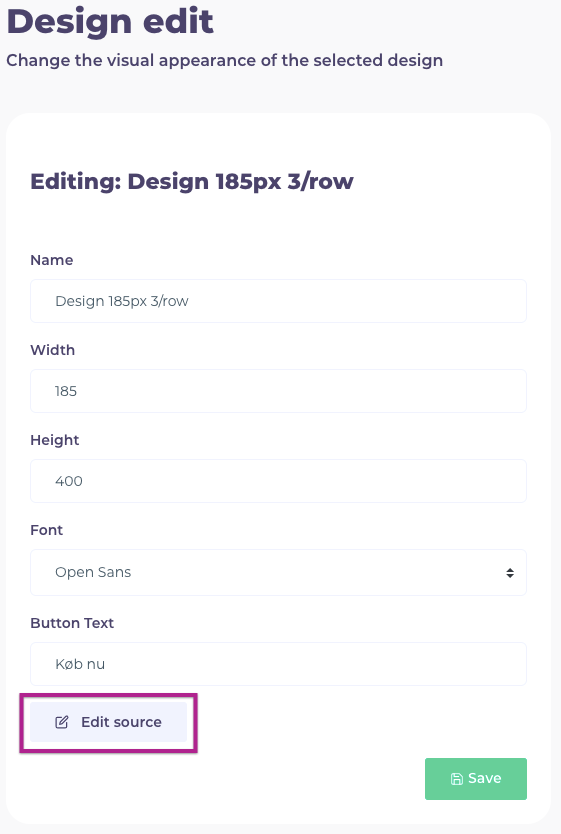
A window with the template source code will open where you can edit the code directly. Beneath the editor, you will find a guide listing the available variables.
Remember to save your changes when you are done.
If you have any questions about this guide, please contact Support or your designated account manager.