 Avg. 3 min read
 Hello Retail panel login & third-party cookie phase-out
Third-party cookies are being phased out:
Major web browsers are deprecating third-party cookies used for storing information across different domains.
This change affects single sign-on. For Hello Retail, it changes how you access and log in to the Hello Retail panel on your website.
Hello Retail Panel login:
With the phase-out of third-party cookies, you will no longer be automatically logged in to the Hello Retail panel on your website after signing in to your my.helloretail account.
Going forward, you must initiate the login process manually on your website.
Note
Authorization from logging in is scoped to the website domain. If you manage multiple domains, such as www.webshop.com and www.anothershop.com, you must log in to the panel on each site separately.
Methods to Trigger the Login Process:
To initiate the login process for the Hello Retail panel, use one of the following methods:
These methods will trigger the appearance of the Hello Retail panel button.
Clicking the button initializes the login window. The Hello Retail script must be loaded on the page:
-
Add query parameter to the URL:
Append the query parameter ?hello_retail_login to the URL of the website where you intend to log in to the Hello Retail panel.
Reload the page with the parameter present.https://www.someshop.com?hello_retail_login
-
Navigate from my.helloretail.com:
Visit my.helloretail.com and use one of the external links provided.
These links send you to your website with the login query parameter attached.-
"Go to Website" link from the top navigation of the website dashboard page:
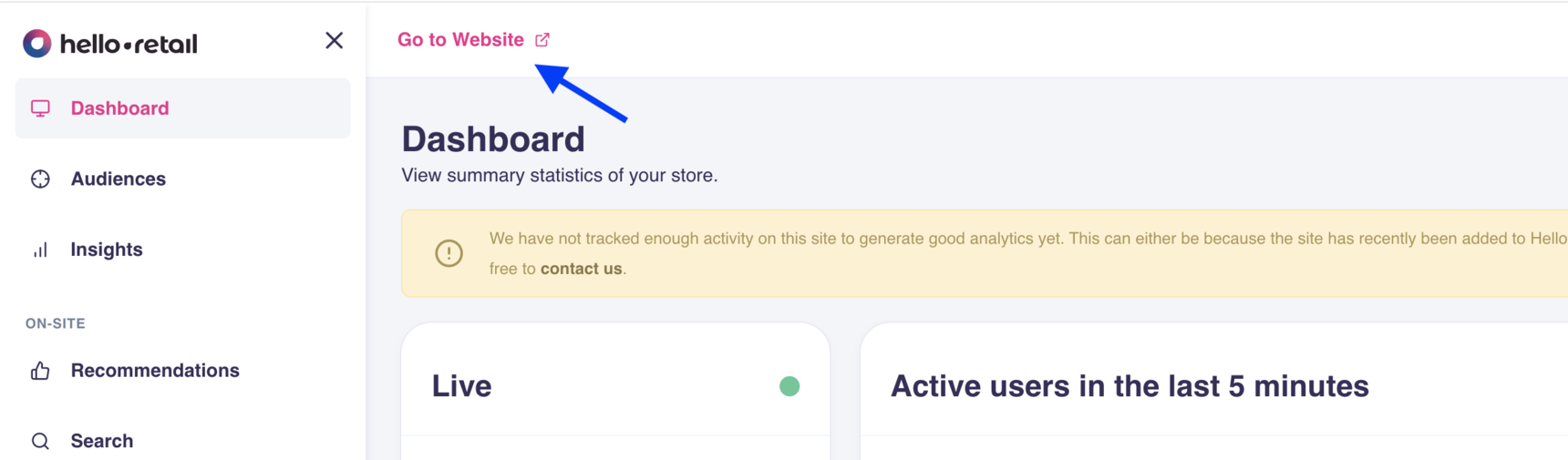
-
External link in the address column of the websites overview list:
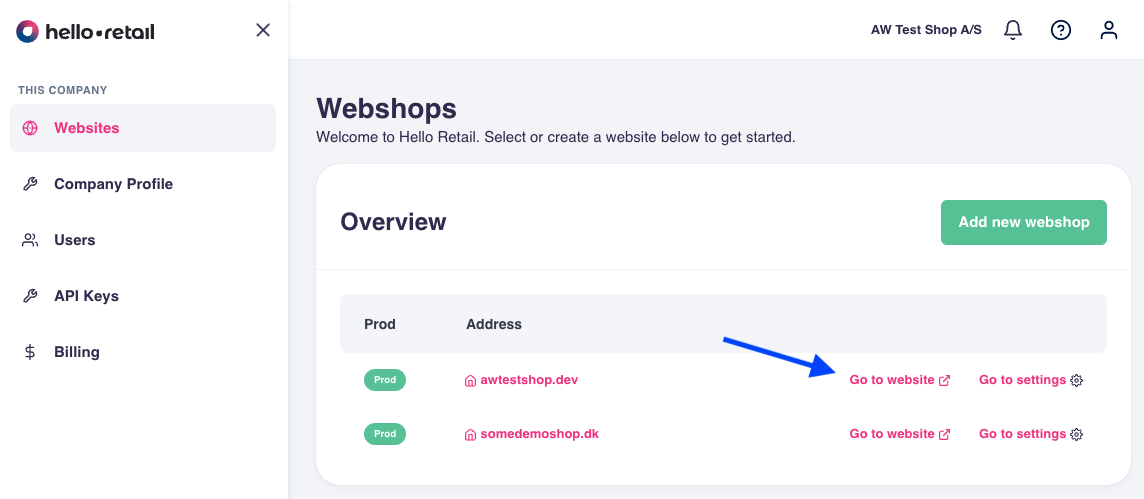
-
These methods will trigger the login window directly:
-
Use a Bookmarklet:
Create a bookmarklet with the following code and click it whenever you need to log in to the panel:javascript:
(() => {hrq = window.hrq || []; hrq.push(["login"]); })();The following shows how to create a bookmarklet in Chrome: - Open the bookmarks settings page by entering the following URL in the address bar:
chrome://bookmarks-
Click the three dots menu in the top right corner and select "Add new bookmark". In the popup, give the bookmark a name and paste the JavaScript snippet above into the URL field:
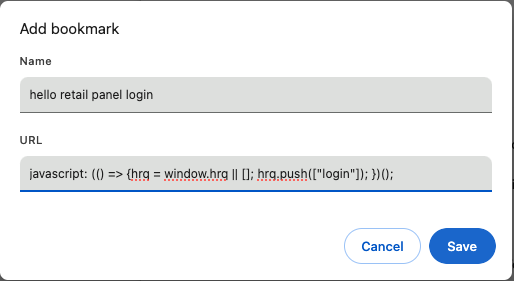
-
-
Direct API login function call:
Call the API login function directly in your browser console: