 Avg. 7 min read
 Client-Side Integration
If you are first starting your setup of Pages, read this guide first. This guide goes in-depth on frontend integration.
Requirements & Prerequisites
This method requires minimal implementation. You add a div with the correct data attributes and let the Hello Retail JavaScript render the content.
Divs & Data Attributes
The core of Pages is a <div> code snippet placed where you want the content to render.
You can read more about the div tag in this guide here. The div tag placement and setup are similar to how you would set up a product recommendation.
Code snippet example - Category:
Code snippet example - Brand:
The {key} is auto-generated and unique for each Page you create. You can create multiple Pages for different purposes and categories.
For examples, see this section here.
The hierarchies value must be a JSON array, encoded as a string inside the data-filters attribute. Other attributes, such as brand, use a plain string value.
Replace value with your actual category path or brand. See examples in this section here.
It is important to implement the HTML snippet exactly as shown so Hello Retail can detect the div and render the category page content.
Work with your developer to dynamically add this div with the correct filter values on each relevant page.
You can read more about the setup of Pages here.
Summary of Requirements:
- Place and render the
<div>code snippet on each target page. - Set the filter value to exactly match the category or brand identifiers used on your webshop.
- Have your developer generate the div and data-filters dynamically with the correct values.
Process
Add a div to the HTML of the page where you want the category content to appear. The div must contain a data-filters attribute. This filter determines which products are shown.
The filter value is typically derived from your shop platform and inserted dynamically. You should not maintain one manual div per category or brand page.
A generated div could look like this after the dynamic value has been inserted:
When the Hello Retail JavaScript runs, it looks for divs matching any active Pages. In the case above, if a Page with the key 621ca9f152b27467bdb8d06a is active, it will find the div.
After the div is found, the script sends an API request to Hello Retail to fetch content for that Page. The request includes the provided filters so the API can exclude products that should not be shown.
How you generate the div and the dynamic filter depends on your shop platform.
As an example, here is how it can be done in WooCommerce. Category pages are generated by the file /wp-content/plugins/woocommerce/templates/archive-product.php.
You can derive the current category from the breadcrumb. To build a div like the above, add something like the following below the title that WooCommerce generates for the page:
<?php
    $key = '621ca9f152b27467bdb8d06a';
    $breadcrumbs = (new WC_Breadcrumb())->generate();
    $filter = ['hierarchies' => []];
    foreach($breadcrumbs as $b) {
        $filter['hierarchies'][] = $b[0];
    }
?>
<div id="helloretail-category-page-<?=$key?>" data-filters='<?=htmlspecialchars(json_encode($filter), ENT_QUOTES, 'UTF-8')?>'></div>
This generates a div with the correct filter for the current category page. On the URL /product-category/clothing/accessories/ it outputs:
<div id="helloretail-category-page-621ca9f152b27467bdb8d06a" data-filters='{"hierarchies":["Clothing","Accessories"]}'></div>
While on the URL /product-category/clothing/ it outputs:
<div id="helloretail-category-page-621ca9f152b27467bdb8d06a" data-filters='{"hierarchies":["Clothing"]}'></div>
Once the Hello Retail content works as expected, you can remove the platform-generated category content from the page.
Examples & Use Cases
The examples below demonstrate different setups, depending on your strategy and needs. They also apply when you want to promote specific products for a sale or event.
Examples
Square brackets indicate a list that can contain multiple nested levels. Each element represents one category level. For example, Men > Shoes > Boots will show products from that single path in the hierarchy.
Example - Breadcrumbs:

This structure resembles a breadcrumb with multiple levels. Items inside [ " " ] indicate nested category levels in a list.
{ "hierarchies": ["woman"] }
Items inside " " indicate a string value, most commonly used for brands.
{ "brand": "nike" }
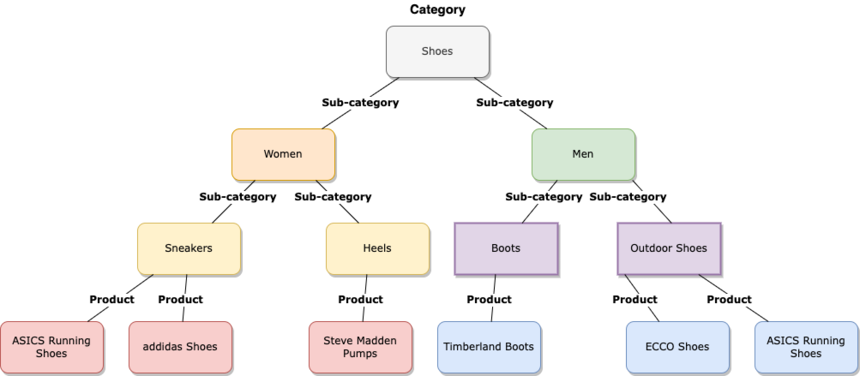
The example below shows different categories. A product can appear in multiple categories. In this example, Asics shoes are in Shoes > Men > Outdoor shoes and Shoes > Women > Sneakers.
<div
  id="helloretail-category-page-{key}"
  data-filters='{ "hierarchies": ["Shoes", "Men", "Outdoor Shoes"] }'>
</div>
<div
  id="helloretail-category-page-{key}"
  data-filters='{ "hierarchies": ["Shoes", "Women", "Sneakers"] }'>
</div>
Example - Illustration of Categories and Products:
Use Cases
| Use case | Type | Value | <div> code snippet |
|---|---|---|---|
| If you want to have a page showing only a specific type of category such as electronics. | json | ['Electronics'] | <div id="helloretail-category-page-{key}" data-filters='{"hierarchies":["Electronics"]}'></div> |
| If you want to have a page showing a specific type of category such as electronics and specifying a specific type of electronics such as TVs. | json | ['Electronics', 'TVs and Accessories', 'TVs'] | <div id="helloretail-category-page-{key}" data-filters='{"hierarchies":["Electronics", "TVs and Accessories", "TVs"]}'></div> |
| If you want to have a page showing products that are on sale within a specific type of brand. | string | "Nike" | <div id="helloretail-category-page-{key}" data-filters='{"brand": "Nike"}'></div> |
Fallback Content
If you want a fallback in the unlikely event that Hello Retail's services are down, you can fall back to the shop platform's category pages:
- Make sure the platform-generated category content is inside a div. Hide this div with the style
display:none. - Start a timer for, for example, two seconds.
- When the timer ends, check if the Hello Retail div contains products. If not, show the fallback content and hide the Hello Retail div to prevent duplicate content if it loads later.
In the example above, this would look like:
<?php
    $key = '621ca9f152b27467bdb8d06a';
    $breadcrumbs = (new WC_Breadcrumb())->generate();
    $filter = ['hierarchies' => []];
    foreach($breadcrumbs as $b) {
        $filter['hierarchies'][] = $b[0];
    }
?>
<div id="helloretail-category-page-<?=$key?>" data-filters='<?=htmlspecialchars(json_encode($filter), ENT_QUOTES, 'UTF-8')?>'></div>
<div id="platform-default-category-page" style="display:none"> ... </div>

<script>
    // Show default category if Hello Retail loads 0 products after 2 seconds of wait.
    setTimeout(function() {
        var helloretailContent = document.querySelector("#helloretail-category-page-<?=$key?> .hr-products-container");
        var woocommerceContent = document.getElementById("platform-default-category-page");
        if (helloretailContent?.children.length === 0) {
            helloretailContent.closest("#helloretail-category-page-<?=$key?>").style.display="none";
            woocommerceContent.style.display="block";
        }
    }, 2000);
</script>
You can check Hello Retail's system status here and subscribe to updates if needed.