 Avg. 4 min read
 How to Set Up Pages for Shopify
This guide explains how to set up Hello Retail Pages on Shopify.
For an in-depth introduction to Pages, read this guide here.
For API documentation for Pages, check here.
There are three ways to implement and set up Pages:
Each method is documented in its own guide.
Setup for Shopify with Pages
Shopify structures products in collections. Collections are equivalent to what many platforms call categories or hierarchies.
Shopify does not support nested collections. There are no sub-categories. To simulate hierarchy, Shopify typically uses one of the following:
-
Linking one collection to another
-
Filtering a collection by tags
Both methods let you present a subset of a collection.
Example
A collection named “Summer Dresses” could be a link to “Dresses” filtered by the “Summer Dresses” tag.
A product can belong to multiple collections. See the visual workflow in Introduction to Pages.
Please review Shopify’s documentation:
To optimize filter logic, you can use either option below.
Simple Option:
Use the collection dynamic variable in your data-filters.
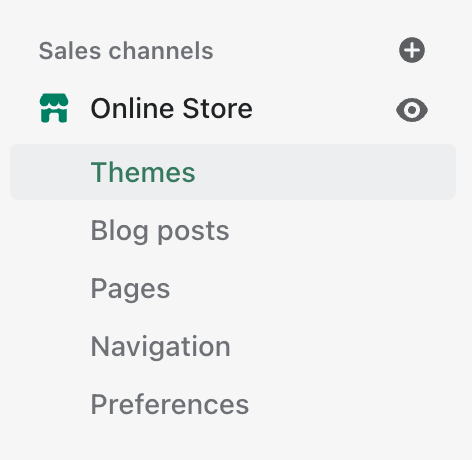
In Shopify Admin, go to Online Store, then click 'Themes'.
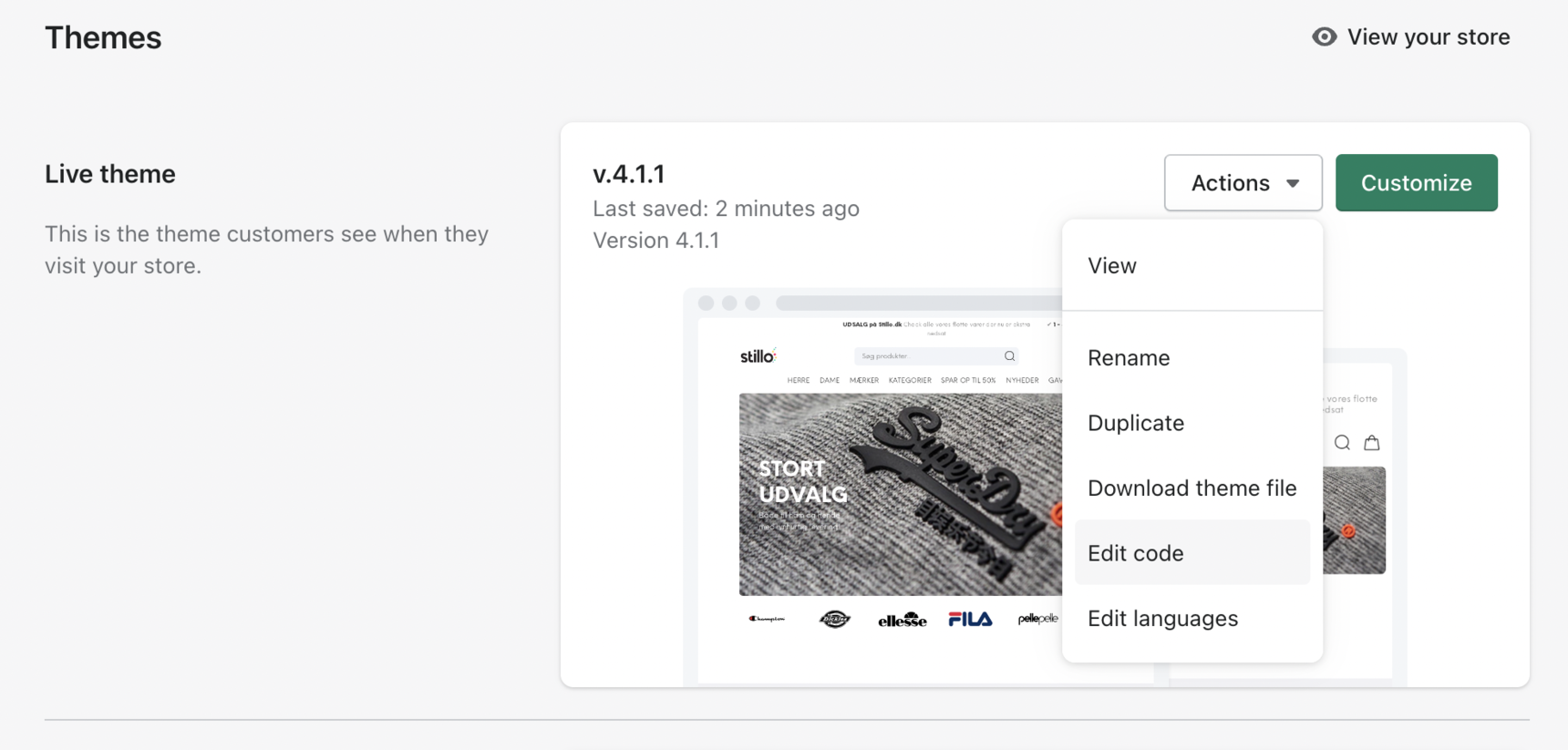
Click the 'Actions' menu and select 'Edit code'.
Find where your collections are generated in the theme code (for example, the collection template or section).
Insert the following HTML snippet so your data-filters target the current collection ID:
<div id="helloretail-category-page-123456" data-filters="{ 'extraDataList.categoryIds': '{{ collection.id }}' }"></div>
Advanced Option:
Use the advanced syntax to combine filters with AND/OR logical operators and support nested conditions. Examples:
Note
When using advanced filter syntax, validate the JSON and test changes in a development theme. Involve a developer to prevent template or rendering errors.
Case 1: Show products on a category page from two different hierarchies. For example, all products from “Shoes” or “Shirts”.
You have two options:
A)
<div
  id="helloretail-category-page-123456"
  data-filters='{"hierarchies": { "$or": [["Shoes"], ["Shirts"]] }}'
>
</div>
B)
<div
  id="helloretail-category-page-123456"
  data-filters='{ "$or": [{ "hierarchies": ["Shoes"] }, { "hierarchies": ["Shirts"] }]}'>
</div>
Case 2: Show products on a category page where they belong to both hierarchies. For example, all products from “Shirts” and “Shoes”.
Either:
<div
  id="helloretail-category-page-123456"
  data-filters='{ "hierarchies": { "$and": [["Shoes"], ["Shirts"]] }}'>
</div>
or:
<div
  id="helloretail-category-page-123456"
  data-filters='{ "$and": [{ "hierarchies": ["Shoes"] }, { "hierarchies": ["Shirts"] }] }'>
</div>
For multi-level hierarchies:
<div
  id="helloretail-category-page-123456"
  data-filters='{ "hierarchies": { "$and": [["Women", "Shoes"], ["Women", "Shirts"]] } }'>
</div>
Case 3: Show products from a specific category that are on sale. For example, all products in "Women" where isOnSale is true.
Use:
<div
  id="helloretail-category-page-123456"
  data-filters='{ "hierarchies": ["Women"], "isOnSale": true }'>
</div>
This is equivalent to:
<div
  id="helloretail-category-page-123456"
  data-filters='{ "$and": [{ "hierarchies": ["Women"] }, { "isOnSale": true }] }'>
</div>
Note
When multiple filters are provided in one object without an explicit $and or $or, the evaluation defaults to AND. See the first example in Case 3.
Case 4: Show all products from two different hierarchies that are on sale. For example, products from "Shirts" or "Shoes" that are on sale.
<div
  id="helloretail-category-page-123456"
  data-filters='{ "hierarchies": { "$or": [["Shoes"], ["Shirts"]] }, "isOnSale": true }'>
</div>
In this example, there is an implicit AND between the hierarchies filter and isOnSale.
Case 5: Show all products that are in (brand “Nike” and isOnSale) or brand “NoName”.
<div
  id="helloretail-category-page-123456"
  data-filters='{ "$or": [{ "$and": [{ "brand": "Nike" }, { "isOnSale": true }] }, { "brand": "NoName" }] }'>
</div>