 Avg. 6 min read
 Introduction to Pages
In this guide, you will learn what Hello Retail Pages is, how to set it up, and when it is a good fit for your webshop.
About Pages
Pages reduces maintenance by letting Hello Retail generate and manage your category pages.
You copy an autogenerated <div> snippet from the Hello Retail Dashboard and insert it into the <body> of your webshop. After adding the <div>, configure the required data attributes and have your developer implement the logic that dynamically inserts the <div> with the correct data values.
Pages gives you control over sorting and filtering to match your strategy.
Why should I use Pages?
Pages enables a more personalized browsing experience for your visitors.
It can improve conversion by reducing manual sorting and filtering, while producing a dynamic category experience instead of a static product list.
One key feature is Product Overrides. Read more about it here and here.
Pages works on both desktop and mobile.
Requirements & Prerequisites
There are three different methods for implementing and setting up Pages:
Summary of the methods:
-
Client-Side Integration, where the page is fetched and injected into a customer-provided div by the Hello Retail JavaScript.
-
API Integration (HTML Response), where the initial page HTML is fetched and injected into the page by custom code on the webshop backend.
-
API Integration (JSON Response), where JSON data is fetched from the Hello Retail backend and the page UI is built from the ground up.
These methods have different trade-offs and require increasing effort in exchange for flexibility.
Each method is described in its own guide, including an example implementation.
Creation of Pages
If you use Shopify for your webshop, you can read how to set up your Pages here.
Product Conditions
Use this section to define which products should appear on the page by selecting filters in the Field and Value inputs. If you are using the client-side implementation, you can also set product conditions on the div you insert.
Product Order & Boosts
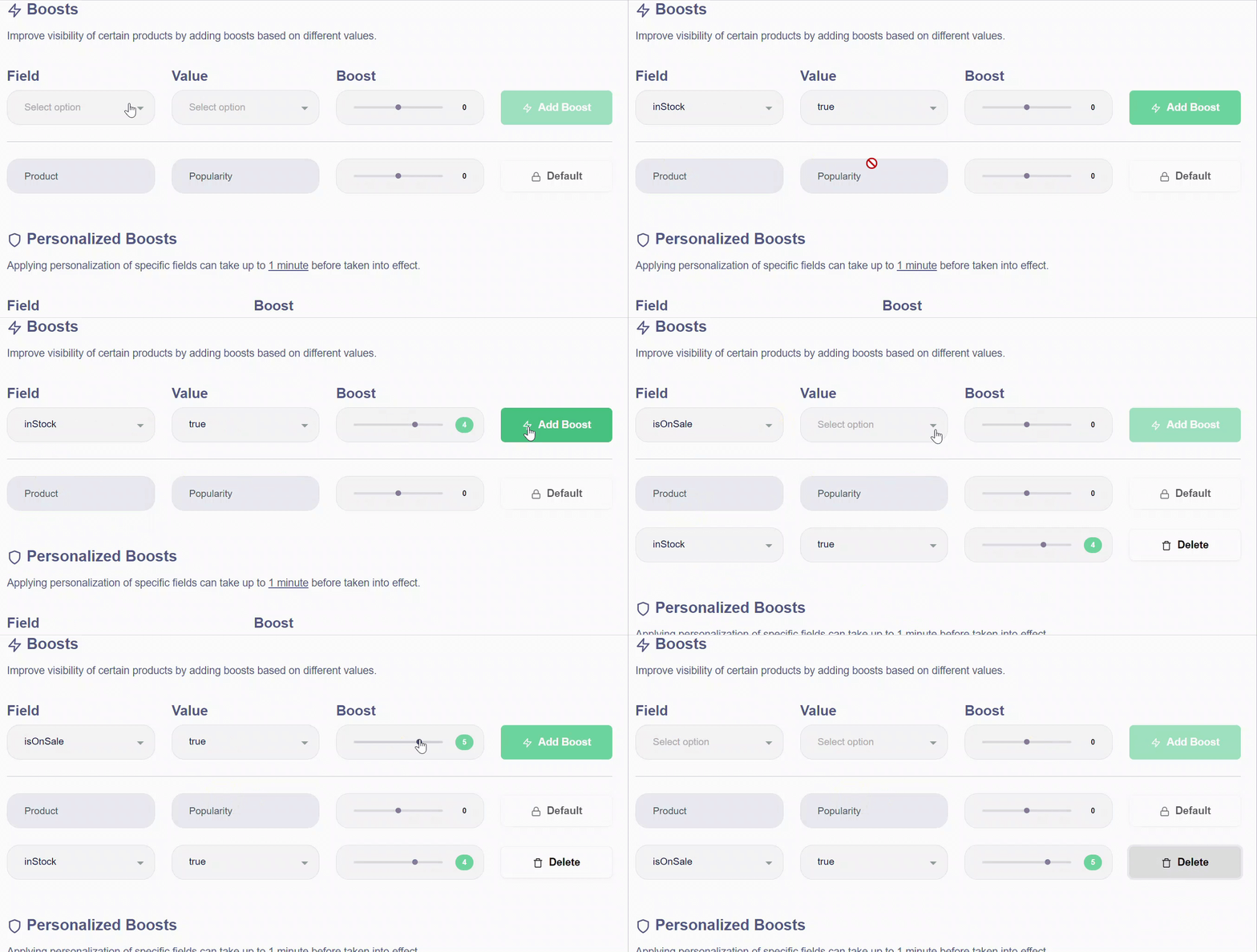
Boosting lets you automatically change product order based on criteria such as brand, availability, or sale status. For example, you can push on-sale products to the top. Select the Field, set the Value (true or false), adjust the boost strength with the slider, and click Add Boost. Repeat to add more boosts. Click Delete to remove a boost.
Note
Keep the number of boosts to a maximum of 3–4 to avoid overly distorting the product order.
Personalized Boosts
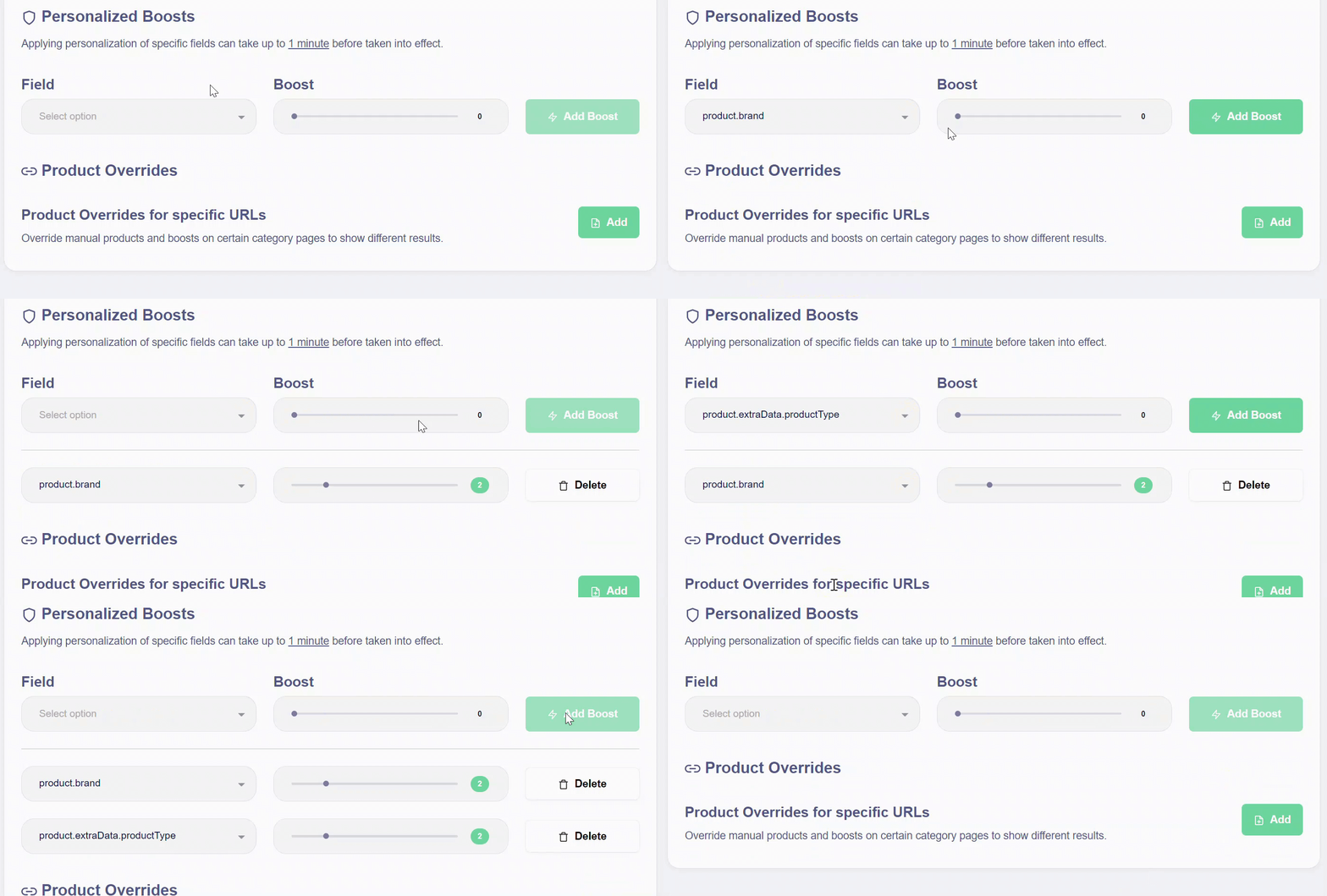
Personalized boosting promotes products that match each user’s inferred preferences. For example, if you boost on brand, we will promote brands a user tends to prefer. Adjust the boost strength with the slider. Remove a personalized boost using Delete.
Changes to personalized fields can take up to 1 minute to take effect.
Product Overrides
Product Overrides let you reorder products on any Category page to support exceptions to your general strategy. Use overrides to pin specific products to the top of a page.
You can override some or all products for a given Category page.
Design
Choose the design to apply to your Category page.
<> HTML
After you save a new Category page, the HTML snippet and API Key are generated. Copy the HTML snippet and paste it into the <body> of your webshop, then configure the data attributes.
For examples, see this section here.
Creation of Design
Filters & Sorting
Enable filtering and sorting to help users quickly refine and order the products on the page. Toggle Filtering and Sorting on, add the specific product criteria, and drag to reorder them as needed.
Design
Add and arrange the elements for the page, choose products per row for desktop and mobile, adjust element sizes, set titles, and apply colors to page elements.
You can use the Default design or create your own. You can also use the provided fields or apply advanced styling in the JavaScript, HTML, and CSS tabs.