 Avg. 3 min read
 Abicart / Textalk Installation Guide
Install the Abicart Integration
This guide explains how to install and integrate Hello Retail with Abicart.
Abicart can be integrated with Hello Retail by following the steps below.
Share your Product Data via API Access
- Start by logging in to your Abicart Admin account.
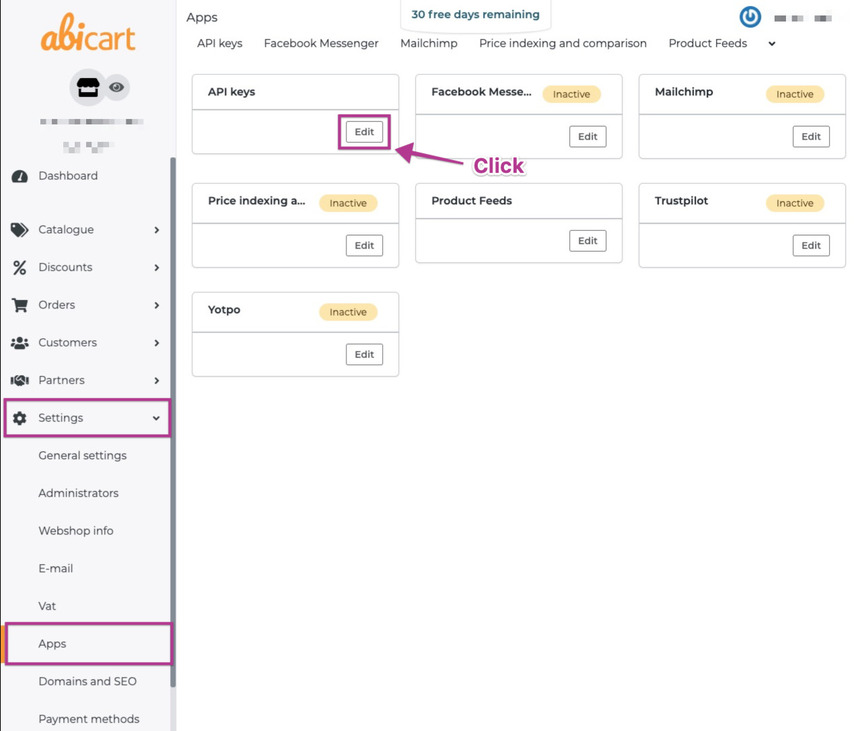
- In the left menu, go to Settings, then click Apps.
- In the Apps view, go to API keys and click Edit inside the box.
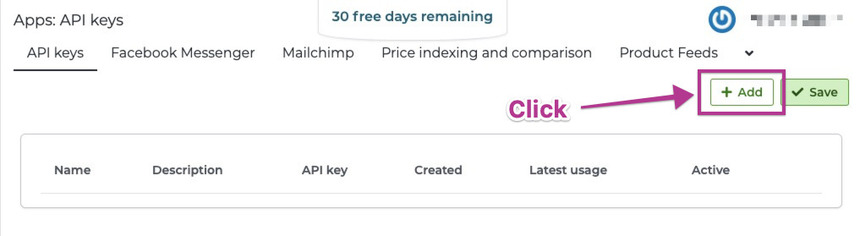
- On the next page, click Add to create a new API key.
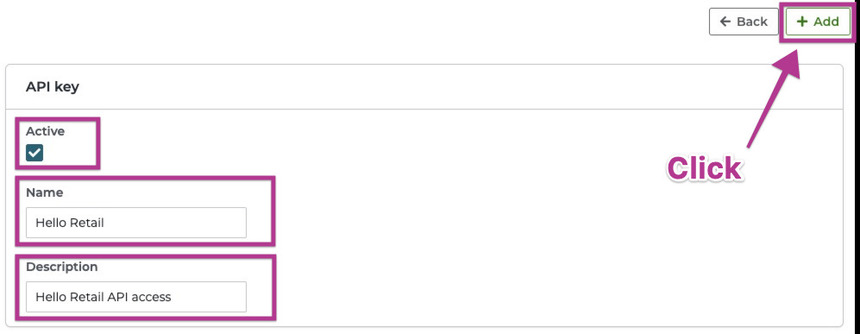
- Check Active, enter a name such as Hello Retail, add a description such as Hello Retail API access, then click Add.
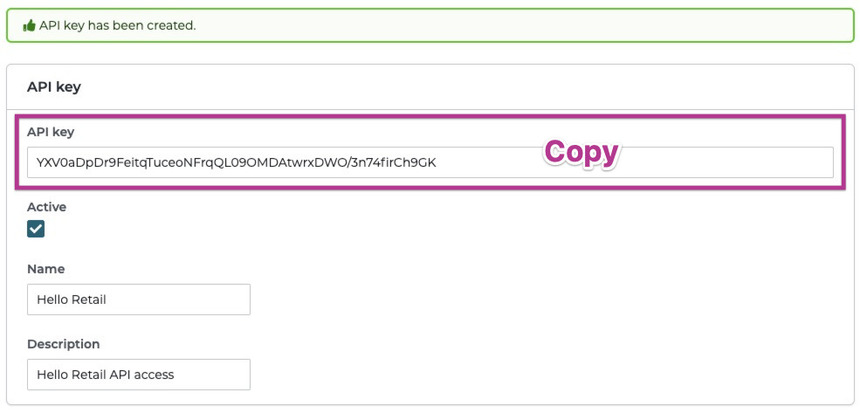
- After adding, the new API key appears in the API key field. Copy this key.
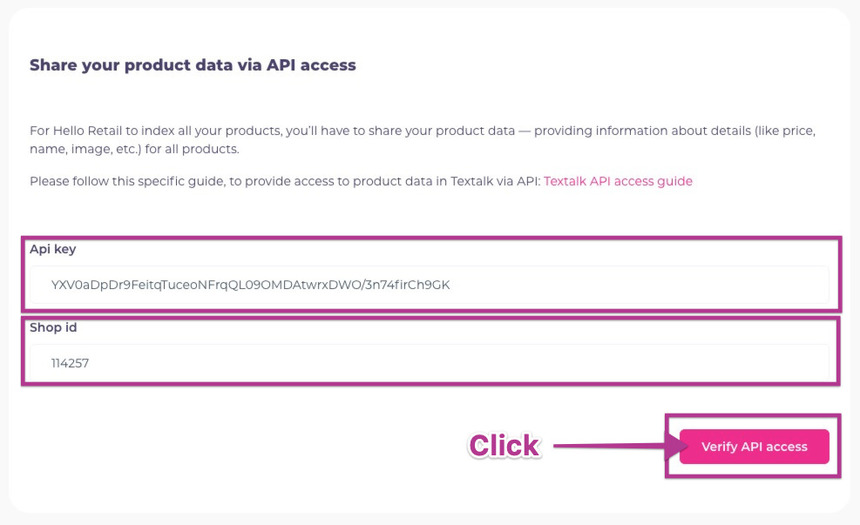
- In your Hello Retail account, enter the API key and your shop ID. The shop ID is shown in the top-left corner of your Abicart admin. Click Verify API access.
Add the Hello Retail JavaScript
Add the Hello Retail JavaScript to enable features on your webshop, such as product recommendations.
The script must be placed in the header of your webshop. The exact code is shown in your Hello Retail account during this step.
Note
Abicart stores require a custom Hello Retail JavaScript snippet. Contact Hello Retail support to have a store-specific script generated for your setup.
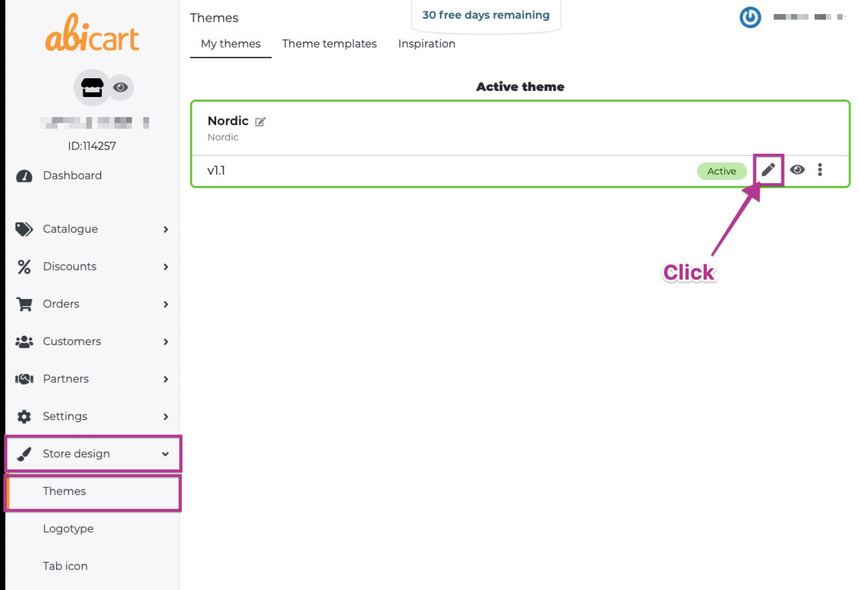
- To edit the header, in the left menu go to Store design, then click Themes.
-
In Themes, click Edit on the active theme.
-
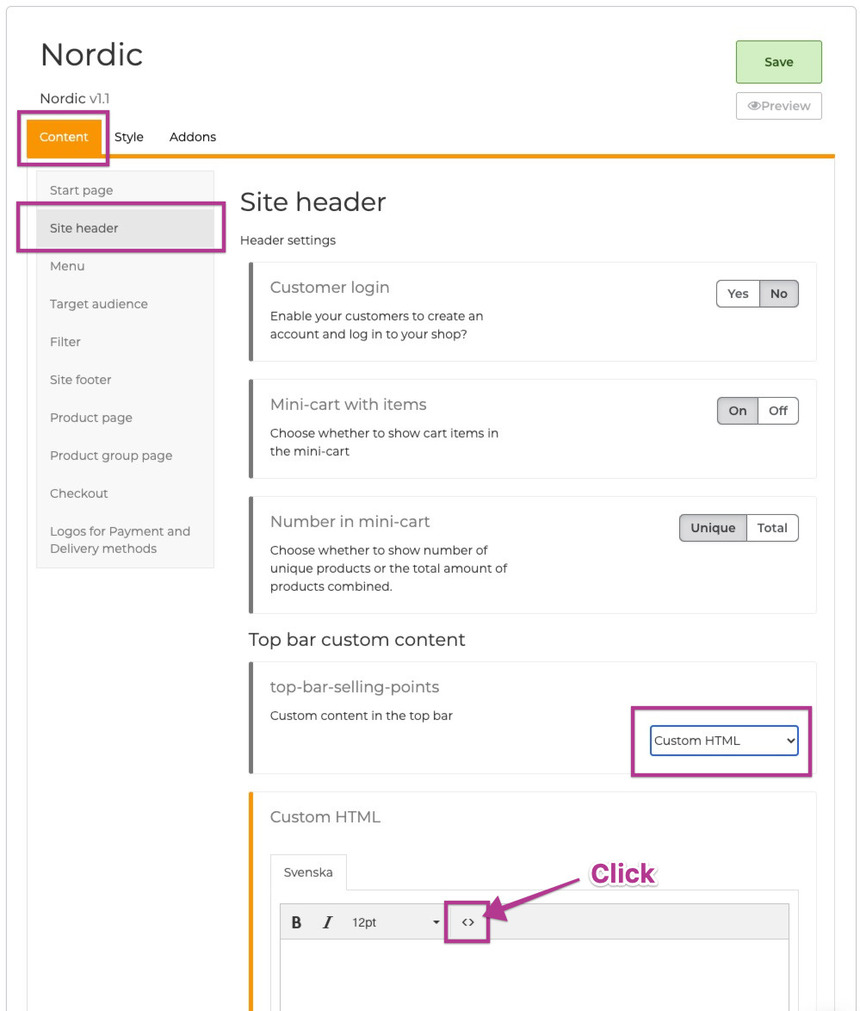
Under Content, click Site header.
- Scroll to Top bar custom content and choose Custom HTML from the drop-down. A Custom HTML box appears.
-
Click the "<>" icon to edit the source code.
-
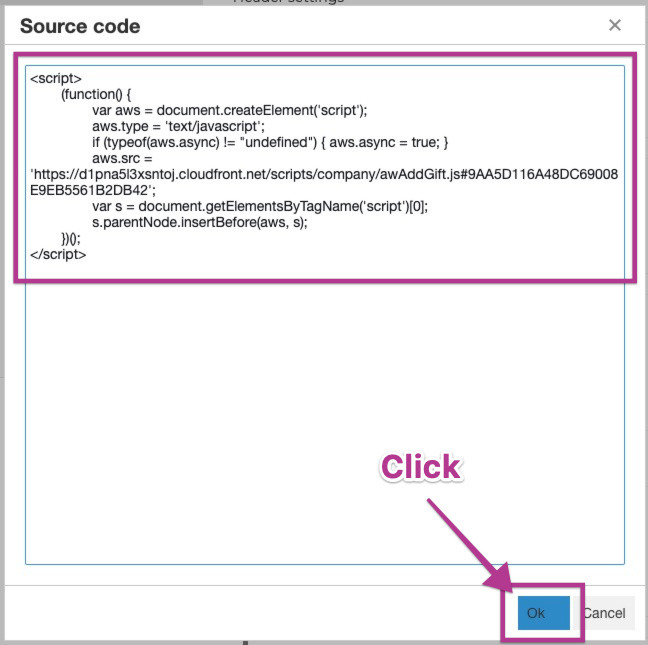
Paste the Hello Retail JavaScript into the Source code box and click Ok.
-
Click the green Save button at the top. In your Hello Retail account, click Check JavaScript installation. If it reports that the script is not loaded, open your webshop front page, reload it, and run the check again.
Conversion Tracking
The last step is to provide Hello Retail with conversion data. This is done via Google Tag Manager. You need a Google Tag Manager account.
If you already have an account, follow this guide to set up conversion tracking. Confirm the setup by clicking Conversion tracking installed.
Configure Webshop
After completing platform installation and the onboarding flow, make sure your webshop is configured. Read this guide for details: