 Avg. 2 min read
 Auto Sync of Brevo (formerly SendinBlue) permissions
This guide explains how to automatically synchronise permissions from your Brevo account to Hello Retail.
Step 1: First, find or generate an API key in your Brevo account. Follow the guide below:
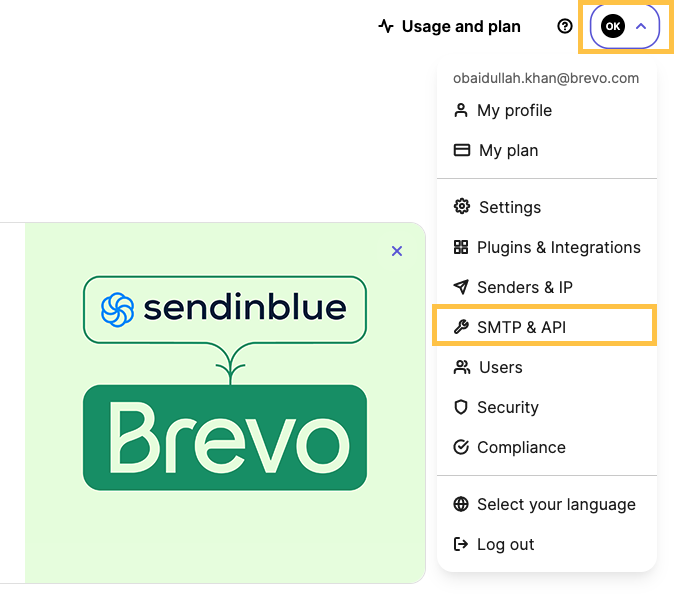
Log in to your Brevo account and navigate to: Account (Username, Top Right Corner) > SMTP & API.
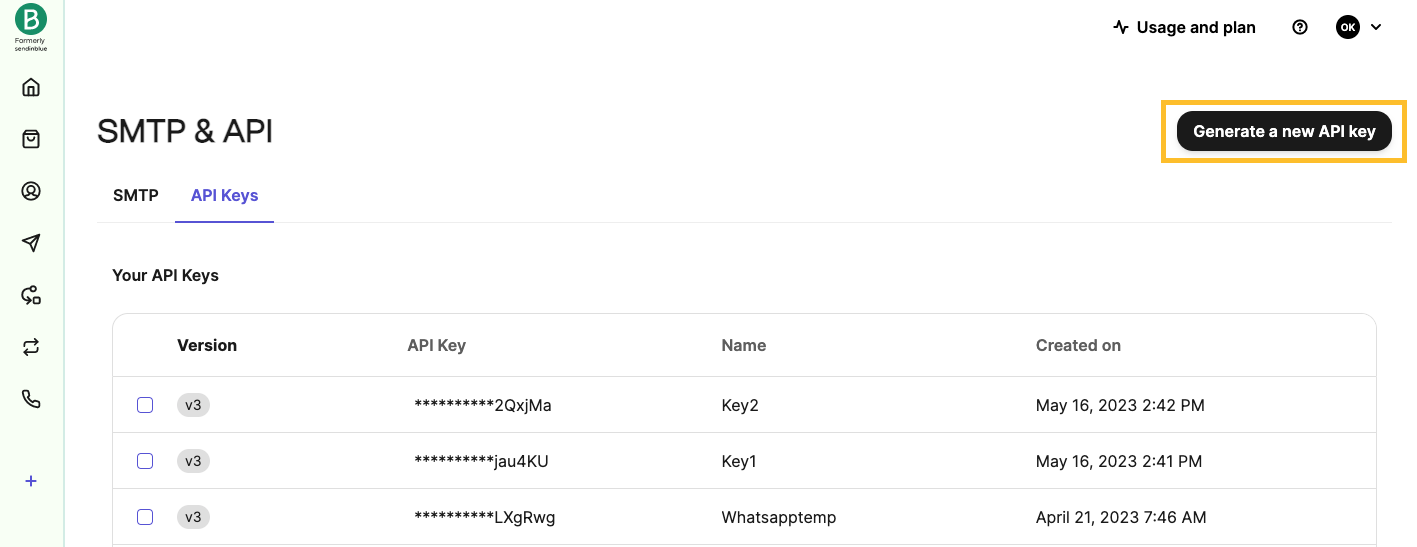
Inside SMTP & API, click GENERATE A NEW API KEY in the top right corner.
Insert the name of the API Key as Hello Retail API, ensure Version 3.0 is selected, and press GENERATE.
Copy the API Key you just generated named Hello Retail API so you can enter it into your Hello Retail account later.
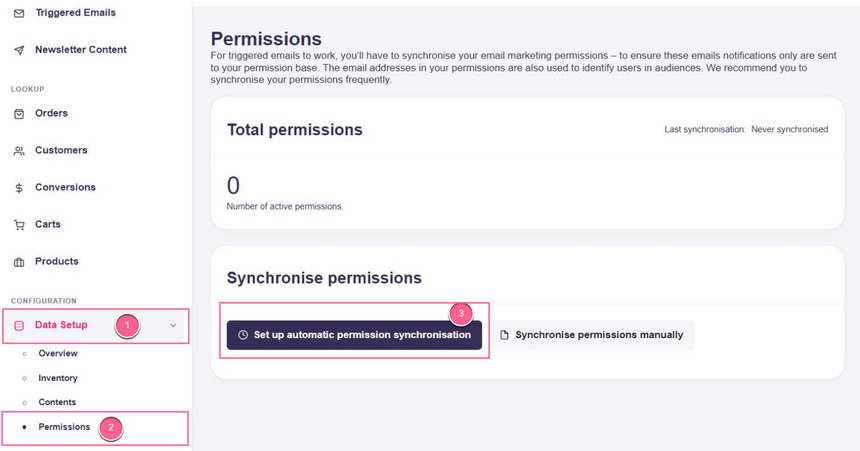
Step 2: Once you have your Brevo API Key, navigate to Triggered Emails > Permissions, then click the Set up automatic permission synchronisation button within your Hello Retail account:
Step 3: As the next step, you'll have to:
- select SendinBlue (this is the previous name for Brevo) in the Type drop-down
- paste your Brevo API Key into the API Key field
- select the list from your SendinBlue account you would like to sync in the List drop-down
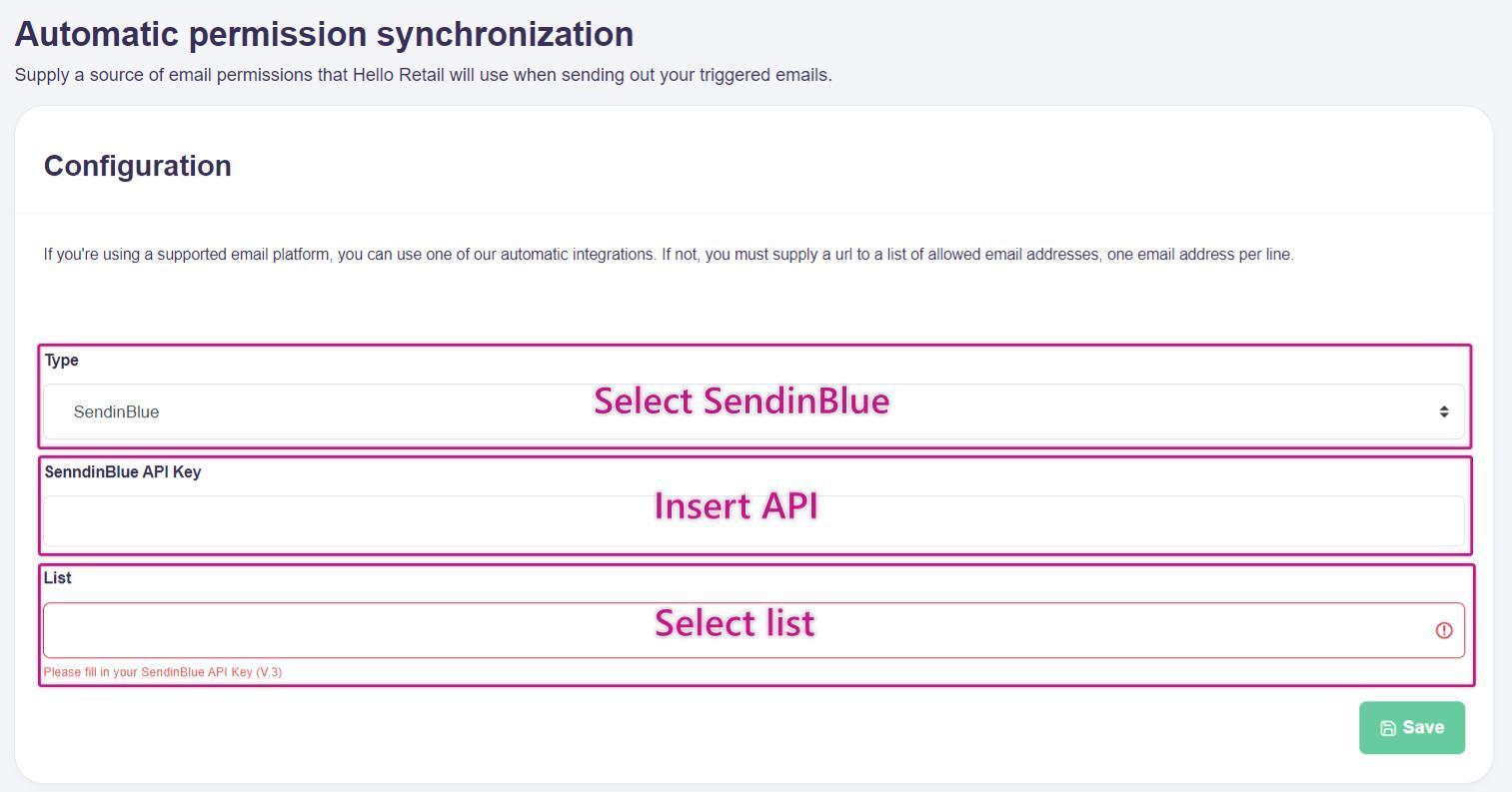
Click Save.
Step 4: Setup is complete. Your SendinBlue list permissions will now be synchronised automatically on a daily basis.