 Avg. 1 min read
 Auto Sync of Campaign Monitor permissions
Use this guide to set up automatic synchronisation of permissions from your Campaign Monitor account.
Step 1: Generate or locate your API key in Campaign Monitor.
Log in to your Campaign Monitor account and navigate to: Account Settings > API Keys.
Save your API key and Client ID so you can enter them in your Hello Retail account later.
If you want to see a text-guide for how to find your API-Key and Client ID you can find it here: https://help.campaignmonitor.com/api-keys
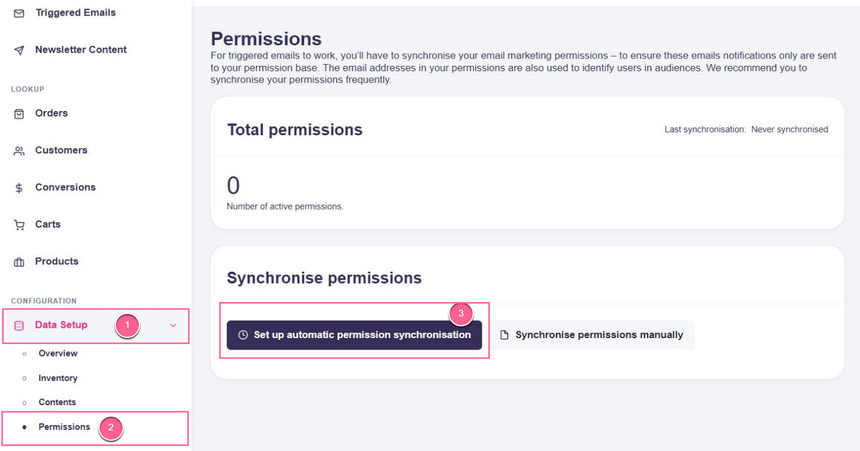
Step 2: Once you have your Campaign Monitor API key, navigate to Data Setup > Permissions, then click the Set up automatic permission synchronisation button:
Step 3: As the next step, you'll have to:
- Select Campaign Monitor in the Type drop-down.
- Paste your Campaign Monitor API key into the API-Key field.
-
Select the list from your Campaign Monitor account you want to synchronise in the List drop-down:
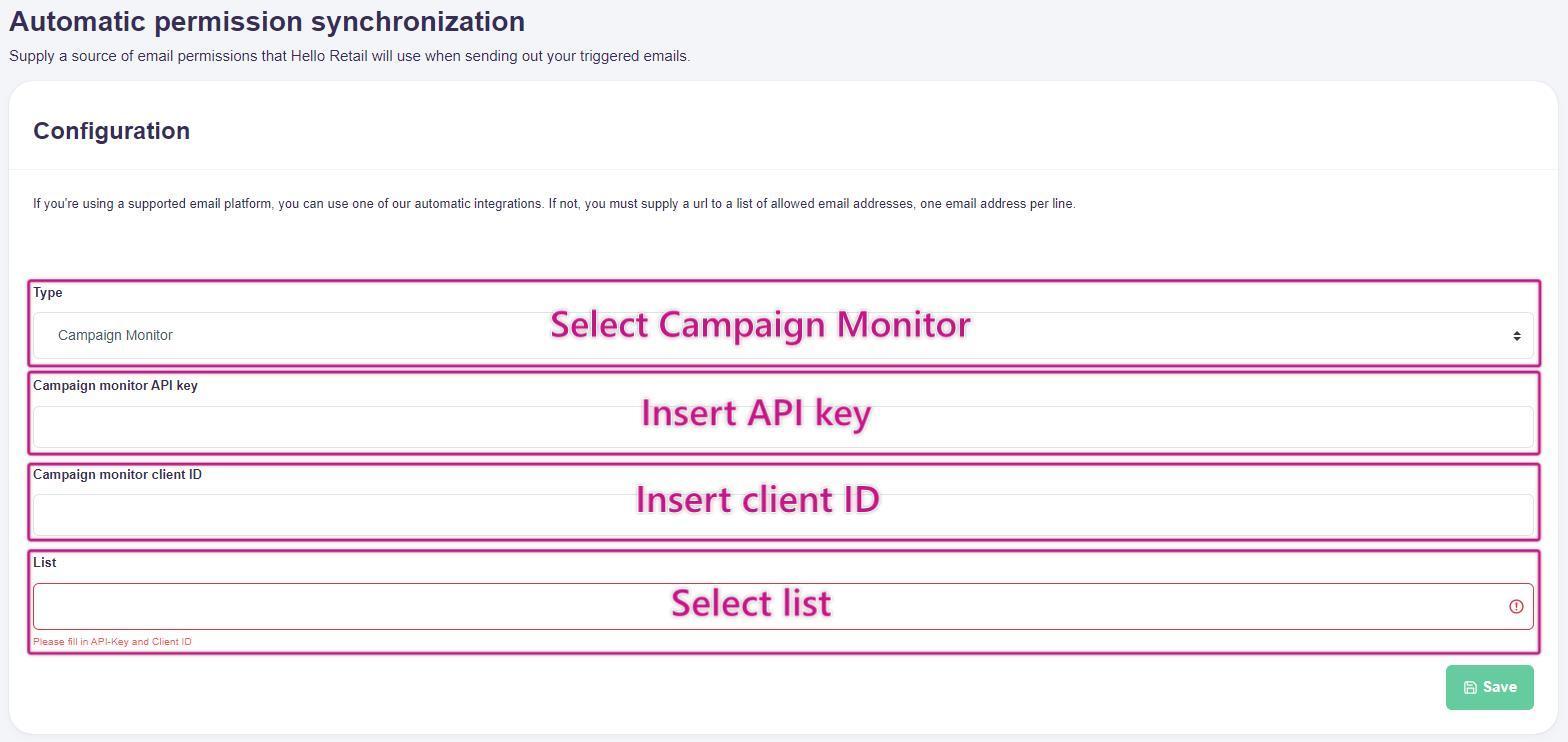
Remember to click Save.
Step 4: Setup is complete. Your Campaign Monitor list permissions will now be synchronised automatically on a daily basis.