 Avg. 2 min read
 Auto Sync of Get A Newsletter permissions
This guide explains how to automatically synchronise subscriber permissions from your Get A Newsletter account to Hello Retail.
Step 1: Generate an API token in your Get A Newsletter account.
Log in to your Get A Newsletter account and navigate to: Contacts > API & Forms.
Inside API & Forms go to the section API tokens and click "Add token".
Enter the name "Hello Retail API" and an optional description, then click "Save".
Copy the API token so you can enter it in your Hello Retail account. Click "Save" to confirm.
If you prefer a text guide to finding your API token, see: https://support.getanewsletter.com/en/articles/3678438-generate-an-api-token
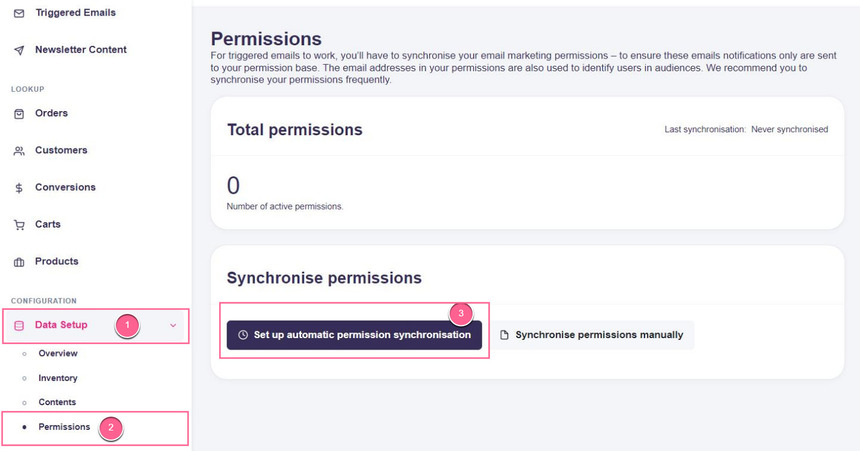
Step 2: In your Hello Retail account, go to Data Setup > Permissions, then click the Set up automatic permission synchronisation button:
Step 3: In the setup dialog:
- select Get A Newsletter in the Type drop-down;
- paste your Get A Newsletter API token into the API token field;
- select the list from your Get A Newsletter account that you want to sync in the List drop-down:
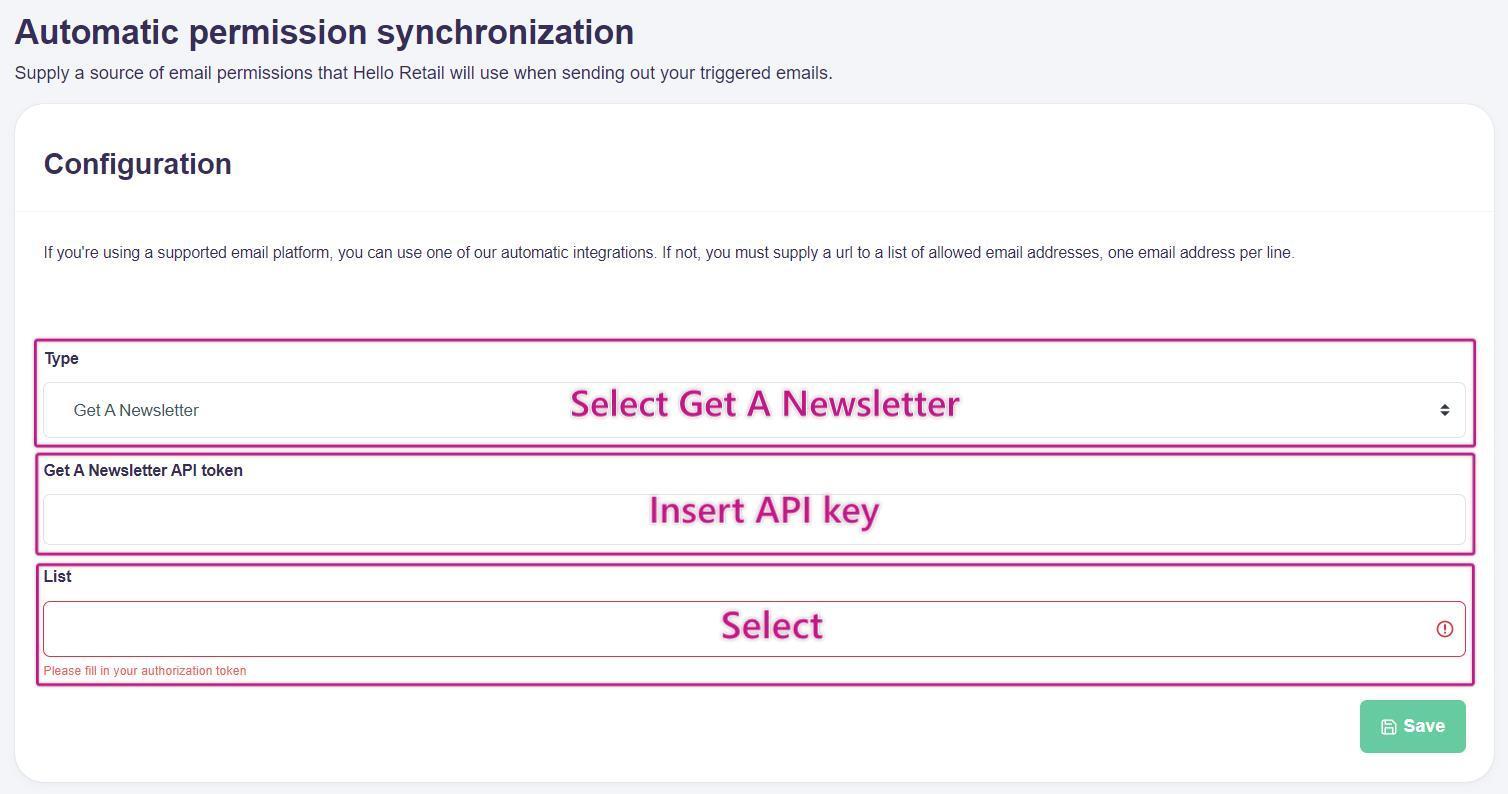
Remember to click Save.
Step 4: Hello Retail will now synchronise permissions from the selected Get A Newsletter list automatically on a daily basis.