 Avg. 2 min read
 Auto Sync of Mailchimp permissions
This guide shows how to automatically synchronise Mailchimp marketing permissions with Hello Retail.
Generating an API Key
Step 1: Log in to your Mailchimp account at https://login.mailchimp.com/.
After logging in, you can follow the video guide or continue with the steps below.
Step 2: Go to: Account > Extras > API Keys. Click Create A Key (you may need to scroll to find the button).
Step 3: Copy the new API key and save it for later use.
Inserting the API Key into Hello Retail
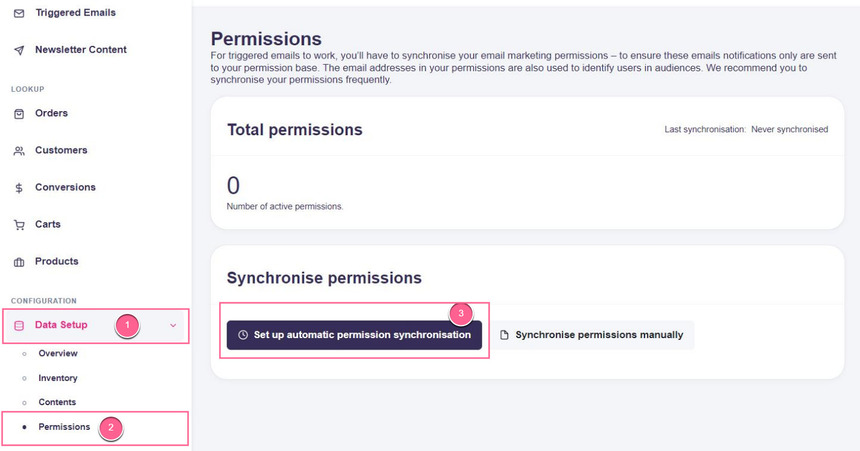
Step 1: In Hello Retail, go to Data Setup > Permissions, then click Set up automatic permission synchronisation:
Step 2: Complete the setup:
- Select Mailchimp in the Type drop-down.
- Paste your Mailchimp API key into the API-Key field.
- Select the list from your Mailchimp account to sync in the List drop-down:
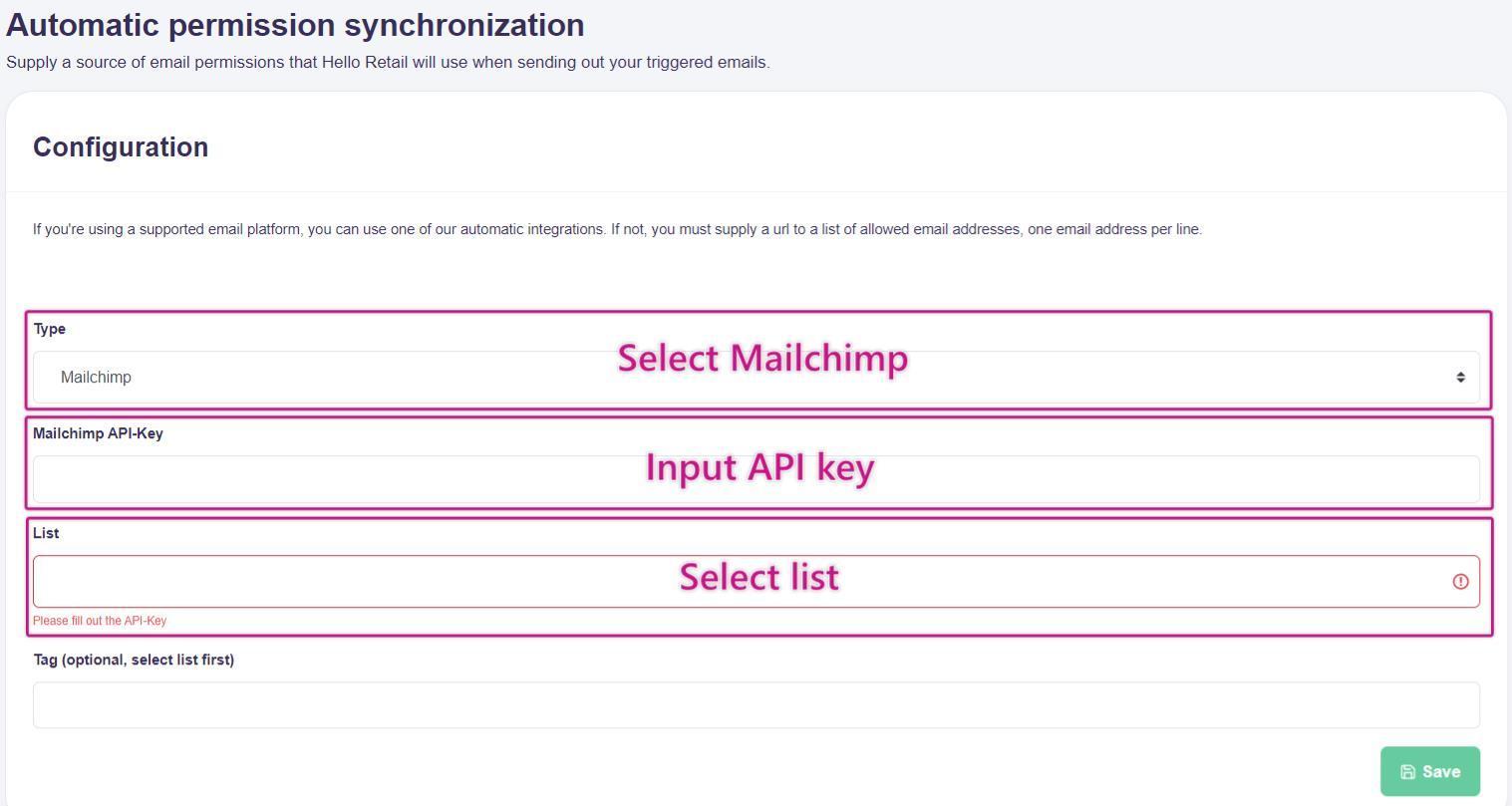
Click Save.
Step 3: Hello Retail will automatically synchronise the selected Mailchimp list permissions once per day.