 Avg. 2 min read
 Auto Sync of Omnisend Permissions
This guide shows how to automatically synchronise subscriber permissions from your Omnisend account to Hello Retail.
Step 1: Generate an API key in your Omnisend account. Follow this path:
Log in to your Omnisend account here: https://app.omnisend.com/#/login/ and navigate to: Click your account name in the top right corner > Store settings
Inside Store settings, click Integrations & API and from the drop-down menu select API keys.
Create a new API key by clicking "Create New API Key +".
Give the API key a name for reference (for example, "Hello Retail API") and copy the generated key.
Save the API key you just copied. You will enter it into your Hello Retail account later.
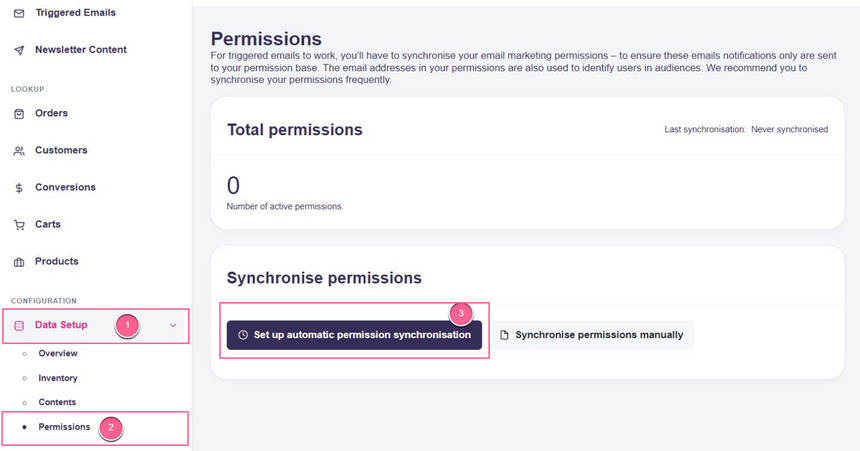
Step 2: Once you have your Omnisend API key, navigate to Data Setup > Permissions, then click the Set up automatic permission synchronisation button in your Hello Retail account:
Step 3: Complete the setup:
- Select Omnisend in the Type drop-down.
- Paste your Omnisend API key into the API Key field.
- A list of accounts you can access will be generated. Select the Omnisend account you want to synchronise permissions from.
- Optionally filter which email addresses to synchronise as permissions by entering tags and-or custom fields. If no filters are set, all email addresses within the selected Omnisend account are synchronised as permissions.
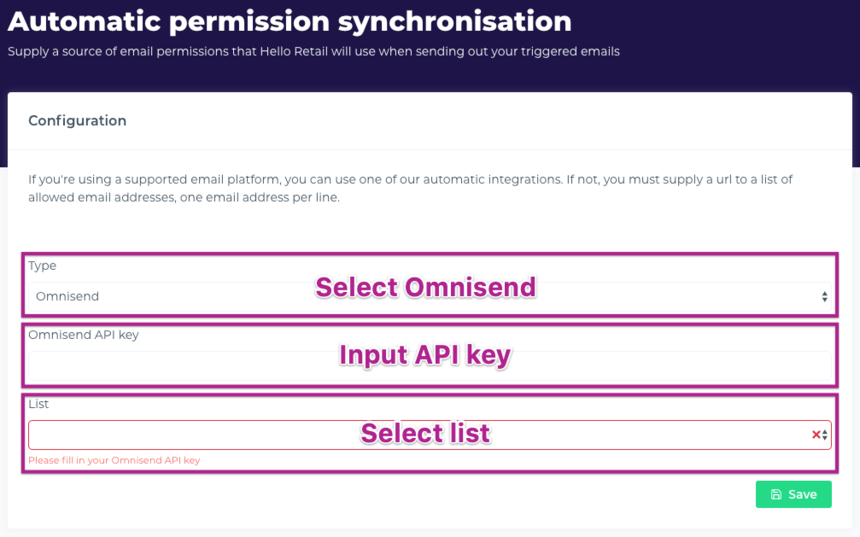
Remember to click Save.
Hello Retail will now synchronise permissions from the selected Omnisend account on a daily basis.