 Avg. 3 min read
 E37 Installation Guide

Install the Hello Retail JavaScript and Cart Tracking
To enable Hello Retail on your E37 webshop, add the Hello Retail JavaScript and enable client-side scripts. The snippet initializes Hello Retail and tracks cart data using the E37 TC.Cart object.
- Log in to your E37 admin panel
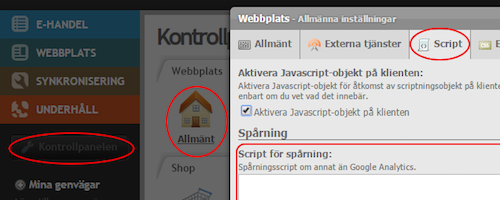
- Navigate to Kontrollpanelen > Webbplats > Allmänt > Script:
-
Tick the box Aktivera JavaScript-objekt på klienten and copy/paste your Hello Retail JavaScript into the Script för spårning field:
    <script async src="https://helloretailcdn.com/helloretail.js"></script>
    <script>
        window.hrq = window.hrq || [];
        hrq.push(['init', {}]);
        hrq.push(function(sdk){
            try {
                var productNumbers = [];
                var cartContents = [];
                for(var i = 0; i < TC.Cart.Articles.length; i++) {
                    productNumbers.push(TC.Cart.Articles[i].ID);
                    cartContents.push(encodeURIComponent(TC.Cart.Articles[i].VariantID) + ":" + TC.Cart.Articles[i].Quantity);
                }
                var cartUrl = document.querySelector("link[rel=home]").href +
                    "/checkout?cart=" + cartContents.join(",");

                sdk.setCart({
                    total: TC.Cart.SumInclVAT,
                    url: cartUrl,
                    productNumbers: productNumbers
                });
            } catch(e) {
                console.log(e);
            }
        });
    </script>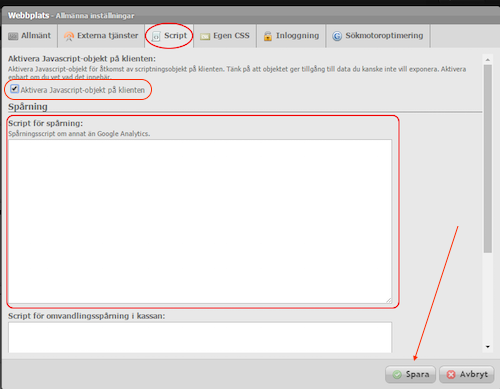
-
Remember to Save your changes.
Share your Product feed with Hello Retail
Share your product feed URL so Hello Retail can index your full catalog.
- Log in to your E37 admin panel
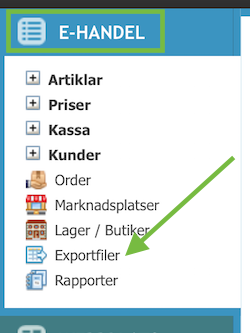
- Navigate to E-HANDEL > Exportfiler:
- Next to the Keybroker Product Feed, click Visa fil to open the feed URL:
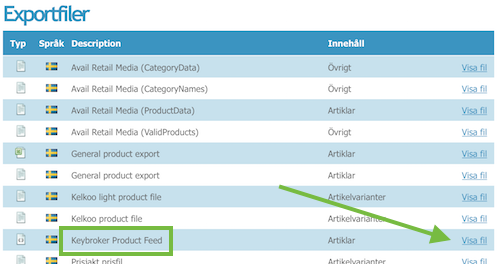
- Send the product feed URL to support@helloretail.com.
Install the Hello Retail conversion span
To track conversions and sales performance and to improve on-site recommendations, add the Hello Retail conversion span.
- Log in to your E37 admin panel
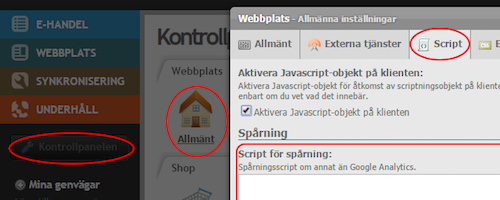
- Navigate to Kontrollpanelen > Webbplats > Allmänt > Script:
-
In the field Script för omvandlingsspårning i kassan, paste the following code:
<script type="text/javascript">
    var awConversionSpan = document.createElement("span");
    awConversionSpan.setAttribute("class", "addwish-conversion");
    if(TC.Order){
        awConversionSpan.setAttribute("data-ordernumber", TC.Order.ID);
    }
    awConversionSpan.setAttribute("data-total", TC.Cart.SumInclVAT);
    awConversionSpan.setAttribute("data-email", "@write(User.Email)");
    for (i = 0; i < TC.Cart.Articles.length; i++) {
        var awProduct = document.createElement("span");
        awProduct.setAttribute("class", "addwish-product");
        awProduct.setAttribute("data-productnumber", TC.Cart.Articles[i].ID);
        awProduct.setAttribute("data-quantity", TC.Cart.Articles[i].Quantity);
        awConversionSpan.appendChild(awProduct);
    }
    document.getElementsByTagName('body')[0].appendChild(awConversionSpan);
</script>
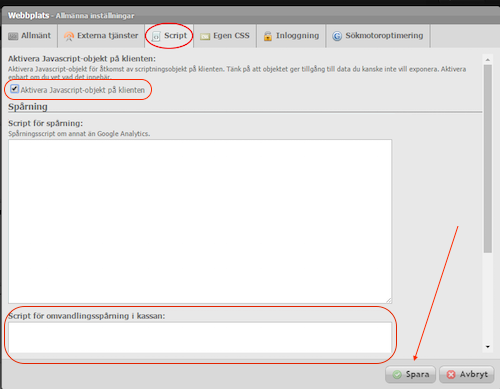
Remember to Save your changes.
Create a blank page for search results
Create a new page where Hello Retail can render search results.
- Log in to your E37 admin panel
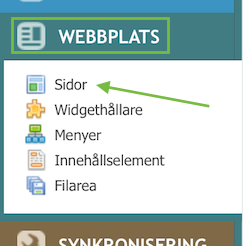
- Navigate to WEBBPLATS > Sidor:
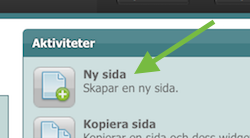
- Choose Add new page ("Ny sida"):
-
Provide a name for this new page, for example Search results:
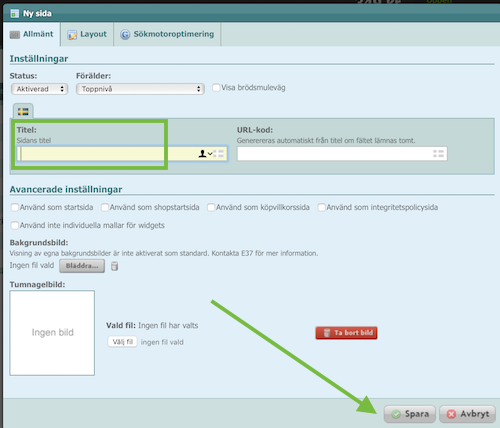
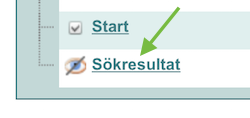
Remember to Save ("Spara") 5. After the page is created, click it in the page list to Edit:
 6. When editing the page, set Status to Dold to hide it:
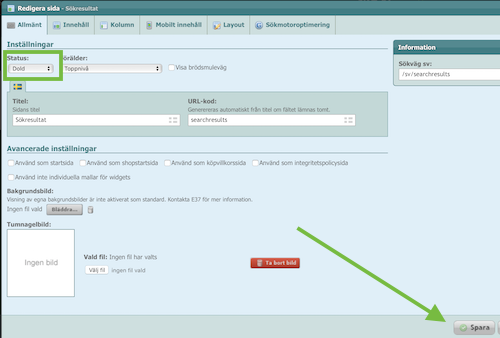
Remember to Save ("Spara") your changes 7. Send the URL of this new page to support@helloretail.com so Hello Retail can finalize the dynamic search setup.
Configure Webshop
After the installation setup of your platform and the onboarding flow, make sure to have your webshop configured. Read this guide here on how to do so: