 Avg. 4 min read
 Golden Planet / OpenBizBox Installation Guide
- How to install the Hello Retail partner JavaScript
- How to make product data available
- How to associate conversion data
- How to create a blank search page
How to install the Hello Retail partner JavaScript
Here's how to install the Hello Retail partner JavaScript on the Golden Planet / OpenBizBox platform.
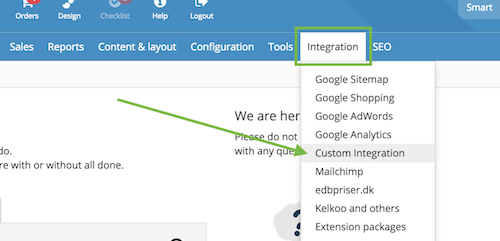
Step 1: Open your Golden Planet/OpenBizBox admin dashboard. From here, choose the menu item: Integration > Custom Integration (In Danish: Integration > Øvrige integrationer):
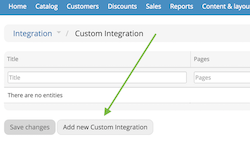
Step 2: Choose Add new Custom Integration (In Danish: Tilføj ny Øvrige integrationer):
Step 3: Create the integration by setting Title to Hello Retail, select All pages in the Pages selector, and paste your Hello Retail partner JavaScript into the HTML field:
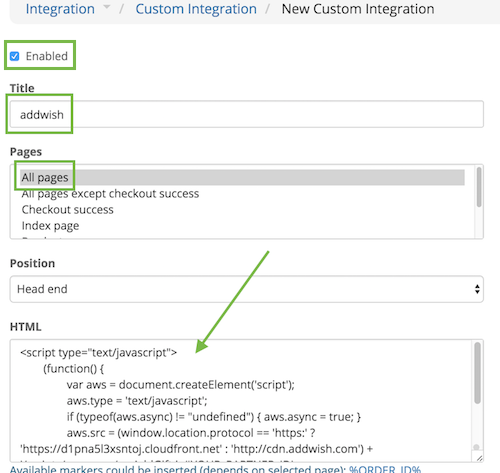
Step 4: Paste the following Hello Retail partner JavaScript into the HTML field:
<script async src="https://helloretailcdn.com/helloretail.js"></script>
<script>
  window.hrq = window.hrq || [];
  hrq.push(['init', {}]);
</script>
Remember to Save your changes. The Hello Retail partner JavaScript will now be present on all pages.
How to make product data available
For Hello Retail to access your full product catalog, make your products and related data available via API. Follow these steps:
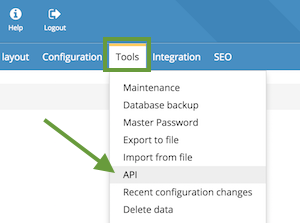
Step 1: Open your Golden Planet/OpenBizBox admin dashboard. From here, choose the menu item: Tools > API (In Danish: Værktøj > API):
Step 2: On this page, generate and retrieve your API Client ID and API Client Secret:
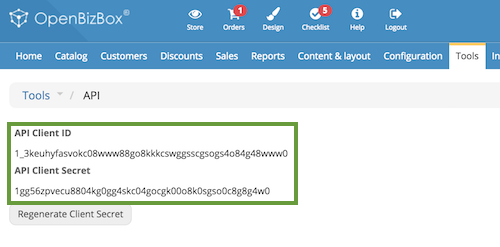
Step 3: Share the API Client ID and API Client Secret with Hello Retail Support so we can finalize the product data integration.
How to associate conversion data
Associate conversion data with Hello Retail to improve personalization and measure feature performance. Set this up in Golden Planet / OpenBizBox:
Step 1: Open your Golden Planet/OpenBizBox admin dashboard. From here, choose the menu item: Integration > Custom Integration (In Danish: Integration > Øvrige integrationer):
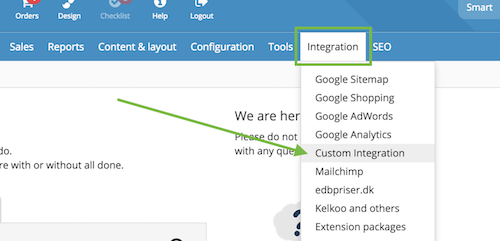
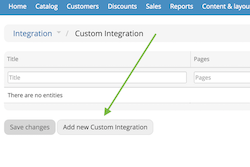
Step 2: Choose Add new Custom Integration (In Danish: Tilføj ny Øvrige integrationer):
Step 3: Create the integration by setting Title to addwish-conversions, select Checkout success in the Pages selector, select Body end in the Position selector, and paste the Hello Retail conversion span code into the HTML field:
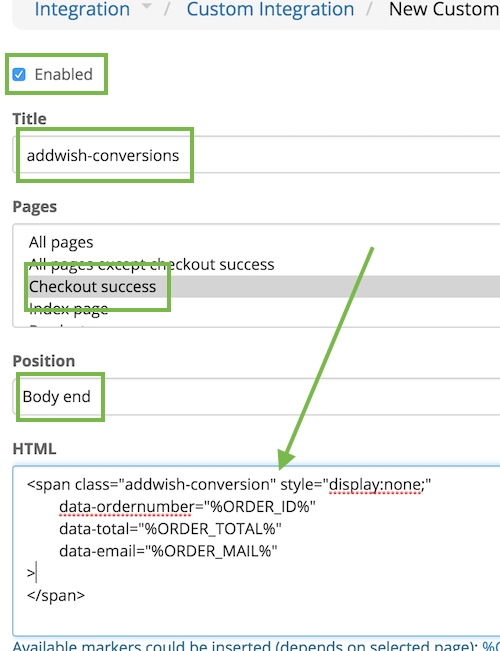
Step 4: Paste the following Hello Retail conversion span code for Golden Planet / OpenBizBox into the HTML field:
<span class="addwish-conversion" style="display:none;"
  data-ordernumber="{{ order.id }}"
  data-total="{{ order.total }}"
  data-email="{{ order.customer.email }}">
  {% for item in order.items %}
    <span
      class="addwish-product"
      data-productnumber="{{ item.sku }}"
      data-quantity="{{ item.qty }}"
    ></span>
  {% endfor %}
</span>
Remember to Save your changes, and you are done.
How to create a blank search page
The following section is only relevant for setups for a full search.
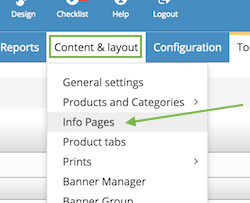
Step 1: Navigate to Content & layout > Info Pages:
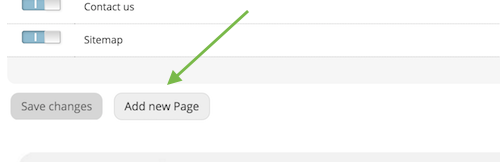
Step 2: Choose Add new page:
Step 3: Give the new page a name (Title). We recommend calling it Searchresults or something similar:
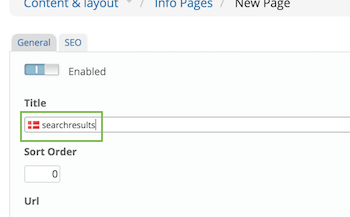
Remember to Save this new page.
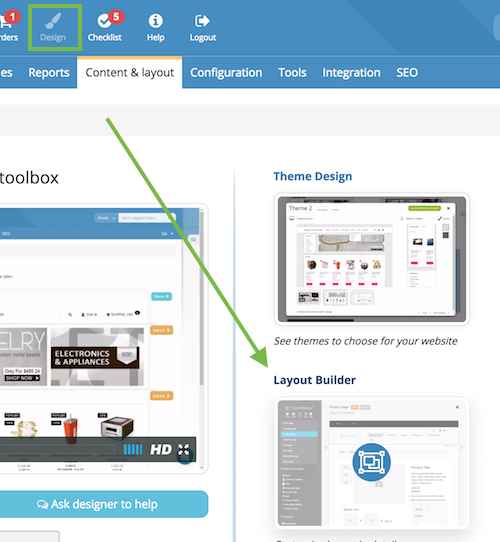
Step 4: Next, navigate to Design -> Layout Builder:
Step 5: In the Layout Builder, navigate to Information page:
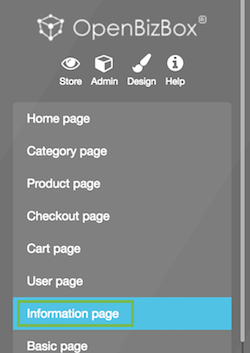
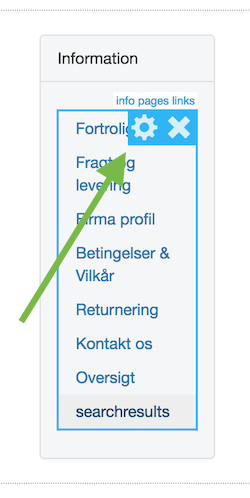
Step 6: In edit-mode, click the edit/settings icon to edit the navigation and footer links:
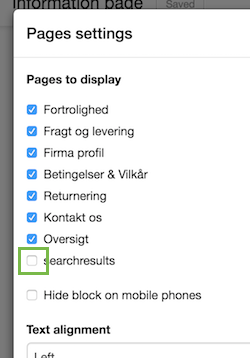
Step 7: Ensure this new page is not visible (make sure the box is unticked) in the navigation and footer:
Step 8: Share the URL of this new page with Hello Retail to finalize the setup of dynamic search in your webshop. The URL for this hidden page will be similar to: http://YOUR_DOMAIN/information/searchresults/ if you named the page "searchresults".
Configure Webshop
After the installation setup of your platform and the onboarding flow, make sure to have your webshop configured. Read this guide here on how to do so: