 Avg. 2 min read
 How to Add Newsletter Content to ActiveCampaign
Note
Complete the steps in Get started with Newsletter Content before using this guide.
This guide assumes you are using ActiveCampaign built-in email templates.
The Hello Retail code snippet is optimized for emails with a 650 px width.
Step 1: In your ActiveCampaign account, open the campaign where you want to show your Hello Retail product recommendations.
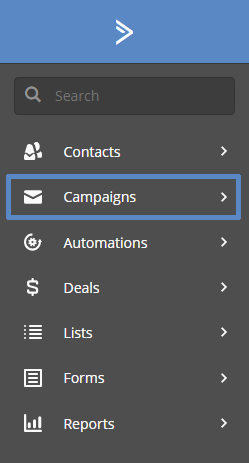
(Click the “Campaigns” tab in the left menu)

(Click “Continue” to open the Campaign Editor)
Step 2: In the Campaign Editor, drag the “</> HTML Block” from the right menu into your email template.
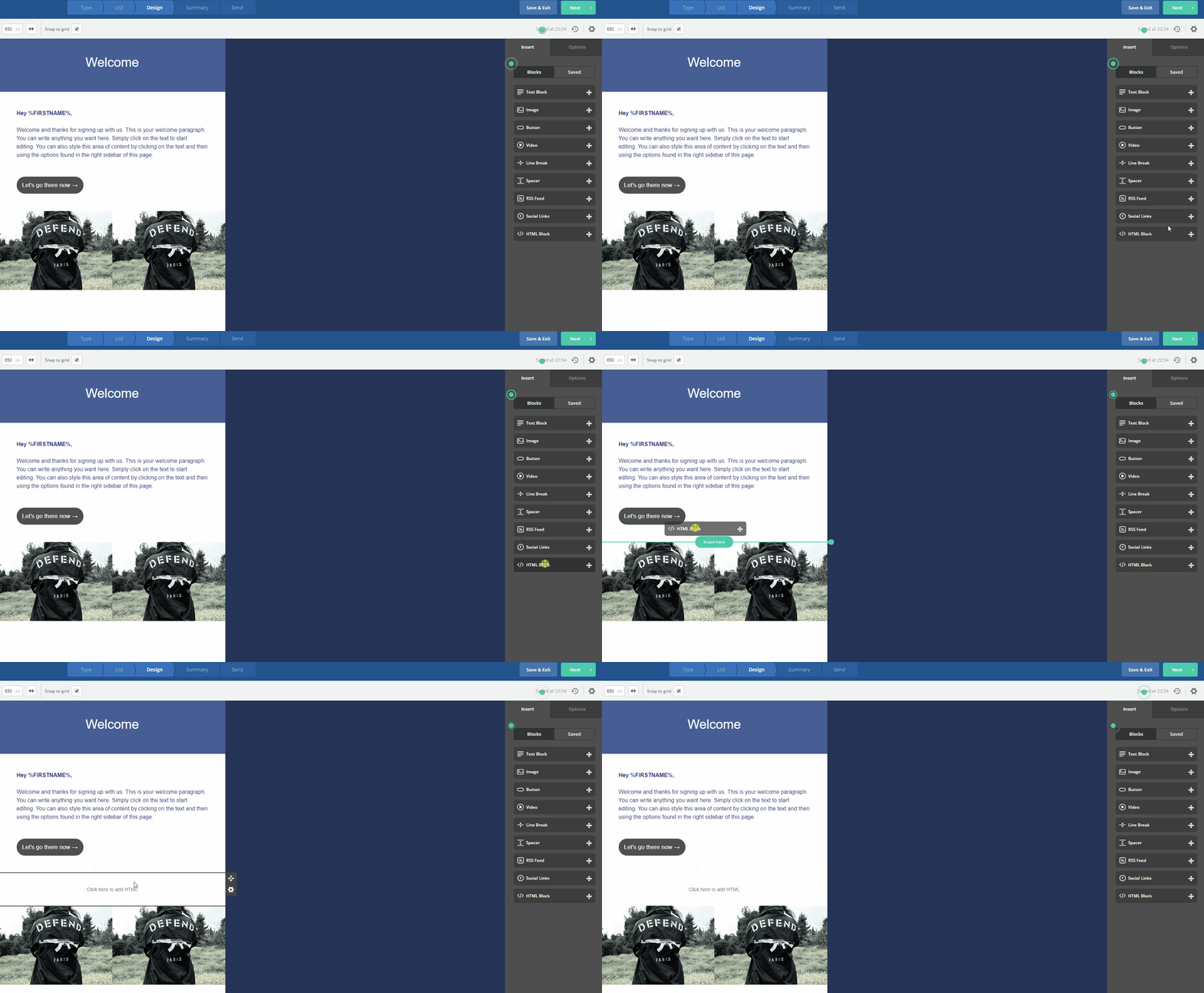
(Drag the </> HTML Block into your email template)
Step 3: Copy the <code snippet> with product recommendations from your Hello Retail account and paste it into the “</> HTML Block” as shown below.
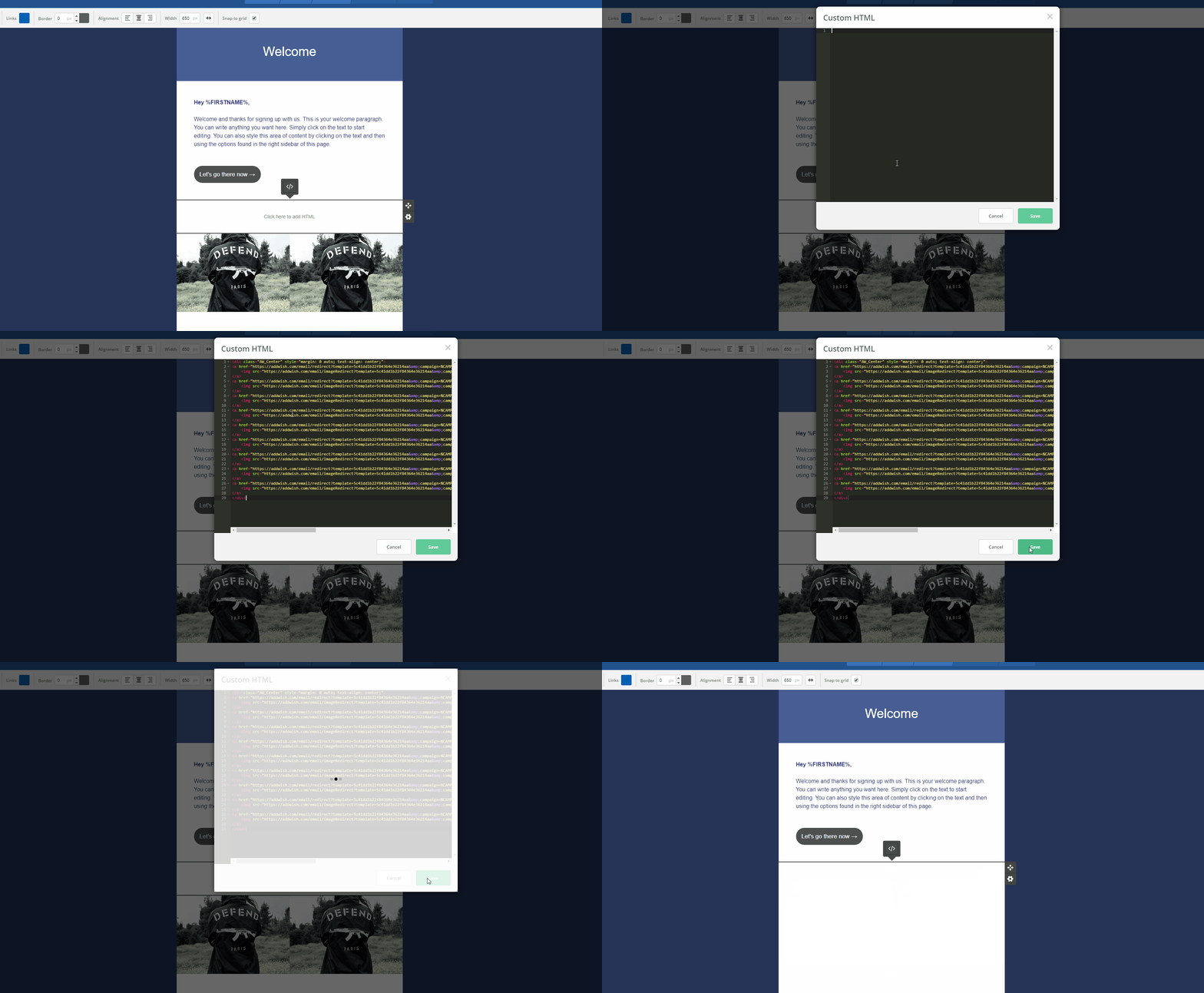
(Insert the Hello Retail code into the </> HTML Block and press “Save”)
Step 4: Your Hello Retail product recommendations are now embedded in your email template.
Note
To change how many products appear per row on desktop, adjust the width value in the snippet (for example, width="205"). Higher values show fewer products per row. Lower values show more.
For example, width="300" shows 2 products per row.