 Avg. 3 min read
 How to Add Newsletter Content to HeyLoyalty
Here's a simple guide on how to add your newsletter content code snippet to HeyLoyalty.
Prerequisite
Before you can create an auto campaign, you must first create a design for the newsletter content. To learn how, click here. When your design is ready, proceed with this guide to integrate with HeyLoyalty.
How to get your Hello Retail code snippet
Step 1: Log into your Hello Retail account here and create an auto campaign for the product recommendations to include in your newsletter. (If you already created a design, you can skip to Step 4.)
Step 2: When you are logged in, navigate to: Newsletter Content > Auto campaigns.
- If you already created an "Auto campaign config", click "Edit auto campaign config".
- If you have not created an "Auto campaign config", follow the steps below.
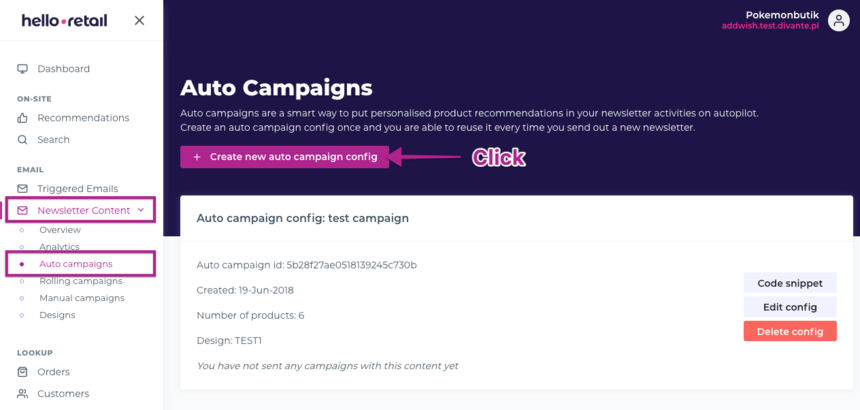 (Click "Create new auto campaign config" to create a design and code snippet.)
Step 3: Fill out the fields. Choose either 2 or 3 products per row, then set the total number of products to display. (In the example config, three products per row and six products in total are shown in the newsletter.)
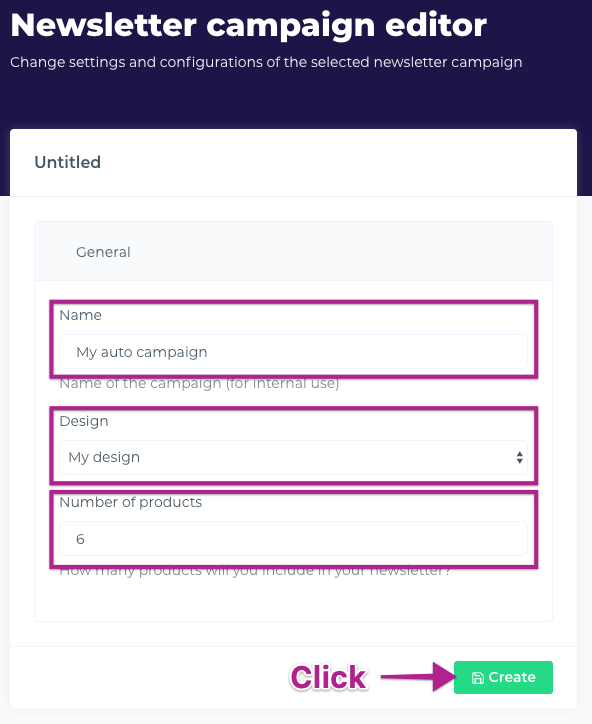
(Fill out the fields as shown.)
Step 4: Optionally select fixed products (these are always shown) and set the "Recommendation strategy" (you can leave the default). Then click the "Code snippet" tab, select "HeyLoyalty" as the Newsletter platform, and copy the code snippet shown.
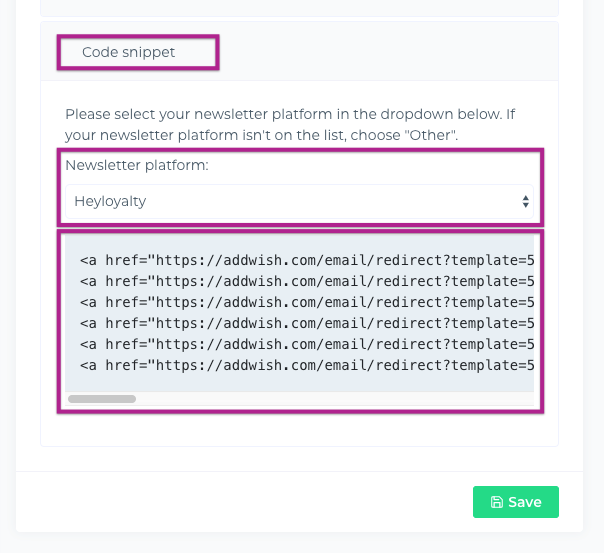
(Select HeyLoyalty as the newsletter platform and copy the code snippet as shown.)
Step 5: You are done in Hello Retail and ready to insert the newsletter content into your HeyLoyalty email template.
How to insert the Hello Retail code snippet into HeyLoyalty
Step 1: Log into your HeyLoyalty account at https://app.heyloyalty.com/login.
Step 2: In the admin, you can add the newsletter content to a reusable template in "Templates" or add it to a single campaign in "Kampagner".
Step 3: In the campaign or template editor, select "1 blok" and then "HTML" as the content type. Drag the block to where the newsletter content should appear in the email. See the image below.
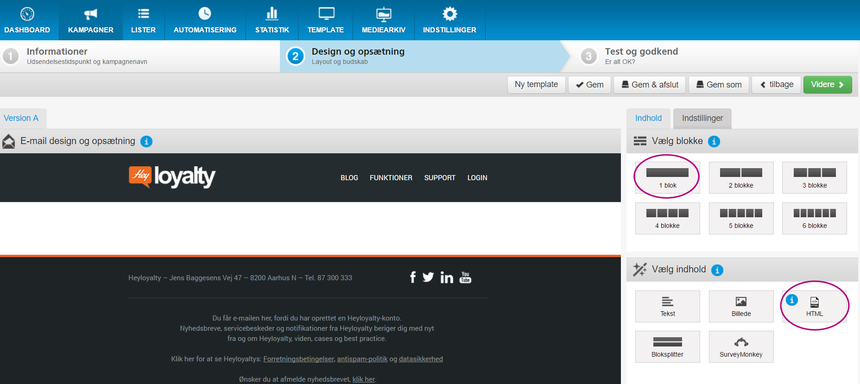
(Select "1 blok" and "HTML" as the block content, then drag it into the newsletter.)
Step 4: After placing the block in your newsletter, click the "Kilde" button to open the source editor and insert the Hello Retail code snippet.
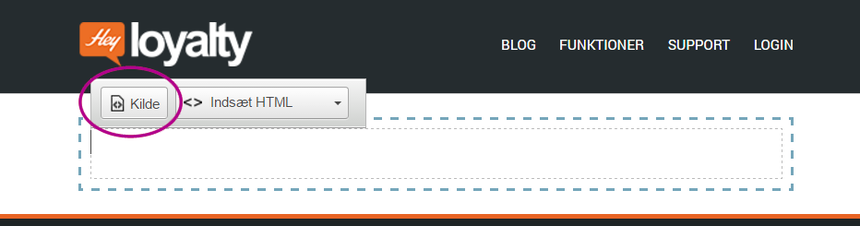 (Click "Kilde" to open a pop-up window where you can insert the code snippet.)
Step 5: Paste the code snippet you created earlier and click "OK" when done.
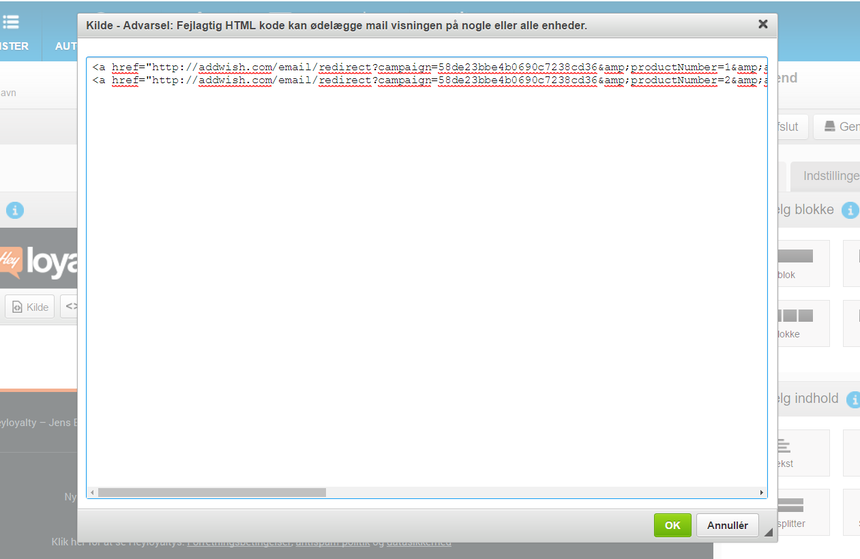 (Paste the code snippet you created in "How to get your Hello Retail code snippet".)
Step 6: Save the template or campaign. Your newsletter content is now implemented.
Note
The newsletter content does not render inside the HeyLoyalty editor. Product recommendations are generated per subscriber at send time. Use a test send or live send to verify rendering.