 Avg. 3 min read
 Lightspeed Installation Guide

Inserting the Hello Retail script + cart tracking
Log in to your Lightspeed Back Office and go to Settings > Web extras.
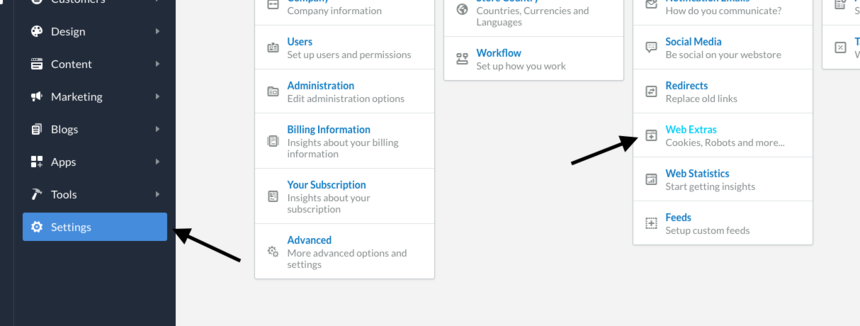
Insert the script in the CUSTOM JS section:
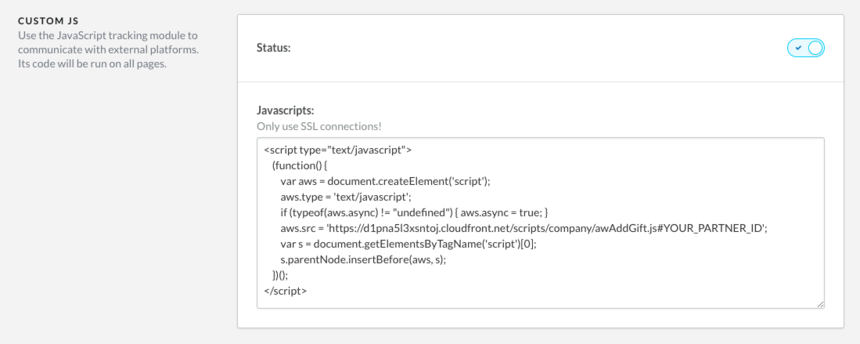
The script should be:
<script async src="https://helloretailcdn.com/helloretail.js"></script>
<script>
    window.hrq = window.hrq || [];
    hrq.push(['init', {}]);
    hrq.push(function(sdk) {
        try {
            var base_url = window.location.origin + "/";
            if (window.location.pathname.startsWith("/" + document.documentElement.lang +"/")){
                base_url += document.documentElement.lang + "/";
            }
            fetch(base_url + 'cart?format=json')
                    .then((response) => response.json())
                    .then((data) => {
                var product_urls = [];
                var product_numbers = [];
                var cart_total = 0;
                var cart = data.cart;
                if (cart) {
                    cart.products.forEach(function(product){
                        product_urls.push(base_url + product.url);
                        product_numbers.push(product.id);
                    });
                    cart_total = parseFloat(cart.totals.grand_total);
                }
                sdk.setCart({
                    total: cart_total,
                    url: window.location.origin + '/cart',
                    urls: product_urls,
                    productNumbers: product_numbers
                });
            });
        } catch(e) {
            console.log("Could not set cart", e);
        }
});
</script>
Inserting the Hello Retail conversion tracking
While still in Settings > Web extras, insert the conversion tracking in the TRACKING section.
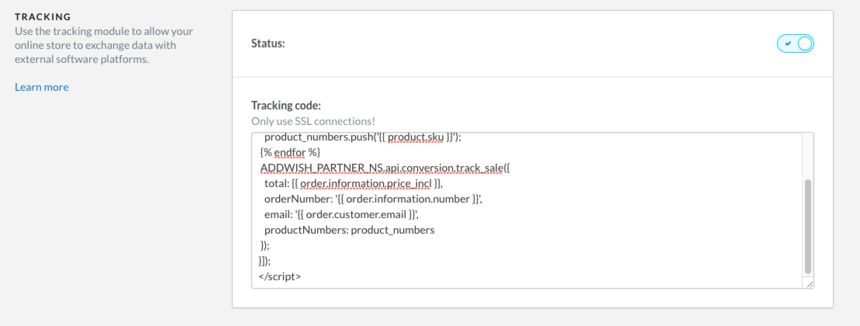
The conversion tracking script should be
<script>
hrq = window.hrq || [];
hrq.push(function(sdk) {
    var product_numbers = [];
    {% for product in order.products %}
        product_numbers.push('{{ product.product_id }}');
    {% endfor %}
    sdk.trackConversion({
        total: {{ order.information.price_incl }},
        orderNumber: '{{ order.information.number }}',
        email: '{{ order.customer.email }}',
        productNumbers: product_numbers
    });
});
</script>
Remember to save your changes.
Make your data available to Hello Retail
Hello Retail supports API based feeds for products, categories, and orders. To enable these, you need an API key and API secret from Lightspeed.
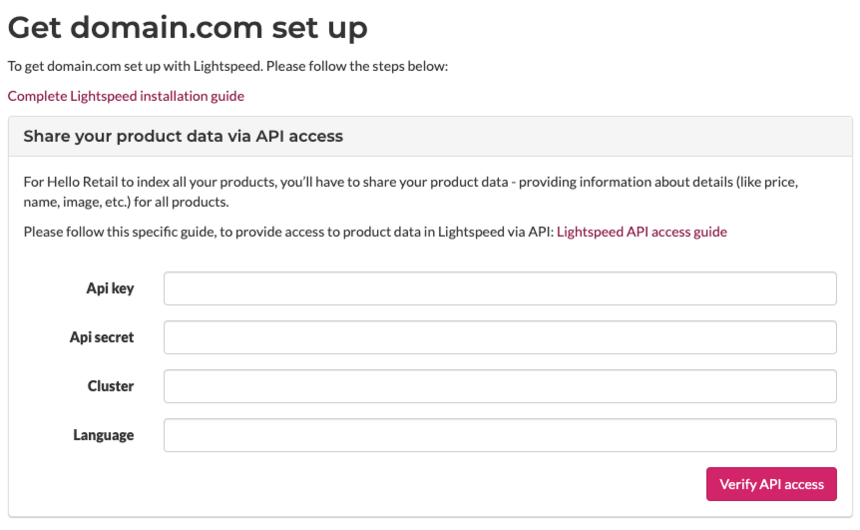
If you are a new customer, you will be prompted to enter the API credentials in the onboarding flow when creating your webshop:
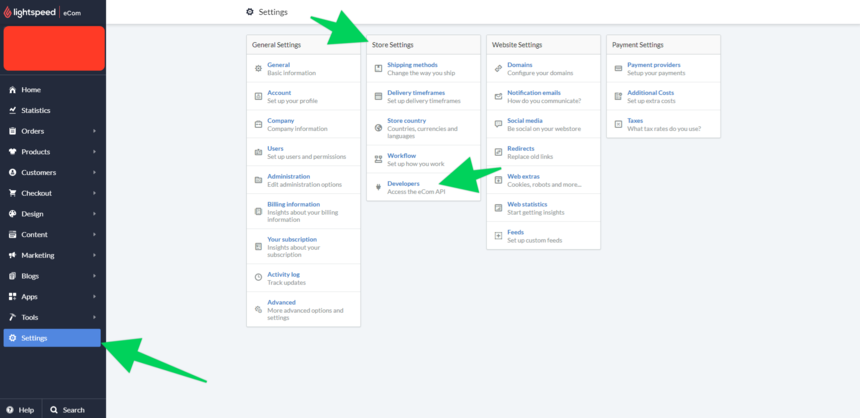
To get the API credentials, go to Settings > Store Settings > Developers in your Lightspeed Dashboard:
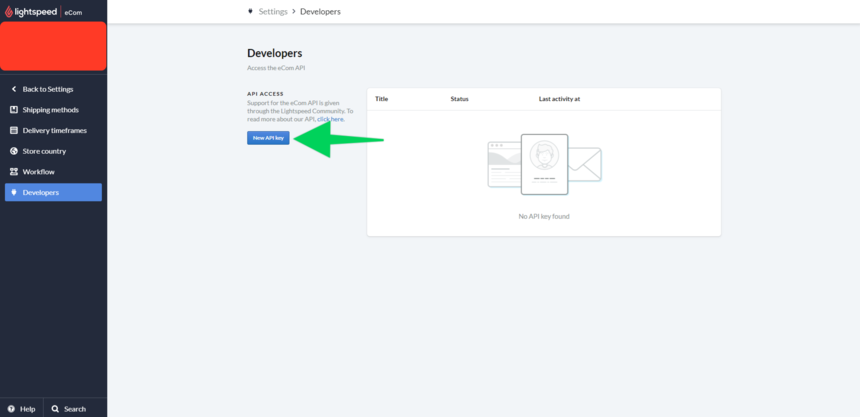
Click New API Key and give it a clear name, for example, Hello Retail API:
After saving, enable read permissions for Content, Products, and Orders. Click Enable and Save. Copy the API Key and API Secret, then paste them into the Hello Retail Dashboard as shown in the first image above.
For the Language field, enter the two-letter code that matches your storefront language or locale, for example:
- Dutch -> NL
- French -> FR
- Spanish -> ES
- German -> DE
- English (UK) -> EN
- English (US) -> US
For Cluster, EU customers should use eu1. US customers should use us1.
Note
API access is not available on Lightspeed entry level plans. Contact your Lightspeed representative to enable API access or upgrade your plan.
Configure Webshop
After the installation and onboarding, make sure your webshop is configured. Follow this guide: