 Avg. 6 min read
 Magento 1 Installation Guide
Install the Hello Retail Business Magento 1 Extension
This guide explains how to install the Hello Retail extension for Magento 1.
We recommend installing via Magento Connect Manager. You can also install manually via FTP if preferred.
Note
- Back up your store (files and database) before installing or updating the extension.
- PHP 8 and OpenMage are supported from extension version 1.0.38 and newer.
Steps - Installing the Hello Retail extension via Magento Connect Manager:
-
Download the Hello Retail extension directly from this link Hello Retail extension package for Magento (newest version is 1.0.44)
-
Log in to your Magento Connect Manager admin account.
-
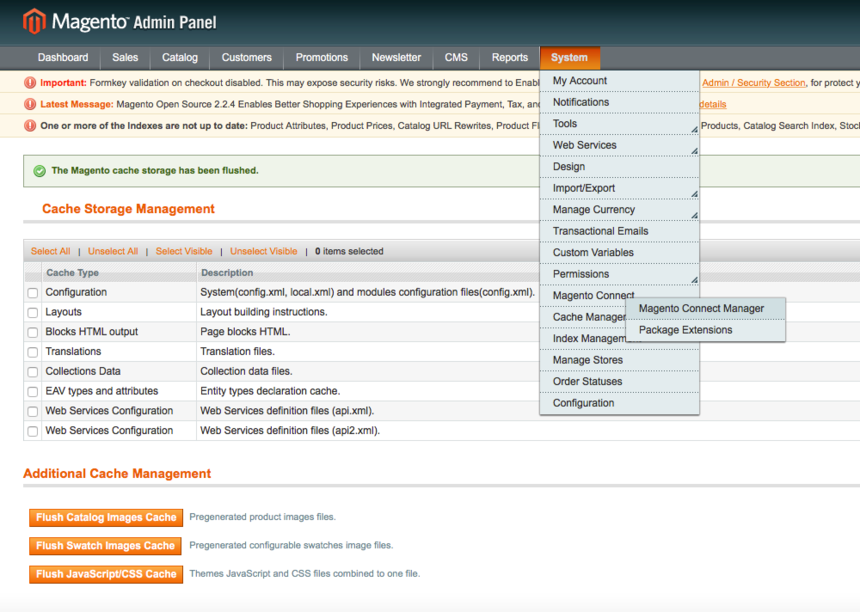
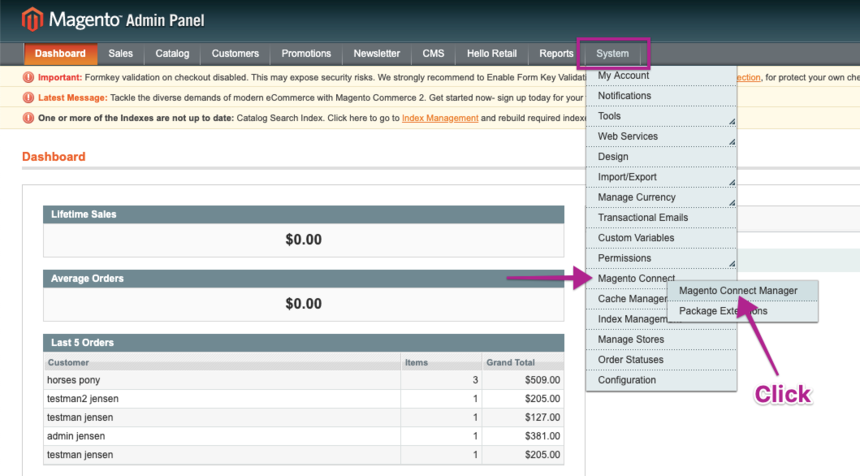
In the Admin Panel, go to System > Magento Connect > Magento Connect Manager.
-
Under Direct package file upload, click Choose file, select the downloaded package, then click Upload.

-
After the package is uploaded, it appears on the page.
Note
Clear the maintenance mode checkbox before proceeding to avoid putting the storefront in maintenance mode.
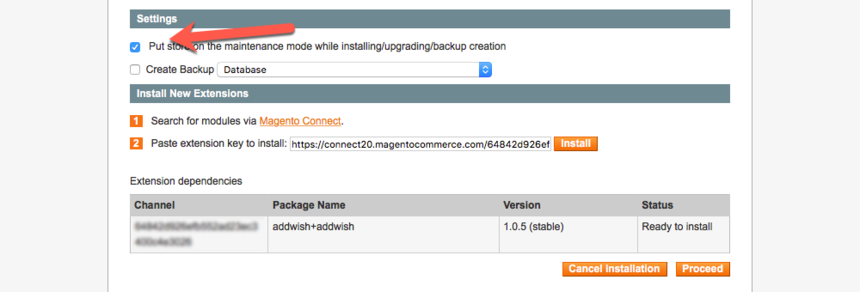
Click Proceed. -
A console output appears with status messages. When you see “Cache cleaned successfully,” the installation is complete.
Refresh the page and click Return to admin in the top-right corner.
Connecting the extension with your Hello Retail account
-
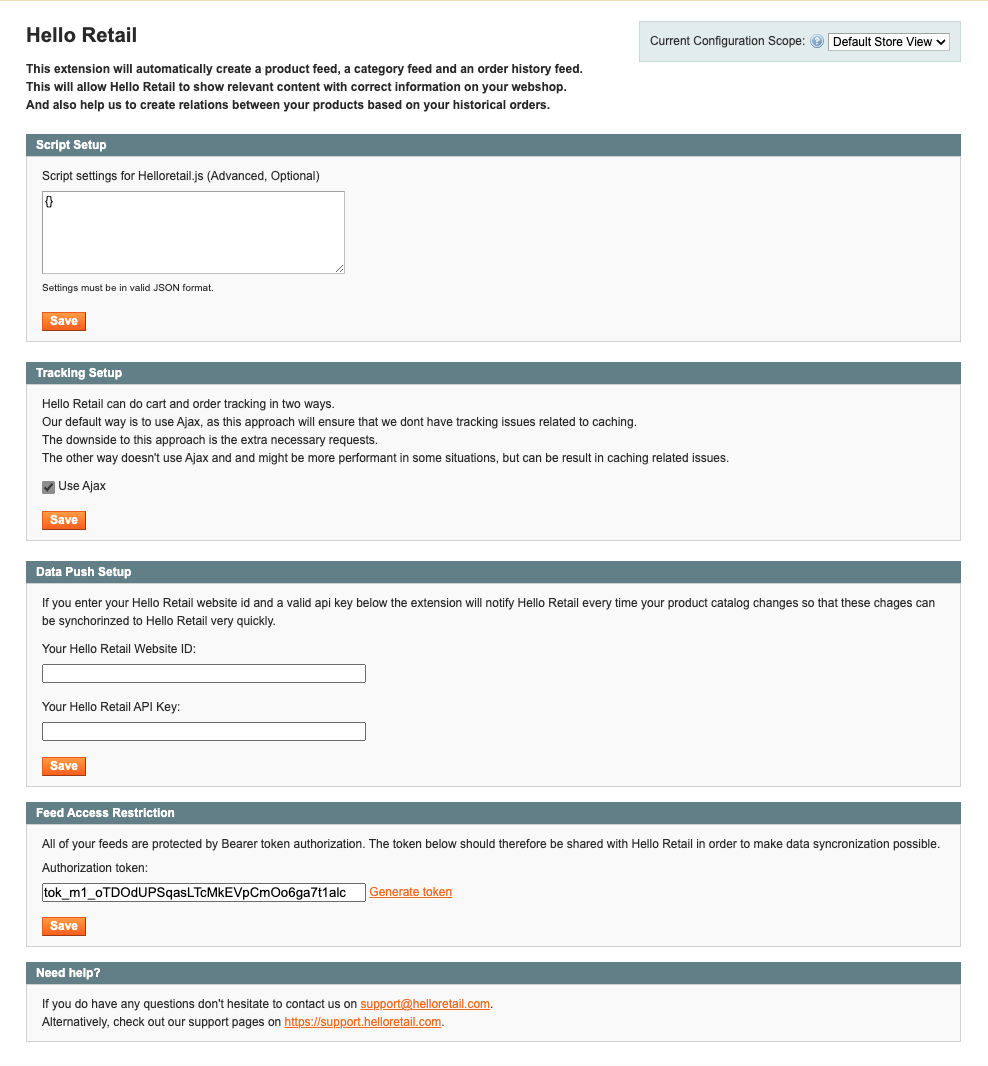
In the Magento Admin, a new top menu item named Hello Retail appears after installation. Click it to open the configuration view.
-
Under Tracking Setup, choose how cart and conversion tracking runs.
In most setups, enable Use Ajax so tracking loads after page load, which works well with full page caching. In some environments, you may get better performance by disabling AJAX tracking. -
Under Data Push Setup, enter your Hello Retail Website ID.
See how to locate your Website ID here.
When configured, the extension notifies Hello Retail on product create, update, and delete. Catalog changes are synchronized quickly.
-
Under Feed Access Restriction, you can view your authorization token.
All feeds require Bearer token authorization. Copy the token from the configuration and add it to your feed configuration in Hello Retail.
If you have a managed feed, contact Hello Retail Support for assistance.
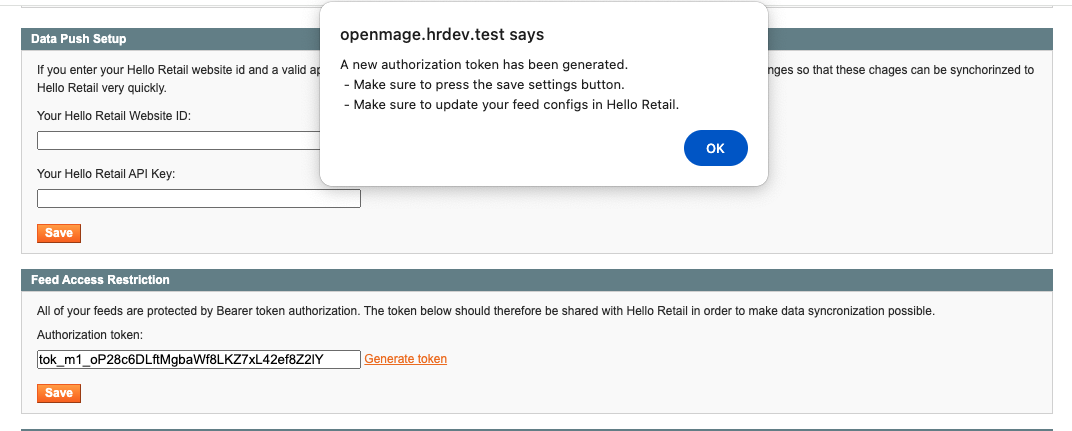
See “Adding a request header to a feed” in the feed configuration tool guide for instructions.To regenerate the token, click Generate token, then click Save.
Updating Hello Retail extension - Magento 1
If you use the Hello Retail module on Magento 1, keep it updated to receive bug fixes and compatibility improvements as our services evolve.
Note
The module name is displayed as "addwish business."
Updating the extension is a matter of uninstalling the old version and installing the new version.
As mentioned here, update the extension using the same method you originally used (Magento Connect or FTP).
There are two ways either through:
- Magento Connect which is the general Magento extension installation platform or
- via FTP where you manually place the relevant files in the Magento folders.
You need to perform the update through the same channel as you originally installed it.
Updating through Magento Connect
The process to update the Hello Retail extension through Magento Connect is to uninstall the extension and then install the updated version.
Steps - Update the Hello Retail extension through Magento Connect
- Log in to your Magento account.
-
Go to System > Magento Connect > Magento Connect Manager.
-
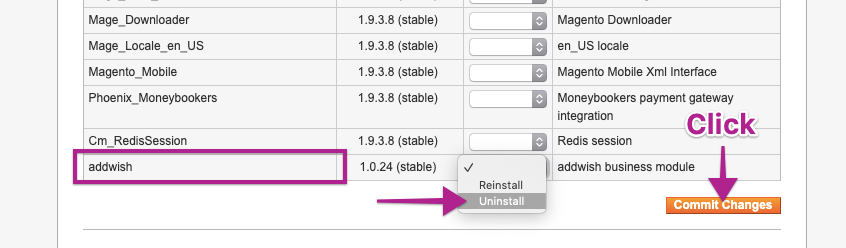
Find the Hello Retail extension in the list (listed as "addwish"). Select Uninstall in the dropdown, then click Commit Changes.
After uninstalling, install the updated version using the standard installation process.
Updating through FTP
If you originally installed the Magento 1 extension through FTP, update it the same way.
Steps - Update the Hello Retail extension through FTP
-
Connect to the Magento 1 server via your FTP client.
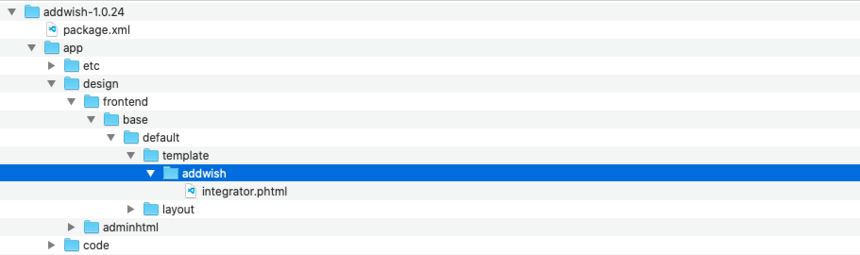
Replace the existing extension files with the updated files from the download. Use the folder structure in the package to locate the corresponding directories on your server.
-
Clear Magento caches.
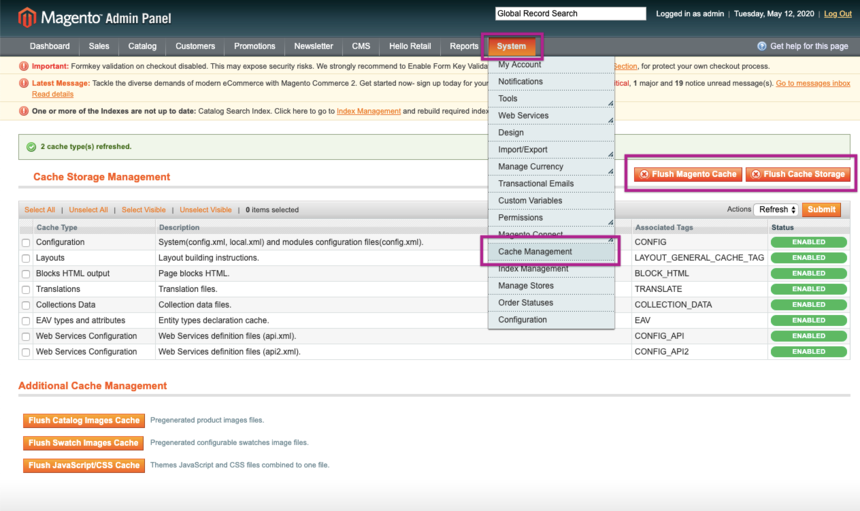
In the Admin Panel, go to System > Cache Management, click Flush Magento Cache, then click Flush Cache Storage.
Configure Webshop
After installation and onboarding, configure your webshop. Follow this guide: