 Avg. 2 min read
 MailerLite Permission Guide
This guide explains how to set up automatic permission synchronization between your MailerLite account and Hello Retail.
Getting the API Key from MailerLite
- Log in to your MailerLite account here.
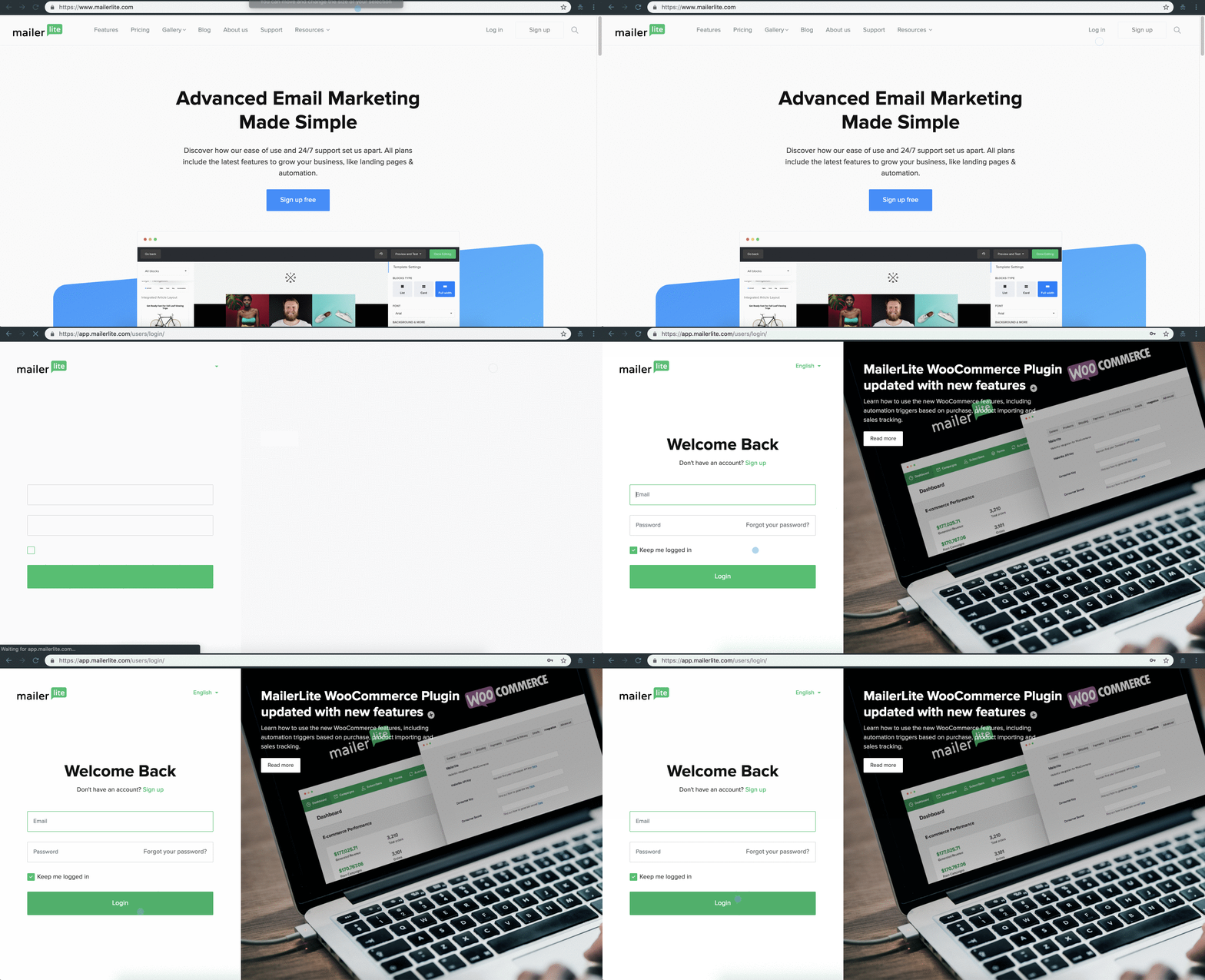
- In the top right, click your profile avatar and select Integrations.
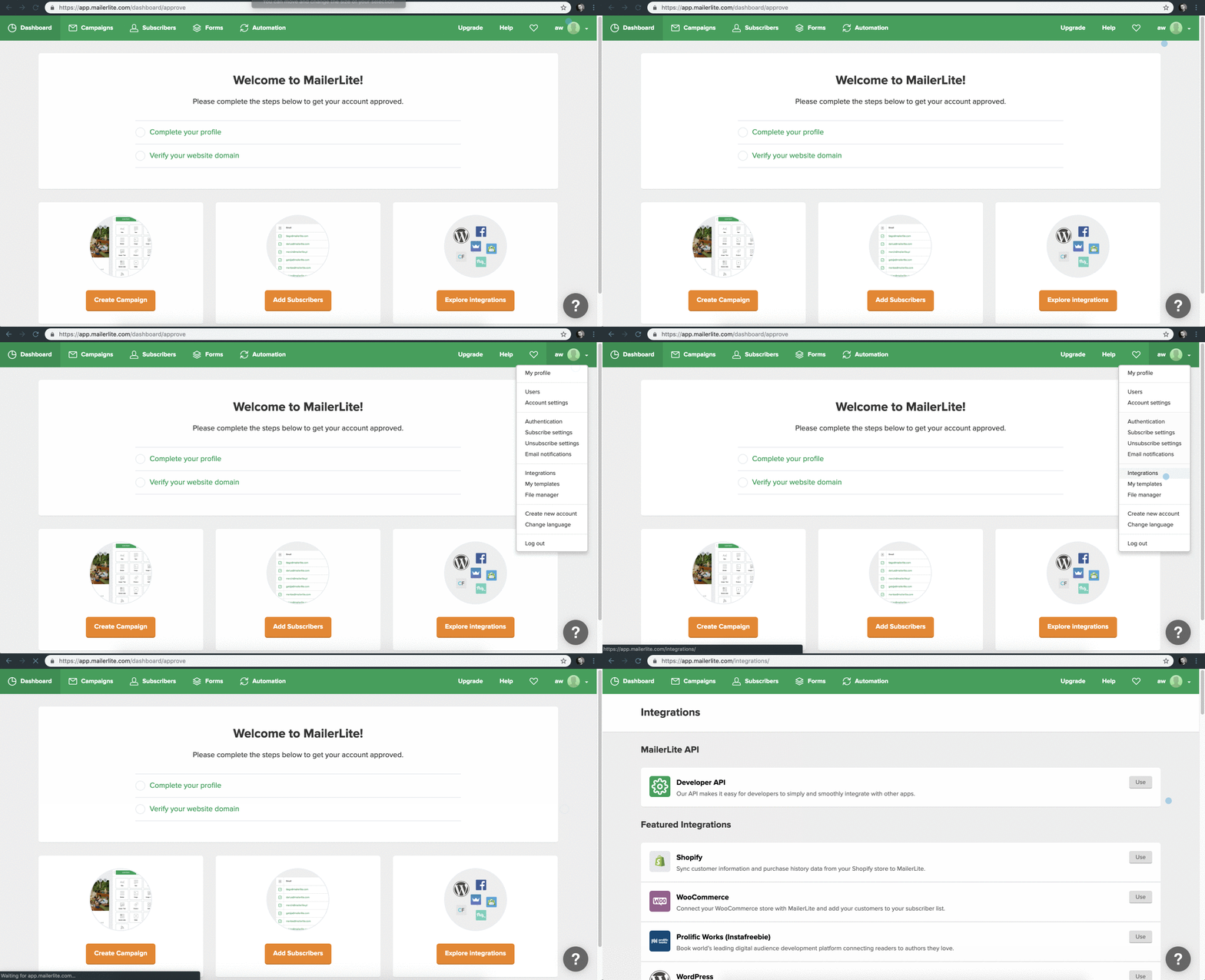
- On the Integrations page, open the Developer API integration. This takes you to the page where your API Key is shown.
- Click Copy to copy the API Key.
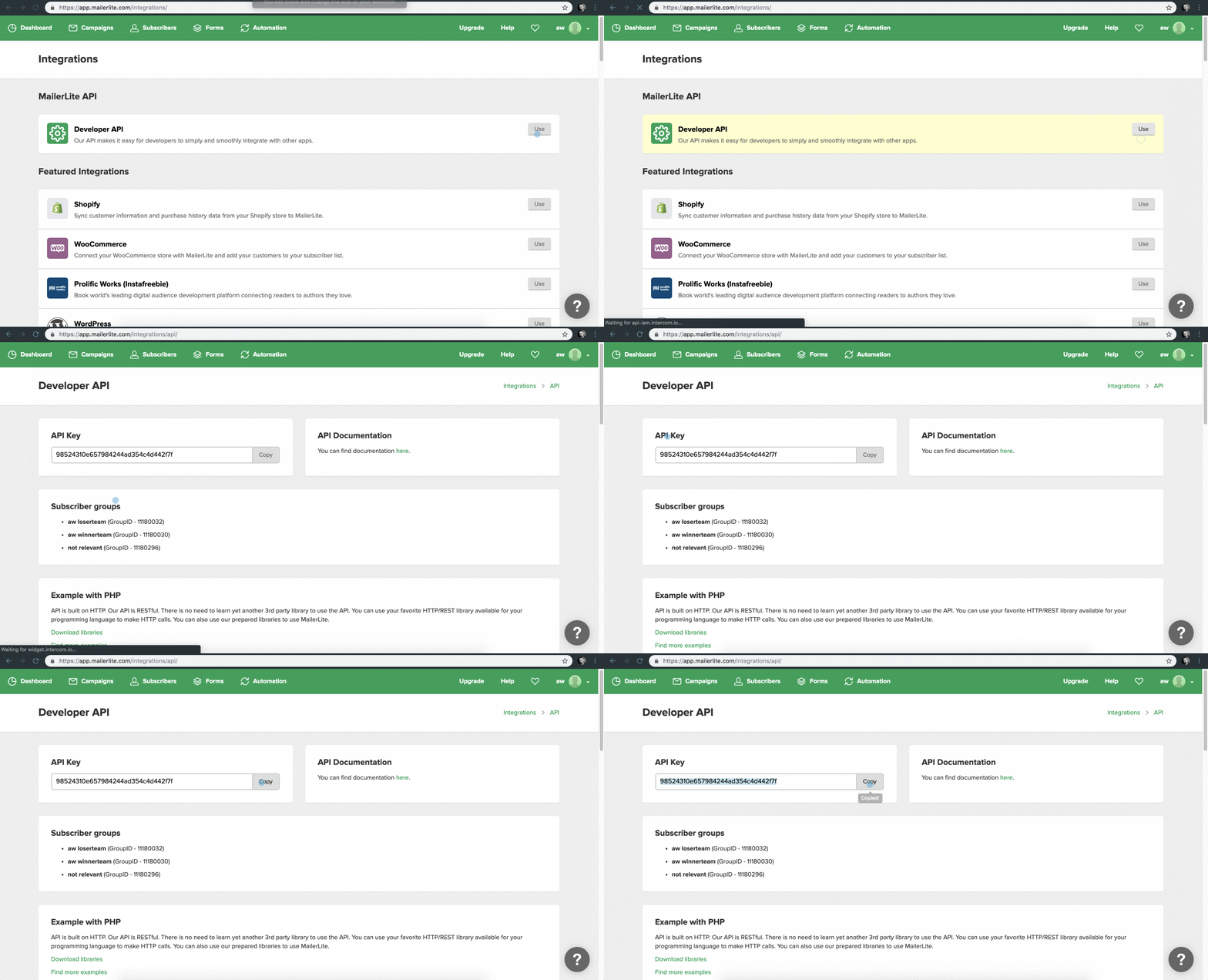
With your MailerLite API Key, proceed to add it in your Hello Retail account to enable permission synchronization.
Inserting the MailerLite API Key into your Hello Retail Account
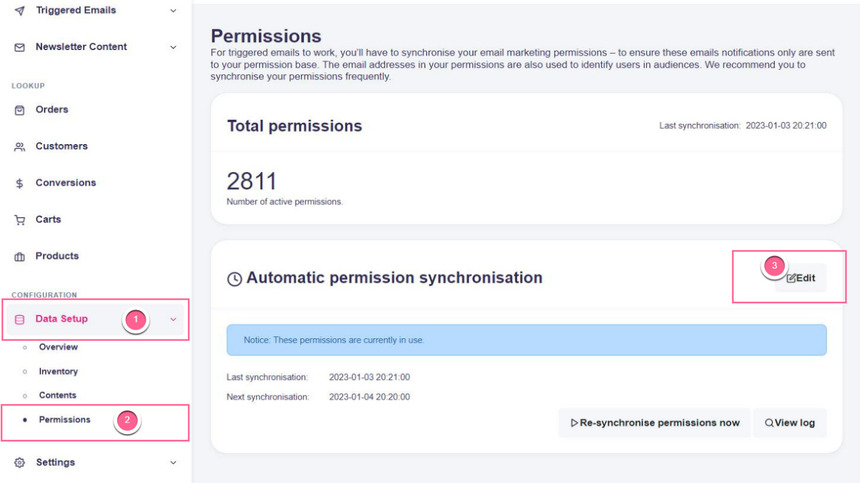
- Log in to your Hello Retail account. In the dashboard, open the left-hand menu. Under Configuration, click Data Setup to expand the drop-down.
- From the drop-down, click Permission campaigns. Then click Edit.
-
On the Automatic permission synchronization page, configure the following:
Select MailerLite in the Type drop-down.
Paste the MailerLite API-Key into the API-Key field.
Select the List from your MailerLite account that you want to synchronize.
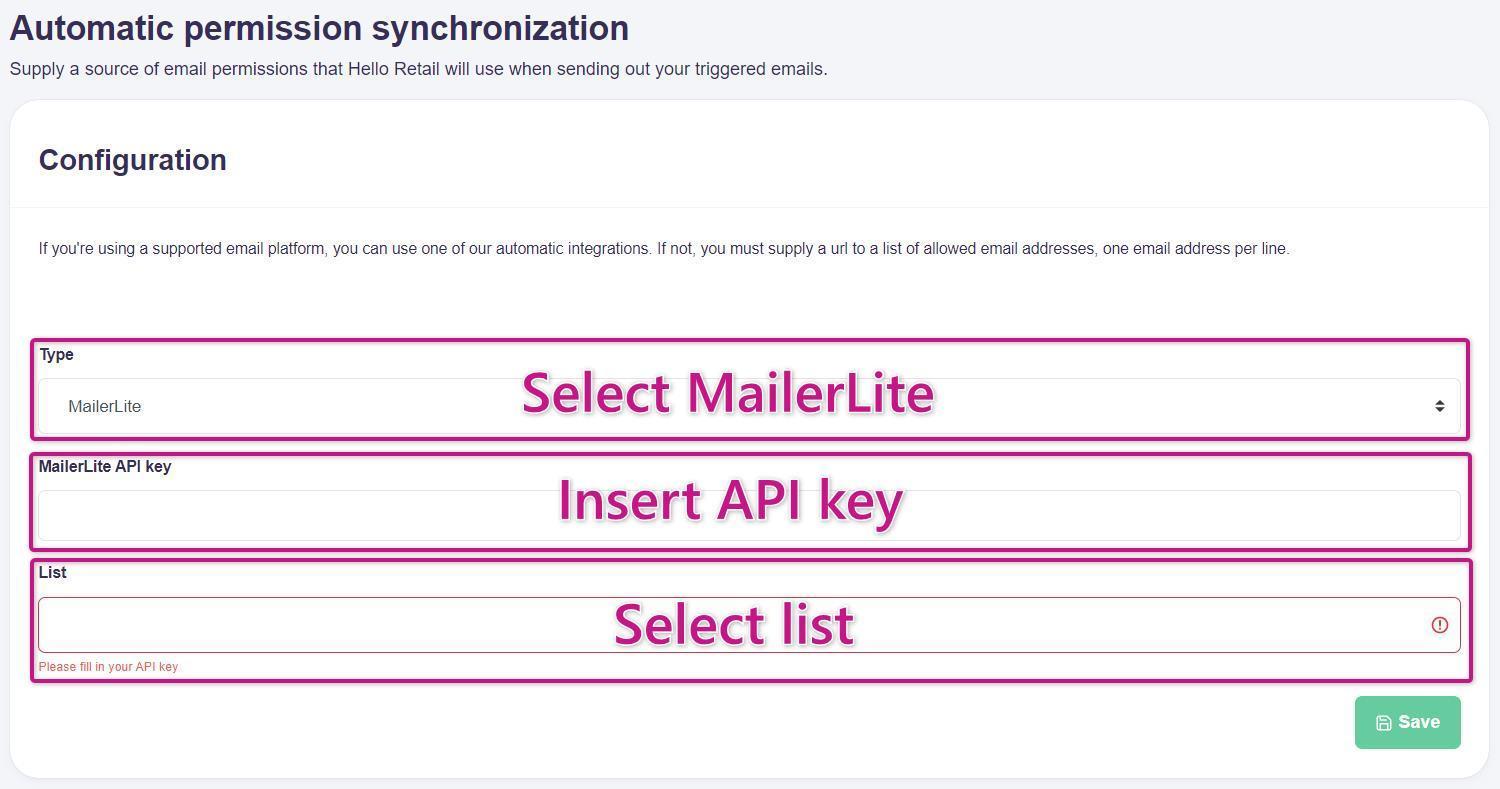 4. Click Save.