 Avg. 3 min read
 Norce Installation Guide

Install the Hello Retail JavaScript
To activate Hello Retail on your Norce webshop, add the Hello Retail JavaScript to all pages. Follow the steps below.
Step 1: Log in to your Norce admin panel.
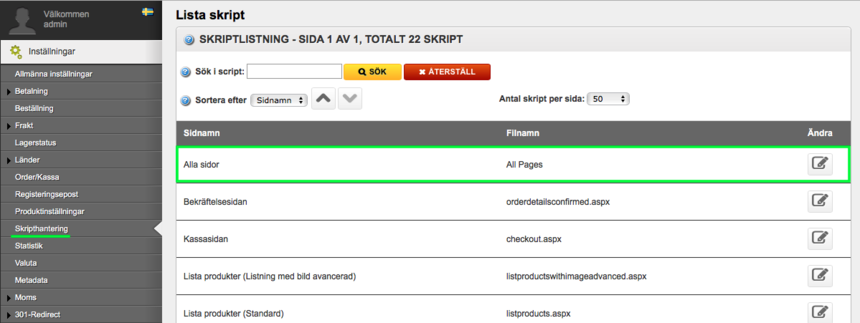
Step 2: Navigate to Inställningar > Scripthantering and click Edit on "All pages".
Step 3: Tick the box Inkludera skript för bodytaggen and paste your Hello Retail JavaScript and the cart tracking snippet into the Script i bodytaggen field:
<script async src="https://helloretailcdn.com/helloretail.js"></script>
<script>
    hrq = window.hrq || [];
    hrq.push(['init', {}]);
    hrq.push(function(sdk){
        try {
            var cartId = getCookie("JetShop_CartID");
            if (cartId) {
                fetch("/Services/Rest/v2/json/shoppingcart/" + cartId)
                    .then((response) => response.json())
                    .then((data) => {
                        var productNumbers = [];
                        var cart = data[0];
                        for (i = 0; i < cart.ProductsCart.length; i++) {
                            productNumbers.push(cart.ProductsCart[i].Articlenumber);
                        }
                        sdk.setCart({
                            total: cart.TotalProductSum,
                            url: document.location.protocol + "//" + document.location.hostname + "/externalcheckout.aspx?cartid=" + cart.CartId,
                            productNumbers: productNumbers
                        });
                    });
            }
        } catch(e) {
            console.log(e);
        }
    });
</script>
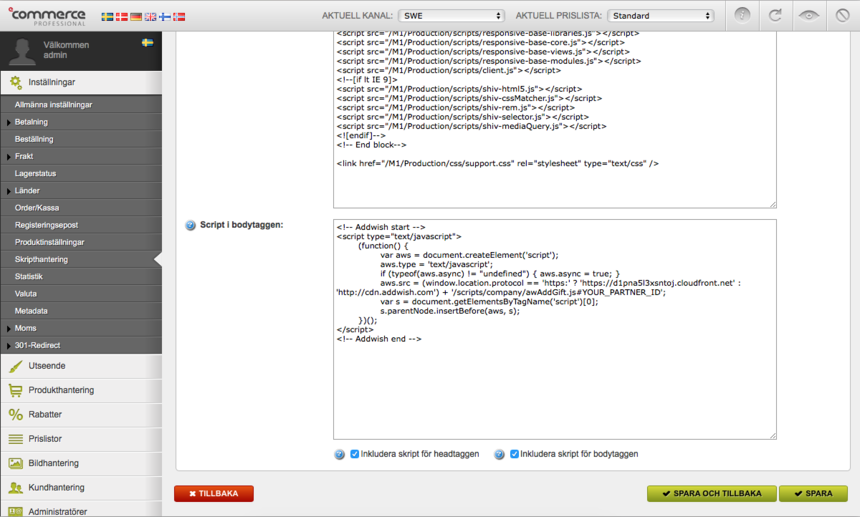
Remember to Save your changes.
Install the conversion tracking script
To generate accurate product recommendations, Hello Retail needs conversion data.
This also enables statistics and analytics on how personalization performs on your webshop.
While still in the Scripthantering section, follow the same steps as above, but select the order confirmation page and add the following script to the body section:
<!-- Hello Retail conversion tracking -->
<script>
    const orderIdForOrder = dataLayer[0].transactionId;
    const transactionValueForOrder = parseFloat((dataLayer[0].transactionValue).replace(',', '.')).toFixed(2) - parseFloat(dataLayer[0].transactionShipping).toFixed(2);
    const productNumbers = dataLayer[0].transactionProducts.map(item => item.sku)
    const customerEmailForOrder = JetshopData.Order.Customer.Email;

    hrq = window.hrq || [];
    hrq.push(["trackConversion", {
        total: parseFloat(transactionValueForOrder).toFixed(2),
        orderNumber: orderIdForOrder,
        productNumbers: productNumbers,
        email: customerEmailForOrder
    }]);
</script>
<!-- End Hello Retail conversion tracking -->
Remember to Save your changes.
Create a blank page for search results
Note
This section applies to the legacy Responsive Base platform only. For Jetshop Flight, contact Hello Retail Support. It is required only for full Search setups.
Step 1: Log in to your Norce admin panel.
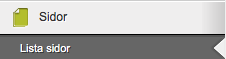
Step 2: Navigate to Sidor > Lista sidor:
Step 3: Choose Add new page ("Skapa ny sida"):

Step 4: Provide a name for the new page, for example Search results or Sökresultat.
Also set a headline ("Huvudrubrik") and a title. To save the page, add temporary content ("Innehåll"). This content is replaced by Hello Retail Search when results are rendered. For example, use "Laddar sökresultat..." or a single dot.
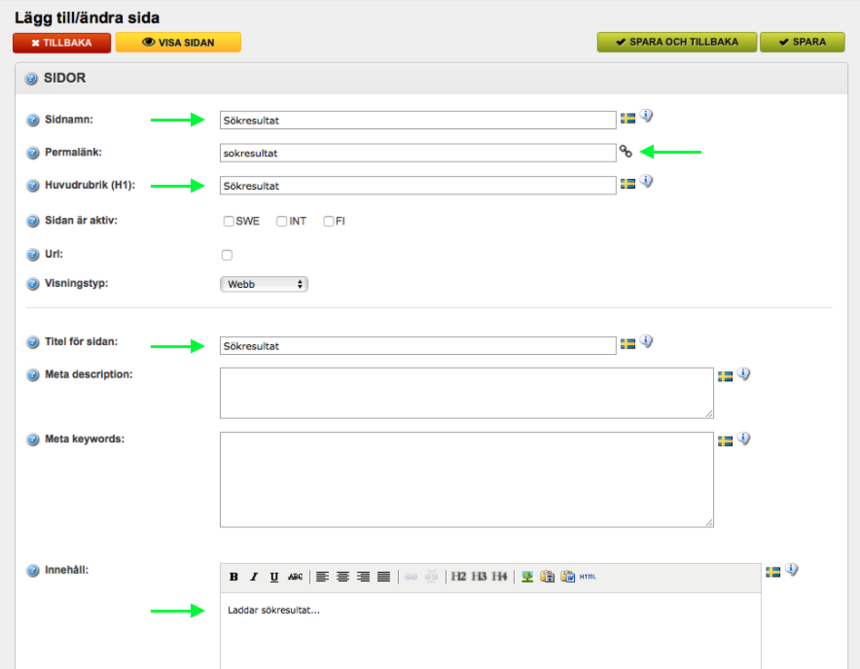
Step 5: Click the link icon to show the page URL and copy it.
Step 6: Remember to Save ("Spara").
Step 7: Share this new page URL with Hello Retail so we can finalize the setup of dynamic Search.
Configure Webshop
After the platform installation and onboarding, configure your webshop. Read this guide to complete the setup: