 Avg. 4 min read
 PrestaShop Installation Guide

Install the Hello Retail PrestaShop Module
This guide shows how to install and configure the Hello Retail module for PrestaShop.
To integrate Hello Retail with your PrestaShop shop, follow the steps below.
The Hello Retail PrestaShop module supports versions 1.7, 8 and 9.
Install the Hello Retail business module in PrestaShop
- Log in to your PrestaShop admin.
- From the Dashboard, go to Modules:
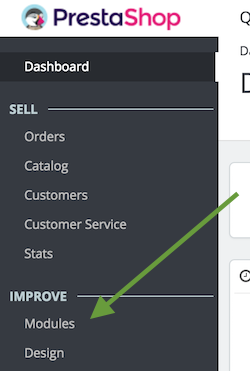
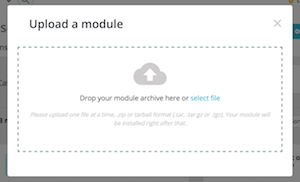
- In Modules, click Upload a module:

- Simply drag and drop the .ZIP file into it or browse and select the Hello Retail module ZIP file. You can click here to download the current version 1.2.58. The file is also attached in this guide.
-
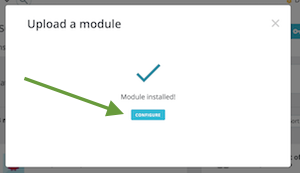
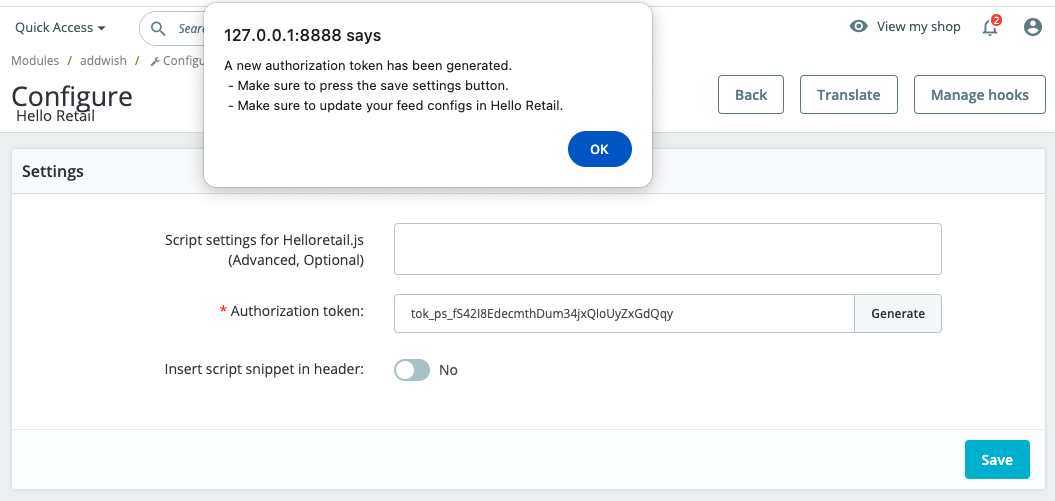
After the module installs, click Configure to open the configuration page:
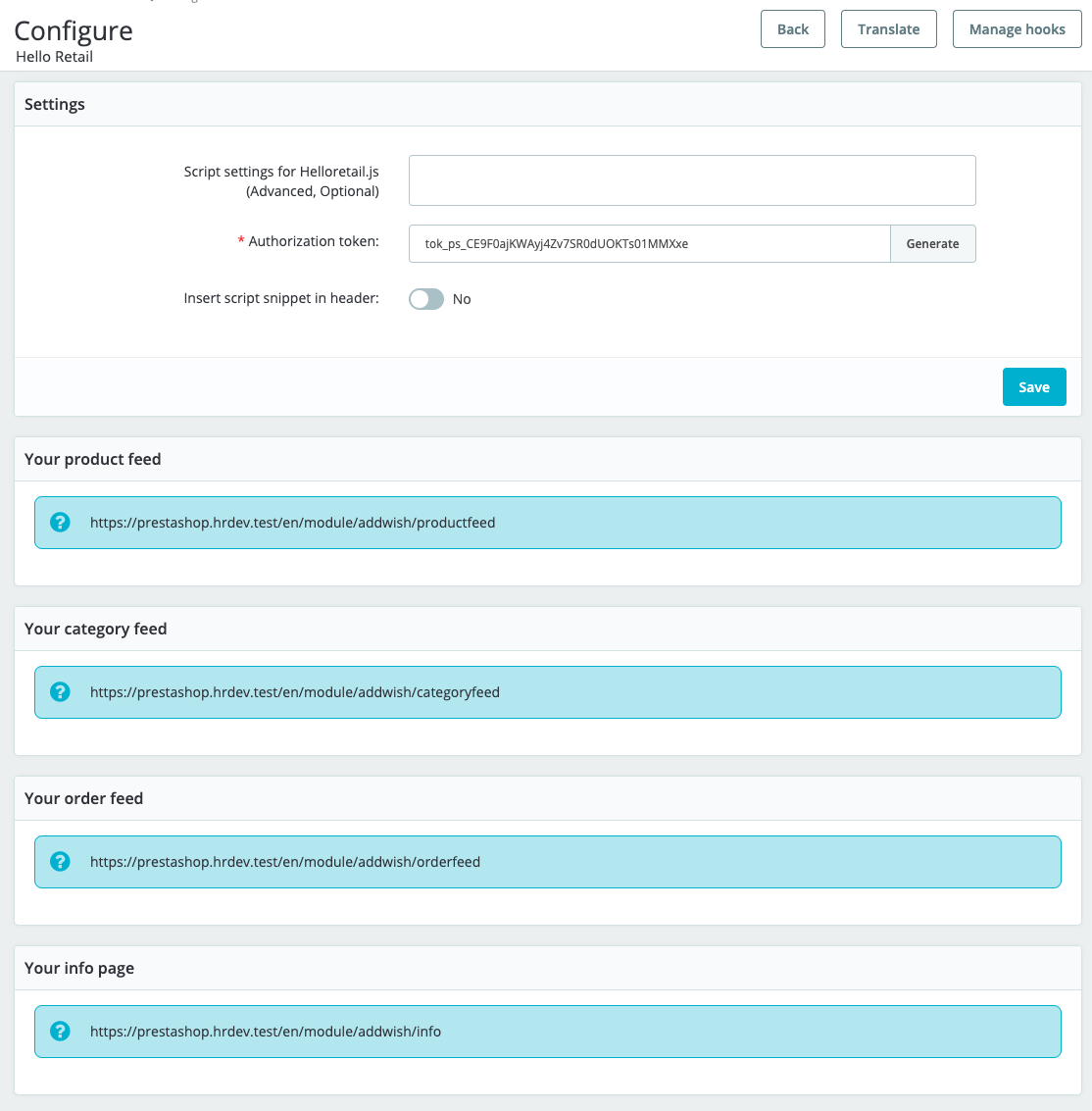
Feeds authorization:
All feeds now require Bearer token authorization. Copy the authorization token from the module configuration and add it as a request header to your feed configurations in Hello Retail (Authorization: Bearer {token}).
If you have a managed feed, contact Hello Retail Support to have the header added.
See "Adding a request header to a feed" in the feed configuration tool guide for instructions.
To regenerate the token, click the generate button, then click Save to store the new token.
Adding a blank search page
The following section applies only to full Search setups.
Steps - Create a new blank search page in PrestaShop
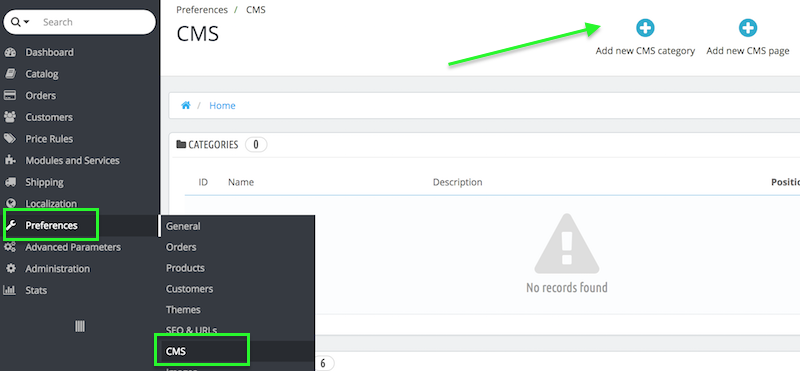
- If you are using PrestaShop 1.6.*: From the Dashboard, go to Preferences. In the menu, click CMS.
- In the CMS view, click Add new CMS page.
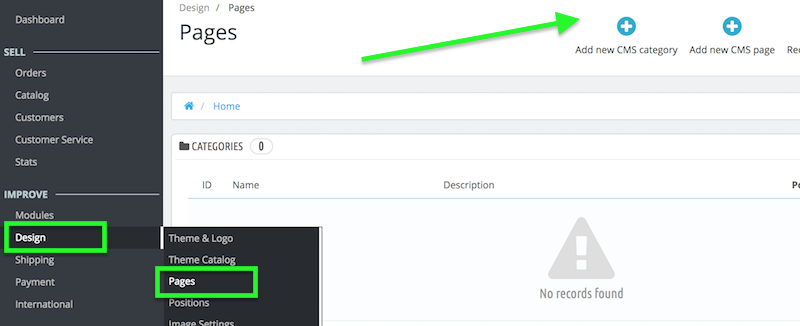
- If you are using PrestaShop 1.7.*: From the Dashboard, under Improve, go to Design. In the menu, click Pages.
- In the Pages view, click Add new CMS page:
-
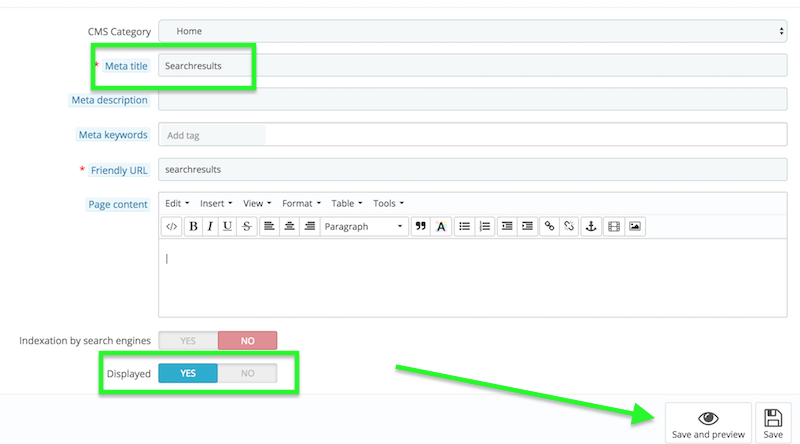
Create the page. Enter a relevant name in the Meta title field. Leave Page content empty. The Friendly URL field is generated automatically.
Note
PrestaShop auto-generates the Friendly URL for CMS pages. Leave Page content empty.
-
Click Save and preview to save and preview the page.
- Send the URL of the blank search page to support@helloretail.com.
Updating Hello Retail module - PrestaShop
If you use the Hello Retail module with your PrestaShop platform, keep it updated. Updates include bug fixes and service changes.
Updating the module consists of uninstalling the old version and installing the new one.
Steps - Update the Hello Retail Module
- Log in to your PrestaShop admin.
-
From the Dashboard, go to Modules, then Modules and Services to see the list of installed modules.
-
In the list, locate the Hello Retail module. The module name is addwish business.
-
Click Configure, then select Uninstall from the drop-down.
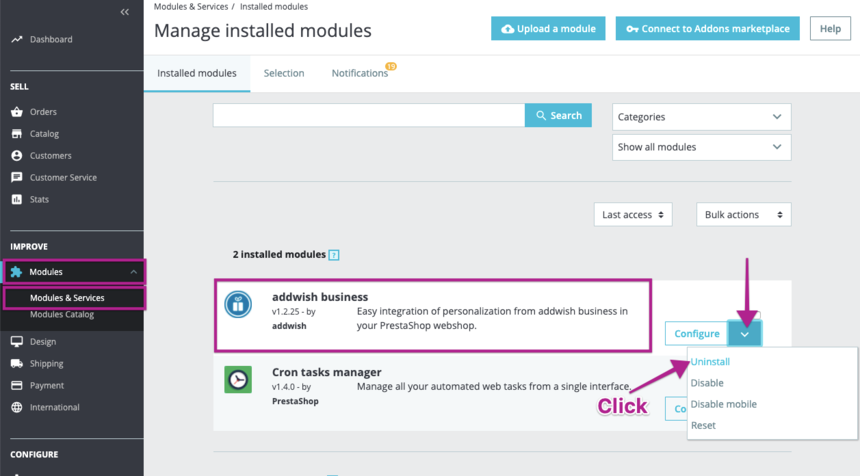
The module is now removed. Install the new module ZIP as you would for a fresh install.
You can find a complete guide for doing that here.
Configure Webshop
After installation and onboarding, make sure your webshop is configured in Hello Retail. Read this guide to complete the configuration: