 Avg. 6 min read
 Rolling Campaign on MarketingPlatform
In this guide, you will learn how to set up newsletter content with the provider MarketingPlatform.
If you use both Hello Retail and MarketingPlatform, you can build newsletters with highly effective personalized product recommendations delivered directly to your customers.
Hello Retail knows your customers’ preferences. Through the integration with MarketingPlatform, Hello Retail’s algorithms present relevant product recommendations based on each customer’s browsing behavior.
The setup is simple and requires minimal maintenance after initial configuration.
The setup includes three stages:
- You will first create a design for the product recommendation.
- Then you will create a campaign that sets the conditions for the content of the product recommendations.
- Lastly, you will insert a code snippet from Hello Retail into your newsletter in MarketingPlatform.
1: Create a design in Hello Retail
First, create a design for the product recommendations. Specifically, create a design for a single tile that contains an image, title, and price. You will then add multiple tiles to your newsletter, depending on how many product recommendations you want to include.
Prerequisite
Before you can create and set up a campaign, you must create a design for the newsletter content. To learn how to do this, click here. When your design is ready, proceed with this guide.
Let’s get started with the design.
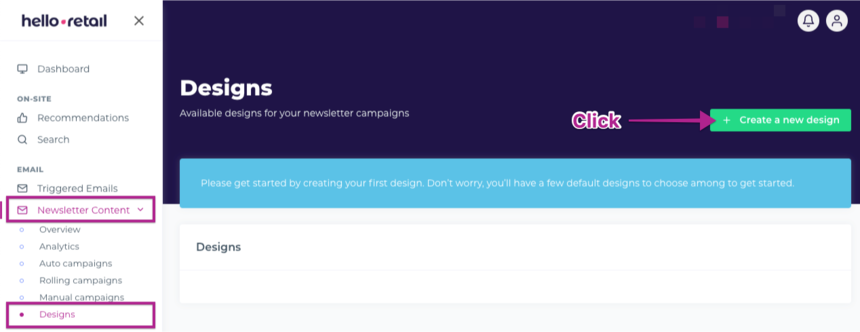
Log in to your Hello Retail account and go to Newsletter Content -> Designs and click Create a new design.
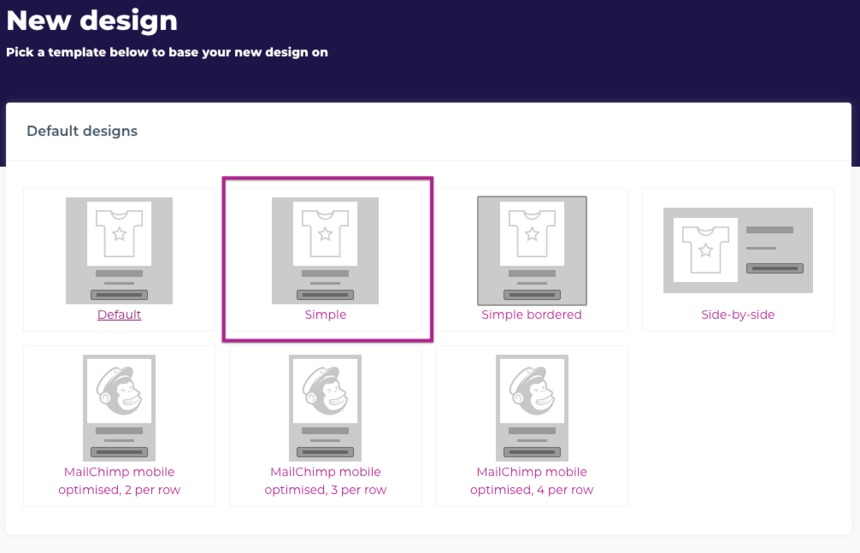
You will see a list of starter designs. In this guide, choose Simple, which places the image above the title, previous price, and current price.
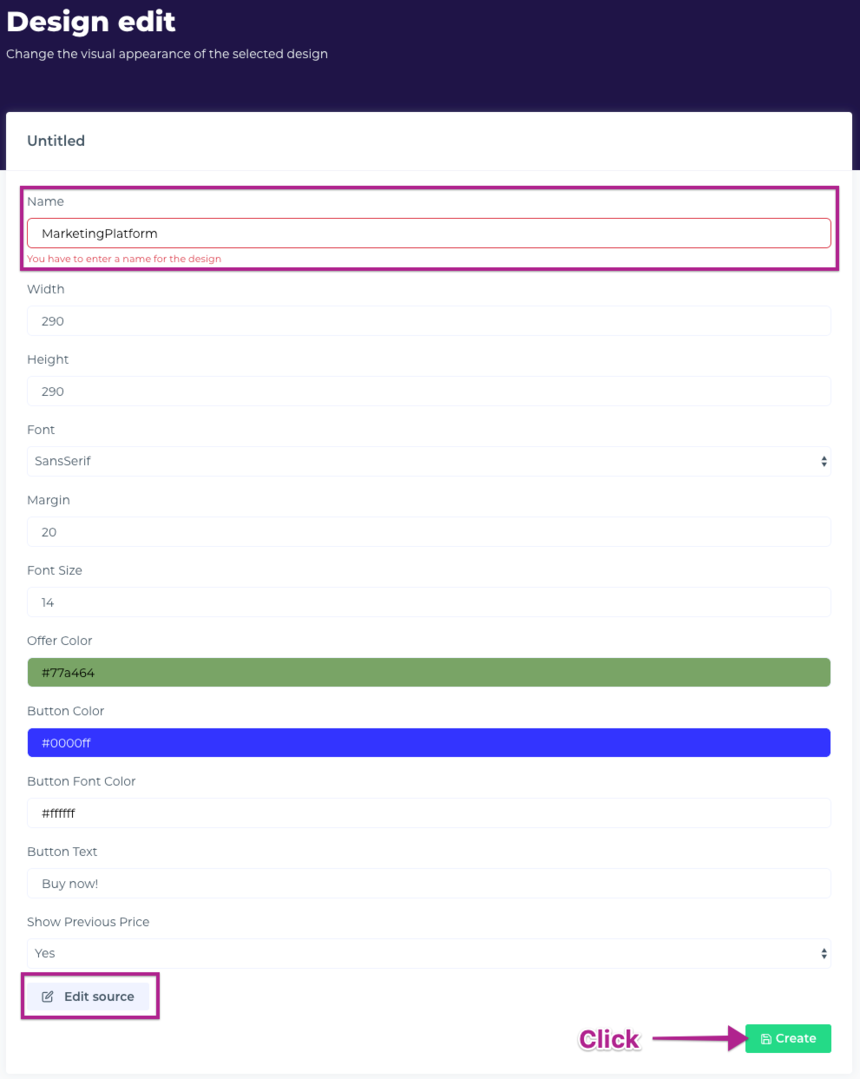
On the next page, customize the design to match your shop and newsletter. First, name the design. Then adjust size, font, font size, colors, and the text and color of the buy button.
If you know basic HTML, you can edit the design code directly by clicking Edit source.
MarketingPlatform newsletters are 600 pixels wide by default, so create a 290x290 product recommendation tile to place two tiles side by side.
When the design is ready, click Create.
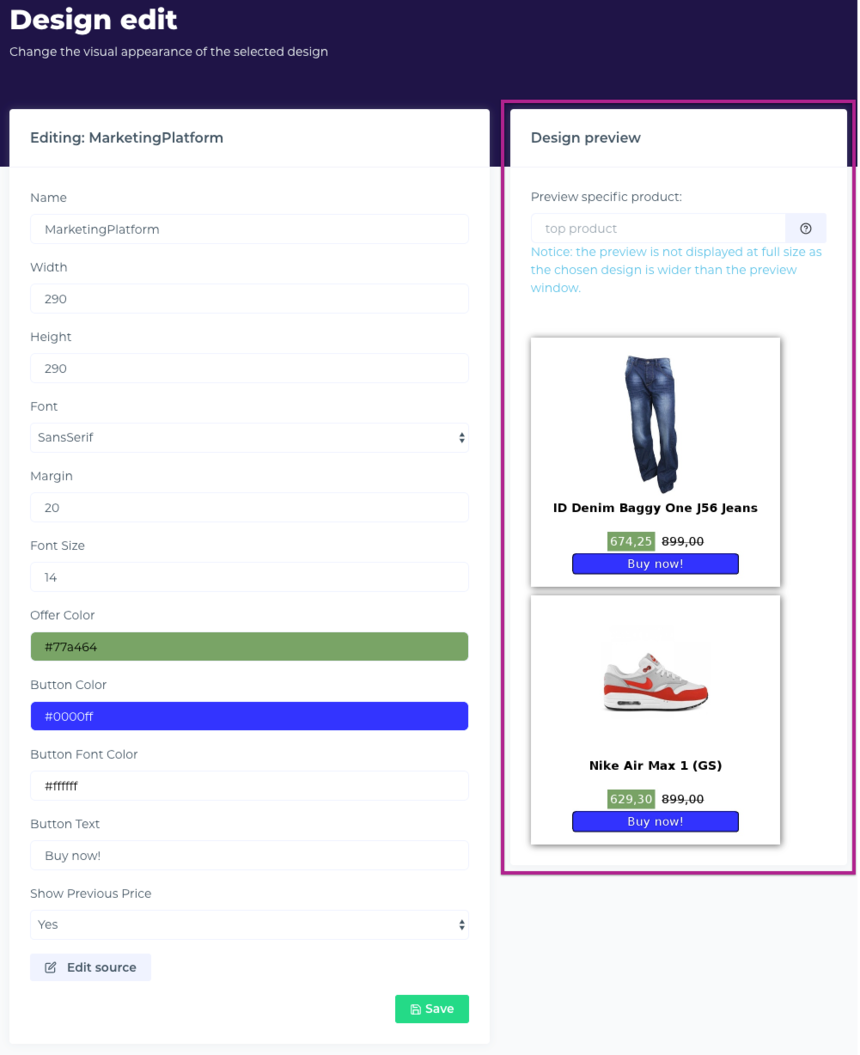
After clicking Create, you will see an example of the design with your products. Fine-tune the design as needed. Remember to click Save to keep your changes.
2: Create a campaign
After creating the design, create a campaign. A campaign defines how Hello Retail generates the product recommendations. There are three campaign modes, which are described here. For MarketingPlatform, the best choice is a Rolling campaign, which you set up once and then runs automatically.
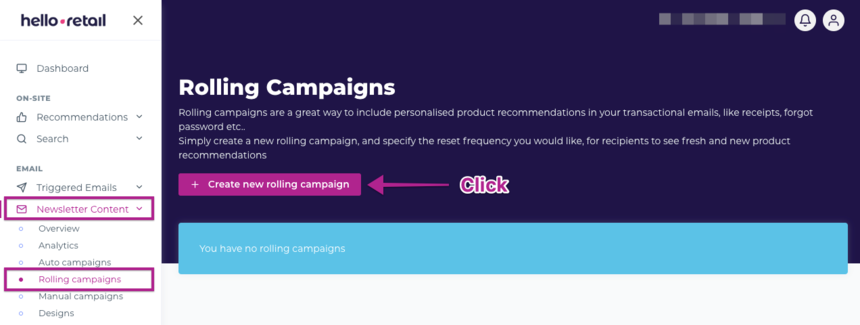
Create a new campaign by going to Newsletter content -> Rolling campaigns and clicking Create new rolling campaign.
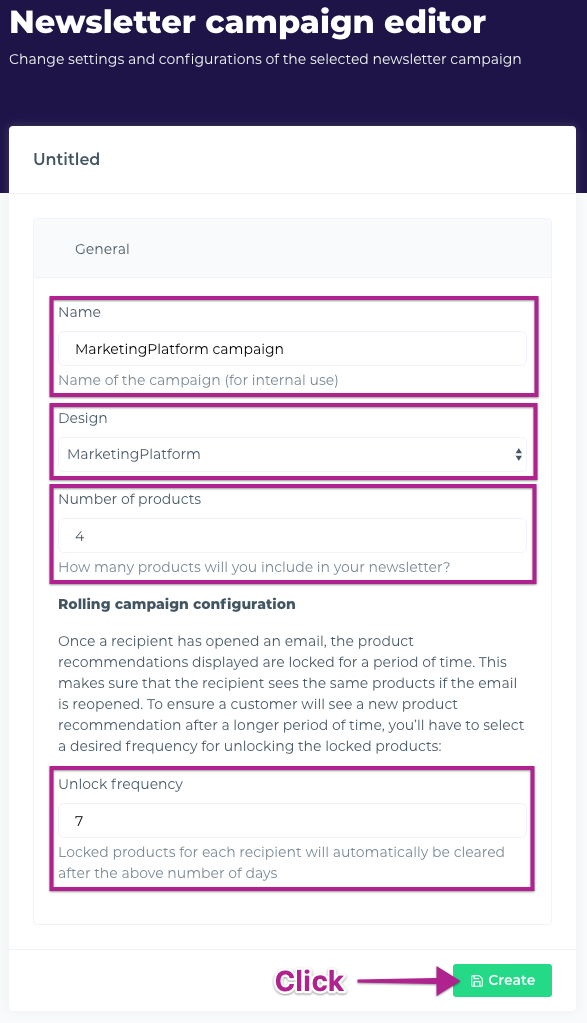
On the next page: - Give the campaign a name for your reference. - Select the design you created. - Choose the number of product recommendations to show in your newsletter; here, we chose 4. - Set the unlock frequency. This controls how many days the recommendations remain locked for each recipient in this campaign. During the lock period, a recipient who reopens the same newsletter will see the same products. After the lock period, the next newsletter will show new products automatically. Choose a number of days that matches your send frequency, for example, seven days.
When done, click Create.
After creating the campaign, you can configure additional options. By default, the campaign generates personalized recommendations and is ready to send. You can refine how Hello Retail selects products or add fixed products that everyone should see. Read more about the detailed settings here.
When you are satisfied with the settings, click Code snippet.
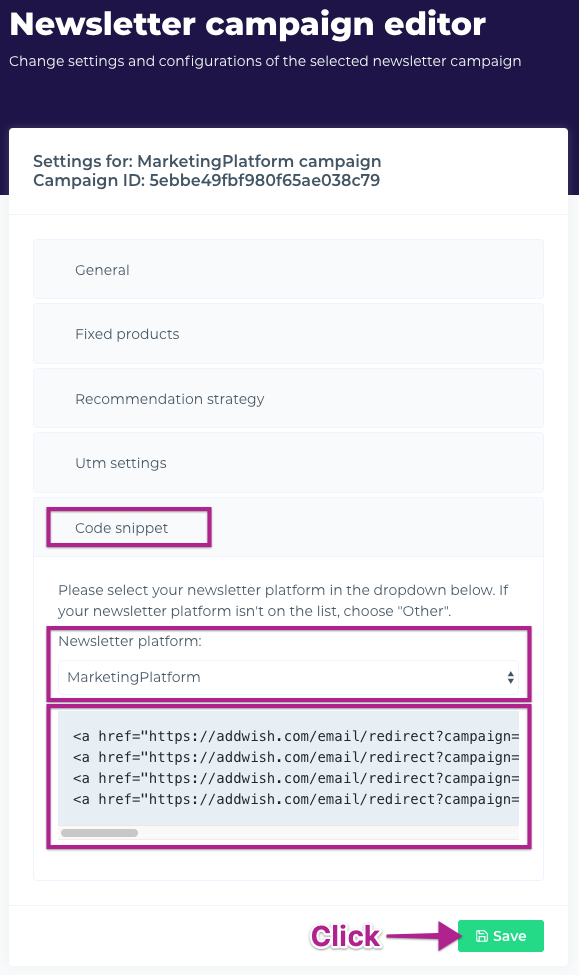
This code represents the four product recommendations you configured using your design. Copy the full code snippet to your clipboard. You will paste it into your MarketingPlatform newsletter.
3: Input the code into your newsletter
Insert the code snippet into your newsletter. You may already have a template, or you can create a new one. Read how to do that here. The steps below assume you already have a template.
When editing your template, insert a grid element where you want the product recommendations to appear. Drag it into position as shown below.
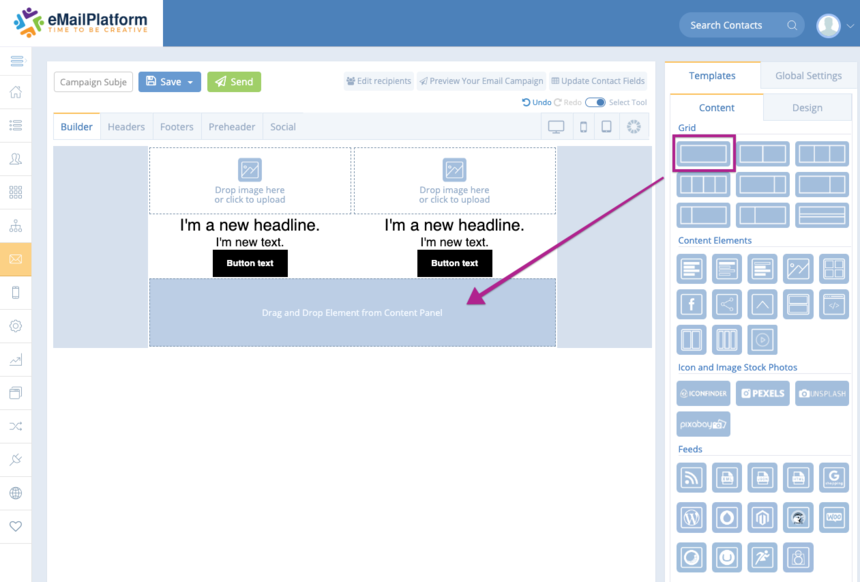
Then drag an HTML element into the grid element.
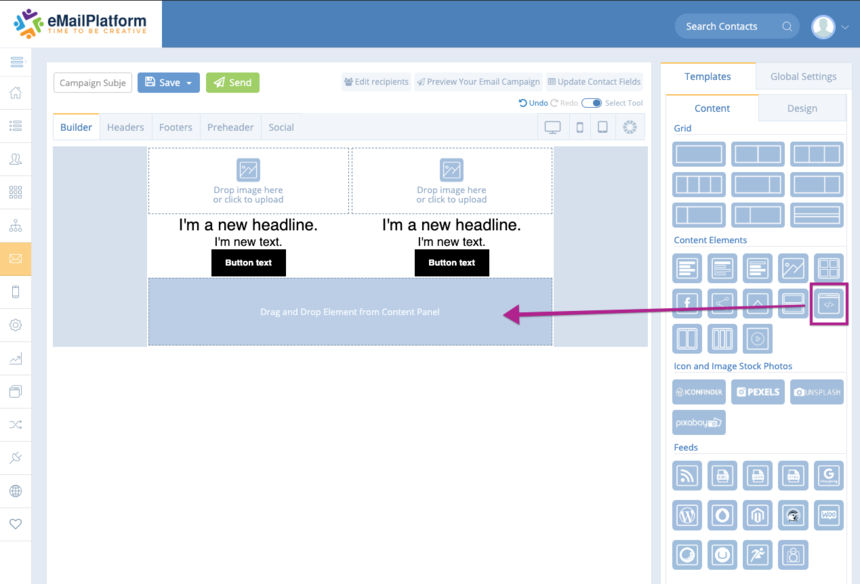
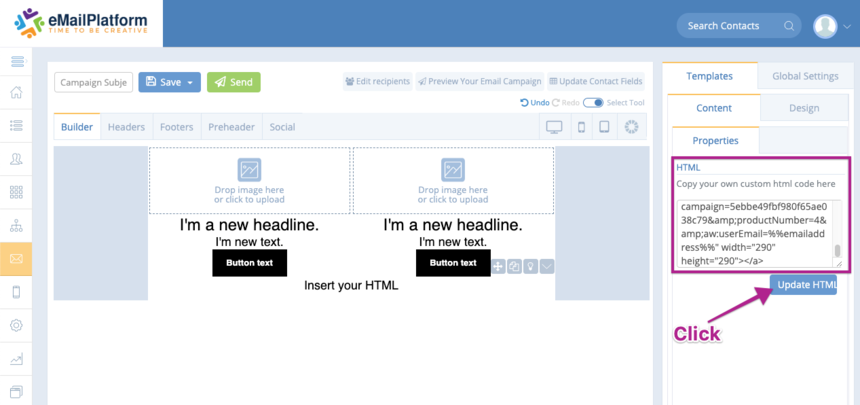
Click Insert your HTML to open the editing options for the HTML element. Paste the code you copied from Hello Retail into the box on the right. Then click Update HTML.
After clicking Update HTML, the newsletter preview will update with your product recommendations, as shown below.
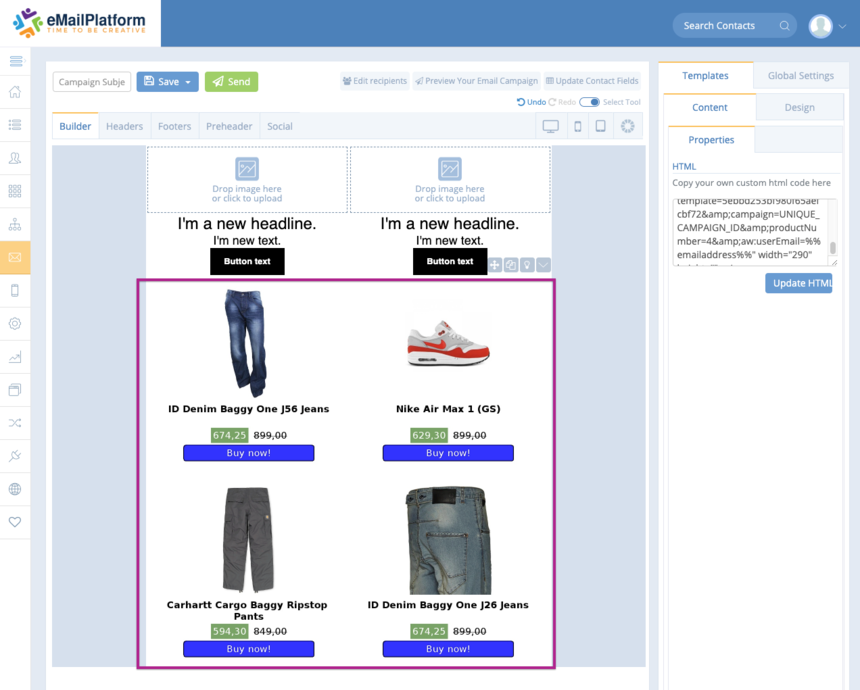
You are now ready to send the newsletter. Each recipient will see personalized product recommendations based on their behavior on your site.
Optimize the product recommendations
Hello Retail identifies a customer’s behavior on your site using a cookie. However, Hello Retail does not always know the customer’s email address, which is the identifier available in the newsletter. The first time a customer clicks a product recommendation, their email address is coupled to the cookie. From then on, product recommendations are generated based on that customer’s behavior. Recommendations become more personalized as customers interact with your newsletters.
You can speed up identification by passing the email address on any link in the newsletter, not just the recommendation tiles. Add the following query parameter to other links in the newsletter, for example, a link to the front page in the header banner:
?aw:userEmail=%%emailaddress%%
So a link will change from
https://www.dinshop.com
to
https://www.dinshop.com?aw:userEmail=%%emailaddress%%
When the customer clicks that link and lands on your front page, Hello Retail immediately couples the cookie and email address. From then on, both you and the customer benefit from personalized product recommendations in every subsequent newsletter.