 Avg. 5 min read
 Shoporama Installation Guide

Insert the Hello Retail script
The Hello Retail script connects to your webshop and tracks events required for Hello Retail features.
Place the code at the end of the body tag in the global.html file. Edit it via SFTP or use the Shoporama Theme Editor, if available, to create a new version of global.html that overrides the original while it exists.
You can find the Theme Editor under Settings. Click the three dots on the right, select Themes, then create a new theme containing only global.html.
This approach lets you revert instantly by deleting the override if needed.
Below are two examples: - A base implementation for themes without cookie consent. - An example for themes that implement cookie consent.
Note
Cookie consent handling differs between themes. Use the example as a reference and have a developer validate consent behavior for your theme before deployment.
In both examples, no data is tracked if tracking is disabled for your webshop. Check this under Design -> Tracking -> Enable tracking in your shop.
Example without cookie consent:
<script async src="https://helloretailcdn.com/helloretail.js"></script>
<script>
    window.hrq = window.hrq || [];
    hrq.push(['init', {}]);
    <{if $webshop->getEnableTracking()}>
        <{if $basket}>
            hrq.push(["setCart", {
                total: "<{$total_price|number_format:2:".":""}>",
                url: "<{$webshop->getUrl()}>/basket",
                urls: [<{section name="i" loop=$basket}>"<{$basket[i].product->getRemoteUrl()|escape}>"<{if !$smarty.section.i.last}>,<{/if}><{/section}>],
                productNumbers: [<{section name="i" loop=$basket}>"<{$basket[i].product->getProductId()}>"<{if !$smarty.section.i.last}>,<{/if}><{/section}>]
            }]);
        <{/if}>
        <{if $order}>
            <{assign var="products" value=$order->getProducts()}>
            hrq.push(["trackConversion", {
                total: "<{$order->getPrice()}>",
                orderNumber: "<{$order->getWebshopOrderId()}>",
                email: "<{$order->getEmail()}>",
                urls: [<{section name="i" loop=$products}>"<{$products[i]->getRemoteUrl()|escape}>"<{if !$smarty.section.i.last}>,<{/if}><{/section}>],
                 productNumbers: [<{section name="i" loop=$products}>"<{$products[i]->getProductId()}>"<{if !$smarty.section.i.last}>,<{/if}><{/section}>]
            }]);
        <{/if}>
    <{else}>
        hrq.push(["setTrackingOptOut", true]);
    <{/else}>
    <{/if}>
</script>
<{if $product}>
  <span
    class="addwish-product"
    style="display:none"
    data-price="<{$product->getPrice()|number_format:2:',':'.'}>"
    data-productnumber="<{product->getProductId()}>"
    data-url="<{product->getRemoteUrl()|escape}>"
    data-currency="<{$webshop->getCurrency()}>"
    data-instock="<{$product->getIsInStock()}>">
  </span>
<{/if}>
Example with cookie consent implemented:
<script async src="https://helloretailcdn.com/helloretail.js"></script>
<script>
    window.hrq = window.hrq || [];
    hrq.push(['init', {}]);

    if (!document.cookie.includes("hr_initial_load")){
        document.cookie = "hr_initial_load";
        hrq.push(["setTrackingOptOut", true]);
    }
    <{if $webshop->getEnableTracking() && $cookie.accept_cookies == 'accept'}>
        hrq.push(["setTrackingOptOut", false]);
        <{if $basket}>
            hrq.push(function(sdk) {
               try {
                    sdk.setCart({
                        total: <{$total_price|number_format:2:".":""}>,
                        url: "<{$webshop->getUrl()}>/basket",
                        urls: [<{section name="c" loop=$basket}><{assign var="product" value=$basket[c].product}>"<{$product->getRemoteUrl()|escape}>"<{if !$smarty.section.c.last}>,<{/if}><{/section}>],
                        productNumbers: [<{section name="c" loop=$basket}><{assign var="product" value=$basket[c].product}>"<{$product->getProductId()}>"<{if !$smarty.section.c.last}>,<{/if}><{/section}>]
                    });
                } catch(e) {
                    console.log("Could not set cart", e);
                }
            }]);
        <{/if}>
        <{if $order}>
            hrq.push(function(sdk) {
                try {
                    <{assign var="products" value=$order->getProducts()}>
                    sdk.trackConversion({
                        total: "<{$order->getPrice()}>",
                        orderNumber: "<{$order->getWebshopOrderId()}>",
                        email: "<{$order->getEmail()}>",
                        urls: [<{section name="i" loop=$products}>"<{$products[i]->getRemoteUrl()|escape}>"<{if !$smarty.section.i.last}>,<{/if}><{/section}>],
                        productNumbers: [<{section name="i" loop=$products}>"<{$products[i]->getProductId()}>"<{if !$smarty.section.i.last}>,<{/if}><{/section}>]
                    });
                } catch(e) {
                    console.log("Could not track sale", e);
                }
            }]);
        <{/if}>
    <{/if}>
</script>
<{if $product}><span class="addwish-product" style="display:none" data-price="<{$product->getPrice()|number\_format:2:",":"."}>" data-productnumber="<{product->getProductId()}>" data-url="<{product->getRemoteUrl()|escape}>" data-currency="<{$webshop->getCurrency()}>" data-instock="<{$product->getIsInStock()}>"></span><{/if}>
Share your Product feed with Hello Retail
To let Hello Retail index all products in your webshop, share your product feed URL.
Your default Shoporama product feed is available at: http://YOUR_WEBSHOP_DOMAIN/product-feed.xml
Note
Replace YOUR_WEBSHOP_DOMAIN with your actual webshop domain.
Add a blank search page
The following section is only relevant for setups using Hello Retail Search.
Follow these steps to create a new search results page:
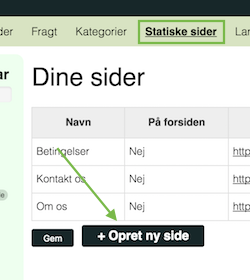
Step 1: Log in to Shoporama admin and navigate to Statiske sider > Opret ny side:
Step 2: Choose a name for the blank search page, for example Search results:
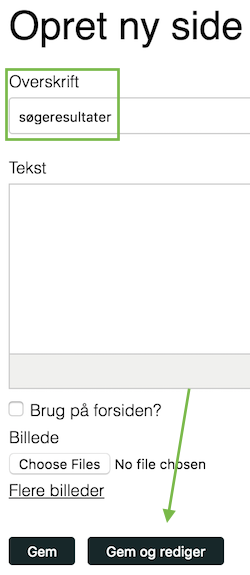
Remember to Save.
Note
In the default theme, new pages are added to navigation automatically. Remove the page from navigation if you do not want it visible.
Step 3: After saving, the page appears in the Pages list:
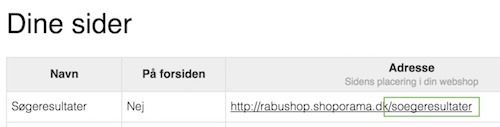
Step 4: Send the URL of the created search page to support@helloretail.com so we can complete the setup.
How to set up API for Shoporama
Log in to your Shoporama backend: Shoporama admin.
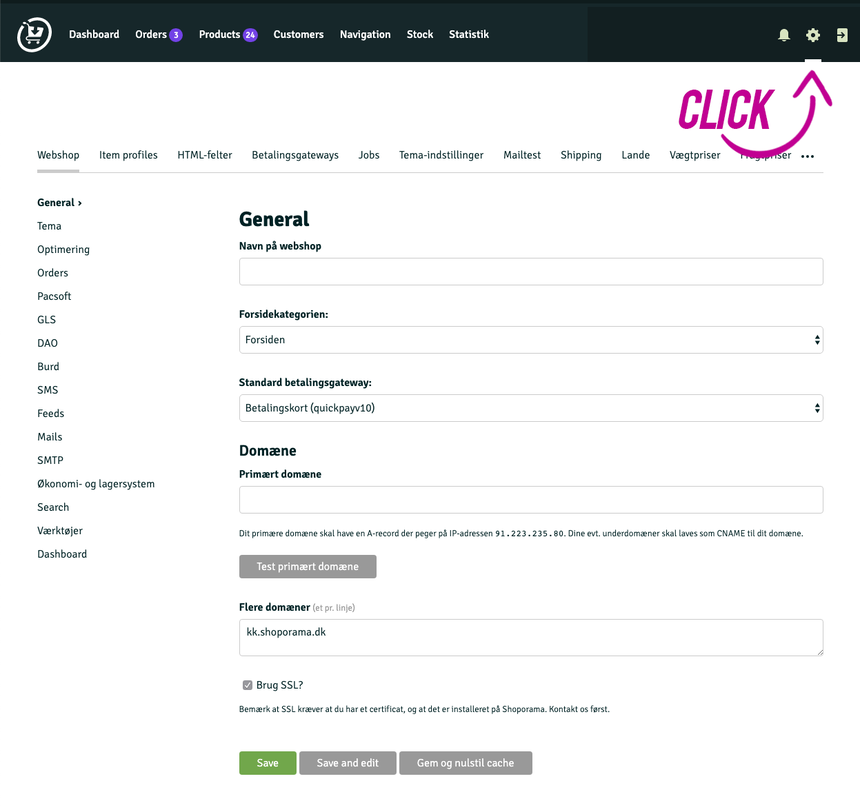
Step 1: Open the API settings in your Shoporama backend.
Click the gear icon in the top-right corner as shown:
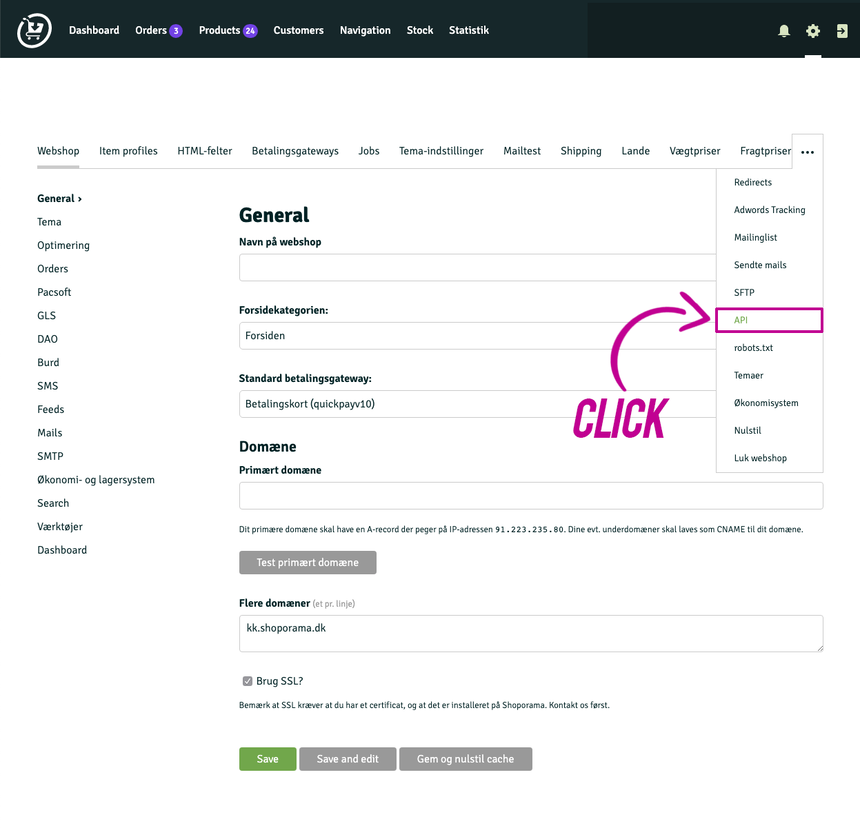
 Step 2: In the Settings panel, click the three dots on the right and select API from the drop-down menu.
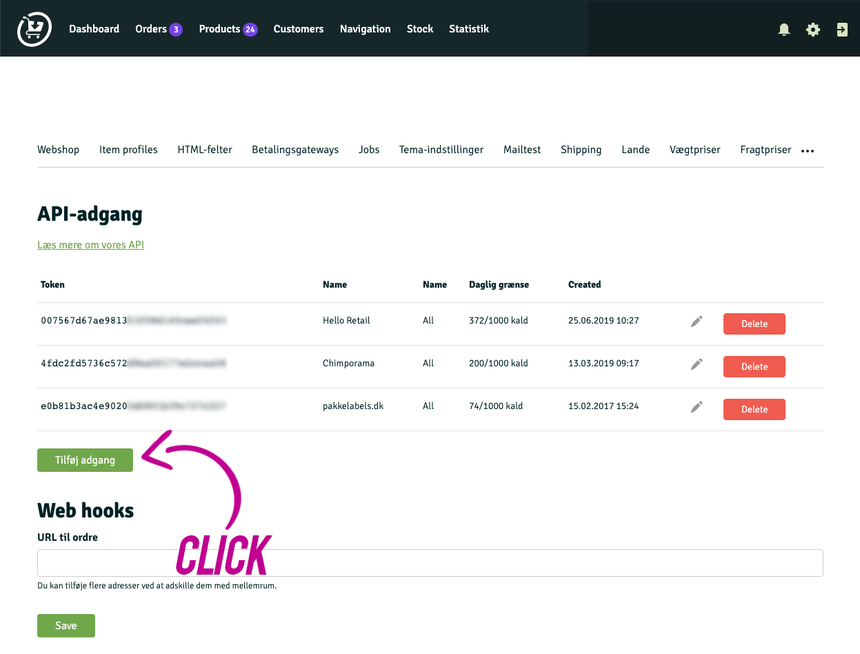
Step 3: Add a new API access entry for Hello Retail by clicking Tilføj adgang.
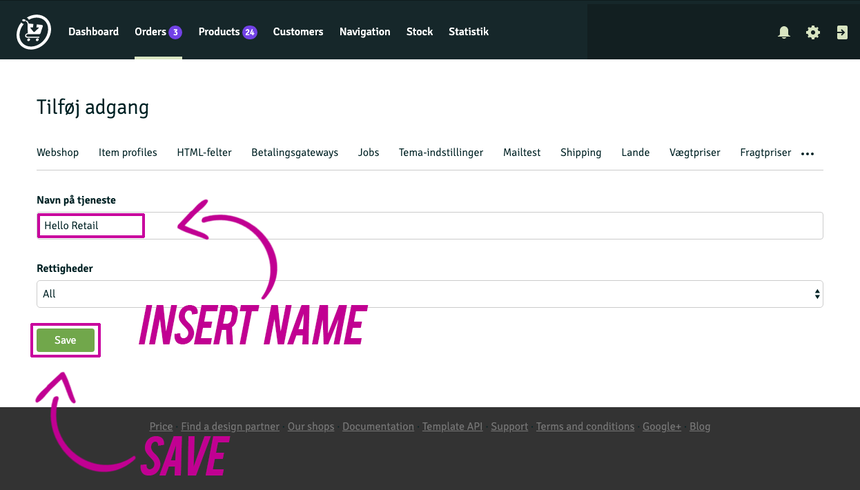
Step 4: Enter a recognizable name that indicates this API is for Hello Retail, for example Hello Retail. Click Save.
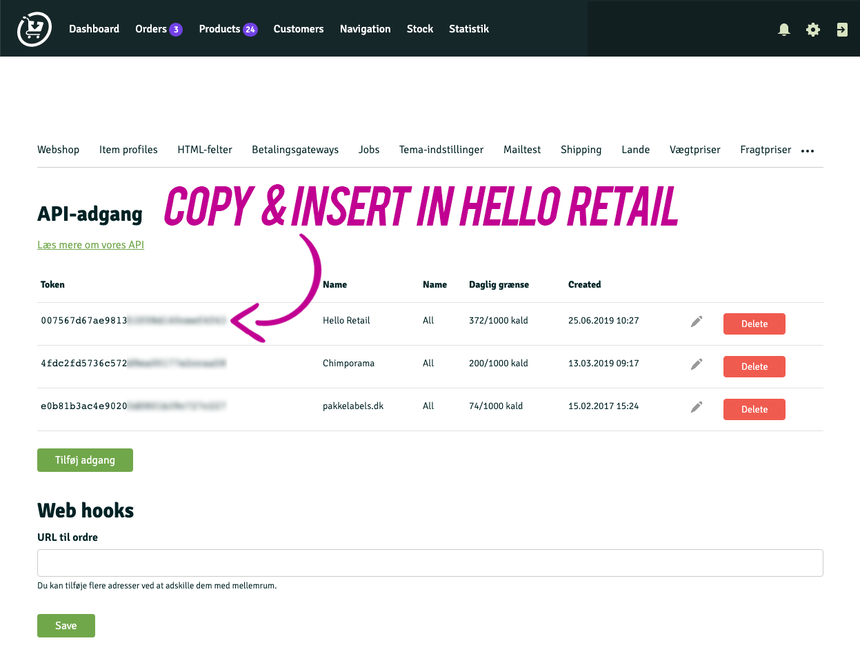
Step 5: Copy the API key and add it in your Hello Retail backend.
Configure Webshop
After installing and completing the onboarding flow, configure your webshop settings in Hello Retail. See the guide: