 Avg. 4 min read
 SmartWeb Installation Guide

Activate the Hello Retail module in SmartWeb Webshop
This guide explains how to install and configure Hello Retail on SmartWeb.
SmartWeb and Hello Retail integrate via a native app to make setup quick and reliable.
Install the Hello Retail app
- Log in to your SmartWeb Webshop admin account: https://webshop-admin.scannet.dk/.
-
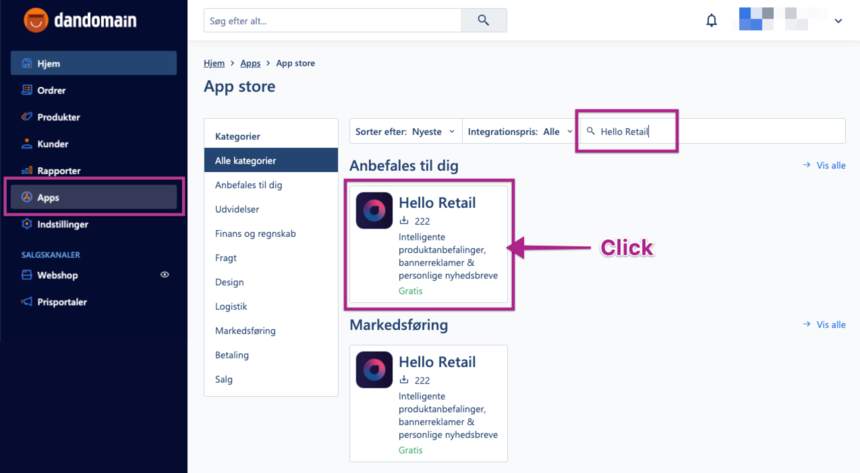
In the left menu, go to Apps, search for Hello Retail, and click the Hello Retail app.
-
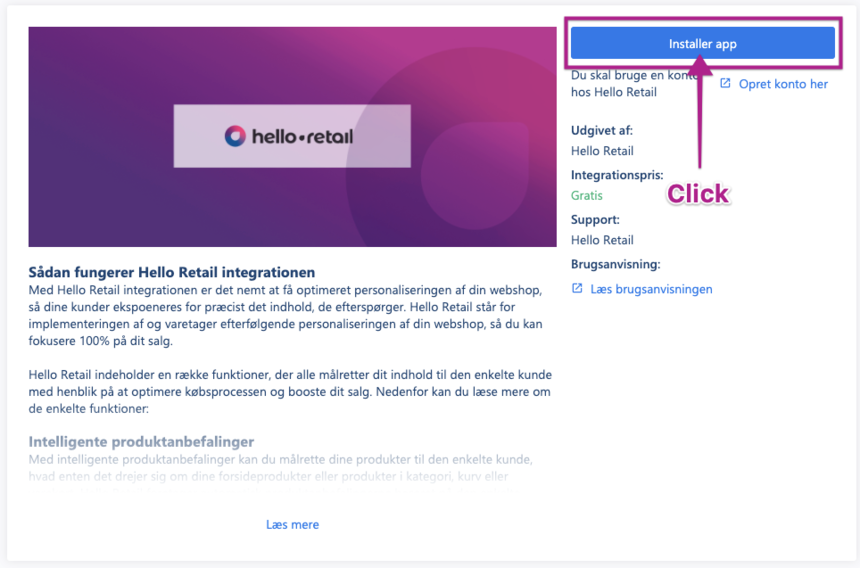
Click Installer app.
-
Click Indstillinger to open the app settings.
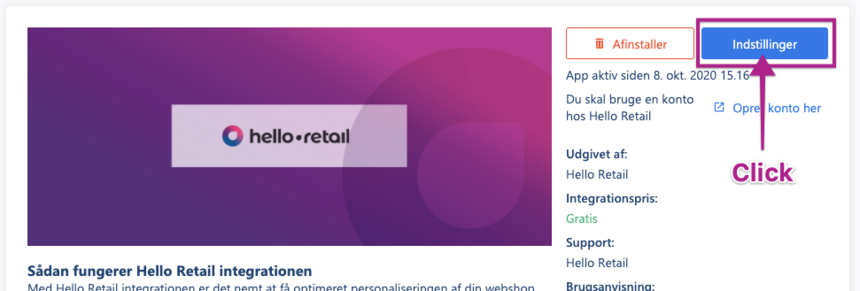
The Hello Retail app is now installed and active. Complete the steps below to finish the integration.
Insert Script in the Header
Copy the code snippet shown in the app settings to your clipboard. The partner id displayed in the screenshot below is not required.
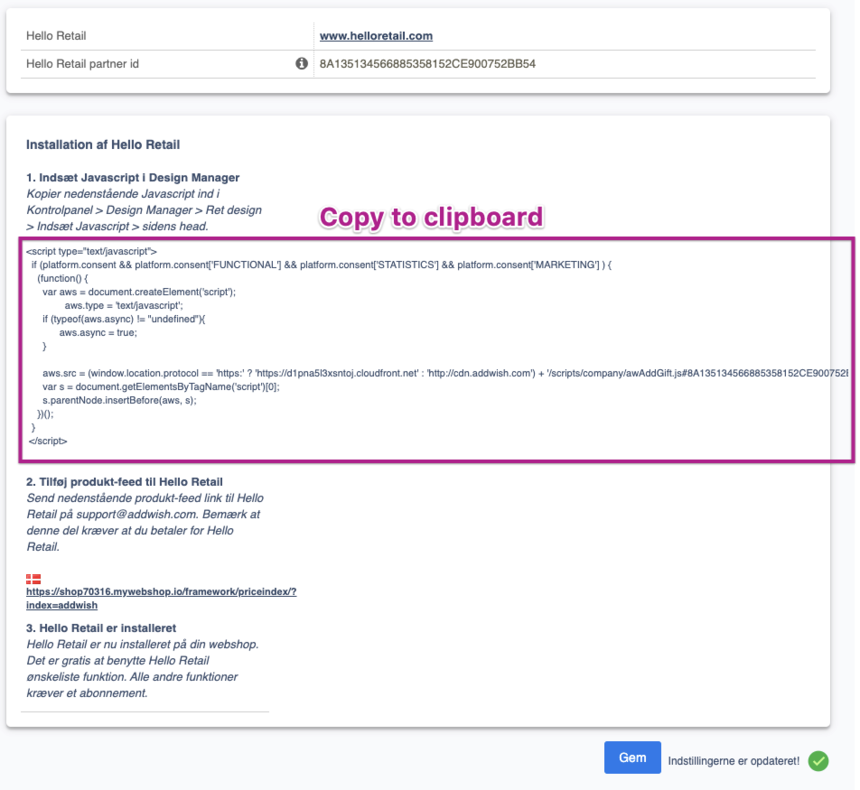
Insert the code in your site header by navigating to Webshop -> Design and clicking Ret design on the active design.
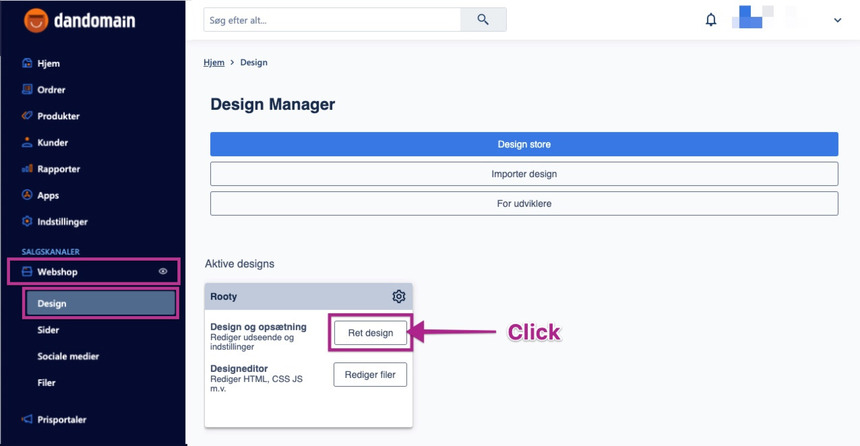
Click Indsæt Javascript
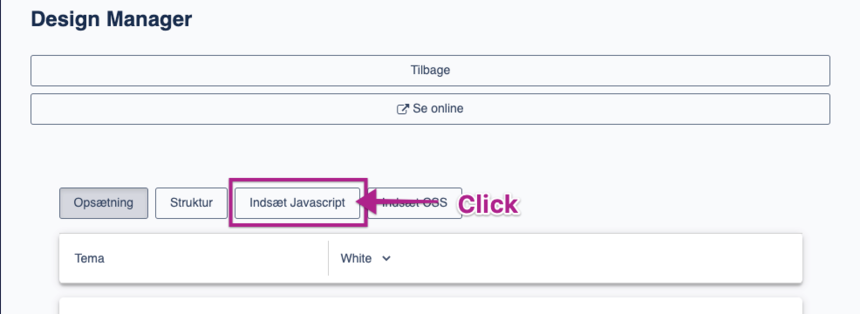
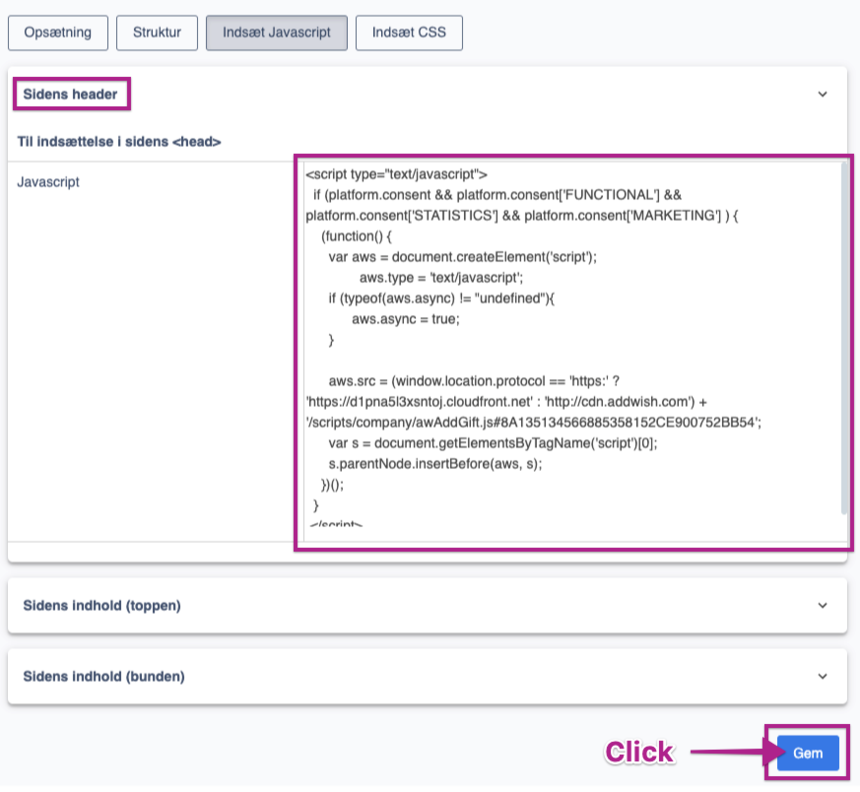
Paste the code snippet under Sidens header and click Gem.
Add your Product Feed to Hello Retail
Send your product feed URL to Hello Retail support: support@helloretail.com
Note
Replace YOUR_WEBSHOP_DOMAIN with your own webshop domain.
To complete feed configuration, also follow this guide:
Create SmartWeb/hosted Dandomain/Hostedshop API User for Category & Order Feed
Create a Blank Page for Search Results
The following section is only relevant for setups for a full search.
Create the page in the site tree:
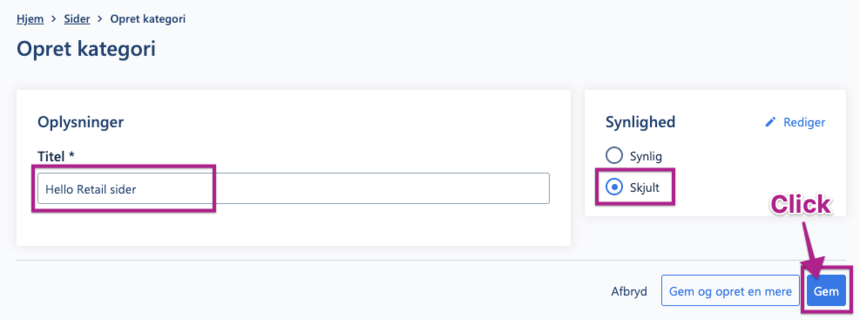
Navigate to Webshop -> Sider and click Opret kategori.
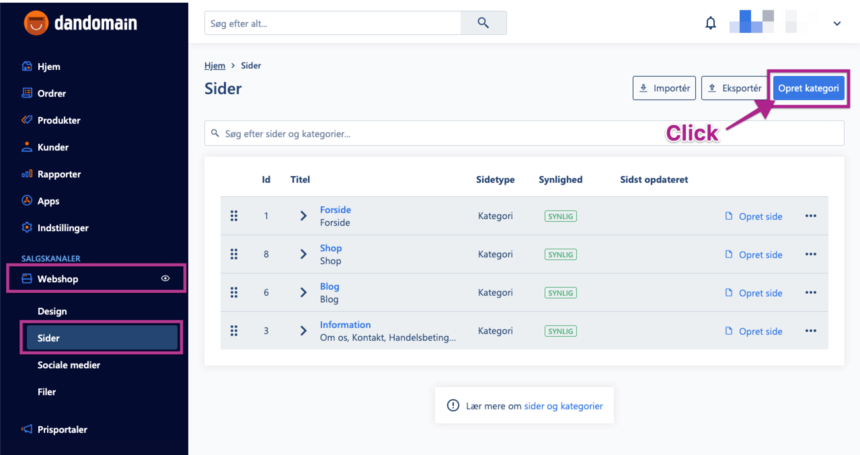
Give the category a suitable title and make sure it is hidden. Click Gem.
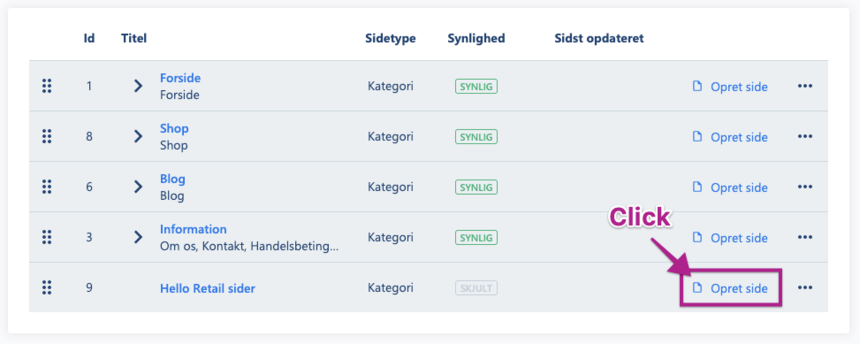
Navigate back to Sider and create a new page in the newly created category.
Configure the page as shown below. The page must be visible to all users, but not listed in any navigation menus. Click Gem at the bottom.
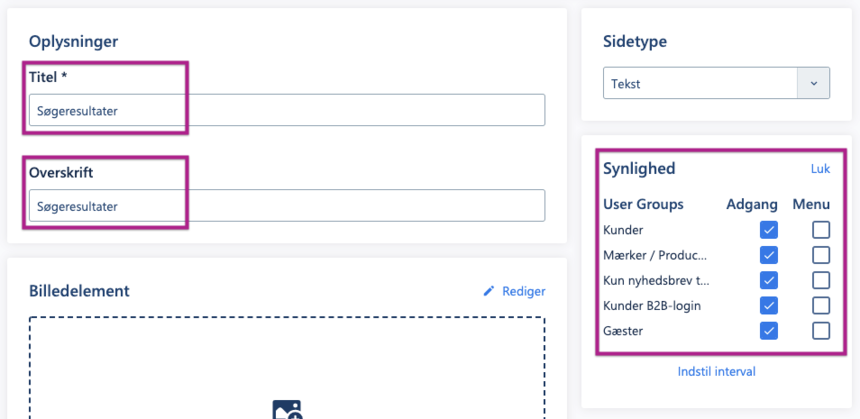
The page is now created with the URL http://YOUR_WEBSHOP_DOMAIN/sogeresultater/ — verify that the page is reachable.
Once verified, send the URL to Hello Retail support: support@helloretail.com along with your shop name. You can include the information from the next section in the same email.
Provide Historical Order Data
To improve recommendation quality, provide a historical order export for analysis. Follow these steps:
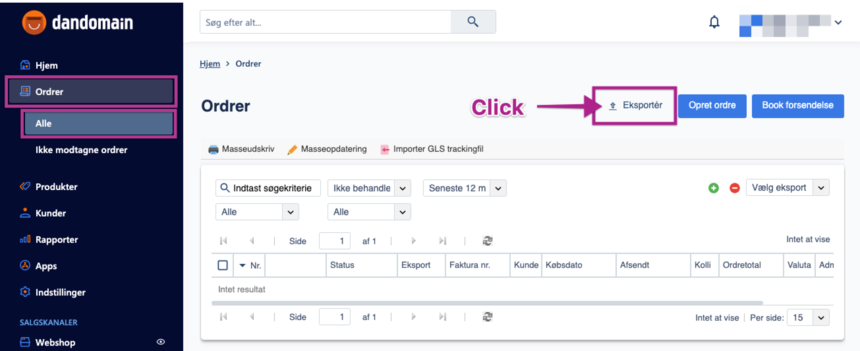
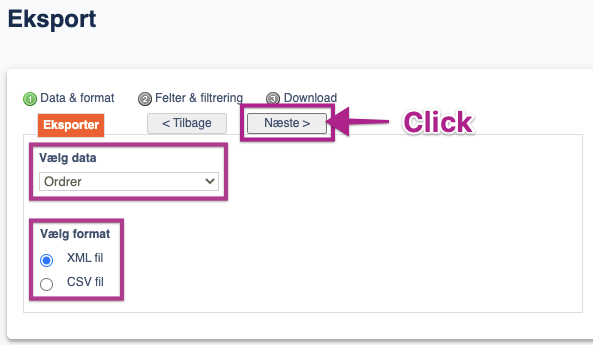
Navigate to Ordrer -> Alle ordrer and click Eksportér.
Choose Ordrer and format XML, then click Næste.
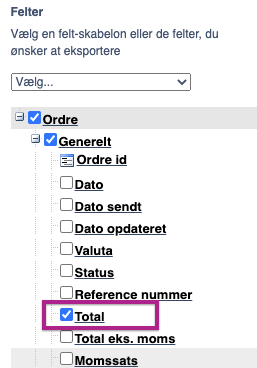
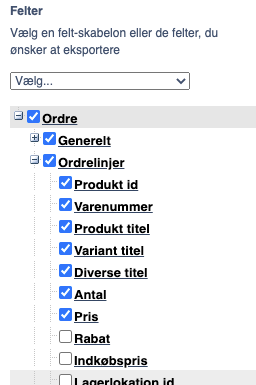
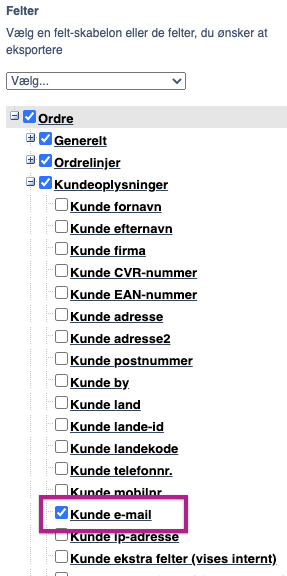
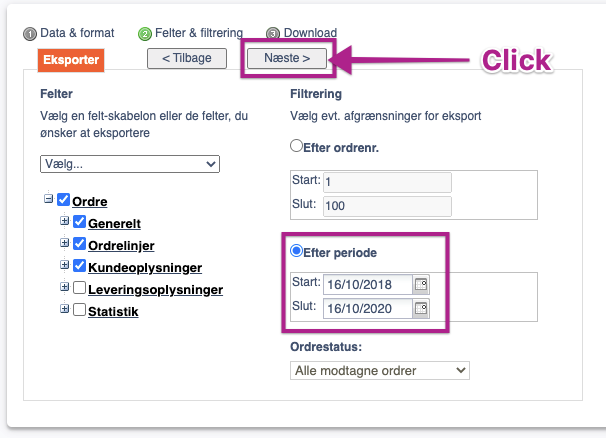
Select the following fields:
- Ordre - Generelt - Total
- Ordre - Ordrelinjer - Produkt id, Varenummer, Produkt titel, Variant titel, Diverse titel, Antal, Pris
- Ordre - Kundeoplysninger - Kunde e-mail
Select orders by Period for the last two years:
- Check the radio button Efter periode
- Change the Start date to two years back
Click Næste when done.
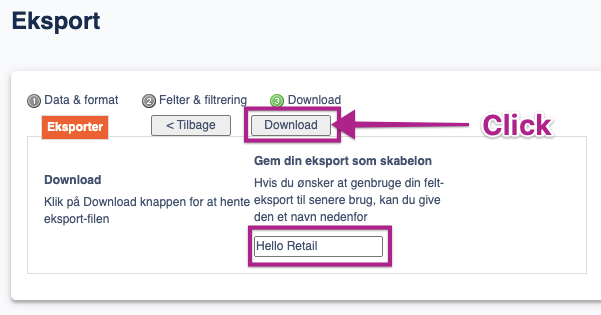
As the final step, provide a name, for example Hello Retail, and click Download.
Send the exported file to support@helloretail.com. We will upload the data to our system to accelerate model training and improve relevance.
Configure Webshop
After installing the app and completing onboarding, configure your webshop settings. Follow this guide: