 Avg. 5 min read
Customising Your Email Templates
By default, Product Agents generate dynamic text for your emails using AI, including the subject line, headline, body text, and calls to action.
If you prefer to write this text yourself, you can replace these fields directly inside the Hello Retail content blocks in your Klaviyo template. No coding experience is required.
The Hello Retail content blocks
During setup, Hello Retail added one or more universal content blocks to your Klaviyo email template. Each block serves a different purpose:
| Block name | What it contains |
|---|---|
| Hello Retail – Full template | Headline, body text, CTA button, primary product cards, and secondary product cards |
| Hello Retail – Text and Call to Action | Headline, body text, and CTA button only |
| Hello Retail – Other Products | Secondary product section with title, description, and CTA button |
| Hello Retail – Primary Products | Primary product cards only (no editable text fields) |
The text fields that Product Agents fill with AI-generated content are found in the Full template and Text and Call to Action blocks. The Other Products block also contains AI-generated section titles and descriptions.
Option 1: Edit the Hello Retail content block directly
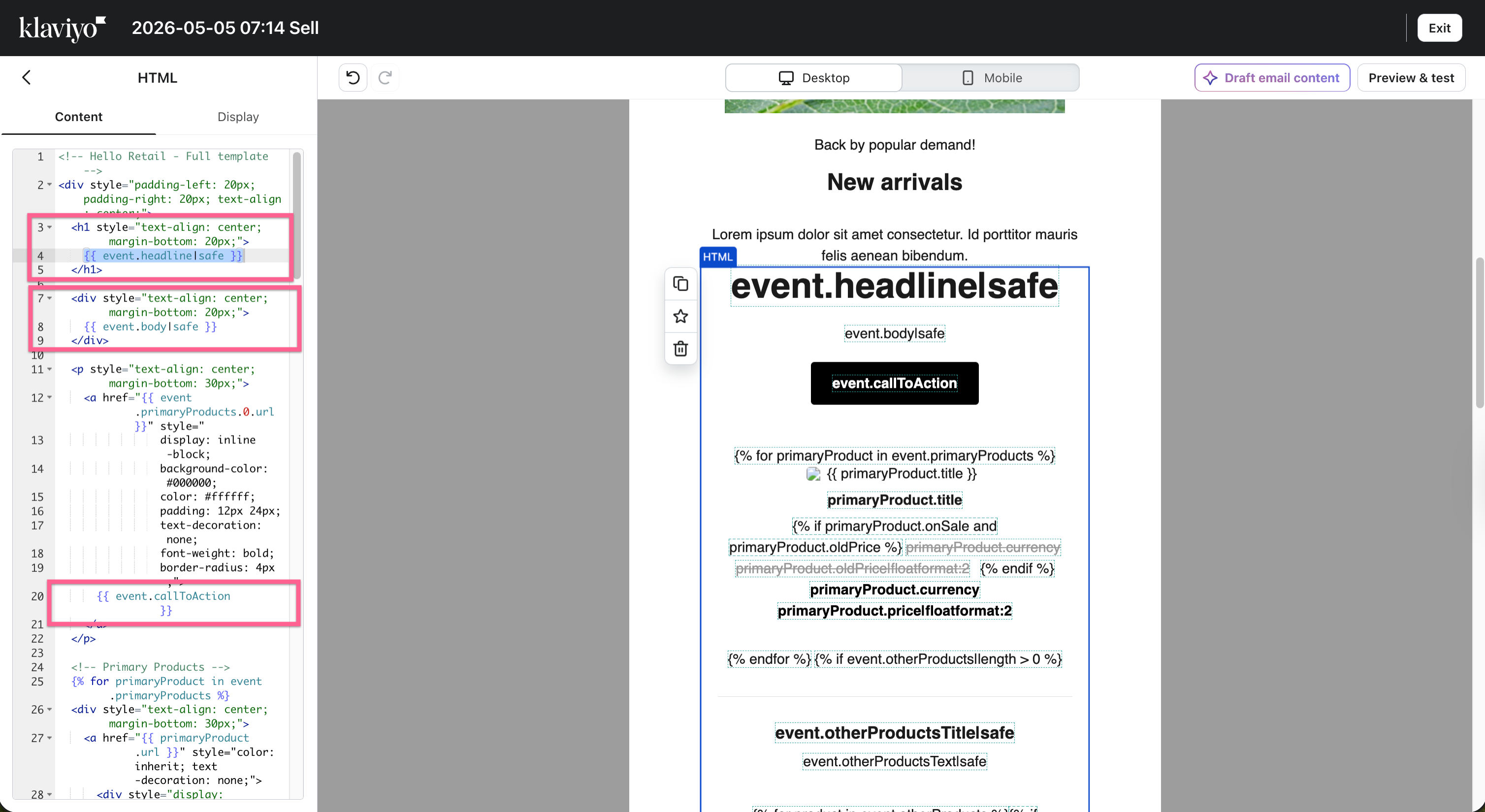
The Hello Retail content blocks are HTML blocks inside Klaviyo's drag-and-drop editor. When you click on one, you can edit the code inside it directly.
- In Klaviyo, go to Templates and open the email template used for your Product Agent flow
- Click on the Hello Retail content block you want to edit
-
Click the HTML or source code button that appears in the block settings to open the code inside it
-
Use your browser's find function (Ctrl+F on Windows, Cmd+F on Mac) to locate the variable you want to replace
- Delete the variable and type your own text in its place
- Save your changes
Tip
If you are not sure which block to open, look for the label at the very top of the code. The Text and Call to Action block, for example, is labelled Hello Retail - Text and Call to Action.
Using an LLM (ChatGPT, Claude, etc.) to edit this code
It's fine to ask an AI assistant to help you adjust the template code. Just be aware that AI tools sometimes introduce characters that look normal but aren't, for example curly/smart quotes (’ “ ”) instead of straight ones, em dashes, or invisible characters. Klaviyo's template language can fail on these, and the email will be skipped entirely with a syntax error, without any obvious warning in the editor.
If emails stop sending after a template edit:
- In Klaviyo's flow analytics, check the skip reason for the message. A syntax error confirms the template code itself is the problem.
- Paste the section you last edited back to the AI assistant and ask it to check the code for hidden or non-standard characters (smart quotes, em dashes, invisible characters) and rewrite it using plain, standard characters only.
- Paste the corrected code back into the Klaviyo block and save.
Text variables you can replace
These are the AI-generated text variables inside the Hello Retail content blocks. Use your browser's find function to locate each one, then delete it and type your own text.
| What it controls | Search for | Example replacement |
|---|---|---|
| Main headline | event.headline | Time to reorder! |
| Body text | event.body | Based on your purchase history, we think you might be running low. |
| Main CTA button | event.callToAction | Shop now |
| Secondary products section title | event.otherProductsTitle | You might also like |
| Secondary products description | event.otherProductsText | Here are a few more products we think you'll love. |
| Secondary products CTA button | event.otherProductsCallToAction | View product |
When you find the variable in the code it will look something like {{ event.headline|safe }}. Delete the entire variable including the surrounding curly braces and type your replacement text directly.
Option 2: Use a native Klaviyo text block
If you would rather not edit any code at all, you can add a native Klaviyo text block for your copy and use one of the Hello Retail blocks that contains only product cards.
To do this:
- In your email template, use one of the Hello Retail blocks that contains only product cards: either Hello Retail – Primary Products or Hello Retail – Other Products. These blocks have no text fields, so there is nothing to edit in the code.
- Add a native Klaviyo Text block above the Hello Retail block using the drag-and-drop editor
- Type your own copy directly into the Klaviyo text block
- To include product details, paste variables like
{{ event.primaryProducts.0.title }}directly into the text block. Klaviyo will fill them in automatically when the email is sent.
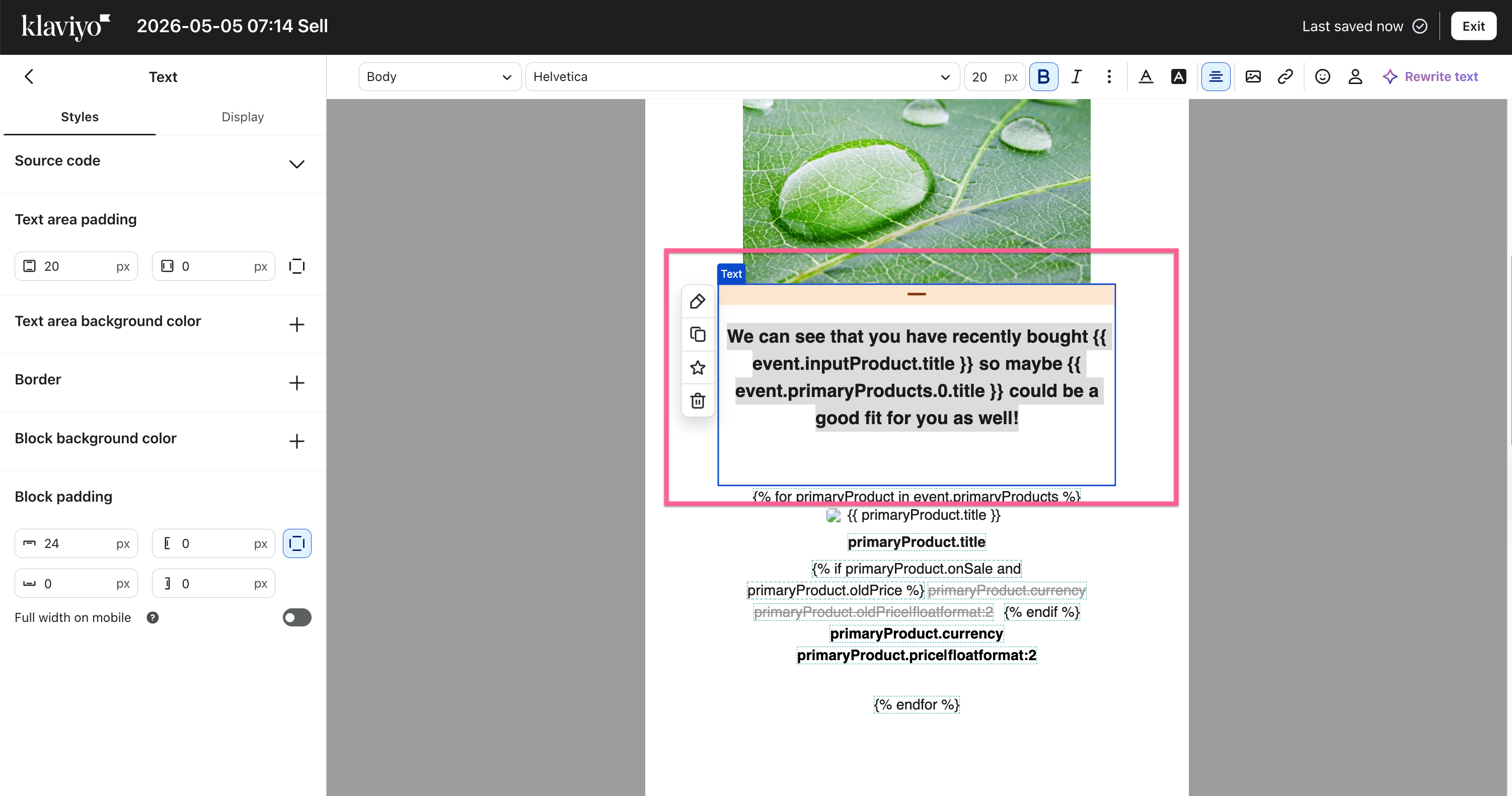
This keeps everything in the visual editor. Your copy lives in a standard Klaviyo text block that you can edit the same way as any other email element.
Updating the subject line and preview text
The subject line and preview text are not part of the content block. They are set directly in the Klaviyo flow.
To update them:
- Open your Product Agent flow in Klaviyo
- Click on the Email action inside the flow
- Find the Subject and Preview Text fields at the top
- Replace
{{ event.subject }}with your own subject line - Replace
{{ event.previewText }}with your own preview text
Using product details in your own text
Even when writing your own copy, you can include real product information to keep emails relevant without relying on AI.
The following variables can be placed inside your headline or body text. They will automatically be filled in with the correct product data for each email that is sent.
There are two sets of product variables available:
- inputProduct — the product that triggered the email, for example the product the customer last purchased or viewed
- primaryProducts.0 — the main recommended product selected by the agent
| Variable | What it shows | Example output |
|---|---|---|
{{ event.inputProduct.title }} | Name of the triggering product | Daily Shampoo 500ml |
{{ event.inputProduct.price }} | Price of the triggering product | 12.99 |
{{ event.inputProduct.currency }} | Currency code | EUR |
{{ event.inputProduct.brand }} | Brand of the triggering product | Garnier |
{{ event.primaryProducts.0.title }} | Name of the recommended product | Running Shoes Pro |
{{ event.primaryProducts.0.price }} | Price of the recommended product | 49.99 |
{{ event.primaryProducts.0.currency }} | Currency code | EUR |
{{ event.primaryProducts.0.brand }} | Brand of the recommended product | Nike |
Copy the variable exactly as shown and paste it into your text. For example:
This produces a headline like: "We think it's time to restock your Daily Shampoo 500ml."
For a full list of available variables, see the Hello Retail Developer Documentation: Klaviyo Integration.
Adjusting AI content instead of replacing it
If you still want to use AI-generated content but adjust how it sounds, you have full control over the output.
You can:
- Change the tone of voice: go to Product Agents > Settings
- Define custom prompts per agent. See how to customize output using custom prompts.
This allows you to keep the benefits of dynamic content while aligning it with your brand voice.