 Avg. 5 min read
Understanding your Product Agent Analytics
Analytics shows you whether your Product Agent emails are generating revenue. The main number to watch is Revenue per Message, which tells you how much revenue each message sends on average.
The dashboard automatically shows the right data for your setup. If your account has no integration connected yet, you will see the dashboard with all numbers at zero until data starts coming in. Once you connect Klaviyo reporting or turn on Hello Retail tracking, your numbers populate automatically.
Where to find it
Go to Product Agents and select Analytics in the sidebar.
Choosing your date range
Use the date picker in the top right to set the period you want to see. Pick one of the presets, or open the calendar to choose custom start and end dates.
How your data source is chosen
Analytics gets its numbers from one of two places, depending on how your account is connected:
- Klaviyo reporting, if you send through Klaviyo and have reporting connected
- Hello Retail tracking, if you use Hello Retail's own tracking instead
You do not need to choose between them. The dashboard detects your setup and always shows a label so you know which one is active.
Reading your KPI tiles
The tiles at the top of the page give you a quick read on performance for the selected date range. What you see depends on which data source is active.
| Tile | What it shows |
|---|---|
| Revenue Attributed | Total revenue Klaviyo attributes to your Product Agent messages |
| Orders Attributed | Number of orders Klaviyo attributes to your Product Agent messages |
| Revenue per Message | Revenue Attributed divided by the number of messages Klaviyo confirms were delivered. Shown with the delivered count underneath |
| Click Rate | The share of delivered messages Klaviyo recorded as clicked |
| Open Rate | The share of delivered messages Klaviyo recorded as opened |

| Tile | What it shows |
|---|---|
| Revenue Attributed | Total revenue from purchases Hello Retail tracking links to your Product Agent messages |
| Conversions | Number of purchases Hello Retail tracking links to your Product Agent messages |
| Revenue per Message | Revenue Attributed divided by the number of messages sent. Shown with the sent count underneath |
| Click Rate | The share of sent messages that were clicked |
| Conversion Rate | The share of messages that led to a purchase |

Performance over time
Below the tiles, a chart shows performance across your selected date range. Use the toggle above the chart to switch between Messages Sent, shown as bars, and Revenue, shown as a line.
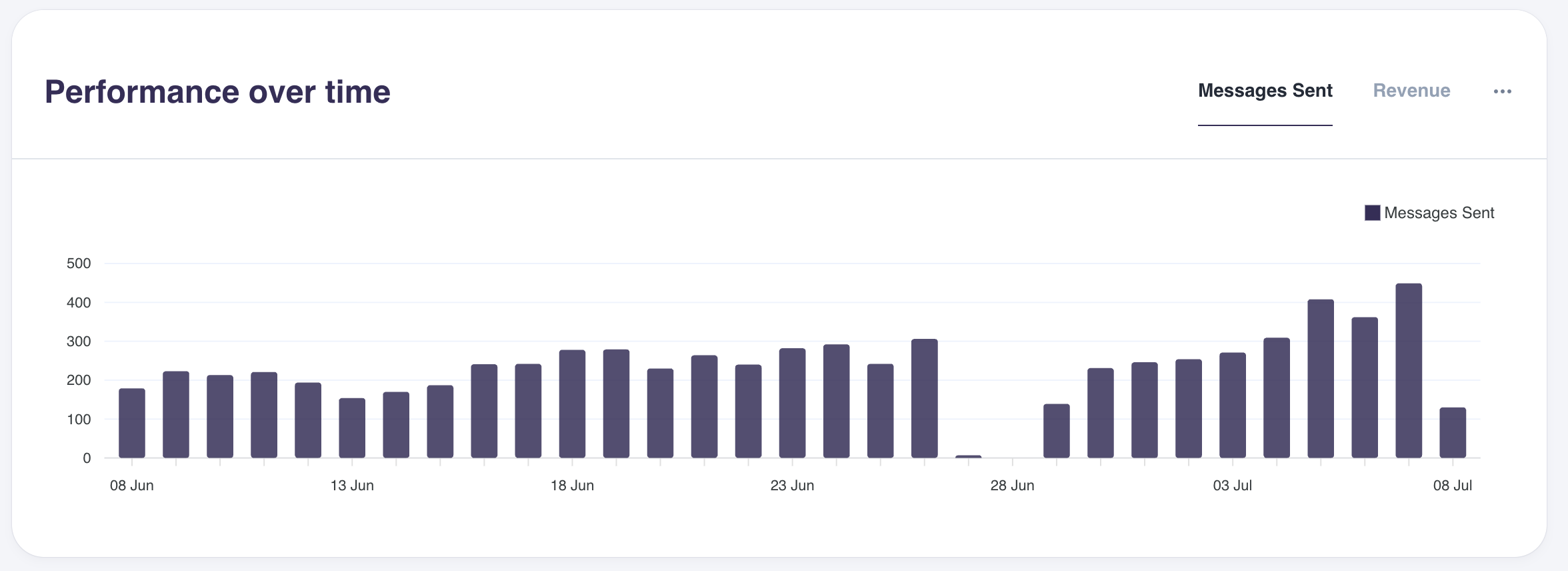
If your account uses Klaviyo reporting, this chart can only show daily data for date ranges of up to 60 days. This is a limit set by Klaviyo, not Hello Retail. If you select a longer range, the chart may show no data even though your KPI tiles and Agent breakdown table are populated as normal.
💡 Tips & Tricks: To compare performance over a longer period, use the totals in the KPI tiles and the Agent breakdown table instead of the chart. Those are not limited to 60 days.
Agent breakdown
The table below the chart breaks performance down by agent, so you can see which agents are driving your results. Each row shows an agent along with its message count, revenue, revenue per message, orders or conversions, click rate, and open or conversion rate. If your account uses Klaviyo reporting, you will also see an unsubscribe rate column.
Select any column header to sort the table by that column.
Setting your conversion metric
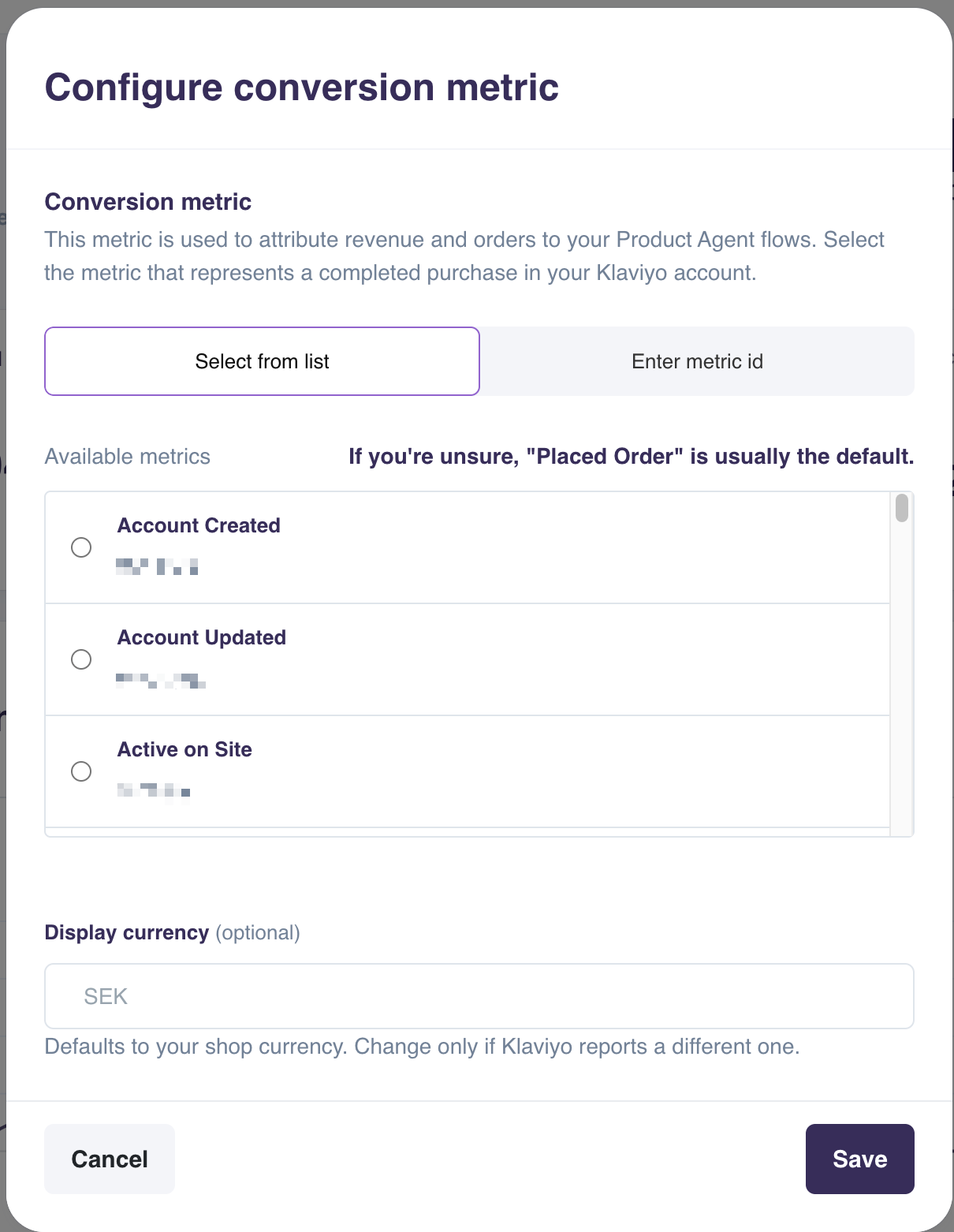
If your account uses Klaviyo reporting, you are prompted to choose which Klaviyo metric counts as a conversion when you first set up Analytics, for example Placed Order or Account Created. You can change this later by selecting Configure metric in the page header. The metric currently in use is shown below the button.
Pick the metric that matches what you actually use in your Klaviyo account to track completed purchases. If you have connected more than one shop platform over time, your list may show several similar metrics, such as more than one Placed Order style event. Choosing the one that matches your current setup keeps your revenue numbers accurate.
You can either pick a metric from the list of ones available in your Klaviyo account, or enter a metric ID directly if you know it.
You can also set a display currency for the dashboard. If you leave it blank, figures show in your shop's default currency.
💡 Tips & Tricks: If you are not sure which metric to pick, Placed Order is usually the right default for tracking revenue from purchases.
Viewing individual channels
If your account has more than one connected channel, a row of tabs appears above the KPI tiles. Each tab shows one of your connected channels, named the way you set it up. Select a tab to see the tiles, chart, and agent breakdown for that channel only.
What counts in your numbers
Test messages, skipped messages, scheduled messages that have not gone out yet, and messages that failed to send are never included in your analytics. Only messages that were actually delivered or sent to your customers count toward these numbers.
If your account uses Klaviyo reporting, the message count used in Revenue per Message only includes messages that actually went out from Klaviyo, rather than Hello Retail's own send count. Smart sending is already accounted for before that count is made, so it is rarely the cause of a gap. The most likely causes are bounced emails, other delivery failures, or messages addressed to email addresses that no longer exist. For the full list of reasons Klaviyo may not deliver a message, see Klaviyo's guide to email deliverability.
Keeping your numbers up to date
Your numbers update automatically, at least every 10 minutes, so you do not need to refresh the page. If something goes wrong while fetching new data, the dashboard automatically retries.
Frequently asked questions
Why might my message count differ from what I expect?
If your account uses Klaviyo reporting, the message count only includes messages that actually went out from Klaviyo. This can differ from Hello Retail's own records, most commonly because of bounced emails, other delivery failures, or email addresses that no longer exist.
Why don't I see a Configure metric button?
This option only appears for accounts using Klaviyo reporting. If your account uses Hello Retail tracking instead, conversions are tracked automatically and there is no metric to configure.