 Avg. 5 min read
Product Filters for Product Agents
Product Filters let you restrict which products a Product Agent is allowed to recommend. Filters apply to every recommendation the agent sends, so you can enforce business rules (such as only recommending in-stock items or staying within the same category) on top of the agent's own logic.
Where to find them
- Open a Product Agent's configuration (for example, Configure Replenishment Reminder).
- Go to the Product Filters tab.
- Click Add filter.
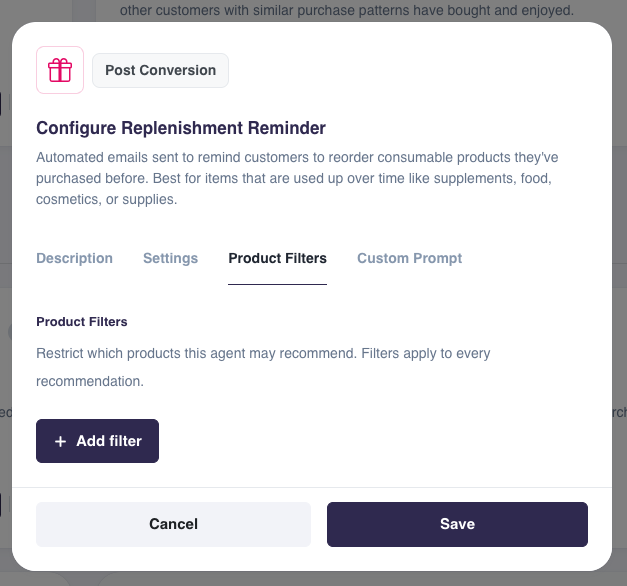
Each filter has three parts: a field, a condition, and a value to compare against.
How filters work
Product Agent filters use the same filter engine as Product Recommendations Filters. If you have configured recommendation filters before, the concept is identical.
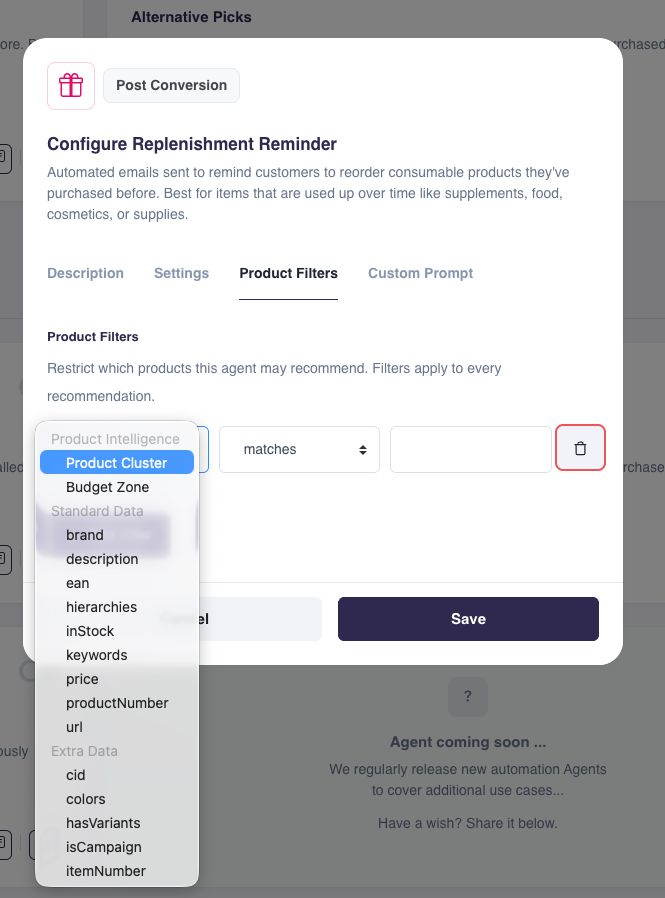
The available conditions depend on the field's data type:
- Text fields (brand, hierarchies, tags): matches, does not match
- Number fields (price, stock): matches, does not match, greater than, less than
When comparing against a list of values, you can also choose whether the product must match any of, all of, or none of the values you provide.
Note
When you add more than one filter to an agent, a candidate product must pass all of them: filter rows are always combined with AND, never OR. Adding more filters only narrows the pool further.
Common examples
Stay within the purchased product's category
- Add filter: Product Cluster → matches →
$hierarchies - The agent only recommends products from the same cluster as the one the customer originally bought.
Only recommend in-stock products
- Add filter: inStock → matches →
true - Prevents the agent from recommending a product that is currently out of stock.
Stay within the same price bracket
- Add filter: Budget Zone → matches →
$budgetZone - Keeps recommendations at a comparable price tier to the triggering product, so a customer who bought a budget item isn't shown premium alternatives.
Cap the price of recommended products
- Add filter: price → less than →
500 - Combine with a second filter row to also enforce a minimum, since rows are always ANDed together.
Exclude a specific category
- Add filter: hierarchies → does not match →
Clothing > Accessories - Stops the agent from ever recommending products from that category, regardless of the trigger.
Broaden a category match with Customer Bias
- Add filter: Product Cluster → matches →
$shop.bias.hierarchyLevel1 - Recommends from your shop's overall best-selling categories rather than tying results to one specific product. Useful for agents that aren't triggered by a single purchase.
Referencing the current product with $
A $ prefix always means "take this value dynamically from the input product," the product that triggered the agent (for example, one a customer just purchased or is being reminded to reorder), rather than a fixed value you type in.
For example, setting Product Cluster → matches → $hierarchies means: the recommended product's cluster must match the hierarchies of the product that triggered the email. If a customer bought a hoodie, the agent can only recommend other products in the hoodie's own category tree.
Note
This $ is unrelated to the $ used inside Customer Bias hierarchy values (e.g. "Men$"), which is a delimiter marking a hierarchy level, not a dynamic reference. Don't confuse the two: they only share the symbol.
Trim operators
When matching against hierarchies, you can loosen an exact match with a trim operator appended to the $ reference:
$hierarchies:trimToLevel:2: only compares up to hierarchy level 2, ignoring deeper levels. A filter or product nested more specifically than level 2 still matches as long as the first two levels agree.$hierarchies:removeFromEach:1: strips the last level from both sides before comparing, so the most specific category on each side is ignored.
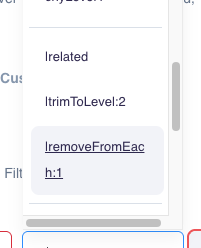
Use trim operators when an exact full-path match is too strict and would exclude relevant products from a broader category.
Filtering on Customer Bias
You can also filter based on preference data rather than the triggering product itself:
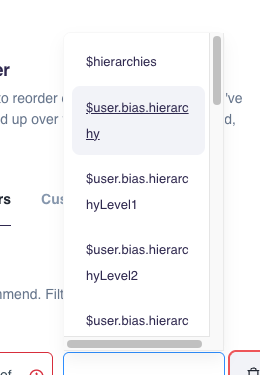
$user.bias.hierarchyLevel1(throughhierarchyLevel4): the current customer's own category preferences, based on their browsing and purchase history. See Customer Bias for how this is calculated.$shop.bias.hierarchyLevel1(throughhierarchyLevel4): an aggregate preference computed from your shop's 50 most popular products, rather than one customer.
Warning
$user.bias.* is generally available, but use it with caution in filters. If a filter references $user.bias.* and the customer has no bias data yet (for example a first-time visitor with no browsing or purchase history), the filter cannot be evaluated and the agent does not send an email for that customer. It does not fall back to $shop.bias.* automatically. If you want new customers to still receive messages, use $shop.bias.* instead of, or in a separate agent from, $user.bias.*.
Filters and the Product Agents toggle
If a product has its Product Agents visibility toggled off (see Manage Product Visibility), it is excluded from all agents regardless of what any filter allows. The toggle always takes precedence over filters.
Common Issues & Troubleshooting
- Agent has stopped sending emails: Check whether Product Filters were added or tightened recently. Filters restrict the candidate pool; if no product satisfies every filter row (remember, rows are ANDed), the agent has nothing to recommend and skips sending.
- Emails stopped for some customers but not others: If a filter uses
$user.bias.*, customers without enough browsing or purchase history to have bias data will not receive that agent's emails. This is expected; see the warning above. Use$user.bias.*deliberately, and switch to$shop.bias.*if you want cold-start customers included. - A filter seems to have no effect: Confirm the product isn't excluded at a higher level first. A product with Product Agents visibility toggled off (see Manage Product Visibility) is excluded from all agents no matter what the filters allow.
- Too many filters, too few results: Each additional filter row narrows the candidate pool further. If an agent rarely sends, try removing filters one at a time to find which one is too restrictive.