 Avg. 5 min read
Automatic Follow-ups
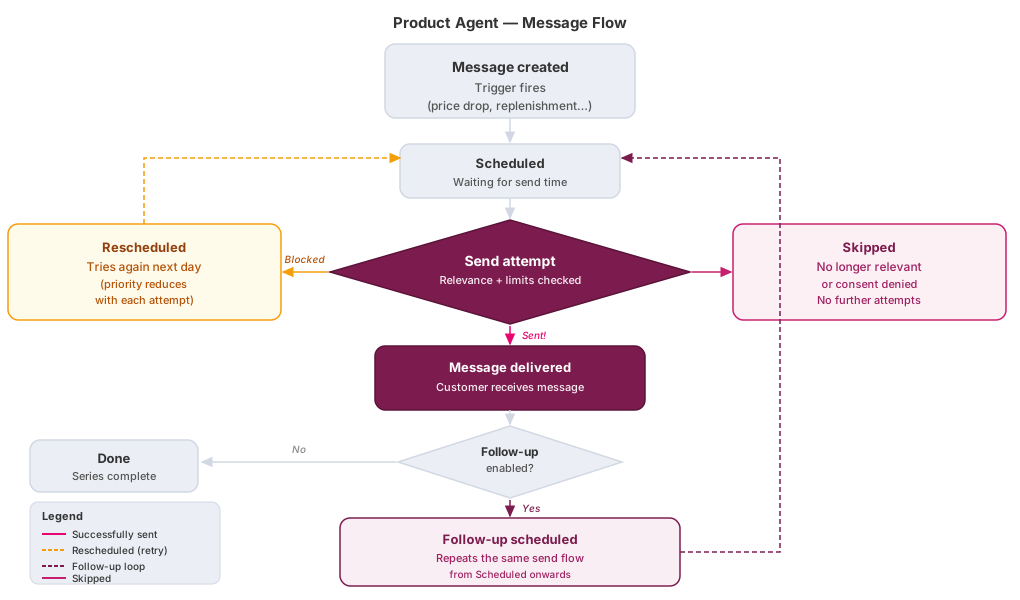
After Product Agents sends a message, it can automatically schedule follow-up messages over the coming days. This article explains how follow-ups work and how to control them.
What are follow-ups?
When a message is sent successfully, Product Agents checks whether a follow-up is due for that message type. If so, it schedules a new message a few days later, with content tailored to where the customer is in that journey (for example, a "final reminder" on a price drop that's still live).
The number of follow-ups and the time between them varies by message type. Replenishment reminders follow up over a longer window than price-drop alerts, which are more time-sensitive.
Replenishment reminders send one reminder per trigger. The agent sends a single reminder, followed by its follow-ups if you have them turned on, and then stops. A new reminder is only scheduled when there's a new trigger, such as the customer buying the product again.
Relevance checks before each follow-up
Before sending each follow-up, the system re-checks that the original trigger still applies:
- Price-drop messages: the system confirms the price is still meaningfully lower than when the alert was first triggered. If the price has recovered, the follow-up is cancelled and the chain ends.
- All message types: the system checks the product is still active and has a current price. If not, the follow-up is cancelled and the chain ends.
Follow-ups are only sent when they're still relevant to the customer.
What if a follow-up can't send on its scheduled day?
Follow-ups use the same rescheduling rules as regular messages. If a recipient has already hit their daily message limit on that channel, the follow-up reschedules for the next day and tries again.
Each rescheduled attempt slightly reduces the message's priority. After a number of unsuccessful attempts, the follow-up is cancelled and the chain ends.
See Message Scheduling and Prioritisation for more on how rescheduling works.
When are follow-ups cancelled?
A follow-up is cancelled — and no further follow-ups are scheduled after it — in any of these situations:
The customer purchases the product. When a purchase is recorded, all pending follow-ups for that product are cancelled immediately. Because follow-ups carry the same product reference as the original message, they are caught automatically without any separate configuration.
A relevance check fails. Before each follow-up sends, the system checks that the original trigger still applies. If the price has recovered or the product is no longer active, the follow-up is cancelled and the rest of the chain does not continue.
Too many postponements. Each time a message is postponed, a counter increments. If this counter exceeds the limit for that message type, the follow-up is cancelled and the chain ends. This prevents the system from continuing to chase a send that has been delayed too many times. Note that delays on the original message count toward the same limit, so if the initial send was postponed many times before it went out, the follow-up chain may be shorter than the configured cadence.
Note
When any follow-up in a chain is cancelled, the remaining follow-ups in that chain are not sent. The chain does not resume later — cancellation is always permanent for that series.
Test messages
Sending a test message never starts a follow-up chain. Test messages are one-shot and bypass follow-up scheduling entirely.
Turning follow-ups on or off

You can control whether follow-ups are sent for each agent. The setting is per agent, so repeat these steps for every agent you want to change.
- Go to Agents.
- Find the agent you want to configure and click the settings (gear) icon on its card.
- Toggle Allow follow-ups on or off.
💡 Tips & Tricks
The setting applies to new sends only. Messages already in the follow-up queue continue through their scheduled sends even after you turn follow-ups off.
Follow-ups across multiple channels
If you have more than one channel enabled (for example, both email and webhook), each channel manages its own follow-up chain independently. A follow-up via webhook runs on its own schedule regardless of what's happening on the email channel, and vice versa.
Related articles
- Message Scheduling and Prioritisation
- Available Agents and Use Cases
- Setting up Klaviyo
- Billing, Credits & Usage