 Avg. 5 min read
Restyle Your Product Agent Emails with an AI Assistant
When you set up Product Agents, Hello Retail styles the email blocks to match your brand automatically. This article shows you how to fine-tune that styling using an AI assistant like ChatGPT or Claude, without writing HTML. The steps are the same regardless of which AI tool you use, and the whole process takes around 20–30 minutes the first time.
You can also watch a walkthrough of the full process:
When to use this
Use this approach when you want the Hello Retail blocks in your agent emails to look more like the rest of your emails. Common examples:
- Matching the product cards to how products look in your newsletters
- Showing more or fewer products per row
- Adjusting padding, borders, or backgrounds
- Removing intro text that the rest of your template doesn't have
You don't need to know HTML. The AI does the editing. You do the copying, pasting, and checking.
Before you start
You need two things:
- Access to your Klaviyo account, with permission to edit templates
- An AI assistant such as ChatGPT, Claude, or Gemini
Check your company's data policy first
This guide uses copy-paste: you decide exactly what HTML to share with the AI. If you use an AI tool that connects directly to Klaviyo, it may be able to read your live templates, campaigns, and audience data. Check your company's policy on sharing email template code with external AI tools before you start.
Step 1: Choose your prompt
Open your AI assistant and pick the tab that matches your situation. You'll fill in the placeholders in the next steps.
Use this when you have exported a full Klaviyo template whose style you want to match.
You are an email template stylist. I will give you two pieces of HTML below.

The first is my brand email template. The second is a Hello Retail block
from Klaviyo that I want restyled.

Restyle the Hello Retail block to match the style of my brand template:
the same image treatment, product name styling, price display, and button
styling. Match the backgrounds, borders, and spacing. If my brand template
has no intro headline or body text above its product sections, remove them
from the Hello Retail block too.

Strict rules:
1. Keep every template tag exactly as it is. Do not change, move, or remove
   anything inside {{ ... }} or {% ... %} brackets.
2. Do not change font-family or font-size values.
3. Keep the HTML email-safe: inline styles and table-based layout only.
4. Return the complete restyled block as one HTML code block, with no
   explanation before or after it.

MY BRAND TEMPLATE:
[paste your reference HTML here]

HELLO RETAIL BLOCK:
[paste the Hello Retail block HTML here]
Use this when your reference is a Hello Retail Newsletter Content Liquid template. The prompt reads the style variables at the top of the template rather than a full email.
You are an email template stylist. I will give you two inputs below.

The first is a Hello Retail Newsletter Content Liquid template. It defines
the visual style of a product card through configuration variables at the top
(colors, fonts, spacing, button styles). Treat those variable default values
as the canonical brand style reference.

The second is a Hello Retail block from Klaviyo that I want restyled.

Restyle the Klaviyo block so its product cards match the style defined in the
Liquid template: use the same background colors, button colors, price display
style (offer highlight, strikethrough previous price), badge colors, and
spacing. Match the card structure as closely as email-safe HTML allows.

Strict rules:
1. Keep every template tag exactly as it is. Do not change, move, or remove
   anything inside {{ ... }} or {% ... %} brackets.
2. Do not change font-family or font-size values.
3. Keep the HTML email-safe: inline styles and table-based layout only.
4. Return the complete restyled block as one HTML code block, with no
   explanation before or after it.

NEWSLETTER CONTENT LIQUID TEMPLATE:
[paste Liquid here]

HELLO RETAIL KLAVIYO BLOCK:
[paste Klaviyo block here]
Use this when you don't have a reference template. Replace the description placeholder with what you want, then paste the Hello Retail block HTML at the bottom.
You are an email template stylist. Below is a Hello Retail block from
Klaviyo that I want restyled.

Restyle it based on this description:
[describe what you want, for example: "rounded dark green buttons, two
products per row, no intro text, white background, minimal spacing"]

Strict rules:
1. Keep every template tag exactly as it is. Do not change, move, or remove
   anything inside {{ ... }} or {% ... %} brackets.
2. Do not change font-family or font-size values.
3. Keep the HTML email-safe: inline styles and table-based layout only.
4. Return the complete restyled block as one HTML code block, with no
   explanation before or after it.

HELLO RETAIL BLOCK:
[paste the Hello Retail block HTML here]
Upload your screenshot to the AI chat first, or paste the URL if your AI assistant supports browsing. Then send this message with the Hello Retail block HTML at the bottom.
You are an email template stylist. I've shared an image (or URL) showing
the product styling I want to match. Below is a Hello Retail block from
Klaviyo that I want restyled to match that visual style as closely as
possible.

Strict rules:
1. Keep every template tag exactly as it is. Do not change, move, or remove
   anything inside {{ ... }} or {% ... %} brackets.
2. Do not change font-family or font-size values.
3. Keep the HTML email-safe: inline styles and table-based layout only.
4. Return the complete restyled block as one HTML code block, with no
   explanation before or after it.

HELLO RETAIL BLOCK:
[paste the Hello Retail block HTML here]
Step 2: Get your reference HTML
Skip this step if you chose the description or screenshot option in Step 1.
The reference gives the AI something concrete to match against. Pick the tab that matches what you have.
If you have a brand newsletter or promotional email in Klaviyo whose style you want to match, export it:
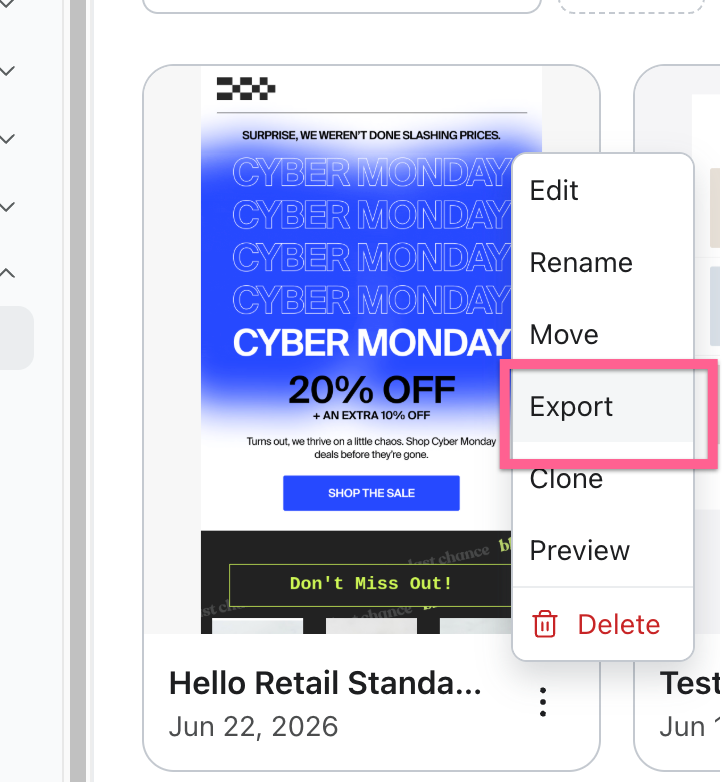
- In Klaviyo, go to Content and open Templates.
- Find the template you want to use as your reference.
- Open its menu and click Export.
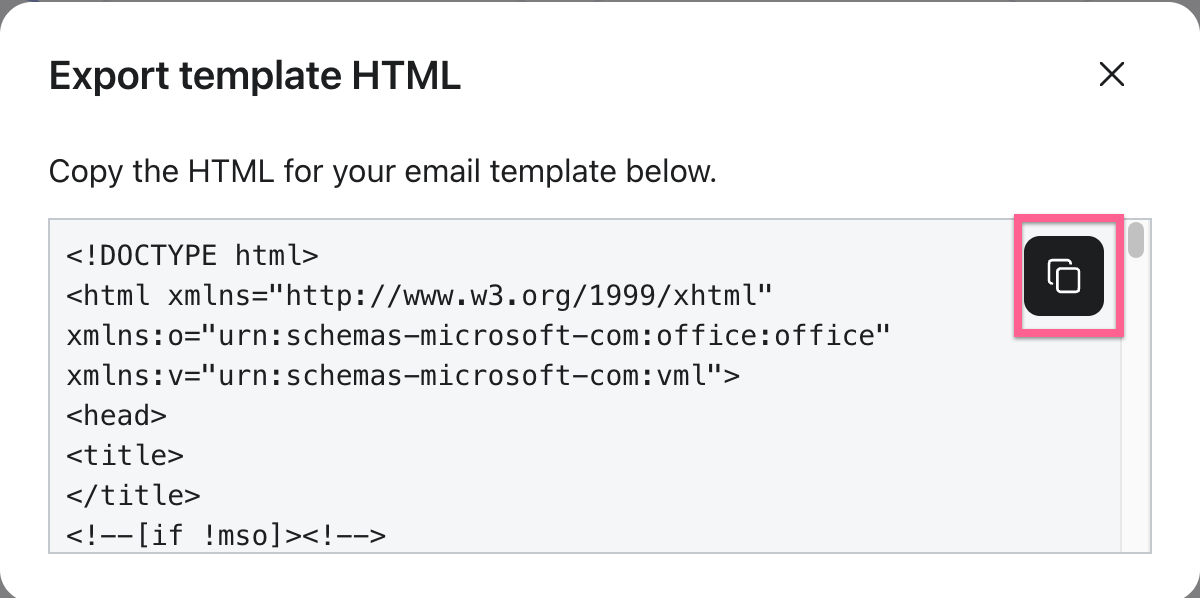
- In the dialog that appears, click the copy button to copy the full HTML.
If you already use Hello Retail Newsletter Content, you can use an existing design as your reference:
- In the Hello Retail platform, go to Newsletter Content and open Designs.
- Find the design you want to match and click Edit Source.
- Copy the HTML.
Paste this into the MY BRAND TEMPLATE placeholder in the prompt.
Step 3: Copy the Hello Retail block HTML
- Open your Hello Retail template in the Klaviyo editor.
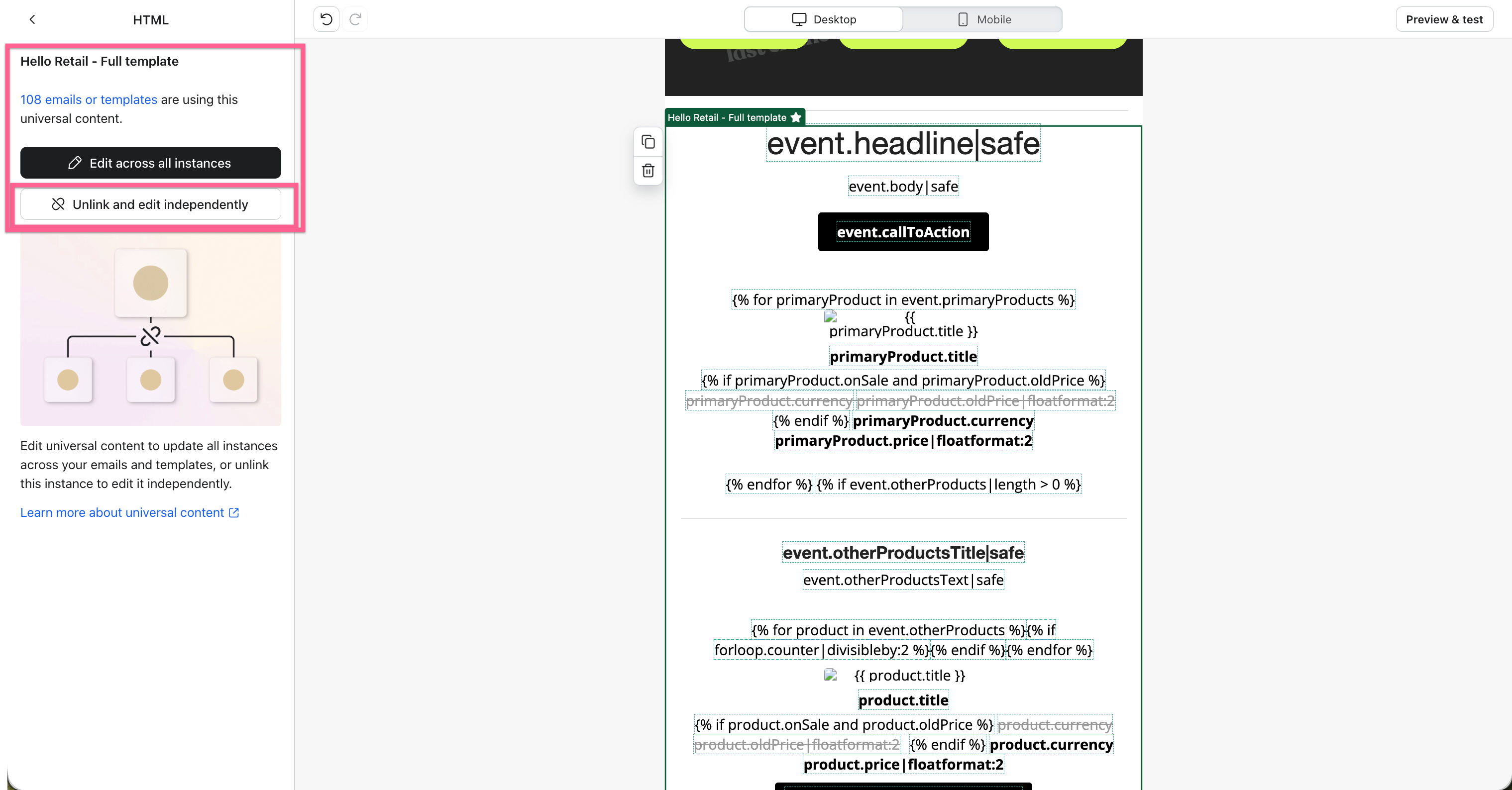
- Click the Hello Retail block. A prompt appears asking how you want to edit it.
- Click Unlink and edit independently. This opens the block in its own HTML editor.
- Select all the HTML and copy it. Do not make any changes.
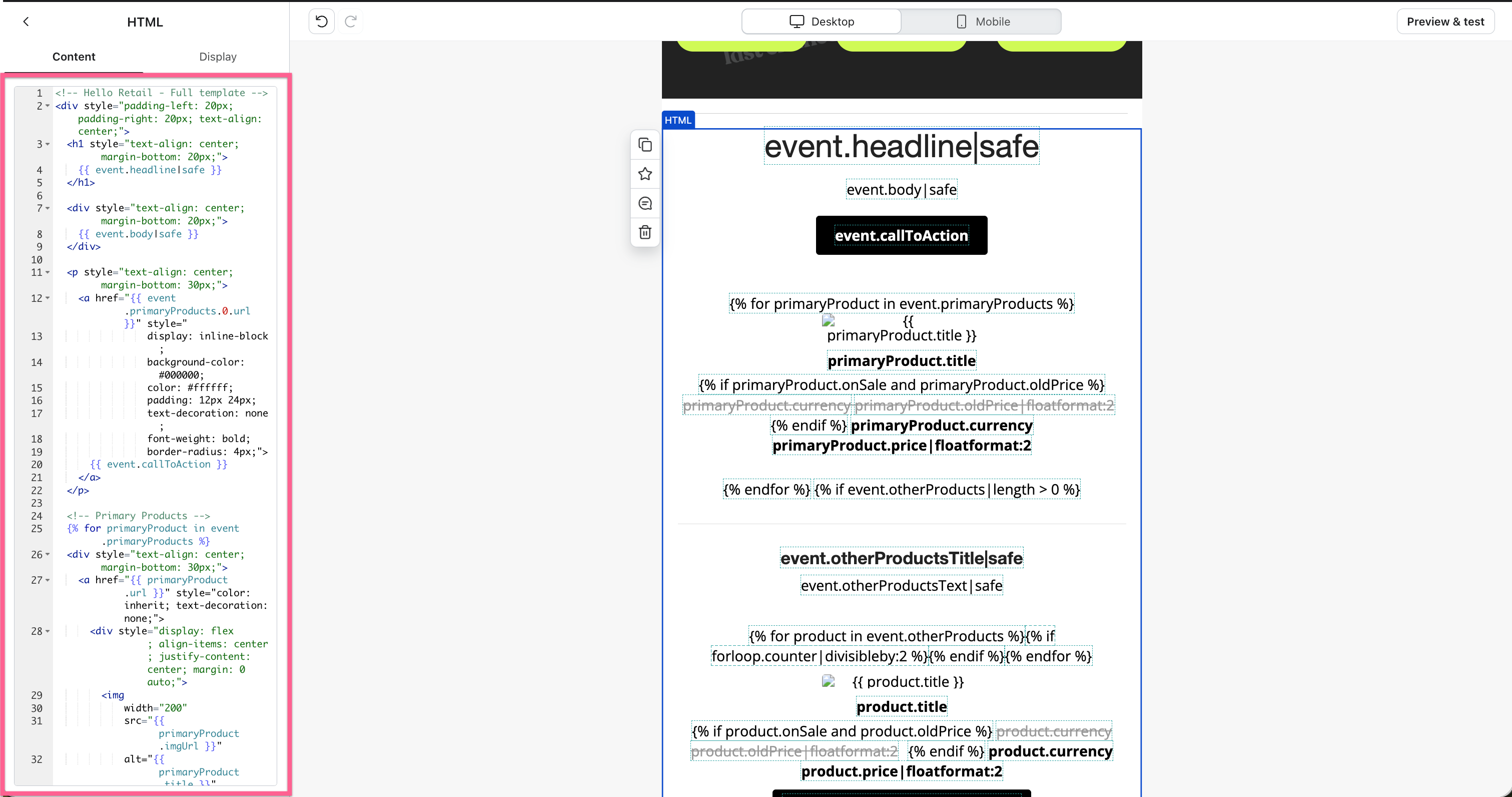
You'll see tags like {{ product.title }} in the HTML. These are placeholders that Klaviyo fills with real product data when the email sends. They must survive the restyling untouched.
Paste this into the HELLO RETAIL BLOCK placeholder in the prompt, then send it.
The AI returns the restyled block in a code block with a copy button.
Refine the result without starting over
Not happy with the first result? Reply in the same conversation with what you want changed: "make the buttons rounded like my template" or "reduce the space between products". The AI remembers the context and adjusts. The description and screenshot options usually need one or two rounds of this, and that's normal.
Step 4: Test on one email first, then apply to all
Because the Hello Retail block is a universal content block, any change you save to it takes effect immediately across every agent email. Test on a single email first before applying the restyled block everywhere.
- Go back to your Hello Retail template in the Klaviyo editor.
- Click the Hello Retail block and choose Unlink and edit independently.
- Replace the HTML with the AI's output and save.
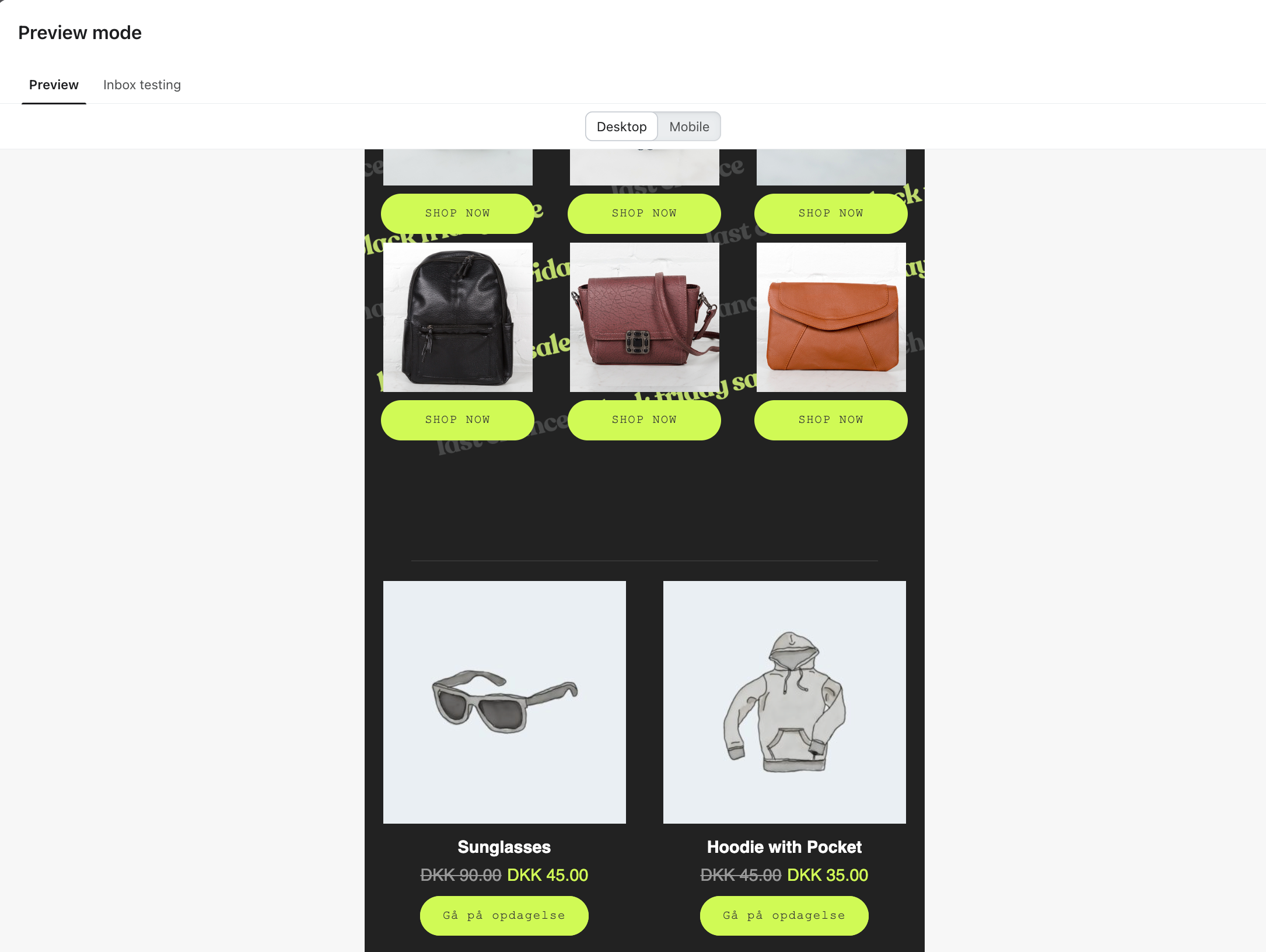
Before moving on, check two things:
- The product images, names, and prices still appear in the preview. If you see broken placeholders or empty spots, a template tag was damaged. Ask the AI to fix it and paste the corrected version in.
- Scan the new HTML for curly bracket tags. Every
{{ ... }}from the original should still be there.
Once the preview looks right, send yourself a test email:
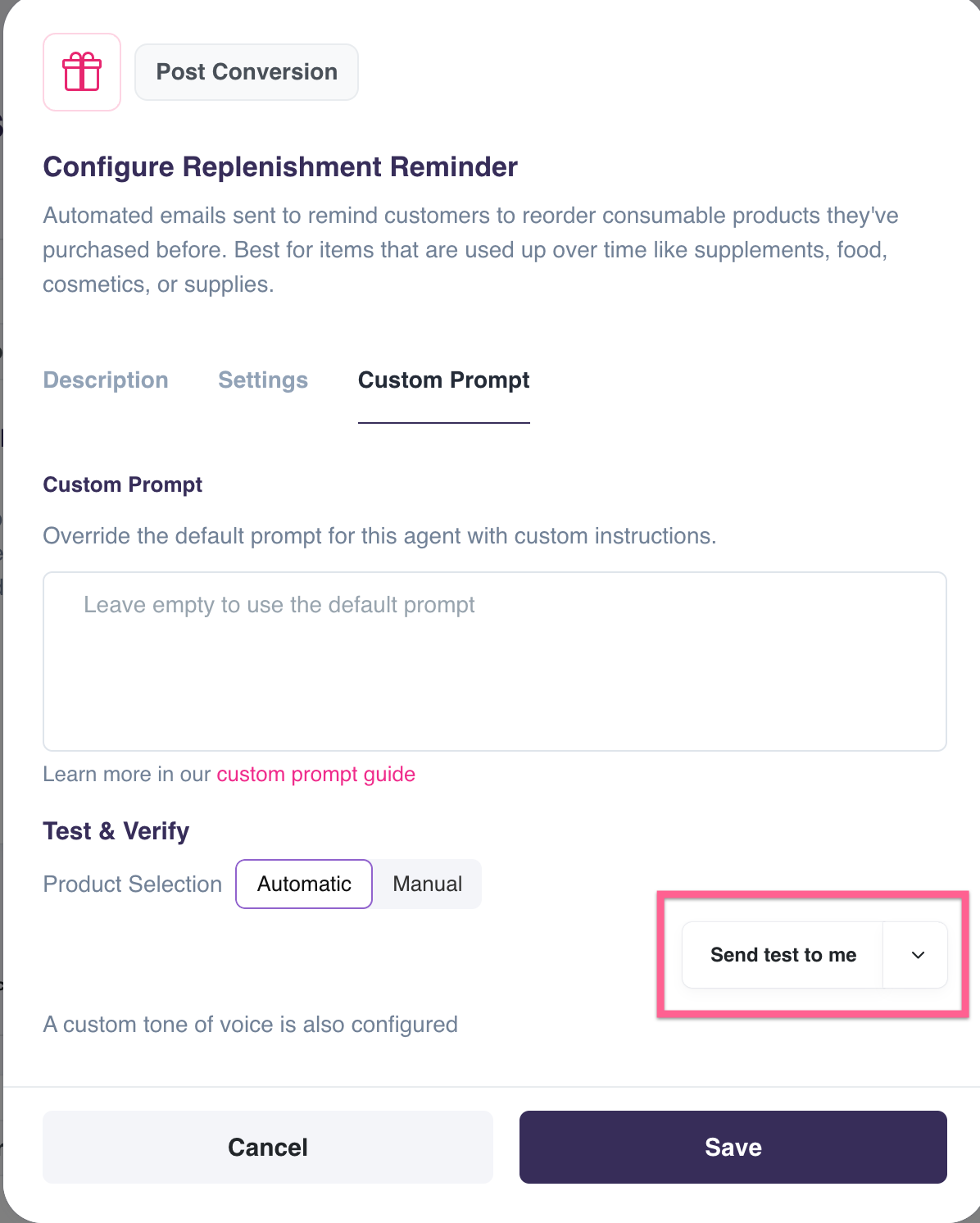
- Open the agent in the Hello Retail platform and go to the Custom Prompt tab.
- Click Send test to me. This sends a real agent email with real shop data, so you see exactly what your customers will see.
Once the test email looks right, apply the same HTML to the universal block. Because unlinking converted the block to a regular HTML block, you need to add the universal content block back into the Hello Retail template first:
- Open your Hello Retail template in Klaviyo.
- Drag the Hello Retail universal content block back in from the content library.
- Click it and choose Edit across all instances.
- Replace the HTML with your final restyled version and save.
Making small adjustments later
Once your block looks the way you want, you can use a shorter prompt for quick tweaks:
This is a Hello Retail email block from Klaviyo. [Describe your change, for
example: "Show 2 products per row instead of 4" or "Reduce the padding
around each product card".]

Keep every {{ ... }} and {% ... %} tag exactly as it is. Don't change
font-family or font-size. Keep inline styles and table-based layout.
Return the complete HTML as one code block, no explanation.

[paste the block HTML here]
If something breaks
If you haven't closed the editor yet, use Ctrl+Z (Windows) or Cmd+Z (Mac) to undo. If you've already saved, contact our support team and mention which agent and template you were editing.
Related articles
- Customising Your Email Templates
- Setting Up Klaviyo for Product Agents
- Getting Started with Product Agents