 Avg. 3 min read
 Customizable Recommendation Strategy Steps
This guide explains how to configure customizable recommendation strategy steps so you can control exactly which products are shown to customers.
You achieve this by adding, configuring, and ordering algorithm steps that return the products you want to display.
Follow the procedure below:
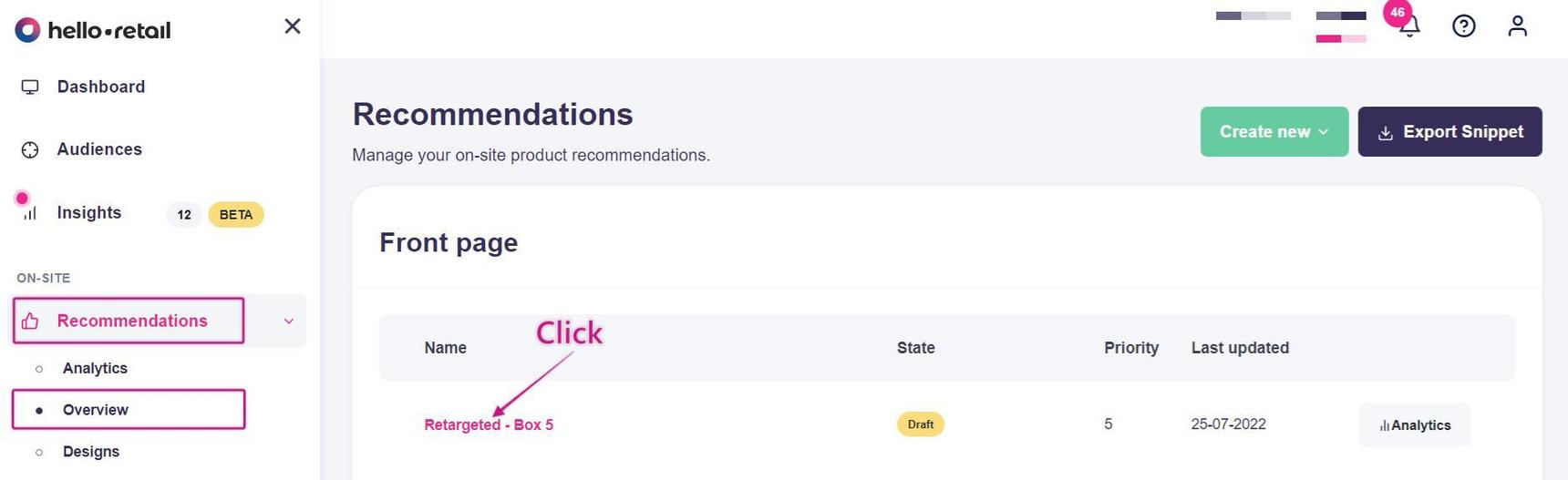
1. Navigate to the Recommendation section in your Hello Retail dashboard, click Overview in the dropdown menu, then select the recommendation you need (this example uses the Retargeted products type) or create a new one.
You can see how to create or edit a product recommendation box in these guides. For an overview of recommendation types, see this article.
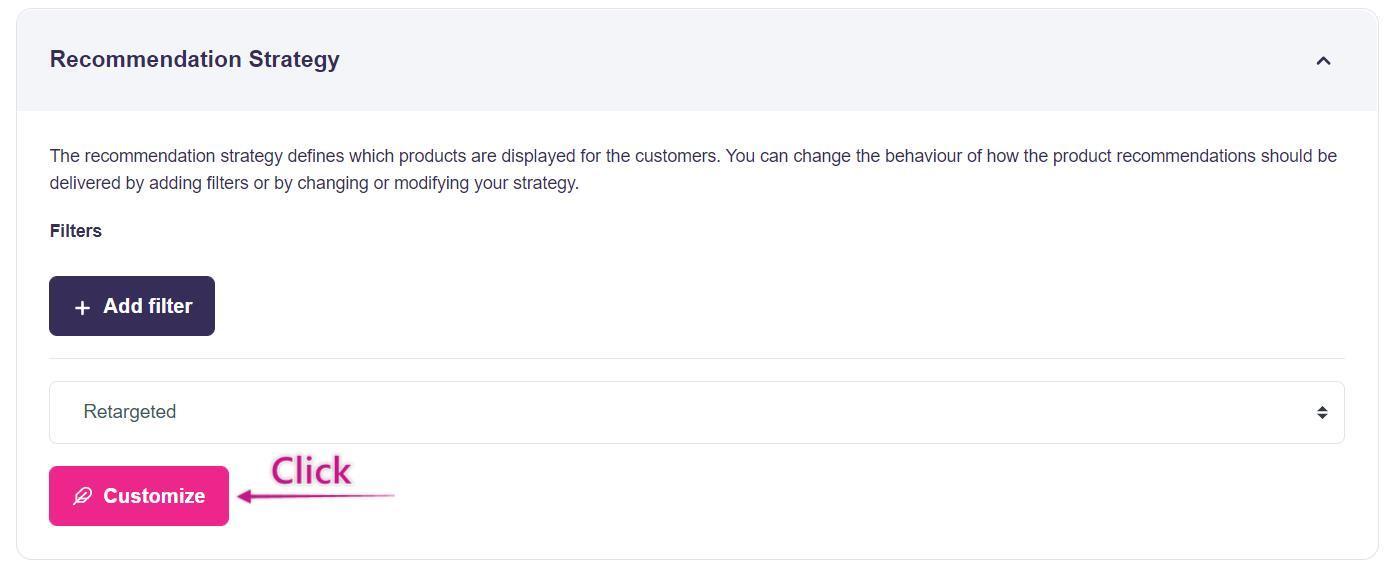
- Click on the Recommendation Strategy in the Box Editor section. Here you can add filters to your recommendation. More information about filters can be found here.
Then click on Customize in the dropdown menu.
- To add another recommendation strategy step, click on the Add another step box below the steps you already have (if any) and select the recommendation type from the dropdown menu.
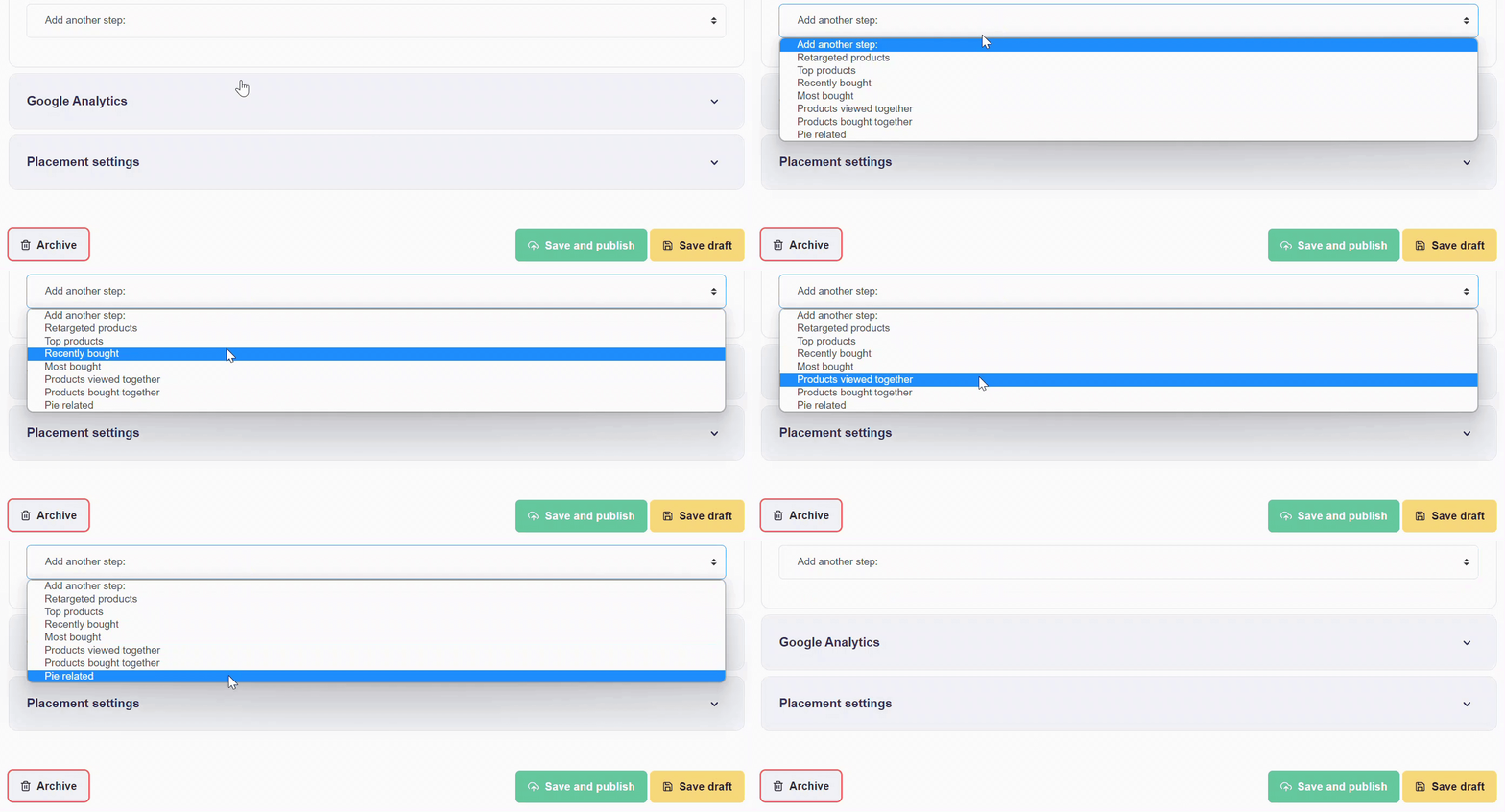
This GIF demonstrates how to interact with Hello Retail's functionality
4. In the following window, you can change the type of recommendation step in the Type box.
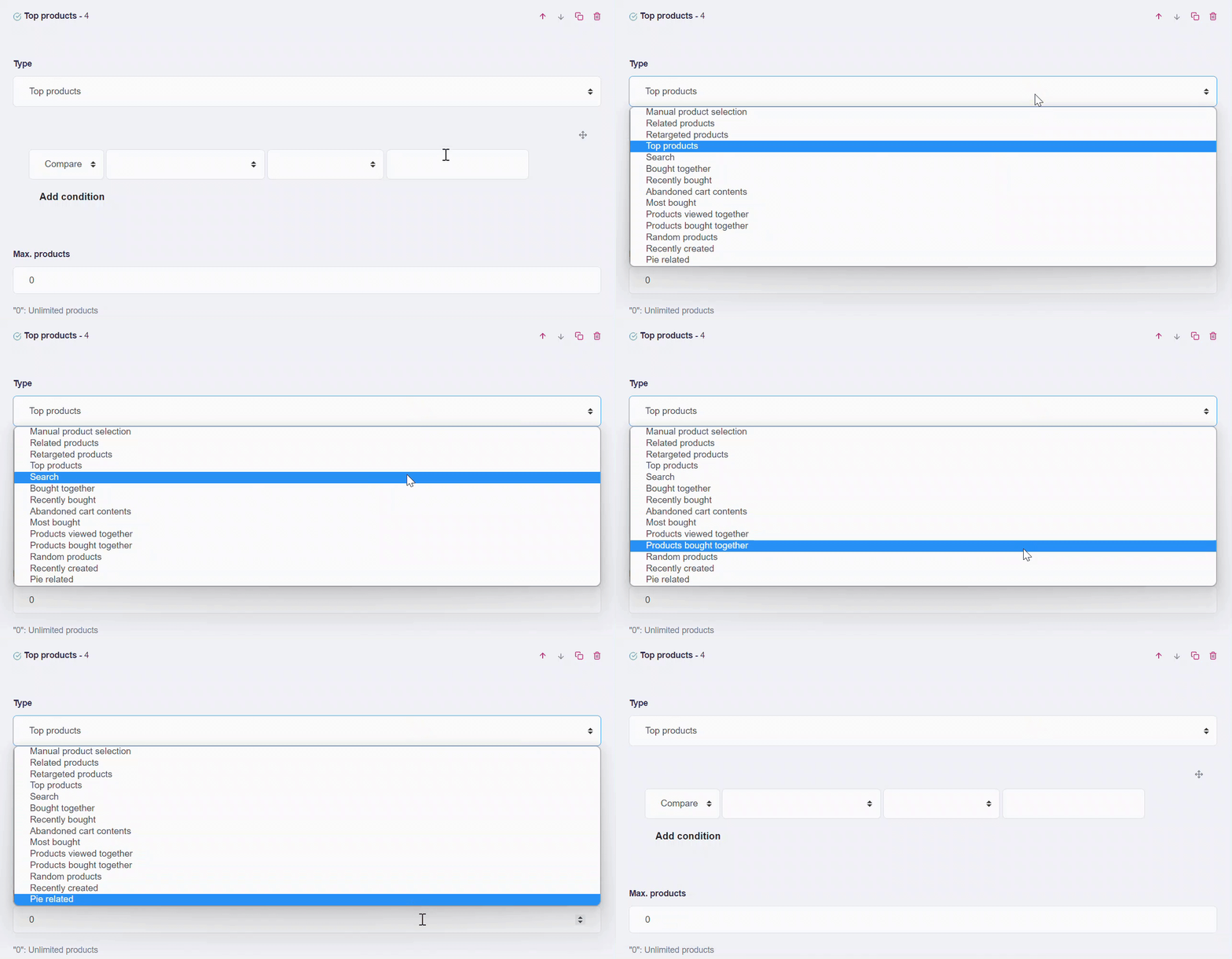
This GIF demonstrates how to interact with Hello Retail's functionality
Note
Find details about recommendation types (strategies) here. This example uses a cart recommendation page to suggest products related to items in the cart.
In the logic step box, below the Type box, configure cart upsell conditions. Use these conditions to promote products related to items in the cart. For example, target specific products so that when a match is detected, the customer is shown related items that complement the main product.
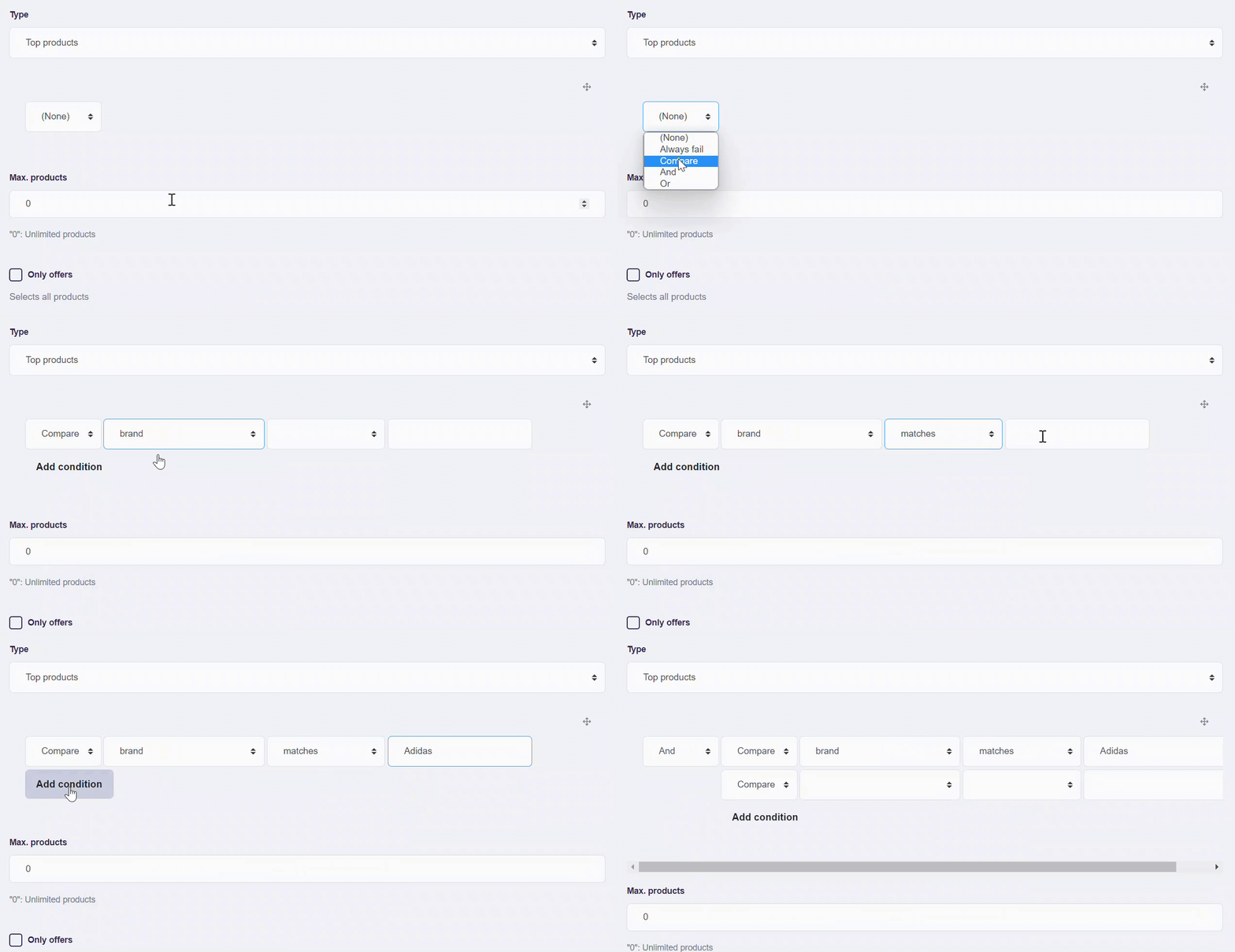
This GIF demonstrates how to interact with Hello Retail's functionality
Enable Exclude products to remove products returned by this step from all subsequent steps.
Note
Use Exclude products to suppress utility items such as free shipping labels, gift cards, or gift wrapping so they do not appear in later steps.
Enable Use as related products to treat the products found in this step as the related product context for subsequent steps.
Note
Use this when you want later steps to reference these results for related-to logic, for example to surface items that are frequently bought together.
The Starting point box sets a threshold to include products viewed more than the specified number of days ago.
In the Max products box, set the number of products to show. Zero means no limit.
Enable Only offers to show only products that are on sale.
Note
Showing discounted products can increase engagement and conversions when running sales-focused recommendations.
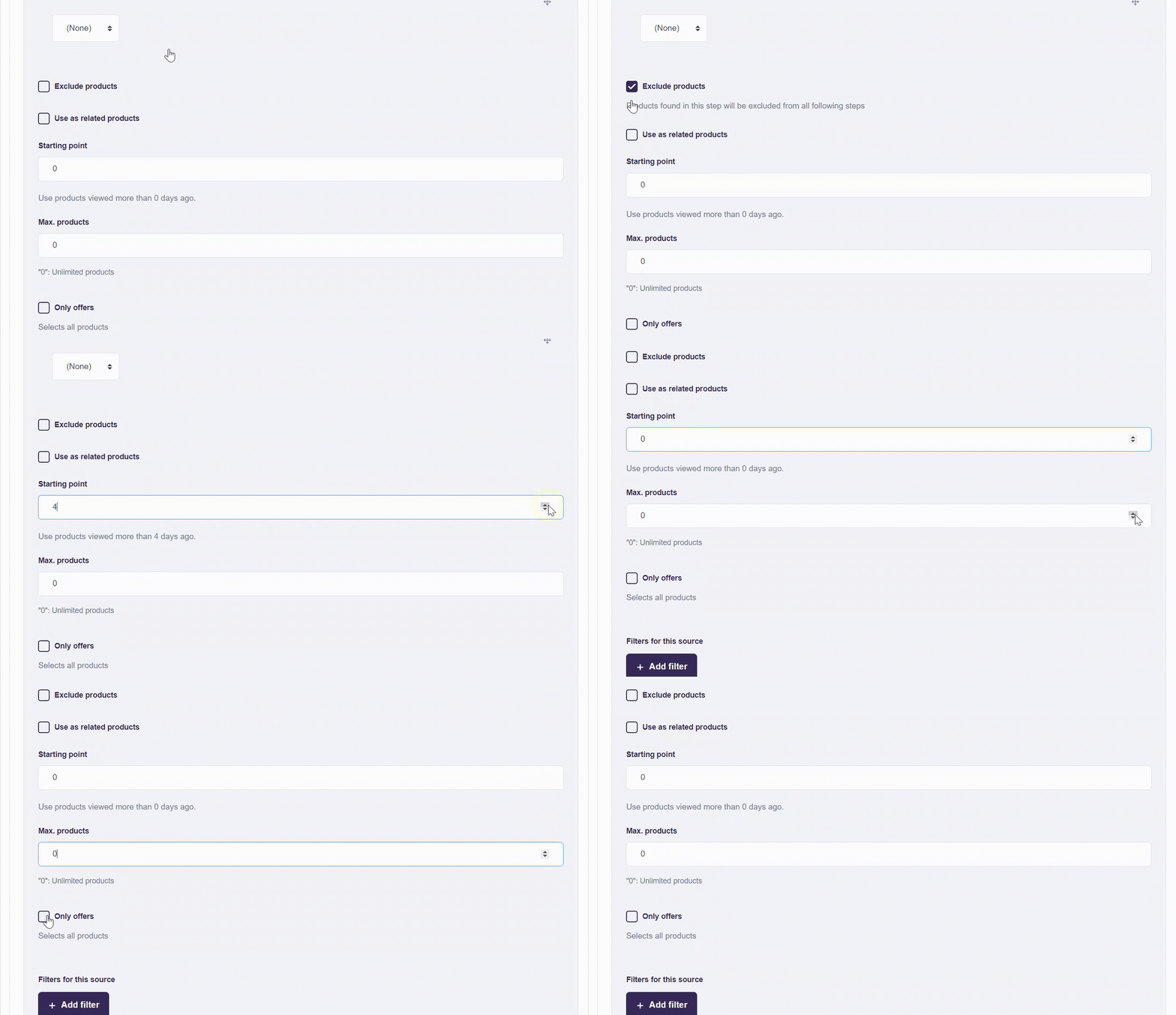
This GIF demonstrates how to interact with Hello Retail's functionality
You can adjust which products are shown on your webshop by adding and modifying global filters.
More information about the filters can be found here.
Once your recommendation strategy steps are set up, click on the Save and publish button.