 Avg. 7 min read
 Getting Started with Product Recommendations
Setting Up Product Recommendations
In this guide, you will set up product recommendations, create recommendation boxes, and choose designs.
What is Product Recommendations
Hello Retail product recommendations increase order size and conversion by displaying relevant products as customers browse your store.
Product recommendations from Hello Retail are flexible and can be used in many ways. Examples include:
- When viewing a product, show a list of alternatives to the current product. This improves conversion by helping customers find an item that fits their needs.
- After a product is added to the cart or at the beginning of checkout, show a list of accessories. This increases cart size with relevant cross-sells.
- On the front page, show products from categories the customer previously viewed. This improves relevance and conversion on return visits.
Product recommendations can be styled to match your site and configured with a range of recommendation strategies.
The recommendation strategy defines how Hello Retail selects products to recommend in a specific placement.
How to Set Up Product Recommendations 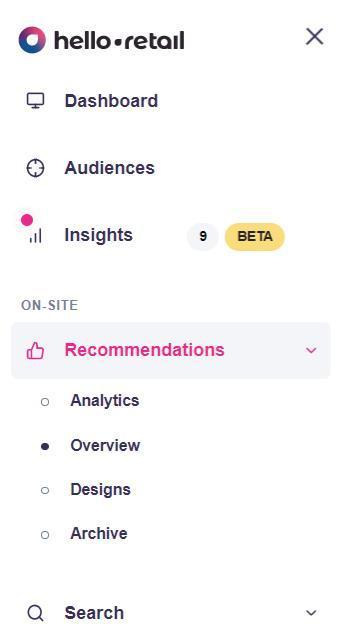 

Product recommendations are managed in your Hello Retail account. After logging in, select the shop you want to configure.
Go to the Recommendations section and then Overview.
From here, you can view existing recommendation boxes and create new ones.
A Word About Drafts
The following sections describe how to set up and edit product recommendations.
While editing a recommendation box, your changes are saved as a draft and only visible to you when you are logged into Hello Retail. Customers will not see draft boxes or draft changes to existing boxes.
When you create a new recommendation box or modify an existing one, the system creates a draft version. You can preview the draft directly on your site while logged into Hello Retail. When you are satisfied, publish the draft to make it visible to all visitors.
Create a Recommendation Box
Product recommendations are created in the Product recommendations section of the Hello Retail dashboard. You will see a list of existing boxes and a button to create a new one. When creating or editing a recommendation box, the following options are available.
General Settings
The general settings include:
- Product Box Key - The unique ID of the recommendation box.
- Number of products - How many products to load for this box. The design template controls how many are visible at once. For example, if a slider design shows 4 products and you set Number of products to 8, users can slide to see products 5 through 8.
- Show - Choose whether to display this box on mobile and desktop.
Design Settings
Choose the design template for the recommendation box. See the Designs section later in this article for details.
Recommendation Strategy
Configure which products to recommend by choosing and customizing a strategy. Contact Hello Retail support if you need help with advanced strategy configuration.
Placement Selector
A CSS selector that identifies where to inject the box in your site’s DOM. For example, div#main will inject the box on pages where a div with the id main exists.
Analytics Events
When enabled, Hello Retail detects a Google Analytics integration on the page and sends events for impressions and clicks on this recommendation box.
Designs
Designs are templates that render the products selected by the recommendation strategy as HTML. This HTML is injected into your website. A design consists of a liquid template that generates HTML markup and a CSS stylesheet used to style that markup.
Note
The CSS is injected with the rendered recommendations. Scope your CSS rules to the recommendation container to avoid affecting other page elements.
Designs are associated with a single customer account. The same design can render multiple recommendation boxes across all websites under the account. Updating the design updates all boxes that use it.
Because designs are often reused, a special Liquid tag is available to inject box-specific content into the template. For example, you can vary the headline per recommendation box.
This can be achieved by using the input tag like this:
<h1>{% input headline %}</h1>
<ul>
{% for product in products %}
    <li><a href="{{ product.url }}">{{ product.title }}</a></li>
{% endfor %}
</ul>
When a template like the above is selected, an input field for headline appears on the recommendation box. This allows, for instance, a front page box with the headline "Most popular products" and a product page box with the headline "Great alternatives" using the same template.
If one of the input variables is optional, use the input tag in block mode.
<h1>{% input headline %}</h1>
{% input subheadline %}
    <h2>{{ subheadline }}</h2>
{% endinput %}
<ul>
{% for product in products %}
    <li><a href="{{ product.url }}">{{ product.title }}</a></li>
{% endfor %}
</ul>
In this example, the interface provides inputs for both headline and subheadline. If no value is set for subheadline, the entire input block for that variable is not rendered.
Note
Inside the subheadline input block, the subheadline value is available as a standard Liquid variable.
Making Changes to Designs
When a design is updated, all recommendation boxes using it are updated to reference the new version. These changes are not immediately visible to customers. Each affected recommendation box will have pending changes. While logged into the Hello Retail dashboard, you can preview the updates on your site. After verifying the result, publish the changes for each recommendation box.
Tip: When editing a design, you can see a list of recommendation boxes that use it and publish their pending changes from the same view.
How to Find the Product Box Key ID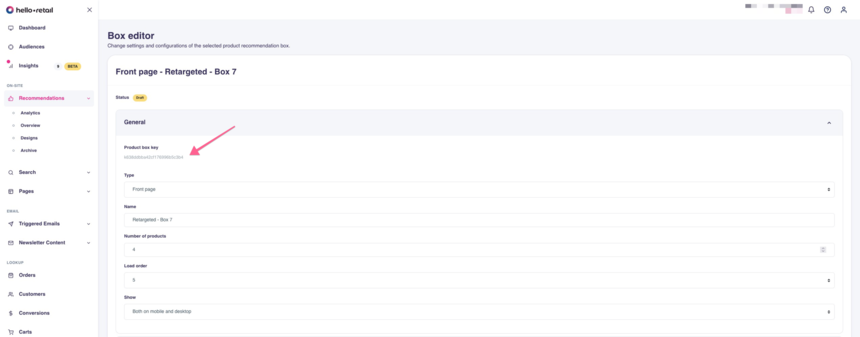 

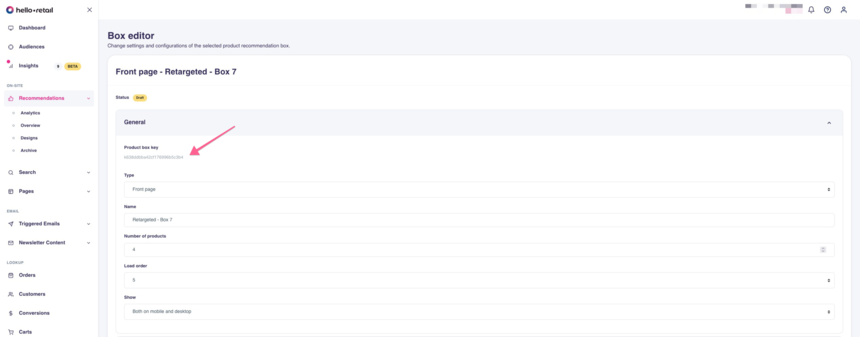
Each product recommendation box has its own unique product box key ID.
- Start by logging into your Hello Retail account. On the dashboard view, go to the left-hand menu. Under the On-Site section, click Recommendations to expand the menu.
- From the drop-down menu, click Overview.
- Open the recommendation box you want.
-
In the box, expand the General section to see the ID.
It is a string of about 25 characters containing numbers and letters. You can copy and paste this ID.
If you have any questions about this guide, then please contact Support or your designated Account Manager.