 Avg. 2 min read
 How To Add/Remove Global Brand Filters For Recommendations
This guide explains how to add or remove brands in the global filters for your Recommendations. Follow these steps:
- On your Dashboard, navigate to Recommendations and click Overview;
- Click the Recommendation you want to add a global brand filter for;
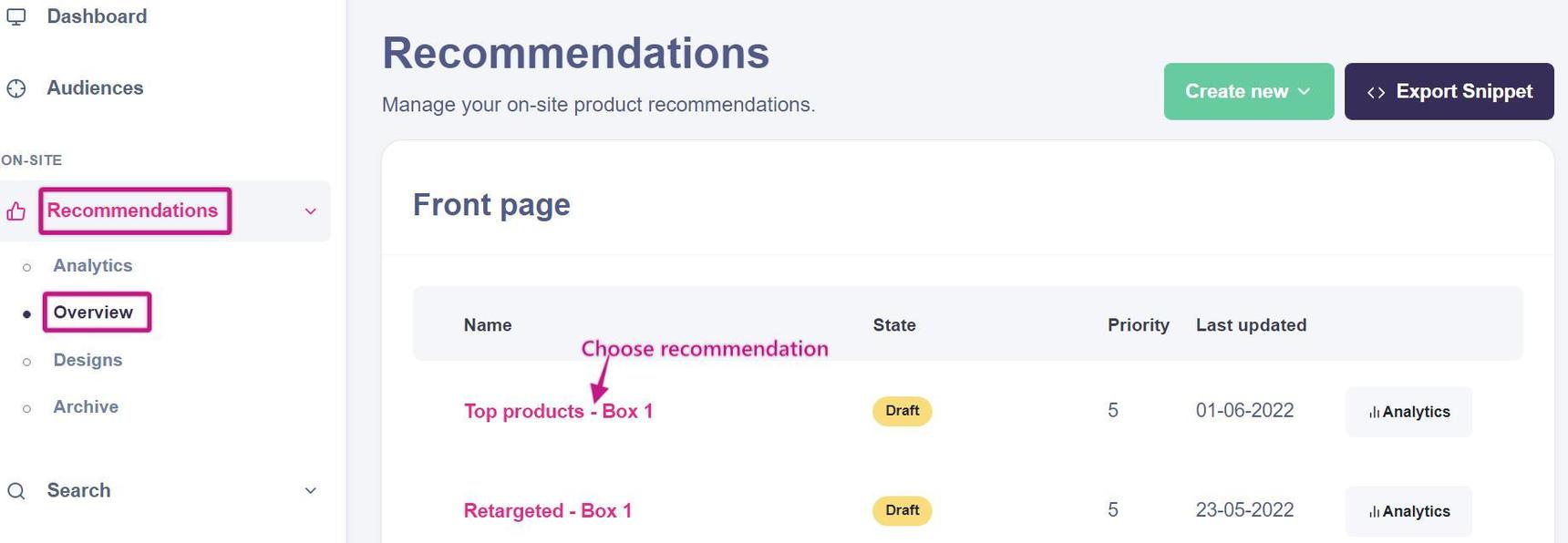 This image shows steps 1 and 2 in the Dashboard Overview, where a user navigates to Recommendations under the On-site section.
 - On that page, scroll down to Recommendation Strategy and expand the section;
- Click Add filter. In the first field, select brand. In the second field, choose the operator. In the third field, select the brand. To add more brands, click Add filter again and repeat the steps for each brand.
This video shows steps 3 and 4, where the user expands Recommendation Strategy to view and customize Filters.
To remove a brand from your global filters, follow the same steps you use to add one. In the second field of the Recommendation Strategy filter, select does not match to exclude the brand.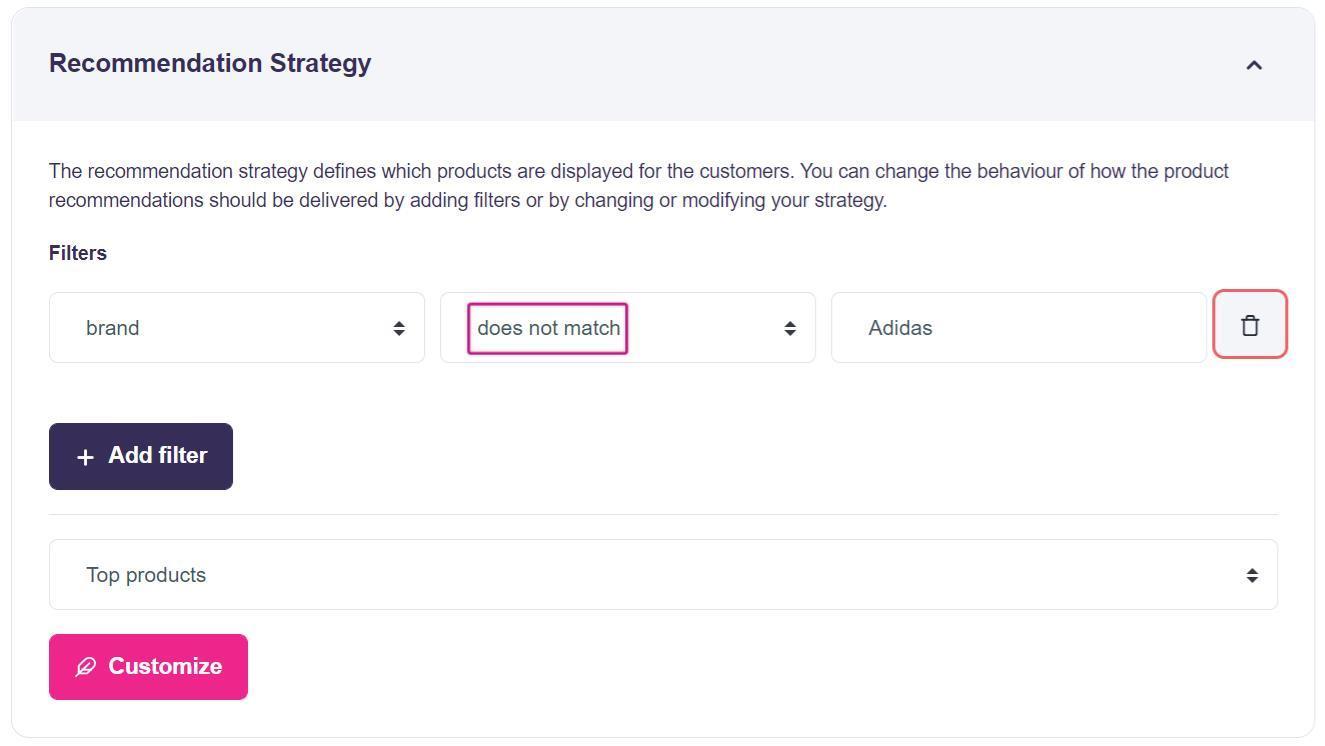
Once the filter is configured, click Save and publish to activate it.