 Avg. 3 min read
 How To Edit Global Price Filters For Recommendations
Contents
- What are Global Filters?
- Using Upsell Recommendation as an Example
- How to Add Global Filters to your Recommendations
- Video Example of the Top Products Box Recommendation for a Price Filter
This guide explains how to configure global price filters for Recommendations. For more about filters in Recommendations, see this overview.
What are Global Filters?
Global price filters control which products are shown to customers. They apply consistent filter logic across all steps in a Recommendation Strategy. A Recommendation Strategy defines which products are displayed. By adding filters, you change how Recommendations are selected and delivered.
You can configure global filters for many needs, such as specific brands, the number of products to show, and hierarchy constraints. For more examples and scenarios, see global and source filters.
Read more about customizing recommendation steps here and about Recommendations in general here.
Using Upsell Recommendation as an Example
This guide uses the Upsell step as an example to show how to add a global price filter. We will configure the Upsell step to show only products priced below 200. For more about Upsell, see this guide.
How to Add Global Filters to your Recommendations
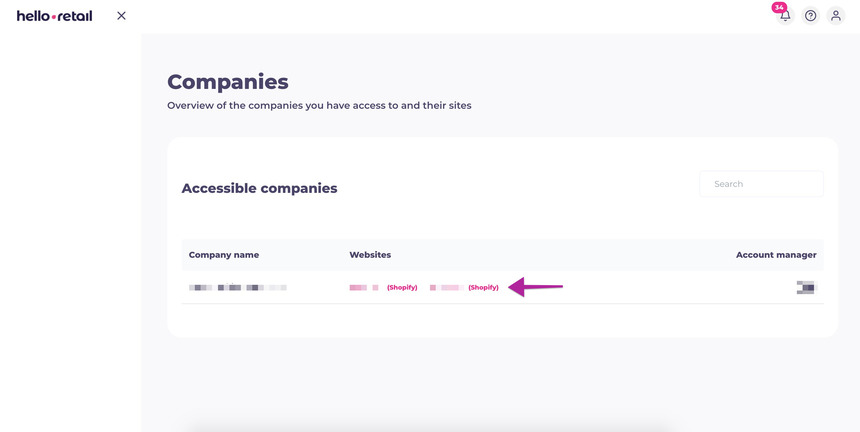
- Sign in to your Hello Retail account. In the Companies overview, find the desired company under Websites and click your company.
- Go to Recommendations in the left menu and click Overview.
-
Click the Recommendation you want to filter. In this example, select Upsell.
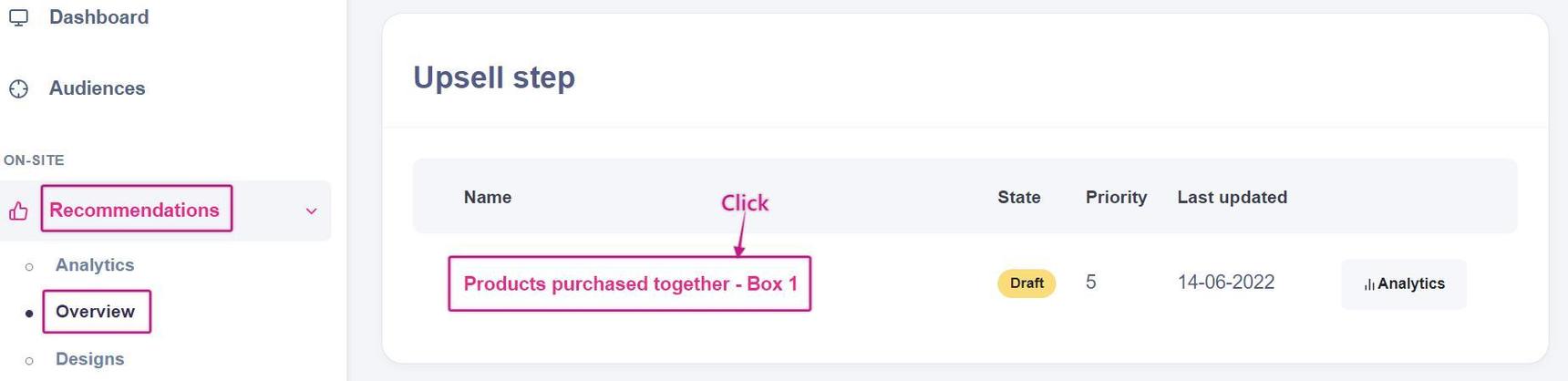
This image shows steps 2 and 3 on the dashboard, where the user navigates to Recommendations under the ON-SITE section. -
On the Recommendation page, scroll to Recommendation Strategy and expand the section.
- Click Add filter. In the first input, select Price. In the second input, choose the operator. In the third input, enter the value, for example 200.
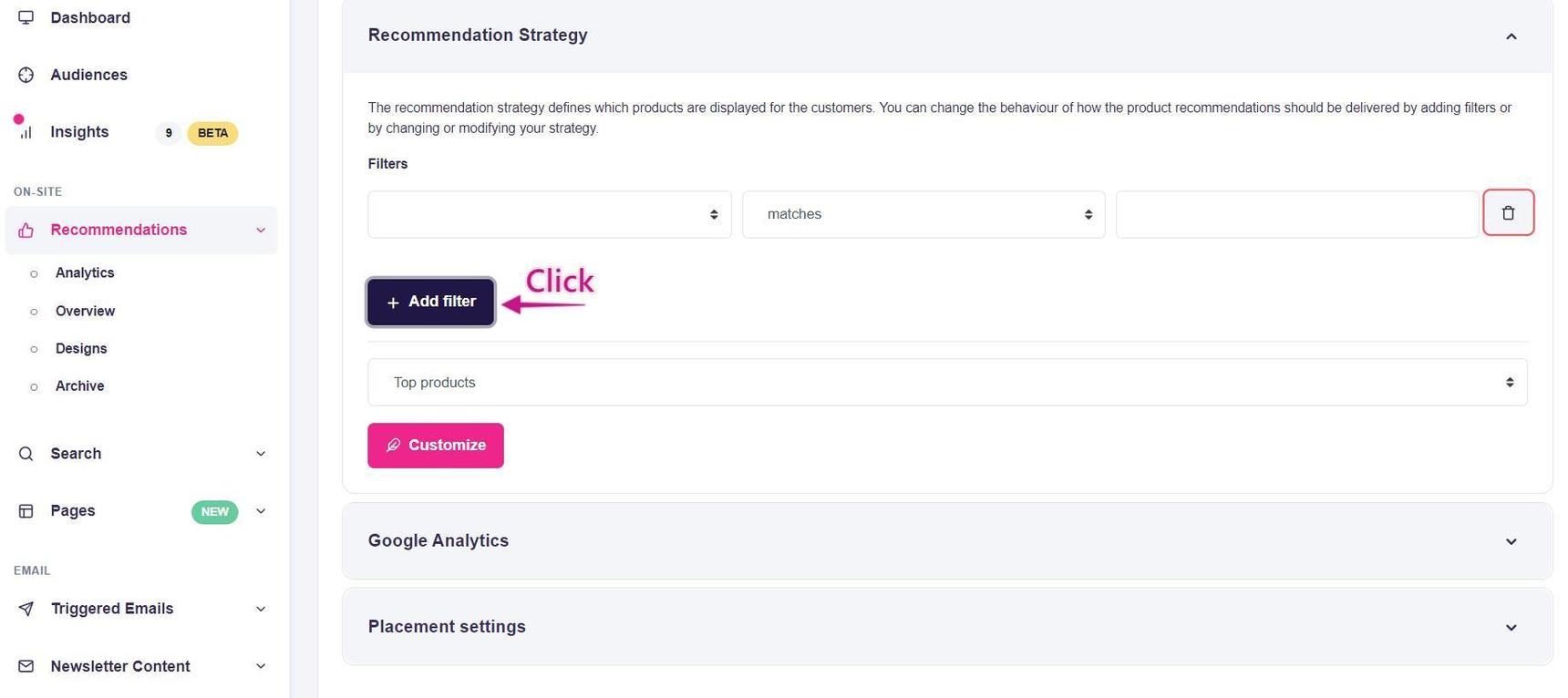
This image shows steps 4 and 5, where the user opens Recommendation Strategy to view and configure filters.
You can also add Global Brand Filters and Global Hierarchy Filters for your Recommendations. Learn more about Brands here and Hierarchies here.
Video Example of the Top Products Box Recommendation for a Price Filter
The video below shows how to limit a price filter for a Top Products recommendation to only show products priced below 200.
The same steps apply to other filters, including brands and hierarchies, configured under Recommendation Strategy.