 Avg. 4 min read
 How to Setup Load Order
In this guide, you can learn how to configure the load order for recommendation boxes on different pages of your webshop.
If you are new to Recommendations, start with the overview here to learn how to create different types of recommendations and how they work.
What is Load Order for Recommendations
Each recommendation box can be assigned a load order. This is useful when multiple recommendation boxes render on the same page.
Set a number from 1 to 10. 1 loads first and has the highest priority. 10 loads last.
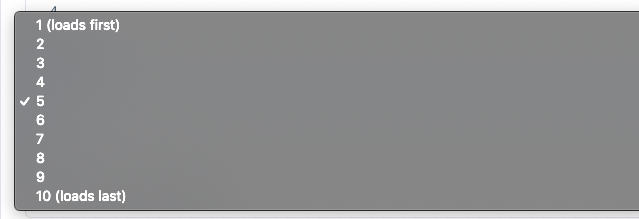
Load order affects two behaviors:
When multiple recommendation boxes load on the same page, Hello Retail prevents duplicate products across boxes. Each box will show unique products so two boxes rendered together will not display the same products.
Example 1: The box with the lowest load order (1) selects products first. If you have two boxes showing Popular products on the same page, the box with load order 1 will pick first. The second box (2) will also show Popular products, excluding any products already shown by the first box.
Example 2: When multiple boxes use the same placement element, the box with the lowest load order (1) is inserted first on the page. Lower numbers render higher on the page when the placement element is the same.
If you have not provided specific placements, Hello Retail will insert the box before or after your existing elements on the webshop.
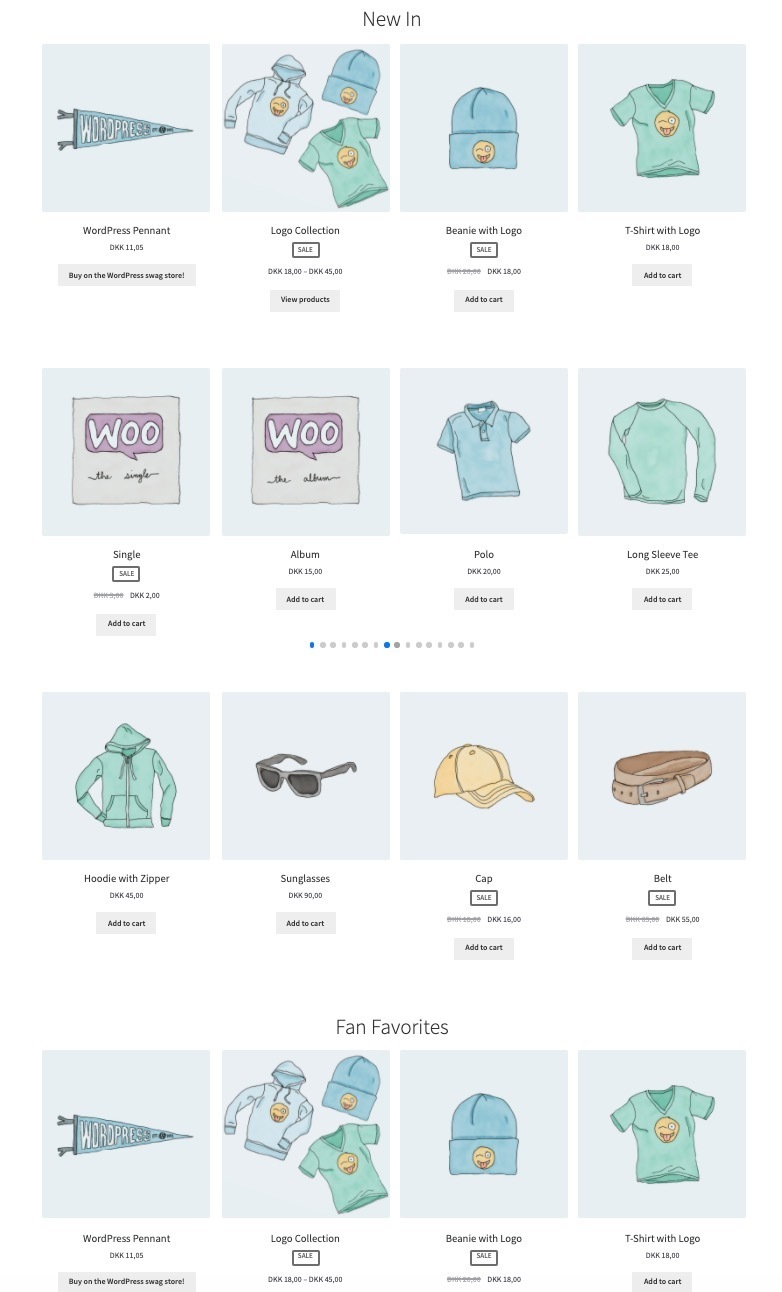
Example 2 with pictures:
On a front page with two boxes — "New In" and "Fan Favourites" — if "New In" has load order 1, it renders above "Fan Favourites" with load order 2.
If needed, you can read more about how to do placements here.
How to Set it Up in Hello Retail
-
Start by logging into your Hello Retail account. On the dashboard, go to the left-hand menu. Under the On-Site section, click Recommendations to expand the menu.
-
From the drop-down menu, click Overview.
-
Open the recommendation that appears on a page with at least one other recommendation box (for example, a product page).
-
In the General section, scroll to the Load order setting.
-
Select a load order number that fits your use case for the boxes on that page. If multiple boxes on the same page use the same load order, their selection and rendering order will be randomized. Save your changes.
This video showcases how to navigate to the load order setup and an example of setting the load order to 5 on the front page with Top products.
If you have any questions about this guide, please contact Support or your designated account manager.