 Avg. 4 min read
 Banners
This guide explains how to add Retail Media banners next to your Hello Retail product listings. It covers initial setup, campaign creation, and fine-tuning each banner for the best context.
Before You Begin
Confirm your shop is ready:
-
Template accepts banners (as described in the following section).
-
Banner sizes are defined in Retail Media → Settings (see "Define Banner Sizes" below).
Adapting your shop template
To render Banner Listings alongside products, your shop template must be adapted. Apply these changes in every Hello Retail feature where you plan to show banners. This includes adjustments to the Hello Retail implementation templates for your shop. For implementation details, see the guide here: https://developer.helloretail.com/guides/templates/retail_media_banners/.
Our support team can assist with this implementation when you are ready to get started.
If you use a full API integration, additional work is required on your side. For details, see our API documentation: https://developer.helloretail.com/guides/templates/retail_media_banners/.
Define Banner Sizes
Follow these steps for each Hello Retail solution (Search, Recommendations, Pages, Newsletter Content).
-
Open your shop and locate a Hello Retail listing.
-
Set the browser zoom to 100%.
-
Right-click the listing and choose Inspect.
-
In DevTools, click the Select element icon.
-
Hover over the outermost wrapper of the listing and note the width × height shown.
-
Toggle mobile view in DevTools and repeat.
-
Record every unique size.
For Newsletter Content, sizes appear under Newsletter Content → Designs.
Finally, open Retail Media → Settings → Banner Sizes and add each size. Use a short name without spaces or special characters, for example search_desktop. You will reference these names when adapting your shop template for banners.
Create Your First Banner Campaign
-
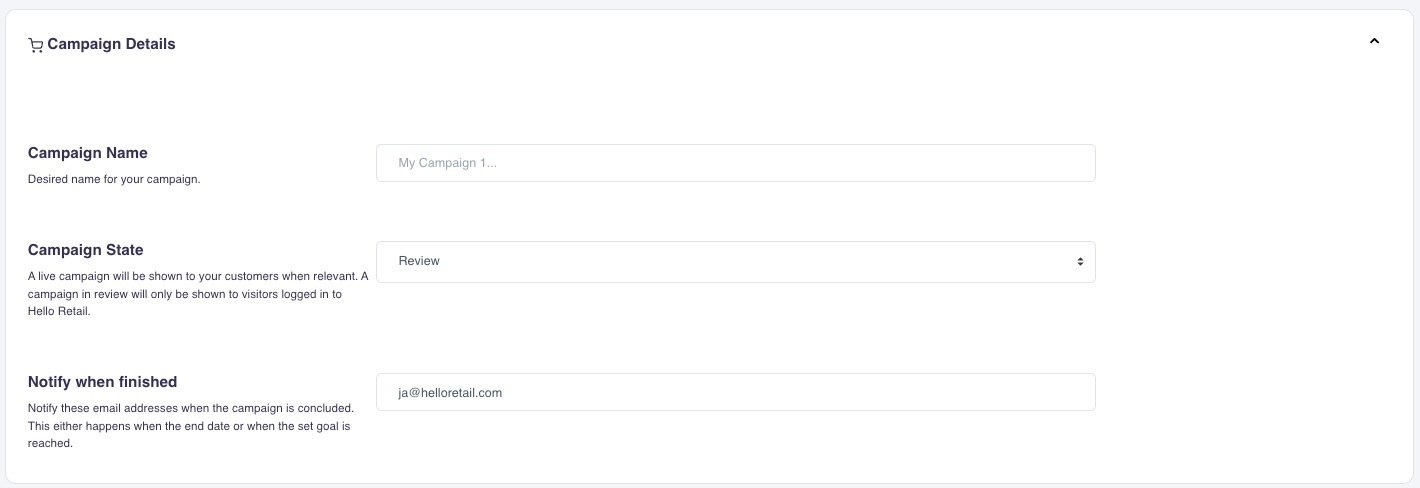
Go to Retail Media → Campaigns → Create new → Banners.
-
Enter a descriptive name such as Summer Sale Campaign.
-
Choose a campaign state:
-
Review – banners appear only to staff logged in to the Hello Retail Dashboard.
-
Live – banners are visible to all visitors.
-
Note
If a required size is missing, add it under Settings → Banner Sizes, then edit the campaign to include the new size.
Banner Creation Options
You can provide banners in two ways:
| Option | Description |
|---|---|
| Premade Images | You already have finished design files. |
| AI generated | Let Hello Retail create banners from your product images and a prompt. |
Manual Upload
-
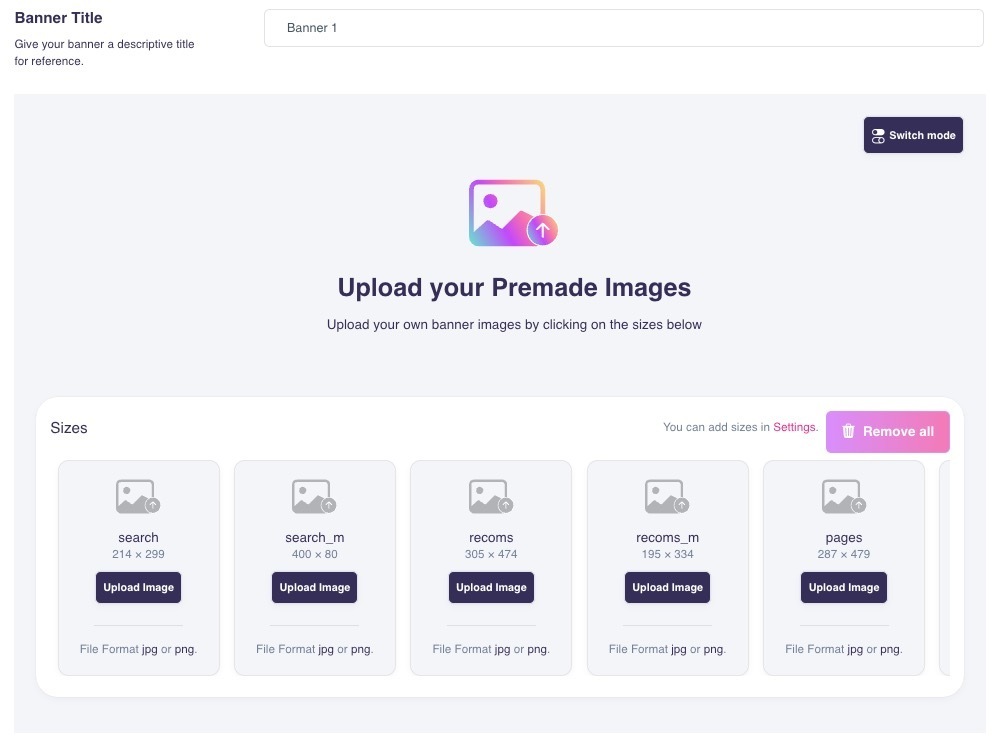
Select Manual Upload.
-
Upload an image for each required size.
-
Images must be PNG or JPG.
-
After all required sizes are uploaded, continue to the next step.
AI Generation
The AI Image Editor can create production-ready banners in minutes.
-
Pick a banner size to start from.
-
Provide an input image (upload and/or pick one of your product images).
Note
You can upload an image purely as a style reference for the prompt. The generator will use it to guide the design.
-
Select a style reference from the provided options.
-
Write a prompt describing text, layout, colors, and mood. A good prompt could look like this:
Create a banner using the provided image. Add the text “New Summer Collection” in bold white Montserrat font, positioned at the bottom-left corner. Apply a transparent black overlay to increase text readability.
- Click Generate.
Generating all sizes usually takes 1-2 minutes and produces creatives for every defined banner size.
Not happy? Refine the prompt and try again.
Note
Your Hello Retail subscription includes 250 generation tokens per month for AI banners. Tokens reset at the end of each month.
Set Banner Context and Link
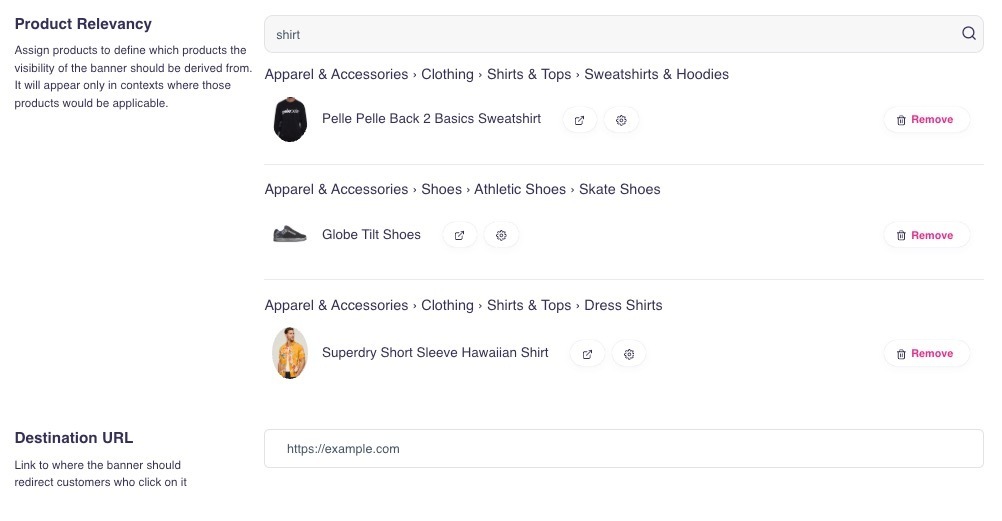
Below the editor:
-
Choose products that represent the intended context. Their product clusters determine where the banner can be shown.
-
Banners do not replace specific products in Hello Retail listings. Product tiles are not substituted by banners.
-
Add a target URL for the click-through.
-
Add more banners if you need different creatives for different contexts (for example Women’s Footwear vs Men’s Accessories).
-
Adjust other Retail Media settings such as placement, date range, or campaign targets.
How Banners Compete with Product Campaigns
Banners run alongside product campaigns. The ranking engine scores all items on context relevance. For each placement, the highest-scoring banner or product wins.