 Avg. 13 min read
Retail Media
Introduction
Retail Media is an advertising approach where brands promote products within retail environments, such as online search results or product recommendations.
Hello Retail provides a centralized tool in your dashboard to manage Retail Media across Recommendations, Search, Pages, and Newsletters.
The Hello Retail product intelligence system (AI that identifies product relationships) searches for alternative products that match the attribute criteria defined in your Retail Media campaigns. If suitable products are found, they are inserted into the placements specified in your Retail Media Settings, ordered by popularity.
Overview
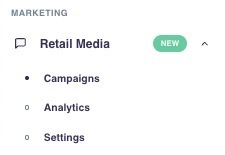
In the Hello Retail Dashboard, open Retail Media from the sidebar to set up and manage your campaigns. The Retail Media section is your single entry point for configuring how campaigns run in Search, Recommendations, Pages, and Newsletters, and for analyzing performance.
This article explains what you can define under Settings and Campaigns, and how to interpret the performance statistics under Analytics.
Settings
On the Settings page, define the global structure for Retail Media. Specify how many product placements to reserve for promoted items in each listing type and at which positions they should appear. If no positions are selected for a solution, Retail Media products will not appear in that solution and will not interact with your Hello Retail setup.
Because user interaction differs between desktop and mobile, you can configure distinct placements per device. This global configuration applies to all campaigns, including active ones.
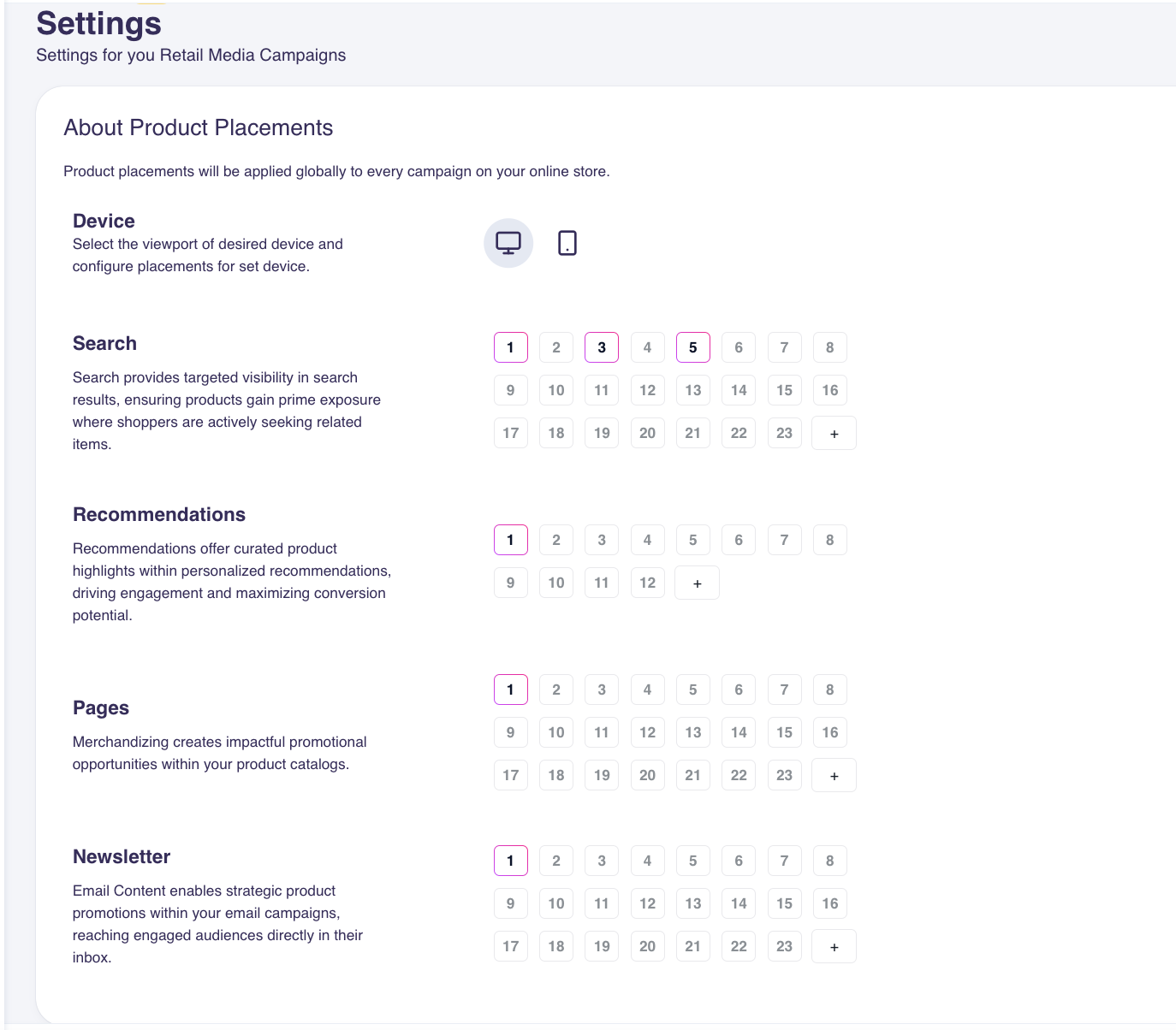
Use the device toggle to customize placements. For example, if mobile recommendations render as a single-item slider, you can place promoted products in the first position for maximum visibility. The same principle applies anywhere fewer items are visible at once on mobile. An impression for a Retail Media campaign is registered when a promoted item is included in the response, even if it is not currently visible on the screen. If a slider includes four promoted products, all four are counted as impressions even if the visitor only sees the first.
Campaigns
To create your first campaign, go to the Campaigns page and click “Create Campaign”. In this section, you create and maintain individual campaigns. A campaign can promote specific products or a subset of products based on attributes and conditions (for example, Brand, Hierarchy, or any Extra Data Point).
You can add an email address to receive an automated notification when a campaign ends. Campaigns can conclude based on Date, Clicks, or Impressions, as described below.
Products
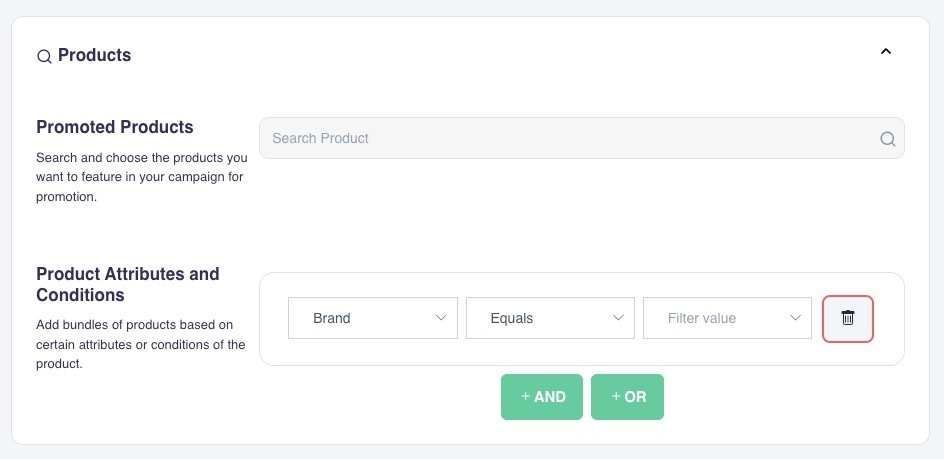
In the Products section, add promoted products or define a subset of products to include via attributes and conditions.
- Promoted products: Add items by pasting the product URL or by searching for the product title. These products are reserved for the first positions configured in Settings. They are inserted before attribute-based items are evaluated.
- Attributes and conditions: Define rules that include a subset of products in the campaign. Use AND conditions to combine fields into a single filter (e.g., pants from a specific brand). Use OR conditions to include multiple separate filters (e.g., pants from other listed brands). Among the products that match, the most popular items are inserted into the chosen positions when they have the same relevance for the search term. If the campaign also contains specific promoted products, items sharing the promoted brand are added after those.
Campaign Specific Placements
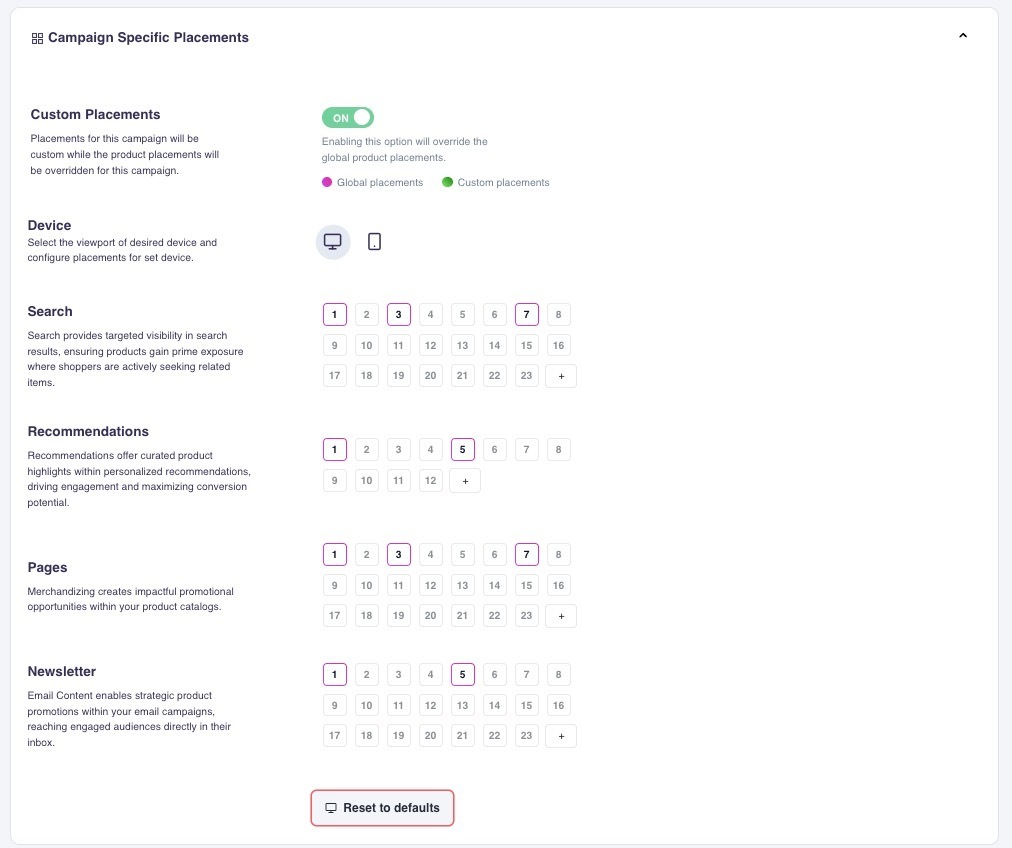
Campaign-specific placements let you override the global setup for a single campaign. You can disable globally defined placements or create placements used only by this campaign. Click a placement in the overview to enable or disable it. When both types exist, global and campaign-specific placements are shown with different colors.
If a campaign has specific placements defined, its products can be shown in those specific placements even if they are not shown in the global placements due to lower relevance or CPM.
CPM Value
Assign a CPM value to each campaign. This value sets the relative likelihood that the campaign’s promoted products are shown compared to other equally relevant campaigns. Think of CPM as weighted tickets in a draw: if this campaign has CPM 1000 and ten others have CPM 100 each, your campaign will be shown about 50% of the time (1000 out of a total 2000).
Schedule
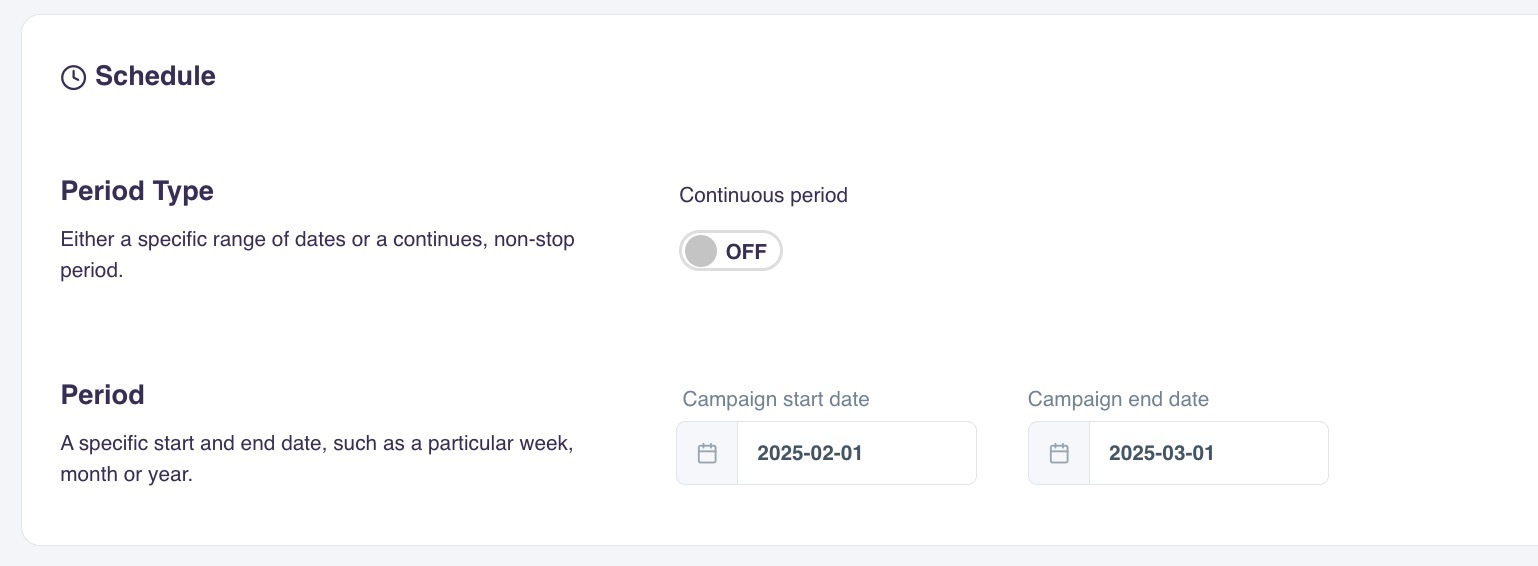
In Schedule, define when the campaign is active. Choose a fixed start and end date, after which the campaign automatically stops, or run it continuously until you disable it.
Campaign Goals
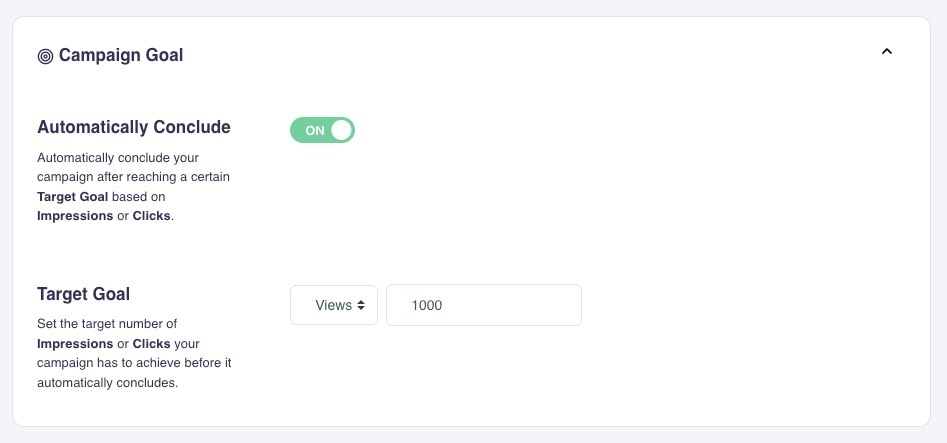
Set goals so a campaign ends automatically when a target is reached. Goals can be based on impressions or clicks.
If both a fixed end date and a goal are defined, the campaign ends when the first condition is met.
Analytics
By default, the Analytics view shows combined performance for all active, inactive, and archived campaigns over the last month if you have not selected specific campaigns. This includes all enabled features in each campaign (Recommendations, Search, Pages, Newsletter). To view metrics for a single campaign, click the campaign name below the general statistics.
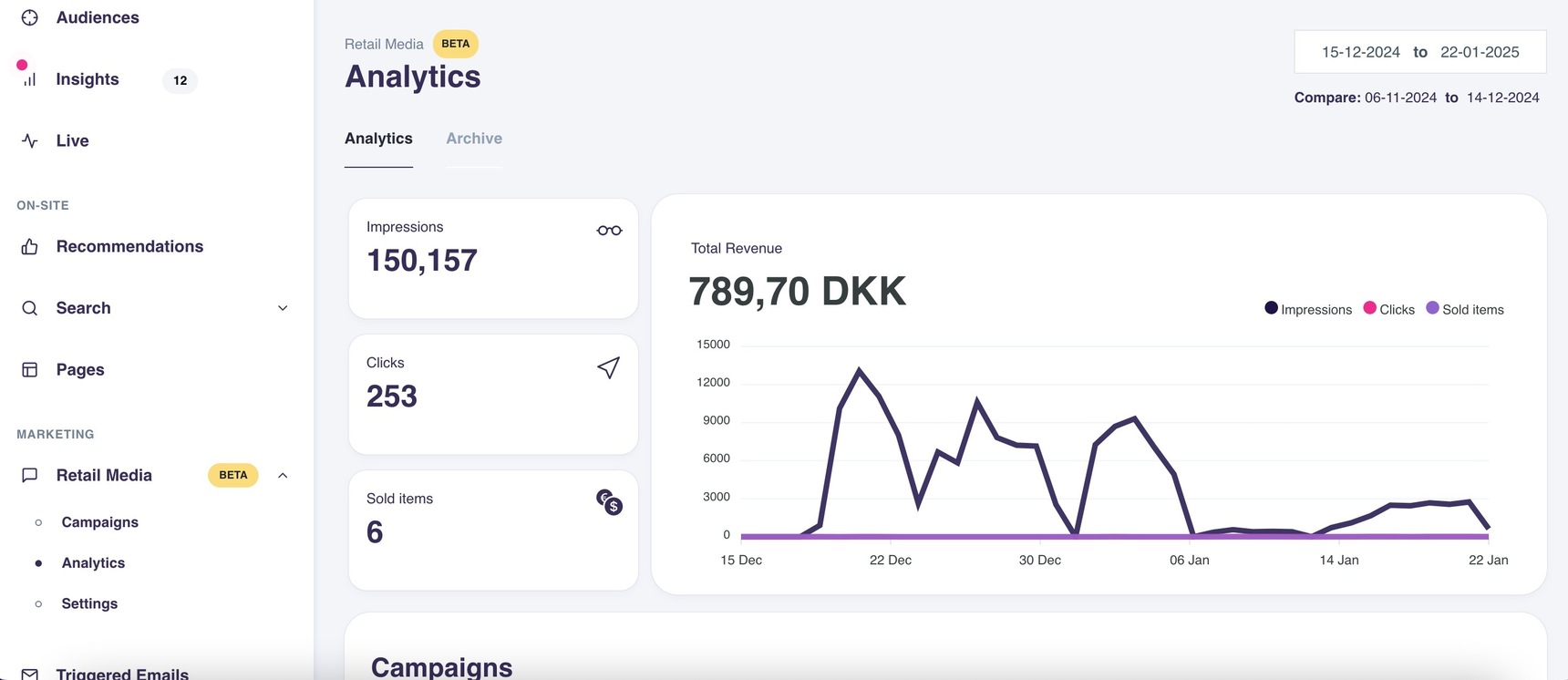
Here is how to interpret the figures shown in the Analytics panel:
Impressions: Retail Media impressions are counted only when the system actively promotes a product to a higher position than it would occupy organically. Standard recommendations or search results that happen to include the same products do not count unless Hello Retail injects and reorders products based on campaign attributes and popularity.
Only products not found organically in Search, or not naturally occupying a top position in Recommendations, Pages, or Newsletters, and shown due to product intelligence, are counted as campaign impressions.
Clicks: When a user clicks a promoted product (moved up or injected by the system), the click is registered. The dashboard lists these clicked products.
Retail Media campaigns often have a lower CTR due to the counting method. Each promoted product displayed counts as an impression, but only actual clicks are counted as clicks.
For example, if a product page recommendation displays four campaign products, this counts as four impressions. Visitors typically click one product, so one click from four impressions yields a lower CTR.
Sold items: A purchase of a promoted product is attributed to a Retail Media campaign if the same item is bought within seven days of a click from the campaign, and the purchase occurs in a session with the same cookie as the initial click. Only the specific promoted item is counted, not other items in the order. Accurate statistics require conversion tracking with item-level details, including item price and quantity. See the tracking requirements in the Hello Retail Documentation on conversion tracking.
Styling the output
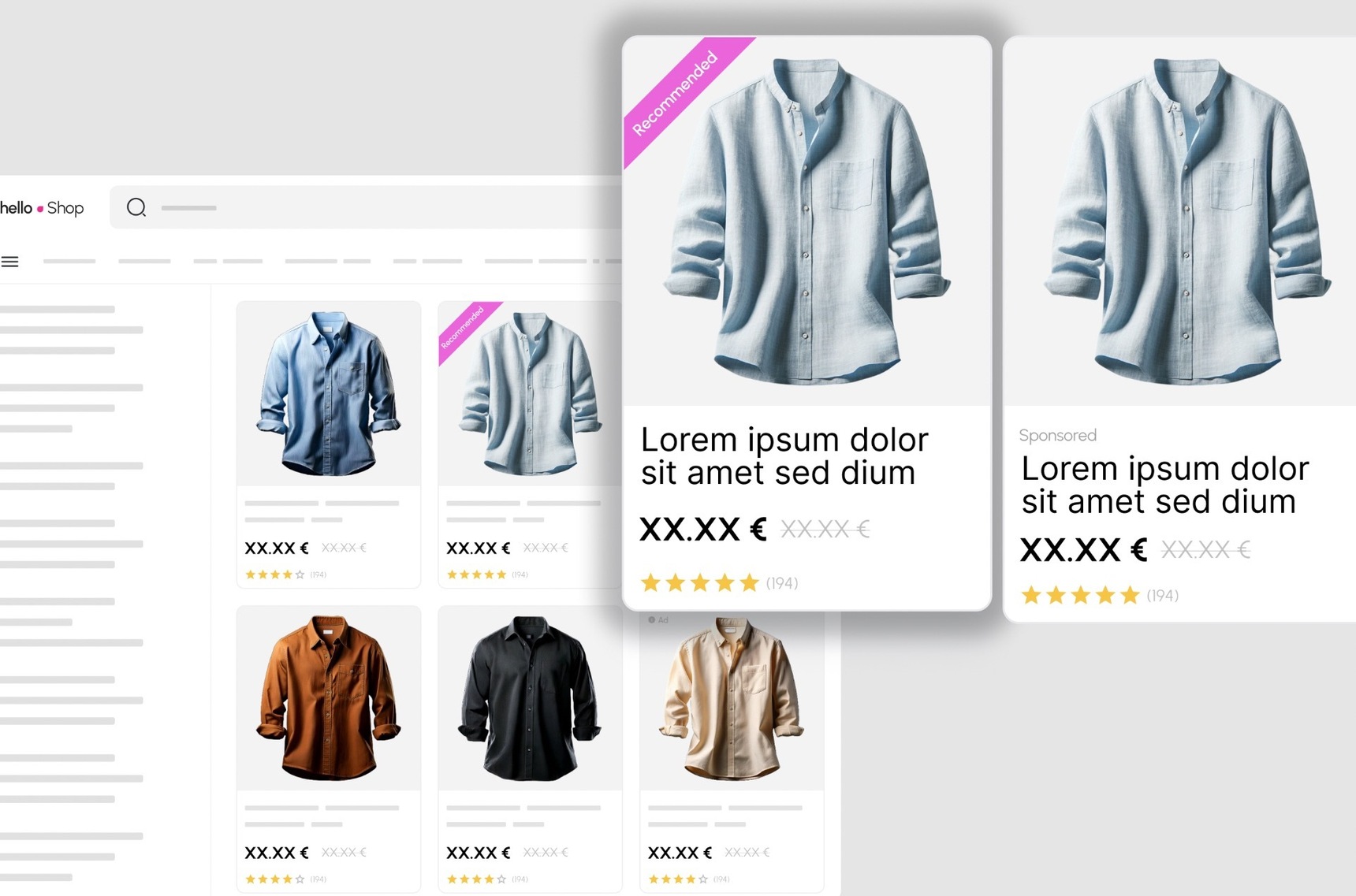
If promoted products in a Retail Media campaign must display a badge or unique styling, check for the retailMediaCampaignId field in the response.
When an item is moved to a higher position in Search, or promoted in Recommendations, Pages, or Newsletters due to a campaign, the response from Hello Retail includes the campaign ID. You can test for the presence of any value in that field, or match a specific ID, to apply styling:
For a reference to the Product Object and the retailMediaCampaignId field, see developer.helloretail.com.
For a practical example using Hello Retail Liquid templates:
First, inside the product loop, check for retailMediaCampaignId. You can extend this to check for a specific campaign and assign a value for later use in the loop:

Then add a custom class to the HTML of the rendered product tile:

This class can point to existing CSS on your webshop, or you can define the styling in the Hello Retail template.
Q&A
The following are common questions that can arise when setting up this feature. If you need help with something else, contact support@helloretail.com
Q: Can I create feature-specific campaigns, for example two brand campaigns where only one appears in Search?
A: Yes. Use Campaign Specific Placements to enable or disable placements per campaign.
Q: If two Retail Media campaigns match a customer’s query, which one is shown?
A: Hello Retail evaluates both relevance and the campaign CPM to decide which campaign is shown.
Q: Can I set up a Retail Media campaign for initial content (products shown in Search before typing)?
A: No, not yet.
Q: Are promoted products only featured in Search if the user searches for the exact product title?
A: No. The search set can come from explicit synonyms, AI synonyms, or broad queries. A promoted product is only moved to a featured position if it is already present in the result set. This balances exposure with relevance to the user’s intent.
Q: If I already boost specific brands or product attributes in my Search configuration, how does this affect Retail Media campaigns?
A: Many Search settings can affect ranking (e.g., Synonyms, Stop Words, Boosts, Fixed or Removed Products, AI synonyms, personalization, and matching mode). To ensure exposure, Retail Media campaigns have the highest priority and overrule other settings when conflicts occur.
Q: I am using the Hello Retail API for Recommendations and Search. What should I be aware of?
A: Besides adding a property for the desired device type to the request so Hello Retail can apply the correct placement settings, no further changes are needed if the requirements at http://developer.helloretail.com are met.
Q: Do Retail Media products respect filters defined for my Recommendations or Newsletter setup?
A: Only global filters are respected. Individual source filters on recommendation steps are skipped. For example, if a front page recommendation has a global filter requiring items under 50 EUR in category "T-shirts", a promoted product not matching those constraints will not be shown. In stepwise setups (e.g., increasing price limits), a promoted product could be shown even if it differs from a specific source filter.
Q: If customers use sorting options in Search and Pages, will Retail Media campaigns still be shown?
A: No. If a Search result or Pages rendering is sorted on something other than popularity, promoted items are removed and are not counted in statistics.
Q: When users type a partial word (e.g., "sho" before "shoe"), does that count as a search with a Retail Media impression?
A: No. Partial typing is generally not considered a search. A time factor is used to determine when a query is submitted, and this is also used when registering Retail Media impressions.