Avg. 4 min read
 Configuring the Search Engine
In this guide, you can read and learn about how to configure the search engine to fit with your webshop.
Search Engine
As part of the Search functionality, you can configure the engine that powers search on your webshop. This lets you control how results are ranked and displayed to visitors.
In this configuration, you can weight key product attributes and define how the engine returns and orders results.
You can read about all the available search solutions here.
Types
There are 5 types of search engines:
- Product search engine (default)
- Category search engine
- Site page search engine
- Blog post search engine
- Brand search engine
Within each of these search engine types, you can edit:
- Search settings
- Fixed products
- Removed products
Search Settings
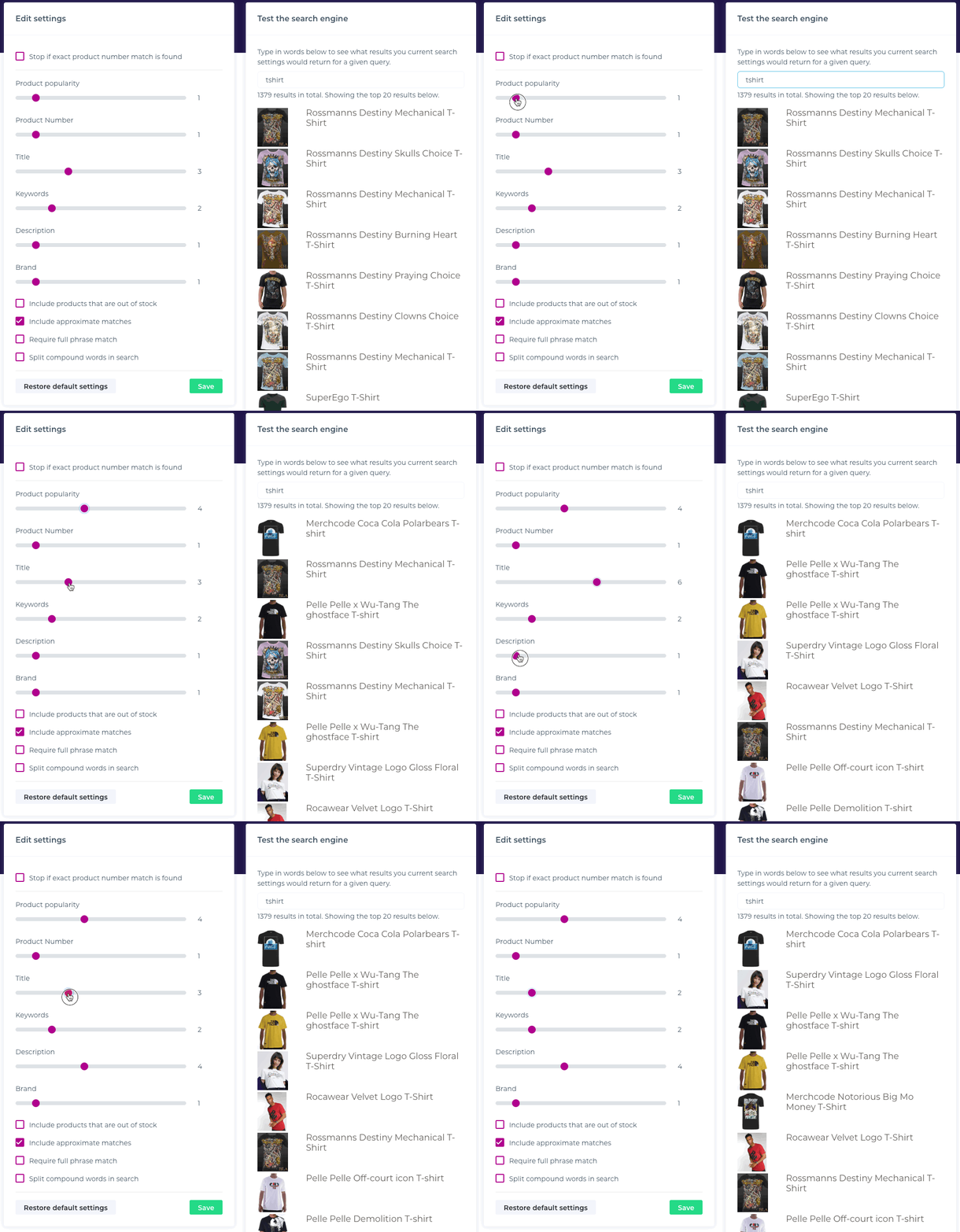
You can weight and adjust the relevance of the following product data attributes:
- Product popularity: calculated popularity score based on aggregate browsing and purchasing behavior across your webshop.
- Title: the product title shown in your webshop.
- Keywords: the product keywords defined in your webshop.
- Description: the product description from your webshop.
- Product number
- Brand: the brand name for each product (if available)
Boosted Products
You can also refine search behavior:
- Include products that are out of stock: choose whether out-of-stock products can appear in search results.
- Include approximate matches or Require full phrase match: approximate matches use fuzzy matching to find similar terms; full phrase match requires exact term and phrase matches.
- Split compound words in search: uses the default dictionary to split compound words to expand matching and results.
For more information about boosted products and user personalized settings, check this guide here.
User Personalized Settings
These settings optimize search results per user based on behavior.
Changing settings here affects results at the individual user level:
- Personalized Boosts
- Active
For more information about boosted products and user personalized settings, check this guide here.
How to Edit the Search Settings
- Start by logging into your Hello Retail account. In the dashboard, go to the left-hand menu. Under the On-site section, click Search to expand the menu.
- From the expanded menu, click Search Engines.
- In this view, you can see the list of search engines. Click the one you want to Edit.
Here's an example of how easy it is to modify your search engine settings – with inline preview of how results are affected: