 Avg. 2 min read
 Search: Filters & Sortings
This guide explains how to set up filters and sortings for your search.
First navigate to one of your searches.
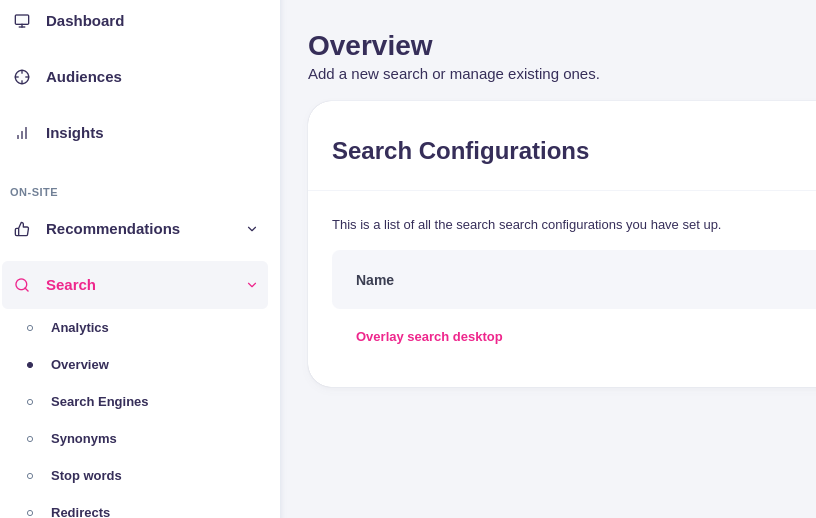
Then scroll down to the bottom. Here you will see a box "Filters & Sorting":
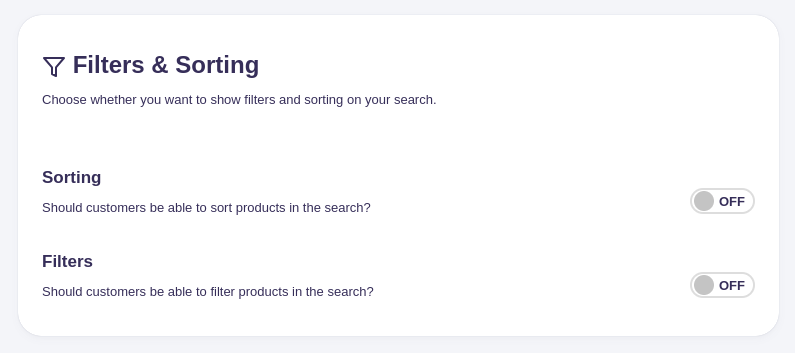
Sortings
To enable sorting options (for example, "Price - low to high" and "Price - high to low"), toggle on "Sorting":
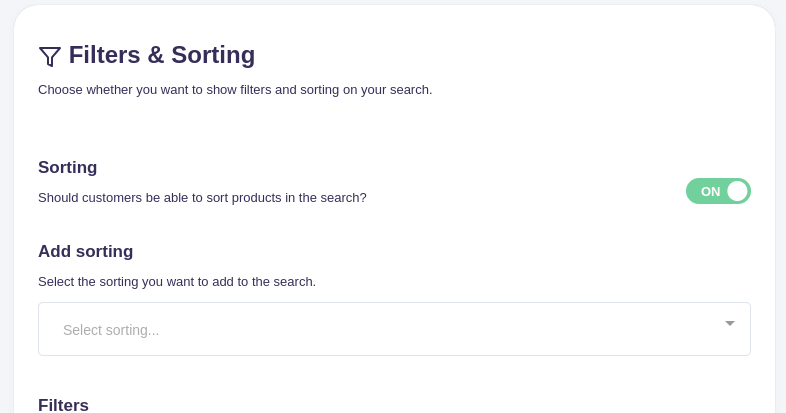
Open the "Select sorting..." dropdown, select the "price" option, and click it to add. You can add additional sortings as needed.
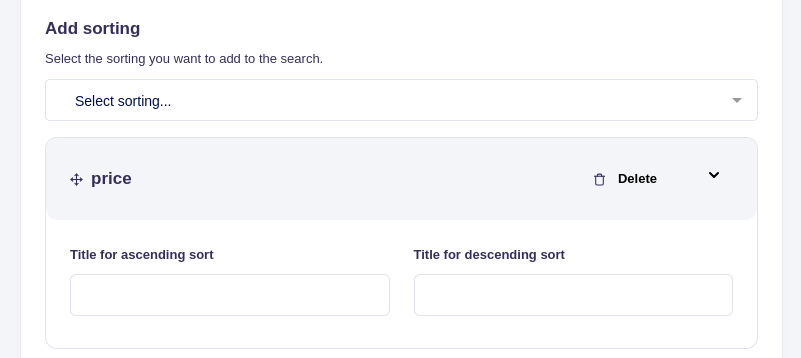
Enter the display text for each direction (for example, "Price - low to high" and "Price - high to low").
You can add as many sorting options as are available. The order of the items in the list defines the order shown in your search design template. Drag and drop the sorting items to change their order.
Filters
Filters work the same way. Toggle on "Filters", click "Select filters...", and add the product fields you want to expose as filters:
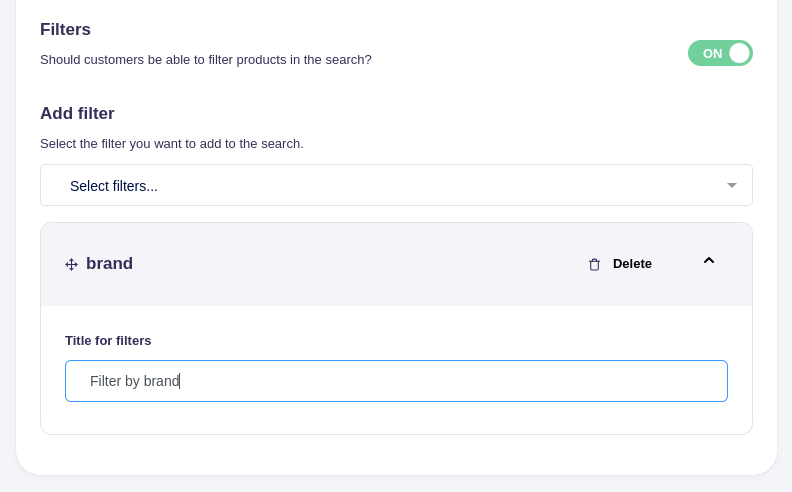
The order of filters in the list defines the order shown in your search design template. Drag and drop the filters to change their order.
What if a specific field is not available for sorting or filtering?
If a product field is missing from the sorting or filtering dropdowns, it is typically due to one of these reasons:
- The field is already included in your current list of sortings or filters.
- The field is not indexed for this purpose. To be sortable or filterable, a field must be indexed. Learn more here: Website's Indexed Product Fields