 Avg. 5 min read
 Search: Phrase Settings
In this guide, you can read and learn about setting up the phrase settings for your search functionality.
By changing the search phrase settings, you can control how Hello Retail Search interprets multi-word queries, such as "running shoes" instead of just "running" or "shoes".
Types of Phrase Settings
There are five available settings that will influence the results:
- Match full phrase
- Match all words — exact match
- Match all words — allow spelling mistakes
- Match any word — exact match
- Match any word — allow spelling mistakes
How to Set It Up
- Start by logging into your Hello Retail account. On the dashboard, open the left-hand menu. Under the On-Site section, click Search to expand the menu.
- From the menu, click Search Engines.
- Click Edit search settings.
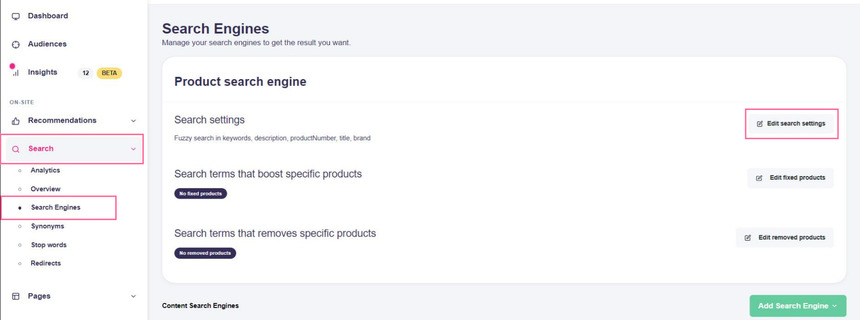
- Under Search phrase settings, use the drop-down to choose the desired setting.
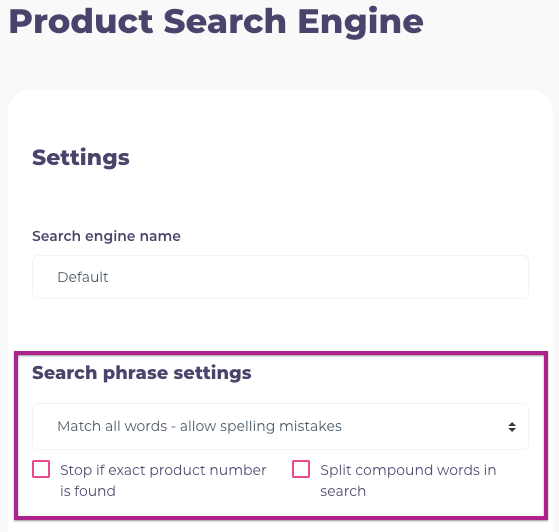
The dropdown allows you to change between five different search schemes.
Match full phrase
With this setting, the full search phrase must appear as a contiguous sequence, in the same order, within a product text field (for example, title or description) for the product to appear in results.
Example: If a customer searches for "blue running shoes", a product with a description containing "... these are the fastest blue running shoes you'll find ..." will appear.
If the description says "... these blue shoes are perfect for running ...", the product will not appear.
This setting is restrictive and favors precision over recall.
Match all words — exact match
All words in the search phrase must be present somewhere in the product text. Order does not matter. Spelling must be exact.
Example: If a customer searches for "blue running shoes", and a product has the title "Running shoes" and the description "These shoes come in blue, red and green", the product will appear.
If the customer searches for "yellow running shoes", that same product will not appear because "yellow" is not present.
This setting is broad enough to return relevant products while excluding items that do not contain all terms.
Match all words — allow spelling mistakes
Works like Match all words — exact match, but allows minor spelling mistakes.
All words must still be matched, but misspellings are taken into account.
Example: If the customer searches for "blue running choes", a product titled "Running shoe" with "blue" in the description can still appear because "choes" matches "shoes".
This setting increases recall while still requiring all query terms to match.
Match any word — exact match
Any product that contains at least one word from the search phrase can appear in results. Results that match more of the words are ranked higher.
As the name implies, there is no spelling correction. A search for "blue running choes" will not match "shoes" (only items matching "blue" or "running" will qualify).
This setting is broad and returns a wide set of products, while prioritizing items that match more of the query terms.
Match any word — allow spelling mistakes
Same as Match any word — exact match, but allows minor spelling mistakes.
Example: A search for "blue running choes" can match products with "blue", "running", and "shoes", similar to searching for "blue running shoes". Items matching all three are ranked highest.
This is the broadest setting and is useful for exploratory queries and typo tolerance.
Extra settings
As shown in the last screenshot, there are two additional options you can enable:
-
Stop if exact product number is found
If the query exactly matches a product number, Search returns only that single product and stops further matching. This is useful for staff lookups and precise SKU searches. -
Split compound words in search
When enabled, the search engine splits compound words into parts. For example, "skateboard" will be treated as "skate" and "board", so matches on either part can be found in addition to matches on "skateboard".